Integración domótica Volkswagen ID., gratuita y de código abierto
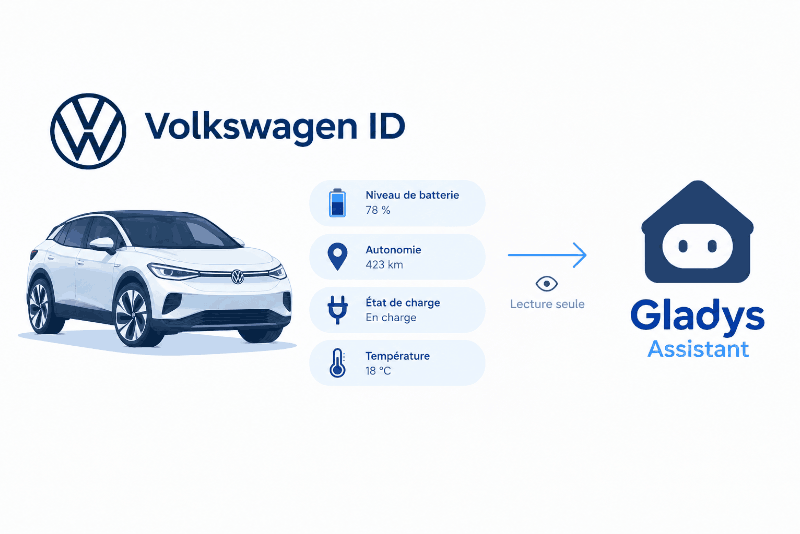
Battery, range and charging of your Volkswagen ID. cars, via the EU Data Act portal.
Publicado por PhilippeMA
- Dispositivos
- Versión 1.2.1
- Requiere Gladys >=5.1.0
- ★ 0
La documentación de esta integración la escribe su autor y, por ahora, solo está disponible en inglés.
This integration shows the data of your Volkswagen ID. electric cars (ID.3, ID.4, ID.5, ID.7, ID. Buzz…) in Gladys. It uses Volkswagen's EU Data Act portal with the account of the Volkswagen smartphone app. No box to install.
Why the EU Data Act portal? Since 2026-06-01, Volkswagen has closed to third-party applications the access the ID. app uses. The EU Data Act portal is the only source still open. It is read-only, and Volkswagen publishes a snapshot of the car there every 15 minutes at best. So the integration cannot start the charge or the climatisation, nor lock the car.
What you get
One device per car linked to the portal, with:
| Value | Note |
|---|---|
| Battery level (%) | |
| Range (km) | |
| Charging | |
| Charging power (kW) | |
| Charging cable plugged | |
| Charge limit (%) | |
| Remaining charging time | only while charging |
| Outside temperature | |
| Odometer | |
| Door / window open | |
| Locked |
A value the car has not sent yet is left out.
Step 1: enable the EU Data Act portal (once, in a browser)
- Open https://eu-data-act.drivesomethinggreater.com/ and sign in with the account of the Volkswagen app. Accept the terms if the portal shows them.
- Go to Data clusters → Vehicle overview. If your car is not listed, click Connect your car and follow the steps.
- Click Get customised data.
- Tick the agreement under article 4 of the EU Data Act, then Next.
- Tick All data.
- Name the request, for example "Gladys".
- Pick the every 15 minutes frequency and no end date.
- Send the request.
The first data arrives 15 minutes to a few hours later. The car must be awake to send any: drive, charge, or open the Volkswagen app.
Step 2: configure the integration
- In Gladys, open the Configuration tab of the integration and enter the email address and the password of the Volkswagen account.
- The refresh interval sets how often new data is checked: every 5 minutes by default, every 3 minutes at most. Volkswagen only publishes a snapshot every 15 minutes: going lower is pointless.
- Save, then click Test the connection. The message lists the cars found and whether data is already available.
- Add your cars from the Discovery tab.
The password stays in Gladys. The integration writes nothing to disk.
Scenes
The integration adds its own cards to the scene editor (Gladys 5.1 or later), under the Integrations category:
- Charge completed (trigger) — starts the scene when a car has finished
charging because its battery reached the charge limit. Optionally pick the
car. The following actions can read
{{triggerEvent.data.battery_level}}and{{triggerEvent.data.range}}. With a snapshot every 15 minutes, the event can come up to a quarter of an hour after the charge actually ended.
The car values are regular Gladys devices too: a scene can, for example, warn you when the car is left unlocked in the evening.
Dashboard
Add the Volkswagen ID. widget to a dashboard and pick the car (the first of the account by default). It shows the battery and the range live, and the state of the charge, the cable, the locks and the openings. The Refresh button checks right away whether Volkswagen published new data.
The Volkswagen ID. picture widget shows the same values around a picture of your car. Volkswagen does not provide it to Gladys: the EU Data Act portal has none, and the picture service of the Volkswagen app is closed to third-party applications. Provide it yourself:
- Take a picture of your car, for example a screenshot of the Volkswagen app, cropped to the car.
- Reduce it to 300 KB at most, as PNG, JPEG or WebP (Gladys refuses heavier images). A width of 800 pixels is enough.
- Put it online at a public https address, for example in a GitHub repository (the file's "Raw" link).
- Paste that address in the Picture of the car field of the Configuration tab, then save.
The integration downloads the picture once, without sending any Volkswagen credential there. Without an address, the widget says so instead of showing a generic image; when the picture cannot be shown (too heavy, address not found…), the widget says so and the logs give the reason. With several cars on the account, the same picture is used for all.
Both widgets show the name you gave the car when adding it to Gladys (else its nickname in the Volkswagen app).
Troubleshooting
- "Volkswagen sign-in refused" — check the email address and the password by signing in to the portal in a browser. After a refusal, the integration waits 15 minutes before trying again, so the account does not get locked.
- "Sign in once to the Volkswagen EU Data Act portal…" — the portal was never opened with this account, or it waits for you to accept its terms: do step 1.
- "No data reaches Gladys yet: enable the continuous data request…" — step 1 is not finished (points 3 to 8).
- Values stuck — the car is asleep and the portal only receives empty snapshots: values come back once the car drives or charges.
Parámetros de configuración
Estos son los parámetros que Volkswagen ID. te pide en su pantalla de configuración en Gladys.
| Parámetro | Tipo | Obligatorio | Descripción |
|---|---|---|---|
| Before you start: the Volkswagen EU Data Act portal | section | No | Volkswagen only shares the car's data through its EU Data Act portal, read-only, every 15 minutes. Once, in a browser: sign in to the portal with the account of the Volkswagen app, link your car, then request customised data with all data clusters, every 15 minutes, with no end date. Then enter the same email and password below. |
| Email address | string | Sí | |
| Password | secret | Sí | |
| Refresh interval (s) | number | No | How often each car's new data is checked, in seconds. Volkswagen publishes it every 15 minutes: three minutes minimum. |
| Picture of the car (optional) | string | No | https address of a picture of your car for the picture widget (PNG, JPEG or WebP, 300 KB max). Volkswagen does not provide it to Gladys. |
Cómo instalar Volkswagen ID. en Gladys
- En Gladys, abre Integraciones: Volkswagen ID. aparece en el catálogo junto a las integraciones nativas, con una insignia de comunidad.
- Haz clic en Instalar. Gladys descarga la imagen Docker (
ghcr.io/philippema/gladys-volkswagen:1.2.1), la ejecuta en un entorno aislado del núcleo y genera la interfaz de la integración (dispositivos, descubrimiento y configuración). - Abre la pantalla de Configuración de la integración, rellena los parámetros y guarda.
- También puedes instalarla directamente desde la URL de su repositorio: https://github.com/PhilippeMA/Gladys-volkswagen.
Volkswagen ID. requiere Gladys >=5.1.0. El catálogo de Gladys se actualiza cada hora, así que una nueva versión está disponible como máximo una hora después de publicarse.
¿Todavía no usas Gladys? Es gratuito y de código abierto: sigue la guía de instalación para empezar.
Sobre las integraciones externas
Volkswagen ID. es una integración externa: una integración comunitaria empaquetada como contenedor Docker y publicada en GitHub. Gladys la instala con un clic y la ejecuta en un entorno aislado del núcleo. La publica y mantiene PhilippeMA, no el equipo principal de Gladys.
- Explorar todas las integraciones, nativas y de la comunidad
- Crear y publicar tu propia integración externa
- Código fuente en GitHub — fuente de esta documentación