Integración domótica VMware ESXi, gratuita y de código abierto
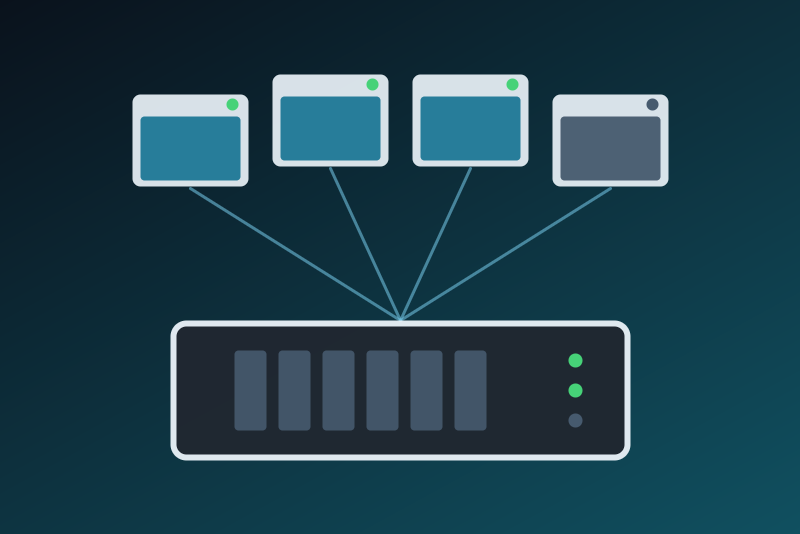
VMware ESXi hosts and vCenter: CPU, memory, datastores, virtual machines, VM buttons.
Publicado por LM1LC3N7
- Dispositivos
- Versión 0.1.1
- Requiere Gladys >=5.1.0
- ★ 0
La documentación de esta integración la escribe su autor y, por ahora, solo está disponible en inglés.
VMware ESXi hosts, standalone or managed by a vCenter, in Gladys, through the
local vSphere API (HTTPS, /sdk). Handy for a homelab:
- each host can become a Gladys device: connected (yes / no),
maintenance mode, CPU and memory load (%), memory used and
total (GB), uptime (hours), health (
green,yellow,red,gray), VMs running, version; - each datastore: accessible, used (%), free space and capacity (GB);
- each virtual machine: running (yes / no), power state
(
poweredOn,poweredOff,suspended), VMware Tools running, CPU load (%), memory consumed (MB), uptime, health, and three buttons: Start, Shut down (guest), Restart (guest), inactive until you allow them.
Gladys never shuts down, restarts nor puts a host in maintenance mode or standby, and never powers a VM off or resets it the hard way.
This integration has never been tested with a real ESXi host nor with a real vCenter. This first version follows the vSphere API as pyVmomi (the official SDK) describes it, and was tested against a fake server only. Tell on the Gladys forum what works and what does not, with the version of ESXi or vCenter.
Unofficial integration, not affiliated with VMware or Broadcom.
Before you start
- Create an account for Gladys rather than using
root. On a standalone ESXi (Host Client,https://<host>/ui): Host, Manage, Security & users, Users, Add user; then Host, Actions, Permissions, Add user with the role Read-only. On a vCenter: a user ofvsphere.local(or of your directory) with the Read-only role on the root of the inventory, propagated. - Only if you want the VM buttons: give the account a role holding, in addition, the privileges Virtual machine, Interaction, Power on (Start), Power off (Shut down) and Reset (Restart), on the VMs concerned only if you can.
- With a free ESXi license, the API is read-only: the readings work, the buttons are refused by the server ("forbidden by the license").
- Optional: note the SHA-256 fingerprint of the certificate of the
server (shown by your browser on its web interface, or by
openssl x509 -noout -fingerprint -sha256 -in /etc/vmware/ssl/rui.crton the ESXi shell).
Configuration
- Address of the ESXi host or vCenter: its IP address or host name. An
address pasted from a browser (
https://192.168.1.10/ui/) is read as its host and port. HTTPS only (the API exists only there). - Port: empty, 443.
- Certificate fingerprint: ESXi uses a self-signed certificate that no
authority vouches for. Empty: Gladys learns it at the first connection,
with a request that carries no secret, keeps its SHA-256 fingerprint in its
/datavolume, and sends the password only on a connection whose certificate matches. Filled: only this certificate is accepted, from the very first request. If the server later shows another certificate (a reinstall, a renewed certificate, or another machine at this address), Gladys stops before sending anything and shows the SHA-256 fingerprint of that certificate in the status. Saving the configuration does not accept it. Compare the fingerprint with the one of your server; if it is the same, press Trust the new certificate (it pins exactly the certificate shown, then reads the server), or type that fingerprint in this field. - User name and Password: the account above. The password is kept by
Gladys in its database, never shown again, sent only to the server. It is
taken as you type it (a space at the start or the end counts). The
integration never writes it to its logs nor to
/data, nor the session cookie. - Refresh: how often the server is read (every minute by default). One request each time (a few more for a vCenter with many objects), and a login only when the session expired.
- Allow starting / shutting down / restarting a VM: off by default (see below).
The Test the connection button says what the server answers. Like the scan of the Discovery tab, a restart of Gladys or of the integration, and the same configuration saved again, it reads the server again only when the last attempt is older than the refresh (after a failure: than the retry delay); otherwise it gives the last result without a request. Saving the configuration with other values reads at once.
The values
- CPU (%) of a host: the CPU used over the capacity of its cores; of a VM: over the capacity of its virtual CPUs on its host.
- Memory used (GB, billions of bytes) of a host: what ESXi reports in use; memory consumed (MB, millions of bytes) of a VM: the host memory it occupies.
- A host that vCenter cannot reach only reports connected 0, its health and version; a VM powered off reports 0 for its CPU, memory and uptime.
- Gladys has no percent unit for a processor or a disk: the unit is in the name of the feature.
- At most 32 hosts, 64 datastores and 200 VMs are read; VM templates are left out.
- No scene trigger of its own: use the device triggers of Gladys on Running, Connected or Used (%) (for example "Used above 90").
The VM buttons
Stopping a VM can cut a service: a firewall, a NAS, a DNS server, Gladys itself if it runs in one. Therefore:
- each button refuses until its option is on;
- they are buttons, never switches: a "turn everything off" of a voice assistant or a scene never reaches them;
- before sending, Gladys reads the VM again and checks it is the same one (its instance UUID) and its state: Start does nothing on a running VM; Shut down and Restart need a running VM with VMware Tools running (they ask the guest system to shut down or restart cleanly: never a hard power off or reset); a value that cannot be read refuses;
- the option, the connection and the deadline are checked again right before sending; when the server is too slow (3.5 s), nothing is sent and Gladys says so;
- one action per VM per minute at most (even across a restart of the integration): a scene in a loop cannot hammer a VM;
- Start is confirmed only when the VM is read running again within the answer delay; otherwise, and always for Shut down and Restart (the guest does it on its own), Gladys answers "sent, without confirmation" and reads that VM again 20 seconds later.
Troubleshooting
The connection status of the integration says what is going on:
- User name or password refused: Gladys stops and does not try again by itself, even after a restart (ESXi locks an account after a few failures). Check them and save the configuration.
- The server accepts the login but refuses the readings: the account lacks the Read-only role; Gladys retries, spaced out.
- HTTPS certificate changed: see Certificate fingerprint above (the Trust the new certificate button, never a plain save).
- HTTP 429 or a server error (5xx): every request is paused (one minute to six hours), and the pause survives a restart. A SOAP fault (HTTP 500 with an answer of the API) is not a pause.
- No answer, wrong address: Gladys retries, never faster than the refresh, waiting longer each time (up to 30 minutes).
Privacy
Gladys keeps only what it shows. The guest host names, IP and MAC addresses,
annotations and BIOS UUIDs of the VMs are never asked for. The names of the
hosts, datastores and VMs go to Gladys (they name the devices), never to the
logs nor to /data.
Parámetros de configuración
Estos son los parámetros que VMware ESXi te pide en su pantalla de configuración en Gladys.
| Parámetro | Tipo | Obligatorio | Descripción |
|---|---|---|---|
| How it works | section | No | Gladys reads a VMware ESXi host or a vCenter through its local vSphere API (HTTPS, /sdk), with an account of the server. Each host, datastore and virtual machine can become a device: host connected, maintenance, CPU and memory load, uptime, health, VMs running; datastore usage and free space; VM running, power state, VMware Tools, CPU, memory, uptime. Each VM has Start, Shut down and Restart buttons, off unless you allow them below. Gladys never stops nor restarts a host. Unofficial integration, not affiliated with VMware or Broadcom. |
| Address of the ESXi host or vCenter | string | Sí | The IP address (or host name) of its web interface on your local network. HTTPS only. |
| Port | number | No | Empty: 443. Change it only if you moved the HTTPS port of the server. |
| Certificate fingerprint (SHA-256, optional) | string | No | ESXi uses a self-signed certificate. Empty: Gladys learns it at the first connection, before sending the password, and then refuses any other one (shown in the status, accepted only by the Trust the new certificate button or by typing its fingerprint here). Filled: only this certificate is accepted (the SHA-256 fingerprint shown by your browser or by the ESXi console). |
| User name | string | Sí | A dedicated account with the Read-only role is advised (root works but can do anything). The VM buttons need the Power on, Power off and Reset privileges in addition (see the documentation). |
| Password | secret | Sí | The password of this account. Kept by Gladys in its database, never shown again, sent only to the server, and only once its certificate is checked. If the server refuses it, Gladys stops until you save the configuration (ESXi locks an account after a few failures). |
| Refresh | select | Sí | How often Gladys reads the server (one request each time, two or more for a large vCenter). |
| VM buttons | section | No | Stopping a VM can cut a service (a firewall, a NAS, Gladys itself if it runs in one). Each button is off by default. The VM is read again before acting, one action per VM per minute at most, and nothing is ever sent to a host. |
| Allow starting a VM | boolean | No | Off by default. On: the Start button of a VM powers it on (or resumes it if suspended). |
| Allow shutting down a VM | boolean | No | Off by default. On: the Shut down button asks the guest system to shut down cleanly (VMware Tools needed). Never a hard power off. |
| Allow restarting a VM | boolean | No | Off by default. On: the Restart button asks the guest system to restart cleanly (VMware Tools needed). Never a hard reset. |
Cómo instalar VMware ESXi en Gladys
- En Gladys, abre Integraciones: VMware ESXi aparece en el catálogo junto a las integraciones nativas, con una insignia de comunidad.
- Haz clic en Instalar. Gladys descarga la imagen Docker (
ghcr.io/lm1lc3n7/gladys-esxi:0.1.1), la ejecuta en un entorno aislado del núcleo y genera la interfaz de la integración (dispositivos, descubrimiento y configuración). - Abre la pantalla de Configuración de la integración, rellena los parámetros y guarda.
- También puedes instalarla directamente desde la URL de su repositorio: https://github.com/LM1LC3N7/gladys-esxi.
VMware ESXi requiere Gladys >=5.1.0. El catálogo de Gladys se actualiza cada hora, así que una nueva versión está disponible como máximo una hora después de publicarse.
¿Todavía no usas Gladys? Es gratuito y de código abierto: sigue la guía de instalación para empezar.
Sobre las integraciones externas
VMware ESXi es una integración externa: una integración comunitaria empaquetada como contenedor Docker y publicada en GitHub. Gladys la instala con un clic y la ejecuta en un entorno aislado del núcleo. La publica y mantiene LM1LC3N7, no el equipo principal de Gladys.
- Explorar todas las integraciones, nativas y de la comunidad
- Crear y publicar tu propia integración externa
- Código fuente en GitHub — fuente de esta documentación