Integración domótica Virtual buttons, gratuita y de código abierto
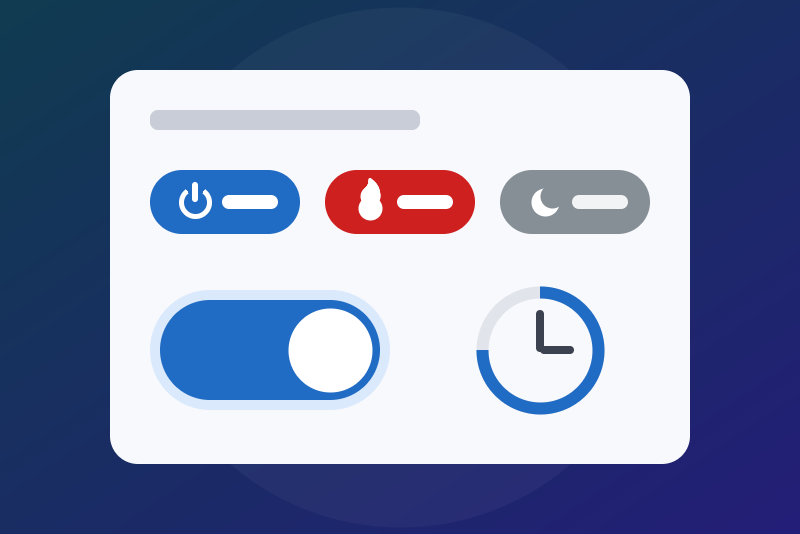
Your own buttons, switches and timed switches, with an icon, to start your scenes.
Publicado por LM1LC3N7
- Dispositivos
- Versión 0.1.1
- Requiere Gladys >=5.1.0
- ★ 0
La documentación de esta integración la escribe su autor y, por ahora, solo está disponible en inglés.
Create your own buttons in Gladys, with a name, an icon and a colour, then start a scene when you press them. No need to fake an MQTT device.
Unofficial integration. Tested with a fake Gladys only (the automatic tests of the project), never yet on a real installation.
The three types of button
| Type | What it does | Example |
|---|---|---|
| Push button | One press = one pulse: it goes to 1, then back to 0 by itself one second later. | "Start movie" |
| Switch | On / off, remembered (even after a restart). | "Night mode" |
| Timed switch | On, then back to off by itself after the chosen duration (1 to 1440 minutes). Pressing "on" again starts the duration over. | "Heating 30 min" |
A button controls nothing by itself: a scene acts when it changes. The button is the remote, the scene does the work.
Step 1: create the button
- In Gladys, open Integrations, then Virtual buttons, tab Configuration.
- Click Add a button. A small form opens:
- Name: for example
Heating(up to 40 characters; the widget shows 24); - Type of button: tick one of the three lines, each explained in one sentence. The type cannot be changed later;
- Duration in minutes: for the timed switch only;
- Icon: flame / heating, light bulb, shutter, plug, fan, music, movie, door, house, moon, sun, alarm, star…;
- Colour in the widget: main (blue), secondary (grey) or danger (red);
- Ask for confirmation before pressing (widget): yes or no.
- Name: for example
- Confirm. Under the button, the message says:
Button "Heating" added. Now open the Discovery tab….
Step 2: add it to Gladys (Discovery tab)
Gladys does not let an integration create a device on its own: you approve it.
- Open the Discovery tab of the integration. What you see: one card per button. At the top, the name of the button as the title; below, "Features" with a tag ("Push button" for a push button, "Switch (On/Off)" for a switch or a timed switch); then a folding link "Technical parameters": that is the look of the button (icon, colour…), do not change it; at the very bottom, a green "Add to Gladys" button.
- Click the green "Add to Gladys" button. The header of the card then shows the badge "Already added".
- The button appears in the Devices tab, with the same tag "Push button" or "Switch (On/Off)".
Step 3: the scene that acts
Open Scenes, click New scene, give it a name and an icon (the flame, for example), then add a "Device state change" trigger and pick your button in the device list. What comes next depends on the type.
For a push button
What you see under the chosen device: a list of button events, and a toggle "Run the scene after the condition has been valid for:".
- Choose "Simple click". There is no value to type: the scene starts at every press.
- Leave the toggle "Run the scene after the condition has been valid for:" off.
- Action: for example "Set device value", choose the plug of the heater and switch its toggle on (on = turn on).
- Save and enable the scene.
For a switch or a timed switch
What you see under the chosen device: two buttons "On" and "Off", then three toggles, in this order:
- "Start the scene on any state change, whatever the value": leave it off (on, it hides "On" and "Off");
- "Execute only when threshold is passed (and not at every value sent by the device)": switch it on;
- "Run the scene after the condition has been valid for:": leave it off.
- Click "On".
- Set the three toggles as above: only the second one is on. The scene then starts only when the switch goes from off to on, never twice in a row (nor at a restart).
- Action: for example "Set device value", choose the plug of the heater and switch its toggle on.
- Make a second, identical scene with "Off" (same toggles) whose action switches the toggle of the plug off. For a timed switch, this "Off" scene also starts when the duration ends.
Loops
Do not make a scene that sends a command back to the button that started it. The integration protects itself:
- a press or an "on" repeated more than 20 times in a minute on the same button is refused for the rest of the minute;
- an "off" is never refused; an "off" of a switch already off (and an "on" of a switch already on) is accepted without sending anything to Gladys, so without starting a scene again.
Step 4: the "Buttons" widget on the dashboard
- Open your dashboard, switch to edit mode, add a box and choose the Buttons widget (of the Virtual buttons integration).
- In its settings, choose 1 to 4 buttons (Button 1 to Button 4). Only the buttons added to Gladys at step 2 are listed.
- The widget shows one pill per button, with the chosen icon, name and
colour:
- pressing a push button sends a pulse; the message says "pressed", or the error if Gladys did not take it;
- a switch that is on shows its colour (blue if you chose grey); off, it is grey. A press does what the pill shows: turn off a pill that is on, turn on a pill that is off (if the state changed meanwhile, the message says "already off" or "already on");
- for a timed switch that is on, a line shows the time left ("Heating: 25 min left");
- if you asked for a confirmation, Gladys asks you to confirm before sending.
- For more than 4 buttons, add several widgets. Gladys accepts at most 30 presses a minute on the widgets of the integration, all widgets together.
The buttons also work in the usual Gladys boxes: the "Devices" box of a room (a "Push" button for a push button, a toggle for the others), and for the switches the "Quick actions" box. There, the icon is the Gladys one: the icon you chose only shows in the "Buttons" widget. The confirmation only exists in the widget: the "Devices" box, a scene, the voice or an assistant press without asking.
Change or remove a button
- Change a button: pick the button in the list (or type its name if it is not added to Gladys yet). The other fields say "Unchanged" (duration: 0); change only what you want. The result message lists what changed ("icon: Flame / heating; colour: unchanged…"). The type does not change. A new duration applies at the next "on". A new name does not rename the Gladys device: rename it in the Devices tab too if you wish. The form keeps its values after a run: reload the page before changing another button. If you apply exactly the same changes to another button right after, the integration asks you to run the action again to confirm.
- Remove a button: it is final (the scenes that used it will not find it again). Type its name to confirm (and pick it in the list if you wish). A switch that is on is turned off first: its "Off" scenes run. Then delete its device in the Devices tab if you had added it to Gladys, and edit the dashboard cards that showed it (Gladys shows a settings error there otherwise). If you only delete the device in Gladys, the button stays listed in Discovery.
Safety: read this before controlling anything important
- A virtual switch can be turned off (or on) by others than you: a "turn everything off" command, the voice or the chat ("turn off Heating"), a connected assistant, any scene, any dashboard (even a wall screen). For a sensitive command (gate, alarm, boiler, garage door), never use a switch: use a push button with confirmation in the widget, put the conditions in the scene (someone at home, time of day, alarm state…), and do not show this button in the "Devices" box of a public dashboard (it presses without confirmation).
- The state of the button is not the real state of the device it controls. "Heating: on" means you pressed, not that the boiler is heating. If the scene fails or the device does not answer, the button does not know. To see the real state, add a real sensor (a plug that measures power, a thermometer) on your dashboard.
- The buttons are never declared as lights, so a "turn off the lights" never reaches them.
- An "on" or a press that arrives too late (Gladys has already shown a failure, after 5 seconds) is refused: nothing is sent. An "off" is always applied.
- If the container of the integration is stopped, a press fails (Gladys shows it). A timed switch whose duration ended while it was stopped goes back to off as soon as it starts again. A restart or a reconnection never sends Gladys a value it already holds: your scenes do not start again.
The alternative without this integration: a scene in "Quick actions"
If all you need is a button that starts a scene, Gladys already does it, without this integration and without a container:
- Create the scene (for example "Heating 30 min") and pick its icon in the icon picker of the scene (the flame, for example).
- On the dashboard, add the "Quick actions" box (or the Scene box), then add the scene with the label you like.
- A press starts the scene, with its icon.
This integration is mostly useful when you need a state: an on/off switch that is remembered, or a switch that goes back to off by itself after a duration.
Limits
- 100 buttons at most, 4 per widget (add several widgets).
- No long press nor double press, no free colour nor button size: only the three colours of the widget.
- The integration does not start scenes itself: the state change of the button starts them (step 3).
- The widget updates at every press, and otherwise every 15 to 30 seconds.
- If the saved list is lost (a new volume), the buttons are rebuilt from the Gladys devices: a switch takes back the value Gladys holds, a timed switch comes back off (its "Off" scene runs).
- Tested with a fake Gladys only: please report what does not work on the GitHub repository.
Data
The list of the buttons, their state and the end of a timed switch are kept in
/data/virtual-buttons.json, the volume of the integration. Nothing leaves your
Gladys. If this file cannot be read, the integration never overwrites it and
says so in its status.
Parámetros de configuración
Estos son los parámetros que Virtual buttons te pide en su pantalla de configuración en Gladys.
| Parámetro | Tipo | Obligatorio | Descripción |
|---|---|---|---|
| Create your own buttons | section | No | 1. Click "Add a button" below: a name, a type, an icon. 2. Open the Discovery tab and click the green "Add to Gladys" button at the bottom of its card. 3. Create a scene with the trigger "Device state change": for a push button choose "Simple click"; for a switch choose "On" and switch on only the toggle "Execute only when threshold is passed". 4. Add the "Buttons" widget on your dashboard. The button does nothing by itself: the scene acts. Never use a switch for a sensitive command (gate, alarm, boiler): a "turn everything off", the voice or a scene can reach it; use a push button with confirmation. Tested with a fake Gladys only. |
Cómo instalar Virtual buttons en Gladys
- En Gladys, abre Integraciones: Virtual buttons aparece en el catálogo junto a las integraciones nativas, con una insignia de comunidad.
- Haz clic en Instalar. Gladys descarga la imagen Docker (
ghcr.io/lm1lc3n7/gladys-virtual-buttons:0.1.1), la ejecuta en un entorno aislado del núcleo y genera la interfaz de la integración (dispositivos, descubrimiento y configuración). - Abre la pantalla de Configuración de la integración, rellena los parámetros y guarda.
- También puedes instalarla directamente desde la URL de su repositorio: https://github.com/LM1LC3N7/gladys-virtual-buttons.
Virtual buttons requiere Gladys >=5.1.0. El catálogo de Gladys se actualiza cada hora, así que una nueva versión está disponible como máximo una hora después de publicarse.
¿Todavía no usas Gladys? Es gratuito y de código abierto: sigue la guía de instalación para empezar.
Sobre las integraciones externas
Virtual buttons es una integración externa: una integración comunitaria empaquetada como contenedor Docker y publicada en GitHub. Gladys la instala con un clic y la ejecuta en un entorno aislado del núcleo. La publica y mantiene LM1LC3N7, no el equipo principal de Gladys.
- Explorar todas las integraciones, nativas y de la comunidad
- Crear y publicar tu propia integración externa
- Código fuente en GitHub — fuente de esta documentación