Integración domótica PiKVM, gratuita y de código abierto
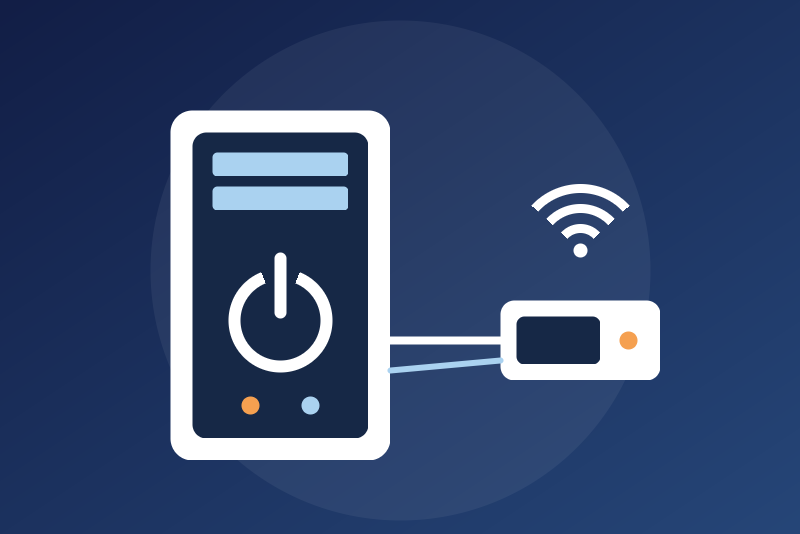
PiKVM IP-KVM: ATX power of the machine (on, off, reset), power and disk LEDs.
Publicado por LM1LC3N7
- Dispositivos
- Versión 0.1.1
- Requiere Gladys >=5.1.0
- ★ 0
La documentación de esta integración la escribe su autor y, por ahora, solo está disponible en inglés.
Control the ATX power of the machine wired to a PiKVM and read its LEDs from Gladys, through the local HTTPS API of the PiKVM (kvmd). Unofficial integration, not affiliated with PiKVM. Never tested with a real device: written from the official API documentation (https://docs.pikvm.org/api/) and tested against a simulated PiKVM.
What you get
One device per PiKVM:
| Feature | Kind | Where it comes from |
|---|---|---|
| Power (LED) | binary, read only | GET /api/atx, leds.power |
| Disk activity (LED) | binary, read only, no history | GET /api/atx, leds.hdd |
| PiKVM temperature | °C, read only | GET /api/info?fields=hw, every 5 min |
| Shut down | button | POST /api/atx/power?action=off |
| Power on | button, off by default | POST /api/atx/power?action=on |
| Force power off | button, off by default | POST /api/atx/power?action=off_hard |
| Reset | button, off by default | POST /api/atx/power?action=reset_hard |
The LEDs need the PiKVM ATX board (or an equivalent wiring). When ATX is disabled on the PiKVM, the LEDs stay unknown (never shown as off) and the device badge says so.
Setup
- In Gladys, open the integration, type the address of the PiKVM (as in your browser, e.g.
192.168.1.20; HTTPS only;:portif you moved it), the user name and the password of its web interface, and save. The password must be printable ASCII (it travels in an HTTP header). - Click Trust the certificate twice. The PiKVM shows a self-signed certificate: the first click shows
its SHA-256 fingerprint and sends nothing else. Compare it with the one your browser shows for
https://<address>/(certificate details), then click again within 2 minutes. You can also type the fingerprint in the configuration instead. From then on, a different certificate stops everything (no password is sent to it) until you trust it the same way. - Run a Scan in the Discovery and create the device.
Two-factor authentication (2FA)
If the PiKVM asks for a code, tick Two-factor authentication (2FA) is on, save, then click Log in with a 2FA code and type the current 6-digit code of your authenticator app. The integration sends the password followed by the code once (as the PiKVM documentation says) and keeps the session it gets in memory only. The code is never kept. The session lasts until the PiKVM or the integration restarts (or until the session is closed on the PiKVM): then nothing is read nor sent, and the status asks for a new code. With 2FA and no session, the Shut down button cannot leave either.
The buttons
Shut down is a short press of the power button (kvmd off, which does nothing when the machine is
already off): the operating system shuts down cleanly, as with the button of the case. It needs no option,
and it is not held back by a pause, a read or another command in flight. It is not done ("nothing sent") only
when nothing can reach the PiKVM safely, or when the PiKVM refuses it: integration not configured,
certificate not pinned or changed, credentials refused, 2FA without a session, an answer of the PiKVM that
refuses it (redirection, 4xx such as ATX disabled, rights or not found) or that is not understood. When the PiKVM does not take it (busy, error 5xx or 429, unreachable), it is tried again
within the 3.5 s Gladys waits; still not taken, it is kept (also across a restart) and sent again by reads
made every 10 s, only while they show the machine on, 3 times and 2 minutes after the click at most, and
dropped as soon as a read shows the machine off, or as soon as a Power on or Reset leaves (even without an
answer, or refused by the PiKVM: the machine may be starting; the status says so). It is kept only for the PiKVM it was sent to: saving another address
drops it for good (also if the old address is saved again), and its tries always use the address, certificate and credentials of the PiKVM clicked. A shutdown that left without an answer is reported as
"sent, without confirmation" and is not sent again by itself (a second press could be taken too).
Power on, Force power off (the power button held 5 s: data not saved is lost) and Reset (a hard restart) are off by default: tick their option in the configuration. Each one:
- reads the ATX state just after your click and decides on it: Power on only when the power LED reads off (otherwise "already on, nothing sent"), Force power off only when it reads on, Reset only on a machine that reads on;
- is refused while the ATX is busy or disabled, during a 429/5xx pause, and, for Power on and Reset, during 1 minute after a shutdown or a forced power off;
- runs one at a time, one per 30 seconds;
- is checked again (option, shutdown arrived meanwhile, pause) right before it is sent, and leaves within 3.5 s of the click or not at all.
A shutdown cancels a Power on or Reset not yet sent. The answer of a button is shown in the integration status for 10 minutes ("taken by the PiKVM", "sent, without confirmation", "nothing sent"), and reads follow to confirm the LED.
The buttons are push buttons, never switches: a "turn everything off" of a voice assistant or a scene never reaches them.
Reads
The ATX state is read at the chosen interval (10 to 600 s, 30 s by default), never sooner after the last read, a restart of the container included (the reads made for a button, to confirm it or for a kept shutdown aside); the PiKVM data (temperature) every 5 minutes at most. A 429 or a 5xx error pauses the reads (1 minute to 6 hours, kept across a restart). A 403 on the ATX read means the user name or password is refused: nothing is tried again until you save other credentials or click Test the connection. A 401/403 on the PiKVM data is not a refusal (that read is only spaced out).
Privacy and security
The password goes only to the configured address, in the X-KVMD-User / X-KVMD-Passwd headers, on a
connection whose certificate is the pinned one (checked before the first byte). It is never logged, nor
written to /data, a status or an error. /data keeps only the pinned certificate fingerprint, a 6-bit mark
of refused credentials (it cannot tell them), the end of a pause, the time of the last read, the shutdown
guard and a kept shutdown.
Limits
- Never tested with a real PiKVM.
- One PiKVM per integration.
- No video, keyboard, mouse, mass storage nor GPIO: ATX power and LEDs only.
- The device id comes from the address typed: changing the address creates a new device.
License
Apache-2.0. kvmd, the software of the PiKVM, is GPL-3.0: this integration only calls its documented HTTP API and contains none of its code.
Parámetros de configuración
Estos son los parámetros que PiKVM te pide en su pantalla de configuración en Gladys.
| Parámetro | Tipo | Obligatorio | Descripción |
|---|---|---|---|
| How it works | section | No | Gladys reads a PiKVM through its local HTTPS API, with an account of its web interface: the power and disk LEDs of the machine wired to the PiKVM ATX board, and the PiKVM temperature. Buttons: Shut down (a short press of the power button, needs no option), Power on, Force power off and Reset (each one off until you allow it below). Without an ATX board, only the PiKVM is read. Never tested with a real device. Unofficial integration, not affiliated with PiKVM. |
| Address of the PiKVM | string | Sí | Its IP address on your local network (or a host name), as you open its web interface. HTTPS only; add :port if you moved it. |
| Certificate fingerprint (SHA-256, optional) | string | No | A PiKVM shows a self-signed certificate. Empty: click Trust the certificate twice after saving (the first click shows the fingerprint seen, nothing else is sent). Filled: only this certificate is accepted (the SHA-256 fingerprint shown by your browser). Nothing, the password neither, is sent to another certificate. |
| User name | string | Sí | A user of the PiKVM web interface (kvmd). |
| Password | secret | Sí | The password of this user (printable ASCII). Kept by Gladys in its database, never shown again, sent only to the PiKVM, and only once its certificate is checked. If the PiKVM refuses it, Gladys stops until you save other credentials or click Test. |
| Two-factor authentication (2FA) is on | boolean | No | Tick it if the PiKVM asks for a code. Then use the Log in with a 2FA code button: the session lasts until the PiKVM or the integration restarts, then a new code is asked (the code is never kept). |
| Refresh (seconds) | number | No | How often Gladys reads the ATX state (one request). 10 to 600 seconds. |
| Power buttons | section | No | Shut down needs no option (a short press: the operating system shuts down cleanly). The three buttons below can stop a machine abruptly or start it: each one is off by default, decided on a fresh read of the power LED, one command per 30 s, and Power on and Reset are refused for 1 min after a shutdown. |
| Allow power on | boolean | No | Off by default. On: the Power on button presses the power button when the power LED reads off. |
| Allow forced power off | boolean | No | Off by default. On: the Force power off button holds the power button 5 s (data not saved is lost). |
| Allow reset | boolean | No | Off by default. On: the Reset button presses the reset button of a machine that reads on (a hard restart). |
| Language of names and messages | select | No | The names of the features at their creation, and the messages of the buttons. |
Cómo instalar PiKVM en Gladys
- En Gladys, abre Integraciones: PiKVM aparece en el catálogo junto a las integraciones nativas, con una insignia de comunidad.
- Haz clic en Instalar. Gladys descarga la imagen Docker (
ghcr.io/lm1lc3n7/gladys-pikvm:0.1.1), la ejecuta en un entorno aislado del núcleo y genera la interfaz de la integración (dispositivos, descubrimiento y configuración). - Abre la pantalla de Configuración de la integración, rellena los parámetros y guarda.
- También puedes instalarla directamente desde la URL de su repositorio: https://github.com/LM1LC3N7/gladys-pikvm.
PiKVM requiere Gladys >=5.1.0. El catálogo de Gladys se actualiza cada hora, así que una nueva versión está disponible como máximo una hora después de publicarse.
¿Todavía no usas Gladys? Es gratuito y de código abierto: sigue la guía de instalación para empezar.
Sobre las integraciones externas
PiKVM es una integración externa: una integración comunitaria empaquetada como contenedor Docker y publicada en GitHub. Gladys la instala con un clic y la ejecuta en un entorno aislado del núcleo. La publica y mantiene LM1LC3N7, no el equipo principal de Gladys.
- Explorar todas las integraciones, nativas y de la comunidad
- Crear y publicar tu propia integración externa
- Código fuente en GitHub — fuente de esta documentación