Integración domótica Peblar, gratuita y de código abierto
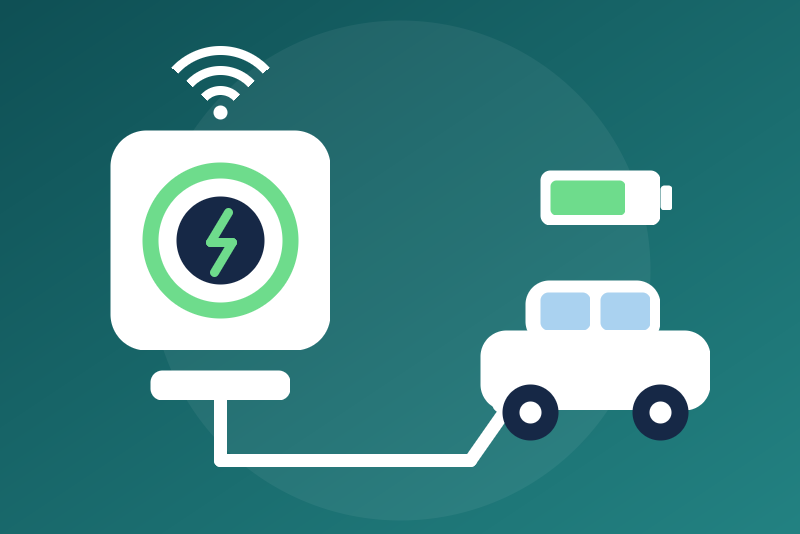
Peblar EV chargers over the local REST API: state, power, current, energy; optional commands.
Publicado por LM1LC3N7
- Dispositivos
- Versión 0.1.2
- Requiere Gladys >=5.1.0
- ★ 0
La documentación de esta integración la escribe su autor y, por ahora, solo está disponible en inglés.
Shows your Peblar EV charger (Rocksolid, Business) in Gladys through its local REST API: no cloud, no account, straight on your network.
Never tested with a real charger. Not affiliated with Peblar. The integration talks to the charger like the peblar library (used by Home Assistant). Peblar may change its API with a firmware update.
What you get
One device per charger with:
| Feature | Content |
|---|---|
| Status | No vehicle, plugged in waiting, charge stopped, charging, error, fault |
| Connector | Available, occupied, faulted or unavailable (Gladys "charging station") |
| Charging state | Charging, vehicle connected, paused by the charger, idle |
| Vehicle plugged in | Yes / no |
| Power, and power L1 / L2 / L3 | In W |
| Current L1 / L2 / L3 | In A |
| Voltage L1 / L2 / L3 | In V (a phase the charger does not measure stays empty) |
| Energy of the session | In kWh, a plain sensor |
| Total energy | In kWh, a plain sensor |
| Charge current limit | In A: the limit asked through the local REST API (0 = charge stopped) |
| Current limit applied | In A: what the charger really allows (cable, load balancing, solar...) |
| Limited by | What sets the applied limit (text of the charger) |
| Error / warning reported | Yes / no |
| Forced single phase | Yes / no (read only) |
| Start charging, Stop charging | Buttons (commands allowed only) |
| Set the charging current | List from 6 A to the ceiling (commands allowed only) |
Read every 30 seconds by default (10 s to 10 min, configurable).
Energy: the energy of the session and the total energy are plain sensors, never an index: they do not enter the Energy tab of Gladys (the charger is already counted by your main meter, it would be counted twice). No daily consumption is published, and a total of 0 is never published.
Installation
- Give the charger a fixed IP address in your router.
- In the web interface of the charger (its IP address in a browser): Settings, Local REST API: turn it on, with read and write access if you want the commands, and copy the API token.
- Install the integration from the Gladys store. In its configuration, enter
the IP address of the charger and the API token (an address
holding a user name or a password, with an
@, is ignored and never shown back).- Instead of the token, you may give the password of the web interface: the integration then logs in to read the token (the local REST API must still be on), the installation limit and the rated current of the charger, at the start then once a day. It never changes a setting of the charger.
- Save, then add the charger from the Discovery tab.
The token and the password are kept by Gladys in its database, never shown
again, and sent only to the charger (the token in the Authorization
header). They are never written in the logs, nor in /data, nor in a status.
The charger only speaks plain HTTP: the token and the password travel in
clear, over HTTP on your local network (as with the web interface of the
charger itself). Keep the charger on a network you trust.
The Test the connection button reads the charger once (at most every 10 seconds).
Commands (off by default)
"Start charging", "Stop charging" and "Set the charging current" refuse every command while Allow the commands is off. On:
- Stop sets the charge current limit to 0: the charger pauses the charge;
- Start sets it again to the last current seen (6 A when none is known), never above the ceiling; refused when no vehicle is plugged in, or on an error, a fault or an unknown state;
- Charging current: from 6 A to the ceiling: the "Ceiling of the charging current" of the configuration (16 A by default, 32 A at most), and with the password also the installation limit and the rated current read from the charger (the lowest wins). With the token only, the charger gives no limit to the integration: the ceiling is the configured one alone (16 A by default), and the charger still caps the current itself at its installation and cable limits (shown as "Current limit applied"). Refused while the charge is stopped (a limit under 6 A: it would start it again: use Start). One change a minute at most (start included): no fine regulation from Gladys.
They are buttons and a list, never switches: a "turn everything off" (from Gladys, Google Home, Alexa or HomeKit) never reaches them. A scene can trigger them, only through an explicit action, and only when the commands are allowed. Note that the AI chat of Gladys (MCP) can create and run such a scene: while the commands are allowed, it can start or stop the charge.
Before each command, the integration reads the charger again and decides
on that read only; the option is checked again right before sending. A
command with nothing to do (already so) is not sent. A command that cannot
leave within 3.5 seconds is refused unsent. When the charger does not confirm
(silence, a 5xx error), Gladys shows "Command sent, without confirmation":
check the state, read again 5 then 20 seconds later. One command at a time:
another one is refused at once, except "Stop charging", never held back:
it goes at once, even while another command is in flight (it is then sent
once more when that command ends, and any start or current not sent yet gives
way to it), even within the minute between two currents, even during a 429
or 5xx pause or a refused-token block (then a single request, without the read),
even after a restart of the integration before the charger could be read
again (the serial number of the charger last read at the address is kept in
/data; Start and the current wait for that first read), and even when the
read just before fails. With the password only, a stop needs the token
read at a login, so it is refused until the first successful login: after a
restart, until the end of a pause kept (5 minutes, up to 6 hours if the
charger asks), during a password block (15 min, 1 h, 6 h), and up to 10
minutes after a login the charger answered with an error (a login that never
reached it is tried again sooner). For a scene that must be able to stop
the charge (load shedding), use the API token. When a command stayed
without confirmation, or when a stop overtook a command in flight that may
still land after it, that command may reach the charger later: the stop is
watched for 90 seconds (until the first read after a 429 pause, 10 minutes
at most), and sent again (twice at most) if a read shows a current again
while no other command left Gladys, also when the stop sent again after that
command failed. A start made meanwhile from the Peblar app, its web
interface or OCPP is then cancelled too.
A token in read only mode (access mode of the local REST API) refuses every command; the status says so.
Errors and limits
- Charger unreachable: only the connector ("unavailable") and the status ("Charger unreachable") change; the other values keep their last one. New try after 30 s, 1, 2, then 5 minutes, never faster than the interval.
- Token refused: the status asks to check it (a new token generated in
the web interface replaces the old one). Password refused: same. New
tries after 15 minutes, 1 hour, then every 6 hours, never sooner (kept in
/dataacross a restart, so a wrong password never locks the account in a loop); saving new credentials tries again at once. With the password, a token that expires (after a restart of the charger) gives one new login, at most one every 10 minutes. - 429 (too many requests) or 5xx: a pause (1 minute to 6 hours for a 429) for the reads and the commands but "Stop charging", never shorter than
the refresh interval, kept in
/dataacross a restart. - Password only: no command (stop included) until the first successful login after a restart, a pause or a password block; use the API token for the commands.
- Neither the smart charging modes (solar, schedule), nor the phases, nor the socket lock, nor the RFID cards can be changed from Gladys.
- The logs never hold the text of the charger's answers, the token or the password.
Credits
Port of peblar (Franck Nijhof, MIT, version 2.1.0), the library of Home Assistant's Peblar integration. Apache-2.0 license.
Parámetros de configuración
Estos son los parámetros que Peblar te pide en su pantalla de configuración en Gladys.
| Parámetro | Tipo | Obligatorio | Descripción |
|---|---|---|---|
| Your Peblar charger | section | No | Shows your Peblar charger (Rocksolid, Business) in Gladys through its local REST API, without any cloud: state, vehicle plugged in, power, current and voltage per phase, energy of the session and total energy, charge current limit. Enter the IP address of the charger (give it a fixed address in your router) and its API token (web interface of the charger, Settings, Local REST API) or the password of its web interface, save, then add it from the Discovery tab. Starting, stopping and the charging current can be changed from Gladys only if you allow the commands below. Never tested with a real charger. Not affiliated with Peblar. |
| IP address of the charger | string | Sí | An IPv4 address or a host name, optionally followed by a port (80 by default). |
| API token of the local REST API | secret | No | Web interface of the charger, Settings, Local REST API: turn it on (read and write access for the commands) and copy the token. Kept by Gladys in its database, never shown again, sent only to the charger, in clear (HTTP), in the Authorization header. Used rather than the password when both are given. |
| Password of the web interface (instead of the token) | secret | No | Optional, if you give no token: the integration logs in to the web interface of the charger to read the API token (the local REST API must be on), the installation limit and the rated current. Sent in clear, over HTTP, on the local network. Kept by Gladys in its database, never shown again, sent only to the charger. A refused password is tried again after 15 min, 1 h, then every 6 h. For the commands, prefer the token: with the password alone, a stop waits for the first login after a restart. |
| Allow the commands | boolean | No | Off by default. On: Gladys may start and stop the charge (buttons) and set the charging current (list, 6 A to the ceiling below). Off: these three features refuse every command. |
| Ceiling of the charging current (A) | number | No | The highest current Gladys may ask for. With the token only, this value alone (16 A by default; the charger still applies its own limits). With the password, the lower of this value and the limits read from the charger. |
| Refresh interval (s) | number | No | How often the charger is read, in seconds. |
| Language of the feature names | select | No | Used for the feature names of the devices added from now on, for the status texts and for the command errors. |
Cómo instalar Peblar en Gladys
- En Gladys, abre Integraciones: Peblar aparece en el catálogo junto a las integraciones nativas, con una insignia de comunidad.
- Haz clic en Instalar. Gladys descarga la imagen Docker (
ghcr.io/lm1lc3n7/gladys-peblar:0.1.2), la ejecuta en un entorno aislado del núcleo y genera la interfaz de la integración (dispositivos, descubrimiento y configuración). - Abre la pantalla de Configuración de la integración, rellena los parámetros y guarda.
- También puedes instalarla directamente desde la URL de su repositorio: https://github.com/LM1LC3N7/gladys-peblar.
Peblar requiere Gladys >=5.1.0. El catálogo de Gladys se actualiza cada hora, así que una nueva versión está disponible como máximo una hora después de publicarse.
¿Todavía no usas Gladys? Es gratuito y de código abierto: sigue la guía de instalación para empezar.
Sobre las integraciones externas
Peblar es una integración externa: una integración comunitaria empaquetada como contenedor Docker y publicada en GitHub. Gladys la instala con un clic y la ejecuta en un entorno aislado del núcleo. La publica y mantiene LM1LC3N7, no el equipo principal de Gladys.
- Explorar todas las integraciones, nativas y de la comunidad
- Crear y publicar tu propia integración externa
- Código fuente en GitHub — fuente de esta documentación