Gladys Assistant OS: install Gladys on a mini-PC from a USB drive

Hey everyone,
Today I'm releasing Gladys Assistant OS, the new official way to install Gladys on a mini-PC 🎉
The idea is simple: you write Gladys Assistant OS to a USB drive, you start your mini-PC from it, you answer a few questions, and Gladys installs itself. No command line, no Docker command to copy and paste.

👉 Install Gladys on a mini-PC with Gladys Assistant OS
Why an installer?
When I released the new Raspberry Pi image in June, I told you I was working on an "Ubuntu + Gladys" image for mini-PCs. Here it is!
Until now, installing Gladys on a mini-PC meant installing Ubuntu Server yourself (without forgetting to check the OpenSSH box), connecting over SSH, installing Docker, copying a long docker run command, then setting up Watchtower for the updates. Nothing impossible, but many steps, and many people got stuck on one of them.
The mini-PC is the setup I recommend for a long-term smart home, so it deserved an installation as simple as on the Raspberry Pi.
What Gladys Assistant OS does
Under the hood, Gladys Assistant OS is a standard Ubuntu Server 26.04 LTS, set up for Gladys:
- The installer only asks for your language, your keyboard and your account. With a single disk, there is not even a disk to choose.
- On first boot, it installs Docker, downloads the latest version of Gladys and starts it. You follow the progress on the screen of the mini-PC, or from your phone at the address it displays.
- Gladys updates itself as soon as a new version is out, and Ubuntu installs its security updates automatically.
- It detects your time zone, and Gladys is reachable at
http://gladysassistant.localfrom any device on your network, or at the IP address shown on the screen of the mini-PC if that name does not open. - It is built to be robust: if the Internet connection drops or the power goes out while it sets up Gladys on first boot, it simply resumes where it left off.
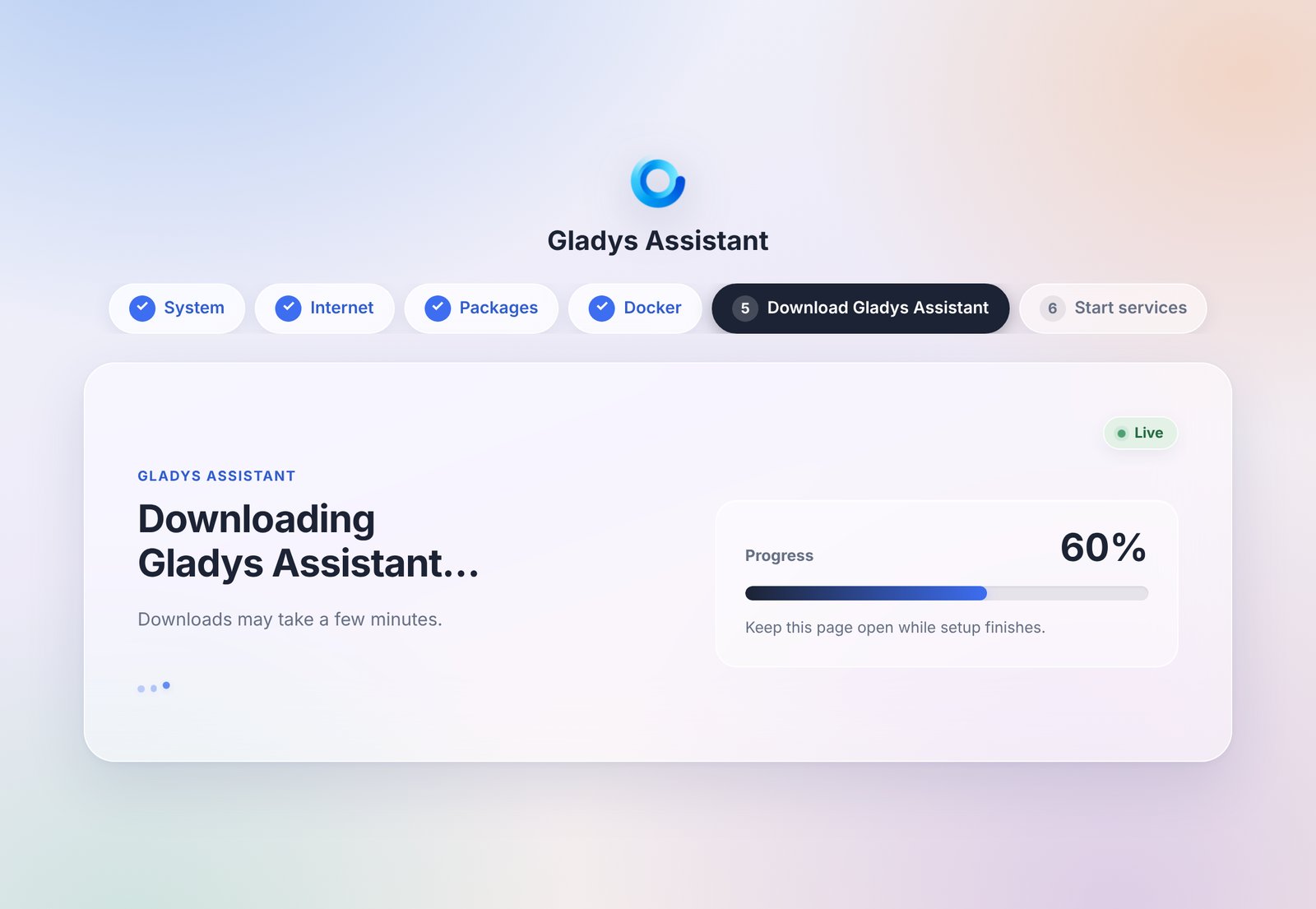
The image never contains Gladys itself: Gladys is downloaded on first boot, so you always start with the latest version, even with an image downloaded a few months ago.
A normal Ubuntu, not a closed box
Gladys Assistant OS is not a locked-down system. It is an Ubuntu Server like any other: you can log in over SSH, run other containers next to Gladys, and keep full control of your machine. There is no default password: the only account is the one you create during the installation.
And as always with Gladys, everything is open source: GladysAssistant/ubuntu-server-gladys.
Proxmox too
Gladys Assistant OS also works in a Proxmox VE virtual machine. I rewrote the Proxmox guide around it: create the VM in UEFI mode, start it on the image, and Gladys installs itself the same way.
👉 Install Gladys on Proxmox VE
What it needs (for now)
This first version has a few requirements:
- an Intel or AMD computer (x86-64) that starts in UEFI mode, which is the case of virtually every mini-PC. On a Raspberry Pi, keep using the Raspberry Pi image;
- an Ethernet cable: the installer does not set up Wi-Fi;
- a screen and a keyboard, only during the installation.
Docker is of course still available if you install Gladys on a machine that already runs other things, like a NAS or a server: the Docker guide is still there.
New installation guides
For the occasion, I rewrote the installation documentation so Gladys Assistant OS is the first thing you see:
If you try it, tell me how it went on the forum! This is a first version, and your feedback will help make it even simpler 🙂