MELCloud (Mitsubishi AC)
MELCloud is Mitsubishi Electric's cloud service that allows you to control your Mitsubishi air conditioning units remotely. With this integration, you can control your Mitsubishi AC directly from Gladys Assistant.
Prerequisites
- A Mitsubishi air conditioning unit compatible with MELCloud
- A MELCloud account (create one at app.melcloud.com)
- Your AC unit must be configured and working in the MELCloud app
Connect MELCloud to Gladys
Go to Integrations -> MELCloud in Gladys.
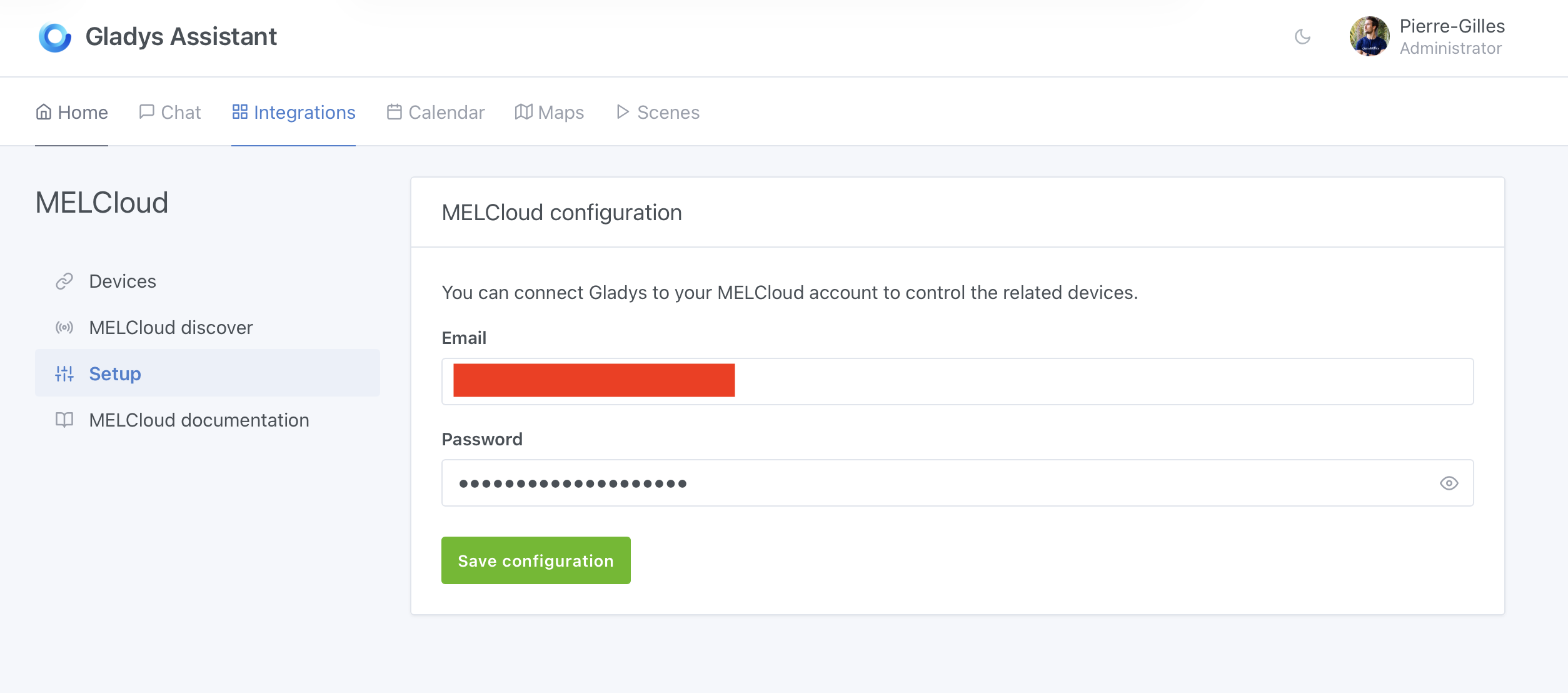
Step 1: Configure your MELCloud account
In the Setup tab, enter your MELCloud credentials:
- Email: Your MELCloud account email
- Password: Your MELCloud account password
Click on Save configuration to connect Gladys to your MELCloud account.
Step 2: Discover and add your devices
Once connected, go to the MELCloud discover tab to see all your available devices.
For each device you want to add to Gladys:
- Select the room where the device is located
- Click on
Saveto add the device to Gladys
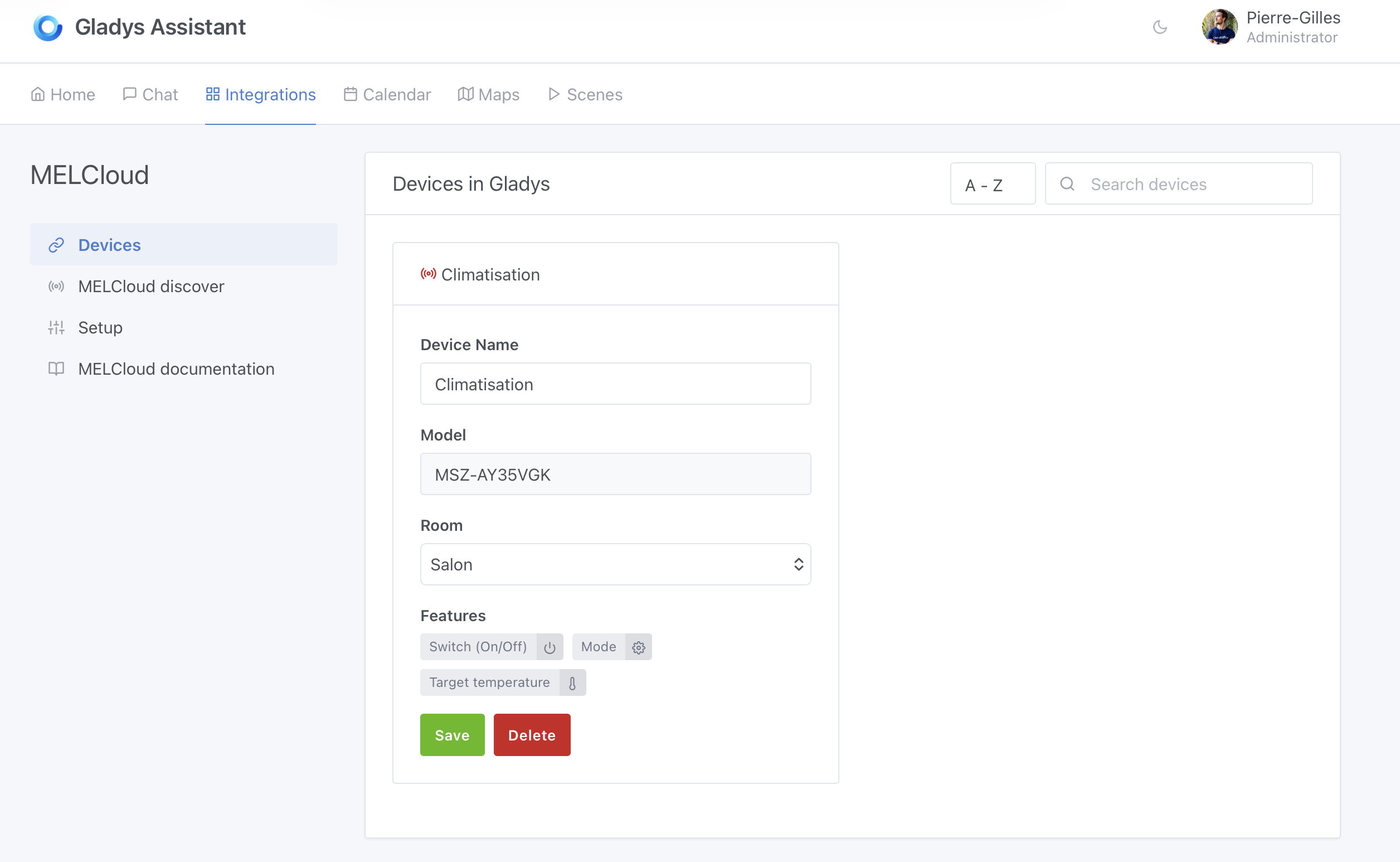
The device will appear in the Devices tab with its features:
- Switch (On/Off): Turn the AC on or off
- Mode: Change the operating mode (cooling, heating, etc.)
- Target temperature: Set the desired temperature
Step 3: Add to your dashboard
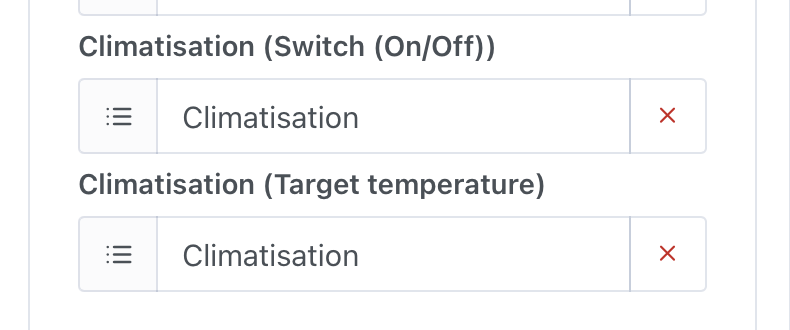
To control your AC from the dashboard, go to Dashboard and edit your dashboard to add the device features you want to display.
Step 4: Control your AC
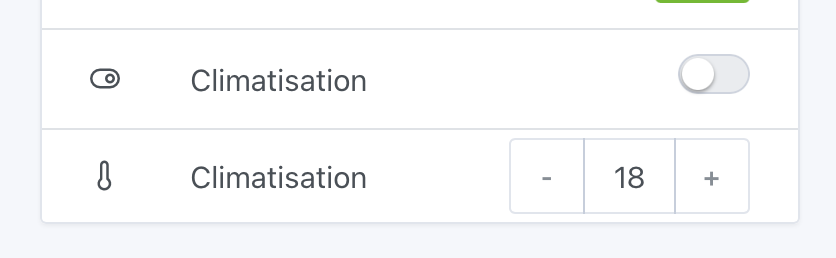
You can now control your Mitsubishi AC directly from the Gladys dashboard:
- Toggle the AC on/off
- Adjust the target temperature
Using in scenes
You can also use your MELCloud devices in Gladys scenes to automate your air conditioning. For example:
- Turn on the AC when the temperature rises above a certain threshold
- Turn off the AC when you leave home
- Set a specific temperature at a scheduled time
FAQ
My devices are not appearing
Make sure your devices are properly configured in the MELCloud app and that you can control them from there. Then try refreshing the discovery in Gladys.
Connection issues
If you have connection issues, verify that:
- Your MELCloud credentials are correct
- Your MELCloud account is active
- You have internet connectivity
If you have any questions, ask on the forum.