Z2M Devices Monitor smart home integration, free and open source
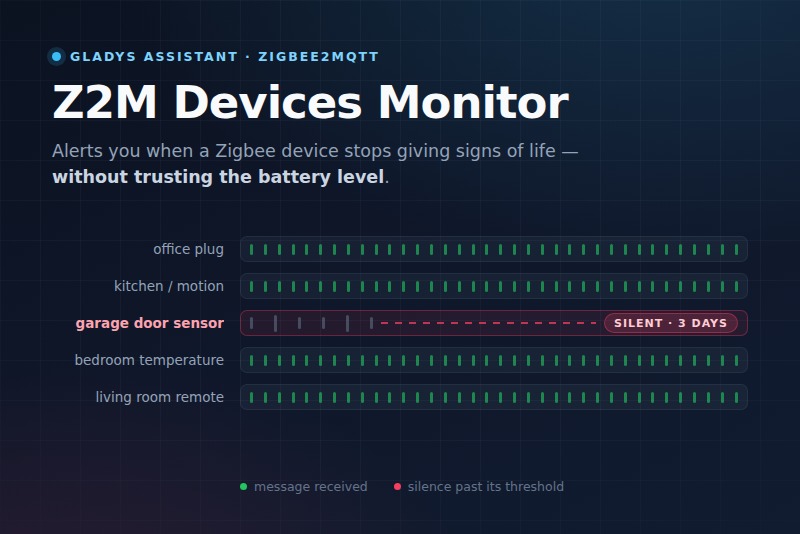
Alerts you when a Zigbee2MQTT device stops giving signs of life.
Published by prohand
- Devices
- Version 2.4.0
- Requires Gladys >=5.3.0
- ★ 0
This integration watches your Zigbee2MQTT devices and alerts you when one of them stops giving signs of life.
Why not the battery level
The battery percentage a Zigbee device reports is a coarse, rarely refreshed and often plainly wrong estimate: a CR2032 sensor commonly reads 100% right up to the day it stops answering. More importantly, the battery says nothing about the other ways a device dies: unplugged, dropped off the network, route lost, or parent router down.
A Zigbee device that is alive talks. Sensors send their readings, routers answer, everything reports at least periodically. So the only reliable fact is when did I last hear from this device? — and the only useful question is has it been silent for longer than it should?
That is exactly what this integration does.
What it does
It subscribes to everything Zigbee2MQTT publishes on your MQTT broker
(zigbee2mqtt/#), remembers when each device last spoke, and continuously
re-evaluates their silence.
It never publishes anything to your Zigbee network: it only listens. It also tells apart:
- a message published by the device → proof it is alive;
- a message replayed by the broker (the retained flag, on every reconnection) → it may be days old, it proves nothing;
- a
set/getcommand sent to the device by Gladys, Home Assistant or a scene → that is not the device talking. Without that distinction, a dead sensor would look alive for as long as something keeps talking to it.
If you enabled the advanced.last_seen option in Zigbee2MQTT, the integration
uses the timestamp devices attach to their reports: the most reliable source
there is, and the one that even makes retained messages usable. It is not
required.
Setup
1. Requirements
- Gladys 5.3.0 or later (widget, scene blocks and catalog search keywords);
- Zigbee2MQTT running and publishing to an MQTT broker;
- that broker reachable from Gladys (same local network).
2. Configuration
| Field | What to fill in |
|---|---|
| Broker URL | The address of your MQTT broker, e.g. mqtt://192.168.1.10:1883. The mqtts://, ws:// and wss:// schemes are supported too. Typing the address alone (192.168.1.10:1884) works: mqtt:// is added for you. |
| Username / Password | Leave empty if your broker allows anonymous connections. |
| Base topic | The mqtt.base_topic configured in Zigbee2MQTT. zigbee2mqtt in almost every case. |
| CA certificate (PEM) | Only for mqtts:// or wss:// with a self-signed certificate or a private authority: paste the certificate of that authority (or the broker's own self-signed one). Pasting it on a single line is fine. |
| Verify the broker certificate | On by default. Turning it off accepts any certificate — including the one of a machine pretending to be your broker. Prefer the certificate above. |
Then click Test the MQTT connection: the button reports whether it is connected, how many devices it sees and how many messages it received. It is the fastest way to catch the classic mistake — right broker, wrong base topic, and nothing happens at all.
Where to find those three values
They have to be typed in by hand: the integration cannot read them from Gladys on its own. An external integration runs in its own container and Gladys only ever hands it its own configuration; the API Gladys exposes to it gives no access to the settings or variables of another integration. That is a deliberate property of the sandbox, not an oversight: without it, any integration from the store could read the credentials of your other services.
The copy/paste is short though:
- if Gladys installed Zigbee2MQTT for you ("Installation from Gladys" mode),
the broker is the Mosquitto container Gladys manages. Open the Zigbee2MQTT
integration → Setup tab → "External tools connection" block: Gladys
displays the URL, the username and the password there, with a copy button. The
password is generated randomly on the first activation, so there is no
"default" value to guess. That broker listens on port 1884, and the URL
shown points at
localhost: replacelocalhostwith the IP address of your Gladys machine, otherwiselocalhostwould mean this integration's own container. The base topic iszigbee2mqtt; - if you run your own broker (standalone Zigbee2MQTT, Mosquitto, Home
Assistant…), just reuse the URL and credentials Zigbee2MQTT itself uses — the
mqtt:block of itsconfiguration.yaml.
3. Add the devices
Open the integration's Discover tab, then add the devices you want to watch with Add to Gladys. You will find:
- one device per Zigbee device known to Zigbee2MQTT;
- one Zigbee2MQTT monitor device summarizing the whole network.
Watched devices carry their Zigbee2MQTT name followed by a suffix,
(monitor) by default: office plug (monitor). Without it they would be
impossible to tell apart from the devices Gladys already exposes under the very
same name through its own Zigbee2MQTT integration — a scene picker would show
"office plug" twice. Change it (or empty it) under Device naming. It only
applies to the devices you create afterwards: Gladys never renames a device you
already added, rename it yourself on its page.
What happens when the Zigbee network changes?
The integration keeps re-reading the Zigbee2MQTT inventory, so the Discover screen updates on its own:
- a device you just paired shows up in the list within seconds, with no restart and nothing to click. Creating it in Gladys stays manual though — what enters your installation is your call. That is also why the scene worth building is the one on the Zigbee2MQTT monitor device: its counters cover every device Zigbee2MQTT knows about, including the ones you never created in Gladys, so a newly paired device is covered by the alert from the moment it joins;
- a device removed from Zigbee2MQTT disappears from the Discover screen and stops being counted and publishing values. If you had already created it in Gladys, its device is not deleted automatically: it stays, frozen on its last value. An integration is not allowed to delete your devices — remove it from Devices whenever you want.
Silence thresholds
A device is declared dead once it has been silent for longer than its threshold. Two defaults:
- mains-powered devices (plugs, bulbs, routers): 120 minutes, they report often;
- battery devices (sensors): 1440 minutes, i.e. 24 hours — they sleep most of the time.
You can refine device by device in the Per-device thresholds field, one
device=minutes pair per line or separated by commas:
mailbox sensor=4320
garage motion=180
0x00158d0001abcdef=60
The device is designated by its Zigbee2MQTT friendly name or its IEEE address.
Start generous. A tight threshold produces false alerts, and an alert nobody believes anymore is worthless. Let it run for a few days, look at the "Silence" value on each device screen (Gladys labels it Duration (integer)), then tighten.
What each device exposes
Every watched device exposes 2 features:
| Feature | Name displayed by Gladys | Description |
|---|---|---|
| Alive | State of input | On = the device is giving signs of life, Off = it has been silent for longer than its threshold. This is the feature to build an alert on. Its history is kept. |
| Silence | Duration (integer) | How many minutes the device has been quiet. Useful to size the thresholds. |
If you added your devices with version 1.0.1 or earlier, their Alive feature was published in another category, which the Gladys screens draw as an empty tag — it looks as if the device only carries Silence. The Discover tab offers an Update button on each of those devices: click it and the feature comes back, history included.
The Zigbee2MQTT monitor device exposes 5 features:
| Feature | Name displayed by Gladys | Description |
|---|---|---|
| Silent devices | Silent devices | How many devices are currently silent. This is the alert trigger. |
| Silent device names | Text | Their names, so a notification can quote them. Reads "No silent device" while the whole network is answering (editable, see below). |
| Devices alive | Devices alive | How many devices are answering. |
| Devices monitored | Devices monitored | How many devices are watched. |
| Zigbee2MQTT bridge online | State of input | The state of the Zigbee2MQTT bridge itself. |
Why some names change on screen
Gladys does not always show the name the integration gave a feature. When a feature is the only one of its type on its device, the UI shows the standard label of its category instead — hence Text for "Silent device names", State of input for "Alive" and for "Zigbee2MQTT bridge online", or Counter (integer) on the device edit screen. The three monitor counters share the same type, so they keep their names.
This is Gladys behaviour, not a setting of this integration. Two practical consequences:
- in a scene picker, look for the displayed name ("Zigbee2MQTT monitor (Text)" = the names of the silent devices);
- you can rename a feature from the device page if the standard label does not speak to you.
The text shown when all is well
"Silent device names" is a text feature, and it spends most of its life naming nobody — which is good news. It then shows an explicit sentence rather than a dash: No silent device by default. The Text shown when no device is silent field (Zigbee2MQTT monitor device section) lets you translate it. Empty the field to restore the default: this text can never be empty, Gladys does not store an empty text state.
What about the signal strength?
It is not published by this integration: the Gladys Zigbee2MQTT integration already reports the LQI of every device, and a second copy of the same number would only clutter the device lists and the scene pickers.
The dashboard widget
In Dashboard → Edit → New widget, add the Zigbee health widget. At a glance it shows:
- three counters: silent, alive and watched devices;
- the state of the Zigbee2MQTT bridge;
- the list of silent devices, with how long each has been quiet (or "never seen"). Past 9 devices, the last row tells how many others are silent.
It works right after installation, without creating a single device in Gladys. The Devices shown setting restricts it to battery or mains-powered devices — handy for two widgets side by side. The widget refreshes on its own every minute, and immediately when a device goes silent or comes back.
Getting alerted: the scene
The integration raises the flag, Gladys sends the alert.
With the integration's trigger (recommended)
-
Scenes → New scene;
-
trigger: in the Integrations category, pick A Zigbee device went silent. Leave the filters empty to cover the whole network, including the devices paired later, or pick one Device and/or a Power source (battery, mains);
-
action: Send Message with something like:
{{triggerEvent.data.device_name}} has given no sign of life for {{triggerEvent.data.silence_minutes}} minutes.
Type
{{in the message to pick the variables from the list.
That's it: no "Get device value" block needed. The available variables:
| Variable | Content |
|---|---|
device_name | the device name in Zigbee2MQTT |
silence_minutes | how many minutes it has been quiet |
threshold_minutes | its silence threshold |
power_source | battery or mains |
ieee_address | its IEEE address |
Good to know about this trigger:
- one alert per device: if a second sensor dies while the first one is still silent, you get a second alert — which the counter scene below does not do;
- no flood when Zigbee2MQTT itself goes down: while the broker is unreachable or the bridge is offline, no device is announced (they are all silent for the same reason). Once the network is back, every device that was still answering when the outage began gets one full threshold to speak again: a plug that reports every five minutes is not announced "silent" then "back" a minute later. Only the ones still quiet after that are announced. A restart of the integration counts as an outage;
- no alert on install or upgrade for devices already silent: only a change from alive to silent counts. That memory survives restarts;
- the A Zigbee device is back trigger works the same way, to say "false alarm, it came back".
With the Zigbee2MQTT monitor device
The former method, still valid. It fires once, when the number of silent devices goes above zero.
-
Scenes → New scene;
-
trigger: Device state change → device Zigbee2MQTT monitor, feature Silent devices, condition greater than
0; -
first action: Get device value → under Select a device, pick Zigbee2MQTT monitor (Text), i.e. the Silent device names feature.
This is the step everyone forgets: in Gladys a message can only insert values fetched by an action placed before it. Without this box the message's variable picker is empty, and the alert cannot name the sensors involved;
-
second action: Send Message (mobile notification, Telegram…) with something like:
Zigbee device(s) with no sign of life: Device last value
To insert that variable, type
{{where you want it in the message: Gladys then offers the value fetched in step 3, shown as "1.1. Device last value" (the number is the position of the Get device value action in the scene). Always go through that picker rather than typing the variable by hand: the message will name the sensors involved instead of just saying something is wrong.
For one particularly critical sensor (smoke detector, alarm, freezer), add a dedicated scene on its Alive feature turning to Off (in the picker: device name (State of input)).
Tip: add a time condition to the scene if you would rather not be woken up at night — a silent sensor can almost always wait until morning.
The scene actions
The integration adds two blocks in the Integrations category of the scene
actions. Their results can be inserted in the following actions with {{.
- Get the silent Zigbee devices — returns the number of silent devices, their names and the number of watched devices. A filter restricts the count to battery or mains-powered devices. Example: a scene every morning at 8 that sends you the list of the day.
- Check a Zigbee device — for one chosen device, returns whether it is alive, how many minutes it has been quiet and its threshold. Example: before leaving on holiday, check the smoke detector still answers. The device must have been added to Gladys to appear in the list.
If the Zigbee2MQTT inventory has not been received yet, or the device is no longer watched, the action fails (the scene logs it and carries on) rather than answering a wrong value.
The buttons in the Configuration tab
- Test the MQTT connection — the live connection state, how many devices are watched, how many messages were received, and the precise reason on failure.
- List the silent devices — who is quiet, and for how long.
- Refresh the device list — republishes the list to Gladys, after a pairing or a rename in Zigbee2MQTT.
Good to know
- Devices are identified by their IEEE address, not by their name. Renaming a device in Zigbee2MQTT updates its name in Gladys without losing its history.
- Devices disabled in Zigbee2MQTT are not watched by default: they are supposed to be silent. An option lets you include them.
- The coordinator (the USB stick) is not watched: it is not a device that can fall off on its own. Use the Zigbee2MQTT bridge online feature for that.
- The last-seen history is persisted in the integration's
/datavolume, along with the last known state of each device (so the scene triggers do not fire again on every restart). A container restart therefore does not reset every device — otherwise a sensor that died a month ago would start a fresh threshold and the alert would never fire. - If you are upgrading from a version that published the signal strength, the devices you already created in Gladys keep that feature: an integration cannot remove a feature from a device you created. It stops receiving values and stays frozen on the last one. To get rid of it, delete the device in Gladys and re-create it from Discover (its history is lost then); otherwise just ignore it.
- A device never heard from gets one full threshold from the moment the monitor started before being flagged. A freshly installed integration does not declare the whole network dead on its first minute.
- After an outage (broker unreachable, bridge offline, integration stopped), a device that was answering when the outage began gets one full threshold, counted from when the network is back, before being declared silent. Its Silence feature still shows the real time since its last message. A device already silent before the outage stays silent. The price of this: a device that really died during the outage is reported later than usual, by at most the length of the outage — rather than every mains device being reported silent, then back, at the end of a single failure.
- Zigbee2MQTT groups are ignored: they publish under the same topic as the devices, but they are not devices.
Troubleshooting
The test button says it is not connected. Check the URL (with the port,
1883 by default), the credentials, and that the broker accepts connections from
the Gladys machine. Credentials written into the URL (mqtt://user:pass@host)
work, but they are shown as *** in the messages and the logs.
The test button mentions a self-signed certificate. Your mqtts:// broker
uses a certificate Node does not trust: paste its certificate authority in CA
certificate (PEM) (TLS section).
It is connected, but sees no device. The base topic probably does not match
the one Zigbee2MQTT uses. Compare it with mqtt.base_topic in your
configuration.yaml.
A device is flagged silent while it works fine. Its threshold is too tight: look at its Silence (Duration (integer)) feature to learn its real rhythm, then give it a custom threshold. Door, leak and button sensors are typically quiet for days when nothing happens.
Every device goes silent at once. Check Zigbee2MQTT bridge online first: it is most likely Zigbee2MQTT itself, the broker or the coordinator that went down, not your sensors.
A device I just added reads "no recent value". A feature only gets a value once the device exists in Gladys, so everything published before you pressed Add went nowhere. The integration republishes the states of a device the moment Gladys tells it the device was created, so the value lands within a couple of seconds. If the badge is still there, reload the page: the dashboard computes the "no recent value" badge when it loads its data and does not clear it on the live updates that follow.
Configuration settings
These are the settings Z2M Devices Monitor asks for in its configuration screen in Gladys.
| Setting | Type | Required | Description |
|---|---|---|---|
| How it works | section | No | A Zigbee device that is alive talks. This integration listens to everything Zigbee2MQTT publishes, remembers when each device last spoke, and flags the ones that have been silent for too long. It never uses the battery level: a Zigbee battery percentage is a coarse estimate that often reads 100% right up to the day the sensor stops answering. |
| MQTT broker | section | No | The same broker Zigbee2MQTT publishes on. The integration only ever subscribes: it never publishes anything to your Zigbee network. These values have to be typed in here: an integration runs in its own sandbox and Gladys never hands it the settings of another integration. If Gladys installed Zigbee2MQTT for you, copy them from the Zigbee2MQTT integration, Setup tab, "External tools connection" block — and replace localhost in the URL with the IP address of your Gladys machine. |
| Broker URL | string | Yes | Address of the MQTT broker, e.g. mqtt://192.168.1.10:1883 (mqtts:// and ws:// are supported too). If you leave the scheme out, mqtt:// is assumed. |
| Username | string | No | Leave empty if your broker allows anonymous connections. |
| Password | secret | No | |
| Base topic | string | Yes | The base topic configured in Zigbee2MQTT (mqtt.base_topic). |
| TLS (mqtts:// and wss:// only) | section | No | Only for a broker reached over TLS. A broker at home usually runs on a self-signed certificate or a private certificate authority, which is refused by default: paste the certificate of that authority (or the broker's own self-signed certificate) below, in PEM format. Turning the verification off also works, but then any machine on your network can pretend to be your broker. |
| CA certificate (PEM) | string | No | The whole text, from -----BEGIN CERTIFICATE----- to -----END CERTIFICATE-----. Pasting it on a single line is fine. Leave empty for a certificate signed by a public authority. |
| Verify the broker certificate | boolean | No | Keep it on. Off accepts any certificate, including an attacker's. |
| Silence thresholds | section | No | A device is declared dead once it has been silent for longer than its threshold. Battery sensors report far less often than mains-powered devices, hence two separate defaults. Start generous: it is better to be alerted a few hours late than to be woken up by a false alarm. |
| Threshold for mains-powered devices (min) | number | No | Applies to plugs, bulbs and routers, which report often. |
| Threshold for battery devices (min) | number | No | Applies to battery sensors, which sleep most of the time. 1440 minutes is 24 hours. |
| Per-device thresholds | string | No | One device=minutes pair per line or separated by commas. The device is designated by its Zigbee2MQTT friendly name or its IEEE address. Example: mailbox sensor=4320, 0x00158d0001abcdef=60 |
| Device naming | section | No | Gladys most likely already knows these devices under their Zigbee2MQTT name, through its own Zigbee2MQTT integration. Without a suffix, a scene picker shows the same name twice with no way to tell which is which. |
| Suffix added to device names | string | No | Appended to the Zigbee2MQTT name of each watched device, e.g. "office plug (monitor)". Leave empty to keep the raw name. Only affects the devices you create afterwards: Gladys never renames a device you already added. |
| Zigbee2MQTT monitor device | section | No | The single device summarizing the whole network: how many devices are watched, how many are silent, and the names of the silent ones — the text a scene notification quotes. It is the one to build your alert on: its counters cover every device Zigbee2MQTT knows about, including the ones you pair later. |
| Text shown when no device is silent | string | No | What the "Silent device names" feature reads while the whole network is answering. Write it in your own language; empty restores the default. |
| Advanced | section | No | |
| Devices to ignore | string | No | Friendly names or IEEE addresses, separated by commas. Ignored devices are not published to Gladys and never raise an alert. |
| Also watch devices disabled in Zigbee2MQTT | boolean | No | Off by default: a device you disabled on purpose is expected to be silent. |
| Check interval (s) | number | No | How often the silence of every device is re-evaluated. |
How to install Z2M Devices Monitor in Gladys
- In Gladys, open Integrations: Z2M Devices Monitor appears in the catalog, next to the native integrations, with a community badge.
- Click Install. Gladys pulls the Docker image (
ghcr.io/prohand/gladys-z2m-devices-monitor:2.4.0), starts it in a sandbox isolated from the core, and generates the integration's interface (devices, discovery and configuration). - Open the Configuration screen of the integration, fill in the settings, and save.
- You can also install it directly from its repository URL: https://github.com/prohand/gladys-z2m-devices-monitor.
Z2M Devices Monitor requires Gladys >=5.3.0. The catalog inside Gladys refreshes every hour, so a new version becomes available at most one hour after its release.
Not running Gladys yet? It is free and open source: follow the installation guide to get started.
About external integrations
Z2M Devices Monitor is an external integration: a community integration packaged as a Docker container and published on GitHub, that Gladys installs in one click and runs in a sandbox isolated from its core. It is published and maintained by prohand, not by the Gladys core team.
- Browse all integrations, native and community
- Build and publish your own external integration
- Source code on GitHub — source of this documentation