Xiaomi TV smart home integration, free and open source
Xiaomi TVs (MIUI TV / PatchWall) on the local network: power, volume, keys and apps.
Published by William-De71
- Devices
- Version 0.1.0
- Requires Gladys >=5.2.0
- ★ 0
Overview
This integration brings your Xiaomi TV into Gladys: switch it on or to standby, set its volume, press the keys of its remote, open its applications and switch its HDMI input, from the dashboard and from your scenes.
It works with Xiaomi TVs running MIUI TV / PatchWall, which answer on port 6095 of the local network (the API the Mi Remote app uses). Everything stays on your local network: no account, no pairing, no cloud. Android TV and Google TV models (Mi TV P1, Q1, Q2, Xiaomi TV A / A Pro…) do not have this port: this integration cannot control them.
Requirements
- Gladys Assistant 5.2.0 or later.
- A Xiaomi TV running MIUI TV / PatchWall, switched on and connected to the same network as Gladys. To check: open
http://<TV address>:6095/request?action=isalivein a browser; the TV answers with its name. - On the install screen, accept the network discovery (SSDP), which lets Gladys find the TVs, and Wake-on-LAN, which lets the integration switch on a TV that no longer answers.
Configuration
Search
Nothing to fill in for most homes: switch the TV on and press Search and test the TVs. The message lists every TV found with its address, its MAC address and whether it answers.
A TV the search does not find (another subnet, a network that filters multicast): type its address in IP addresses, separated by commas, then save.
Give the TV a fixed IP address in your router: the integration finds a TV whose address changed again (by its MAC address), but sooner with a fixed one.
Refresh and language
- State refresh: each TV is asked whether it answers and what its volume is every 10 seconds (default), 30 seconds or 1 minute.
- Automatic search: the network is searched again every hour (default), every 15 minutes, or never; a TV that stops answering triggers a search anyway.
- Language of the device texts: the feature names in the Discover tab and the error messages of the scenes are written in this language, because Gladys does not send yours with them.
Usage
Devices
Open the Discover tab of the integration: every TV found is listed. Add it, and rename it as you like. A TV has these features:
- On/Standby: the power key of the remote.
- Volume: a slider from 0 to the maximum of the TV.
- Volume up, Volume down, Mute, Up, Down, Left, Right, OK, Menu, Back: buttons of the remote.
The TV badge shows local, or unreachable when the TV does not answer.
The power state is assumed. The power key toggles the TV between on and standby, and a TV in standby still answers on the network: the integration cannot tell them apart. So the state is the last command sent from Gladys, on when the TV starts answering again, off when it stops answering. If you put the TV in standby with its own remote, Gladys still shows it on: press the button twice to resynchronise. Turning on a TV that does not answer sends Wake-on-LAN when its MAC address is known.
The TV has no mute key: Mute lowers the volume to 0, and pressing it again restores the volume from before. The volume is reached with the volume keys (the direct volume request of the TV needs a signature that is not public), so a big change takes a few seconds.
Widgets
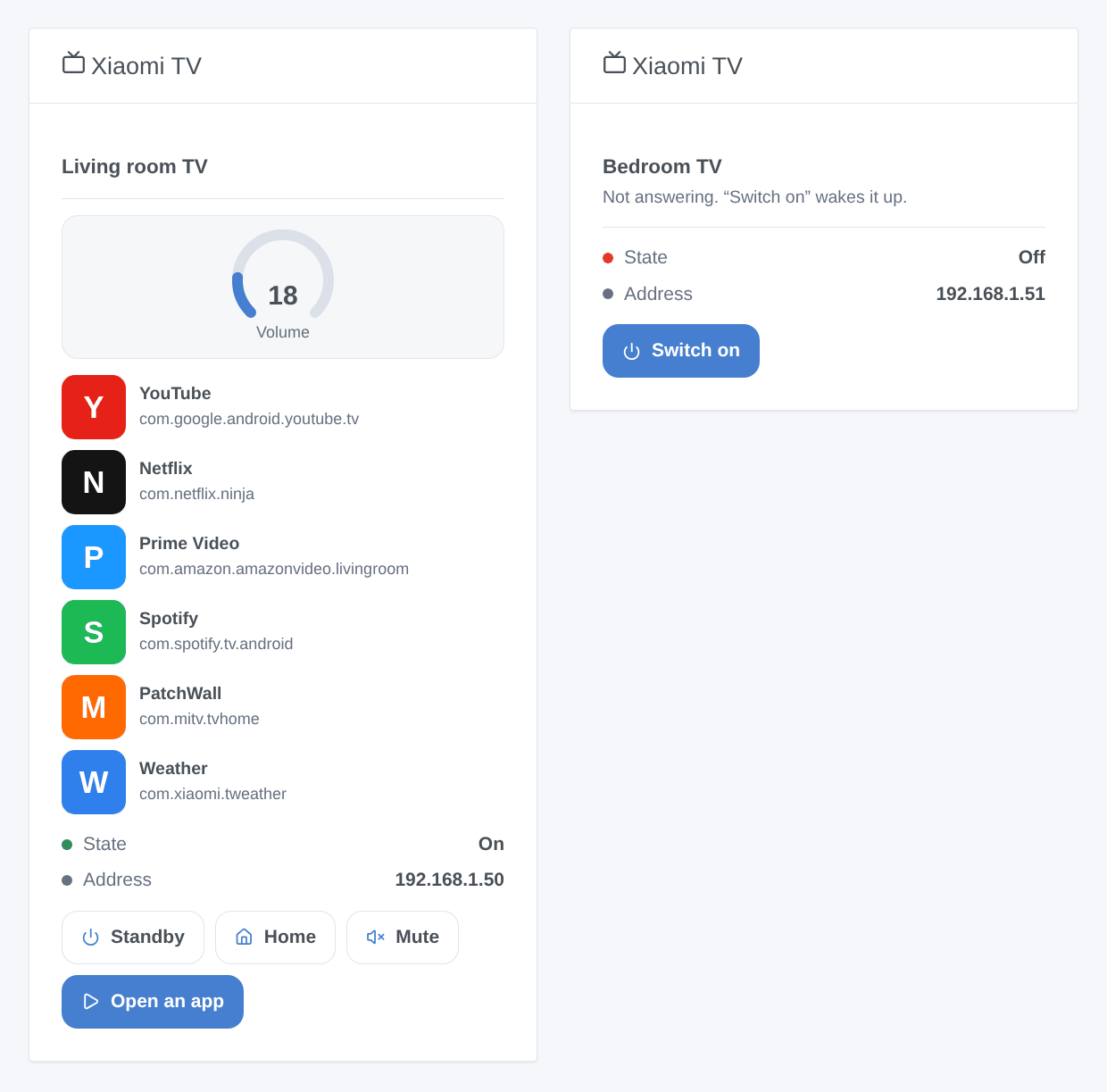
Xiaomi TV: one TV chosen in the settings, with its state, its address, its volume, its first six applications (icon, name and package name) and four buttons: Standby / Switch on, Home, Mute / Sound on and Open an app, which opens a form listing every application of the TV. When the TV does not answer, only Switch on is left (if Wake-on-LAN is possible).
Scene actions
- Open an app on a Xiaomi TV: the name of the application as shown on the TV (
Netflix,YouTube; case and accents do not matter) or its package name (com.netflix.ninja, listed by the widget). Givesapp_nameandpackageto the next actions. - Press keys on a Xiaomi TV: up to 30 keys separated by commas (
home, down, down, enter) amongpower,up,down,left,right,enter,home,back,menu,volumeup,volumedown, with a pause between them (700 ms by default). Giveskeys_sent. - Switch a Xiaomi TV input: HDMI 1, HDMI 2 or HDMI 3.
The integration has no scene trigger: the TV sends no event. To start a scene when the TV is switched on, use the Gladys trigger “Device state change” on its On/Standby feature.
Scene examples
- Every evening at 8:30 pm, if someone is at home → Open an app on a Xiaomi TV
Netflix, then set the living room lights to 20 %. - The On/Standby state of the TV becomes 1 → close the living room shutters and dim the lights.
- When the game console is switched on → Switch a Xiaomi TV input to HDMI 2, then set the volume to 30.
Troubleshooting
- No TV found: check that the TV is on, on the same network as Gladys (not a guest network) and that
http://<TV address>:6095/request?action=isaliveanswers in a browser. If it does not, your model does not have this API (Android TV and Google TV models). Otherwise type its address in the configuration. - “Gladys refused the network search”: reinstall the integration and accept its network discovery on the install screen, or type the address of the TV.
- The TV shows on while it is in standby (or the opposite): the state is assumed, see above. Press On/Standby twice.
- The TV does not switch on from standby or from off: in deep standby, some TVs ignore Wake-on-LAN; switch it on with its remote. A TV found only by its typed address has no known MAC address: no Wake-on-LAN.
- The volume does not change: the TV may be playing through an external audio device (HDMI ARC, optical) whose volume the TV does not control.
- An application does not open: check its name in the widget, or use its package name.
- Logs: the Logs tab of the integration; add
DEBUG=gladys-integration-sdkto the container for the details. Report a problem on GitHub with your Gladys version, the integration version, the model of the TV and the logs.
Configuration settings
These are the settings Xiaomi TV asks for in its configuration screen in Gladys.
| Setting | Type | Required | Description |
|---|---|---|---|
| Before you start | section | No | For Xiaomi TVs running MIUI TV / PatchWall (mostly sold in China and India), which answer on port 6095 of the local network: no account, no pairing. Android TV and Google TV models (Mi TV P1, Q1, Xiaomi TV A…) do not have this port. Switch the TV on, connect it to the same network as Gladys, then open the Discover tab. Nothing goes through the cloud. |
| IP addresses (optional) | string | No | Only for TVs the search does not find (another subnet, a network that blocks multicast). Separate them with commas. |
| State refresh | select | No | How often each TV is asked whether it answers and what its volume is. |
| Automatic search | select | No | Searches the network again on a schedule, to follow a TV whose address changed. A TV that stops answering triggers a search anyway. |
| Language of the device texts | select | No | Feature names in the Discover tab and error messages of the scenes. Gladys does not send your language with them. |
| A TV is not found? | section | No | Check that the TV is on, on the same network as Gladys (not a guest network), and that http://<TV address>:6095/request?action=isalive answers in a browser. If it does not, your model does not have this API. Give the TV a fixed IP address in your router. |
How to install Xiaomi TV in Gladys
- In Gladys, open Integrations: Xiaomi TV appears in the catalog, next to the native integrations, with a community badge.
- Click Install. Gladys pulls the Docker image (
ghcr.io/william-de71/gladys-xiaomi-tv:0.1.0), starts it in a sandbox isolated from the core, and generates the integration's interface (devices, discovery and configuration). - Open the Configuration screen of the integration, fill in the settings, and save.
- You can also install it directly from its repository URL: https://github.com/William-De71/gladys-xiaomi-tv.
Xiaomi TV requires Gladys >=5.2.0. The catalog inside Gladys refreshes every hour, so a new version becomes available at most one hour after its release.
Not running Gladys yet? It is free and open source: follow the installation guide to get started.
About external integrations
Xiaomi TV is an external integration: a community integration packaged as a Docker container and published on GitHub, that Gladys installs in one click and runs in a sandbox isolated from its core. It is published and maintained by William-De71, not by the Gladys core team.
- Browse all integrations, native and community
- Build and publish your own external integration
- Source code on GitHub — source of this documentation