Wi-Fi QR Code smart home integration, free and open source
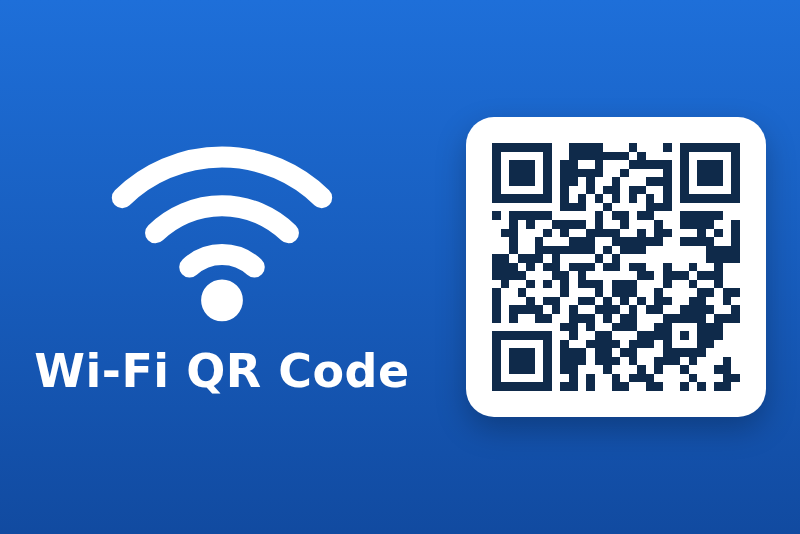
A QR code of your guest Wi-Fi on the dashboard: guests scan it and join the network.
Published by guim31
- Devices
- Version 1.0.0
- Requires Gladys >=5.2.0
- ★ 0
Show the QR code of your guest Wi-Fi on a Gladys dashboard: a guest points the phone camera at it and joins the network, without typing a password. Up to three networks, a widget, and a scene action to change the password shown.
Everything happens inside your Gladys: no account, no internet access, no data sent anywhere.
The QR codes are checked by reading them back with a QR decoder, in the automated tests. They have not been scanned with every phone yet: feedback welcome on the forum or in a GitHub issue.
What you need
- Gladys Assistant 5.2.0 or later (widget images).
- The name (SSID), security and password of the network to share.
Configuration
On the integration page, fill in up to three networks. Leave the name of a network empty to skip it.
Network name, security, password
- Network name (SSID): exactly as the phones list it. Case, spaces and accents count. 32 bytes at most.
- Security: WPA / WPA2 covers almost every router, WPA2/WPA3 mixed mode included. Choose WPA3 only only if the router accepts nothing else: some older phones do not read it. None is for an open network.
- Password: 8 to 63 characters for WPA. It is stored as a secret by Gladys and never written in the logs.
- Hidden network: check it if the router does not broadcast the name.
The special characters \ ; , : " are escaped in the QR code as the format
requires, so a password like p@ss;word:2026 works.
Integration status
The integration page shows an error when no network is set up, or when a network cannot give a working QR code (password too short, name too long), and names the network to fix.
Dashboard widget
Add the Wi-Fi QR code widget to a dashboard and choose its network. It shows:
- the network name (setting Show the network name);
- the QR code;
- the password in clear text, or "Open network" (setting Show the password).
Turn the password off to show only the QR code. The QR code always contains the password: that is how the phone joins the network.
Scene action "Change the Wi-Fi password shown"
Updates the password of a network, saved in the configuration: the QR code and the widget follow within seconds (a few minutes at most). The password can come from a scene variable, for example when another integration rotates the guest password.
This action does not change the password of the router: it only changes what Gladys shows. A password the network refuses (too short for WPA, open network, network not set up) fails the action, and the previous password stays.
Scene examples
- Every Monday, a scene changes the guest password on the router (with the router's integration), then calls "Change the Wi-Fi password shown" with the same value.
- A tablet in the hall shows a dashboard with the widget alone, password hidden.
Troubleshooting
- The widget says the network is not set up: fill in its name on the integration page, then save.
- The phone does not offer to join: check that the name and the password are exactly the ones of the router (case included). With WPA3 only, try WPA / WPA2: phones then negotiate WPA3 themselves when the router offers it.
- No QR code, a message instead: the message gives the reason (password too short, name too long).
Limits
- The dashboard shows the password to anyone who can see it, public dashboards included: use a guest network.
- Three networks at most.
- The integration does not read or change the router: the password is the one typed here or sent by a scene.
- Not scanned with every phone model yet (see the note above).
Credits
- QR codes generated by node-qrcode (MIT).
- Wi-Fi QR format of the ZXing project (Apache 2.0).
- Not affiliated with the Wi-Fi Alliance.
Configuration settings
These are the settings Wi-Fi QR Code asks for in its configuration screen in Gladys.
| Setting | Type | Required | Description |
|---|---|---|---|
| How it works | section | No | Fill in up to three Wi-Fi networks, for example the guest network. Then add the "Wi-Fi QR code" widget to a dashboard: a guest scans the code with the phone camera and joins the network. Everything stays on your Gladys: no account, no internet access. |
| Network 1 | section | No | Leave the name empty to skip this network. |
| Network name (SSID) | string | No | Exactly as the phones list it: case, spaces and accents count. |
| Security | select | Yes | |
| Password | secret | No | Shown on the widget and in the QR code, never in the logs. |
| Hidden network | boolean | No | Check it if the router does not broadcast the name. |
| Network 2 | section | No | Leave the name empty to skip this network. |
| Network name (SSID) | string | No | Exactly as the phones list it: case, spaces and accents count. |
| Security | select | Yes | |
| Password | secret | No | Shown on the widget and in the QR code, never in the logs. |
| Hidden network | boolean | No | Check it if the router does not broadcast the name. |
| Network 3 | section | No | Leave the name empty to skip this network. |
| Network name (SSID) | string | No | Exactly as the phones list it: case, spaces and accents count. |
| Security | select | Yes | |
| Password | secret | No | Shown on the widget and in the QR code, never in the logs. |
| Hidden network | boolean | No | Check it if the router does not broadcast the name. |
How to install Wi-Fi QR Code in Gladys
- In Gladys, open Integrations: Wi-Fi QR Code appears in the catalog, next to the native integrations, with a community badge.
- Click Install. Gladys pulls the Docker image (
ghcr.io/guim31/gladys-wifi-qr:1.0.0), starts it in a sandbox isolated from the core, and generates the integration's interface (devices, discovery and configuration). - Open the Configuration screen of the integration, fill in the settings, and save.
- You can also install it directly from its repository URL: https://github.com/guim31/gladys-wifi-qr.
Wi-Fi QR Code requires Gladys >=5.2.0. The catalog inside Gladys refreshes every hour, so a new version becomes available at most one hour after its release.
Not running Gladys yet? It is free and open source: follow the installation guide to get started.
About external integrations
Wi-Fi QR Code is an external integration: a community integration packaged as a Docker container and published on GitHub, that Gladys installs in one click and runs in a sandbox isolated from its core. It is published and maintained by guim31, not by the Gladys core team.
- Browse all integrations, native and community
- Build and publish your own external integration
- Source code on GitHub — source of this documentation