WhatsApp smart home integration, free and open source
Talk to Gladys on WhatsApp with the official WhatsApp Business Cloud API of Meta.
Published by William-De71
- Messaging
- Version 0.1.0
- Requires Gladys >=5.1.0
- ★ 0
Overview
Talk to Gladys on WhatsApp, through the official WhatsApp Business Cloud API of Meta. Each Gladys user links their WhatsApp number; their messages reach Gladys, which answers them on WhatsApp and sends them its notifications there. Scenes can react to the messages received (buttons of templates, locations…) and send approved message templates.
The integration uses the cloud of Meta (graph.facebook.com): the texts exchanged with Gladys leave your local network. Receiving messages needs Gladys Plus, which gives Meta a public HTTPS address; without it, Gladys can only send.
Prerequisites
- Gladys Assistant 5.1.0 or later.
- A Meta app of type Business, with the WhatsApp product, and a business phone number. The test number Meta provides works too, but only reaches the 5 numbers registered in WhatsApp → API Setup.
- A system user (Business settings → Users → System users) who has the app and the WhatsApp account, with a token that never expires and the
whatsapp_business_messagingandwhatsapp_business_managementpermissions. The temporary token of the API Setup page expires after 24 hours. - Gladys Plus, to receive messages.
- Meta bills the messages of a business according to its pricing (templates sent outside the 24-hour window in particular).
Configuration
| Field | What to enter |
|---|---|
| Phone number ID | The ID shown in WhatsApp → API Setup (not the phone number) |
| Access token | The permanent token of the system user |
| WhatsApp Business account ID | Optional: lets the integration register its webhook at Meta and list your templates |
| Verify token | Leave empty: the integration generates it; paste it in Meta |
| Register the webhook | On by default: the webhook of the account follows the Gladys Plus URL |
| Fallback template | Name of an approved template with one body variable, e.g. gladys_notification |
| Template language | Its language code, as in WhatsApp Manager: en_US, fr, de, es… |
| Mark received messages as read | Blue ticks for the sender |
| Language of the replies | Language of the replies sent before a number is linked |
Receiving messages: in the Gladys Plus webhooks block, save your Open API key (Gladys Plus → Settings → Open API). The webhook URL then appears. In the Meta app, open WhatsApp → Configuration, paste this URL as Callback URL and the verify token of the integration as Verify token, then subscribe to the messages field. With the WhatsApp Business account ID filled in, the integration also points the webhook of the account at this URL by itself, and again whenever the URL changes (the Register the webhook button does it on demand).
The 24-hour window: WhatsApp only lets a business send free text within 24 hours of the user's last message. Create a template in WhatsApp Manager (category Utility, one body variable, for example Gladys: {{1}}), wait for its approval, and enter its name: outside the window, Gladys sends its messages through it. Without it, these messages are refused by Meta.
Usage
Link your number: in the Configuration screen, Link my account → generate a code, then send this code on WhatsApp to the business number, within 15 minutes. Gladys answers that your account is linked. Then write to Gladys as you would in the chat of Gladys.
Without Gladys Plus, use the Link a number without Gladys Plus button: enter your number (international format) and the code. Gladys then sends you its notifications through the fallback template; your messages do not reach Gladys.
Text messages, buttons tapped and captions go to Gladys. Voice notes, stickers and other media get the answer "Gladys only reads text messages for now". Messages of numbers that are not linked are ignored without an answer.
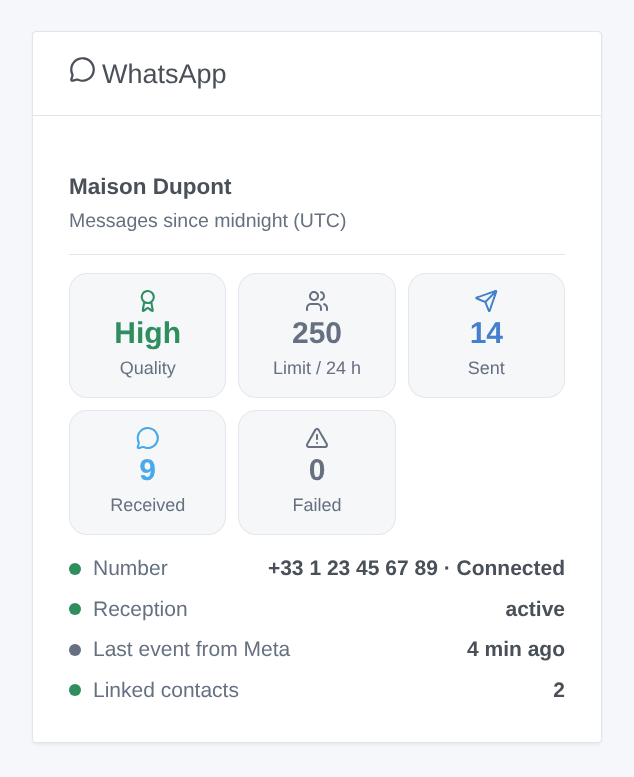
Dashboard widget: the WhatsApp widget shows the verified name of the number, its quality rating and its messaging limit, the messages sent, received and failed since midnight (UTC), the status of the number at Meta, whether the reception works, the last event of Meta and the number of linked contacts.
Scenes:
- Trigger WhatsApp message received: filters on the type of message, the payload of a button, an exact text. Variables:
from,contact_name,user,message_type,text,payload,latitude,longitude,emoji,message_id. - Trigger WhatsApp message not delivered: the first failure for a number, then again only after a message went through (a scene warning you on WhatsApp cannot loop). Variables:
to,reason,error_code,error_title,message_id. - Action Send a WhatsApp template: recipient (empty: every linked contact), template name, language, body parameters separated by
|(orname=valuefor named parameters). Scene variables work in every field.
Examples: when the template button with the payload OPEN_GATE is tapped → open the gate; when the alarm goes off → send the alarm_alert template to everyone; when a message is not delivered because of the token → send an e-mail.
Troubleshooting
- Test the connection shows the name, quality and status of the number, and whether the reception works.
- "Meta refused the access token": the token expired (temporary token) or was revoked. Generate a permanent token for the system user.
- Nothing arrives in Gladys: check that Gladys Plus is linked, that the Open API key is saved, that the URL and the verify token are pasted in Meta, and that the messages field is subscribed. The widget shows "waiting for Meta" until the first event.
- Message not delivered, outside the window (131047): configure an approved fallback template.
- Number not allowed (131030): with the test number of Meta, add the recipient in WhatsApp → API Setup.
- Template refused (132000, 132001): check the name, the language code and the number of parameters.
- Press Diagnostic and copy the lines starting with "WhatsApp diagnostic" from the Logs tab into a GitHub issue: the token, the Open API key and the numbers are left out or masked.
Configuration settings
These are the settings WhatsApp asks for in its configuration screen in Gladys.
| Setting | Type | Required | Description |
|---|---|---|---|
| Connect your WhatsApp Business account | section | No | 1. Create a Meta app of type Business and add the WhatsApp product. 2. In WhatsApp → API Setup, copy the phone number ID and the WhatsApp Business account ID. 3. In the Business settings, create a system user, give it the app and the WhatsApp account, then generate a token that never expires with the whatsapp_business_messaging and whatsapp_business_management permissions. |
| Phone number ID | string | Yes | The ID of the business phone number in WhatsApp → API Setup (not the phone number itself). |
| Access token | secret | Yes | Permanent token of the system user. The temporary token of the API Setup page expires after 24 hours. Stored encrypted, never shown again. |
| WhatsApp Business account ID | string | No | Optional. With it, the integration points the webhook of the account at Gladys Plus by itself, and the diagnostic lists your message templates. |
| Receive messages (Gladys Plus) | section | No | Meta delivers the messages to a public HTTPS address: Gladys Plus provides it. Save your Open API key in the "Gladys Plus webhooks" block below, then, in the Meta app (WhatsApp → Configuration), paste the webhook URL shown there as callback URL and the verify token below, and subscribe to the "messages" field. Without Gladys Plus, Gladys can only send. |
| Verify token | string | No | Generated by the integration when empty. Paste the same value in the Meta app (WhatsApp → Configuration → Verify token). |
| Register the webhook at Meta automatically | boolean | No | Needs the WhatsApp Business account ID. Done again whenever the Gladys Plus URL changes. |
| Outside the 24-hour window | section | No | WhatsApp only lets a business send free text within 24 hours of the user's last message. Past that, only an approved message template goes through. Create a Utility template with a single body variable, e.g. "Gladys: {{1}}", and name it below: Gladys then sends its notifications through it. |
| Fallback template | string | No | Name of the approved template (lowercase letters, digits, underscores). Empty: messages outside the window are not delivered. |
| Template language | string | No | Language code of the template, as in WhatsApp Manager: en_US, fr, de, es… |
| Mark received messages as read | boolean | No | The sender sees the blue ticks once Gladys has the message. |
| Language of the replies | select | No | Language of the few replies the integration sends itself before a number is linked (link code accepted or refused). |
How to install WhatsApp in Gladys
- In Gladys, open Integrations: WhatsApp appears in the catalog, next to the native integrations, with a community badge.
- Click Install. Gladys pulls the Docker image (
ghcr.io/william-de71/gladys-whatsapp:0.1.0), starts it in a sandbox isolated from the core, and generates the integration's interface (devices, discovery and configuration). - Open the Configuration screen of the integration, fill in the settings, and save.
- You can also install it directly from its repository URL: https://github.com/William-De71/gladys-whatsapp.
WhatsApp requires Gladys >=5.1.0. The catalog inside Gladys refreshes every hour, so a new version becomes available at most one hour after its release.
Not running Gladys yet? It is free and open source: follow the installation guide to get started.
About external integrations
WhatsApp is an external integration: a community integration packaged as a Docker container and published on GitHub, that Gladys installs in one click and runs in a sandbox isolated from its core. It is published and maintained by William-De71, not by the Gladys core team.
- Browse all integrations, native and community
- Build and publish your own external integration
- Source code on GitHub — source of this documentation