Waste Collection Schedule smart home integration, free and open source
Waste collection dates from nearly 1,000 sources: calendar, reminders and a widget.
Published by William-De71
- Devices
- Version 0.5.0
- Requires Gladys >=5.3.0
- ★ 0
Overview
This integration brings the waste collection dates of your address into Gladys Assistant: in the Gladys calendar, as a reminder the evening before, and in a dashboard widget with the next collections.
The dates come from Waste Collection Schedule, the library Home Assistant users know: nearly 1,000 sources, from towns and waste operators of about thirty countries, apps (Abfall.IO, Recycle!, ReCollect…) and any ICS calendar link. The library runs inside the container of the integration, unchanged.
- Calendar: one calendar per schedule ("Waste collection – Home") for every user who enables the integration, with an all-day event per collection and waste type.
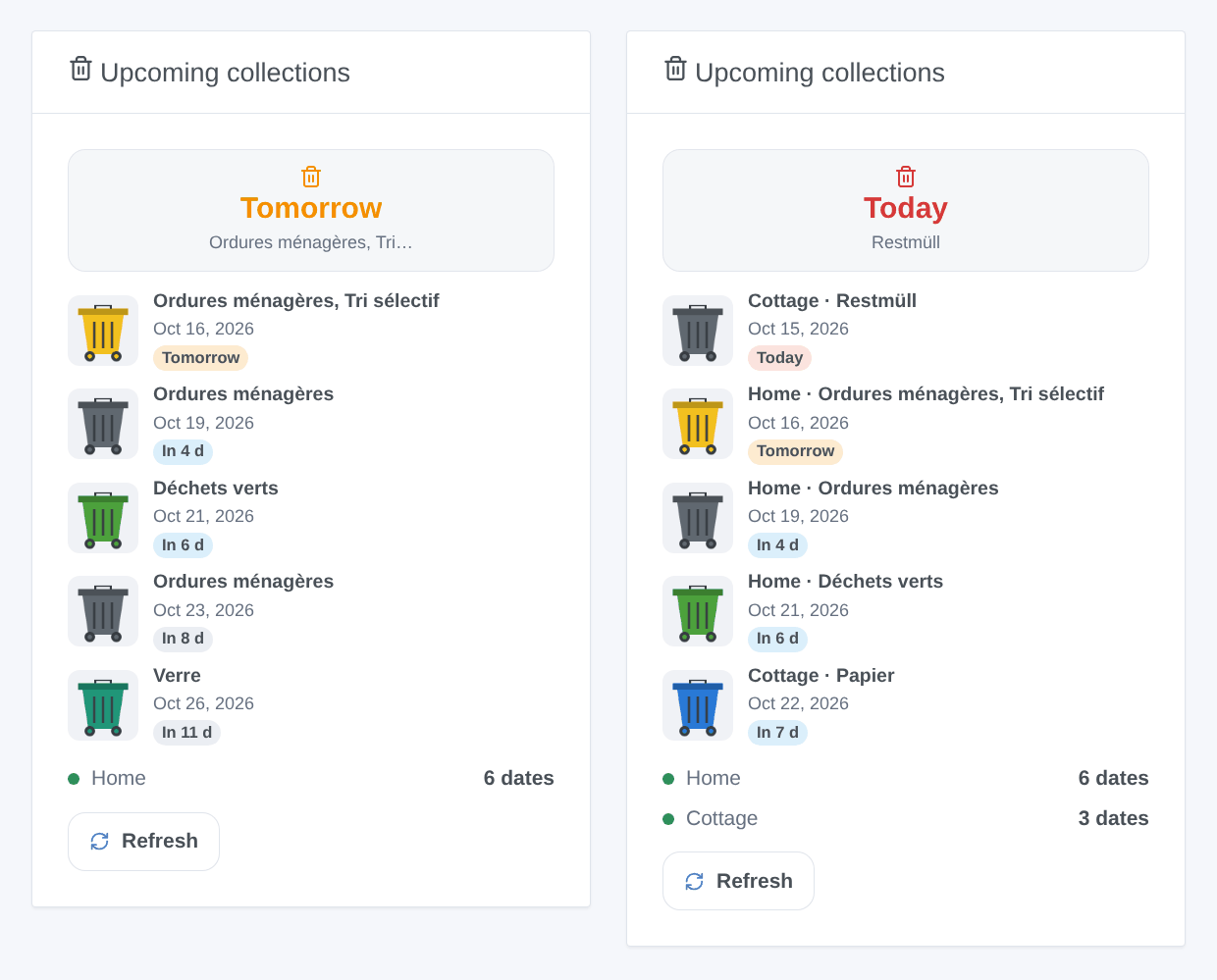
- Widget "Upcoming collections": the next collection days, a bin of the right color for each.
- Scenes: reminders the evening before and the morning of a collection, and actions to read the next collection or update the dates.
Transport: cloud. The container asks the web site or the API of your source, from your Gladys, every 12 hours by default. Your address (or what the source needs: a street, a house number, a calendar link) is sent to that source and to nobody else. For the few French sources that need an INSEE code, the town and its postcode (never the street) are also sent to geo.api.gouv.fr, the public API of the French State, to find it. Nothing goes through a Gladys server. The integration asks to read the houses of Gladys (location permission) only for their names.
Requirements
- Gladys Assistant 5.3.0 or later (calendar integrations).
- Your Gladys reaches the internet.
- A source for your address: most towns are found from their name alone. Check the list of the sources, or use the Find a source button of the configuration page. No source for your town? Paste the calendar link (
.ics,webcal://) your town hall or operator publishes into ICS link.
Configuration
An administrator configures the schedules once, for the whole household.
Fill in a schedule
- Open Integrations → Waste Collection Schedule → Configuration.
- In Schedule 1, fill in:
| Field | What to write |
|---|---|
| House | the house of Gladys: its name names the calendar, the widget and the scene texts |
| Country | the country of the address: the source is searched there |
| Town | your town: the source is found from it (for example Bordeaux, Besançon, Nantes) |
| Postcode | your postcode, when the source asks for it |
| Street, Number | your address, when the source asks for it |
| Source (optional) | leave empty; see below when the town is not enough |
| ICS link (optional) | a calendar link of your town hall, for a town without a source |
| Advanced parameters | rarely needed: key=value pairs separated by semicolons, for a parameter none of the fields gives |
- Save, then press Test the schedules: for each schedule, how many dates and which waste types the source returned, or what is missing ("Grand Besançon Métropole also needs: Street"). A French INSEE code is found automatically from the town.
Up to three schedules: a second home, or a second source for the same house (the town for most bins and an ICS link for glass). Two schedules of the same house show their source in brackets.
When the town is not enough
Some towns are served by an operator whose name differs from the town (a village of a metropolis), and some names match several sources. Test the schedules then says so and lists the candidates. Type your town or your operator in Find a source at the bottom of the page: the answer lists the matching sources, what each one needs (with the names of the fields above) and its documentation. Copy the name of yours into Source, for example Grand Besançon Métropole for a village of Grand Besançon.
Waste types, reminders and updates
| Field | Default | Use |
|---|---|---|
| Rename | empty | Original=New pairs separated by semicolons: Tri sélectif=Yellow bin |
| Hide | empty | types to ignore, separated by semicolons: Christmas trees; Bulky waste |
| Evening reminder | 19:00 | time of the "Waste collection tomorrow" triggers, or Off |
| Morning reminder | 06:00 | time of the "Waste collection today" trigger, or Off |
| Update the dates every | 12 hours | how often the sources are asked (6, 12 or 24 hours) |
| Language of the texts sent to scenes | English | default schedule names and error messages in the scene variables |
Rename and hide apply to every schedule. The calendar names use the language of each user.
Usage
My calendars
Each user who wants the collections in their own calendar opens the integration and presses Enable for me in My calendars. One calendar per schedule appears, with an all-day event per collection and waste type, from 35 days back to 400 days ahead. The events follow the source: a collection the source moves or drops moves or disappears in Gladys too.
A calendar starts private. Turn on Share with the household to show it to the whole household and use it in scenes with the calendar triggers of Gladys; turn off Synchronize this calendar to stop receiving it. The widget and the scene triggers of the integration work even if nobody enables it.
Widget
In the dashboard editor, add the Upcoming collections widget from the Waste Collection Schedule section. It shows the next collection, the next collection days with a bin of the right color (yellow for recycling, blue for paper, green for glass and garden waste, brown for organic waste, grey for household waste), the state of each schedule and a Refresh button. Settings: the schedule shown (all, or one), the number of collection days (3, 5 or 8) and the Refresh button.
Scene triggers
| Trigger | When | Variables |
|---|---|---|
| Waste collection tomorrow | the evening before a collection day, at the evening reminder time | waste types, number of types, date, schedule name |
| Waste type collected tomorrow | the same moment, once per waste type (filter on one type) | waste type, date, schedule name |
| Waste collection today | the morning of a collection day, at the morning reminder time | waste types, number of types, date, schedule name |
| Collection dates update failed | once, when a source starts failing | schedule name, source, error |
Each trigger can be filtered on a schedule. A reminder is sent once, even if Gladys restarts; if Gladys was off at the reminder time, it comes up to 3 hours later.
Scene actions
- Get the next waste collection (optionally of one waste type, for example "glass"): found, date, days until then, waste types, schedule name. Use "days until then" in a condition of the following steps.
- Update the collection dates: asks the sources now; returns success, error, next date, next waste types, days until the next collection.
Scene examples
- Waste collection tomorrow → send a message "Tomorrow: {{triggerEvent.data.waste_types}}, take the bins out".
- Waste type collected tomorrow, waste type "Verre" → turn the hall light green for 10 minutes.
- A calendar trigger of Gladys on the shared calendar "Waste collection – Home", 30 minutes before the event → a reminder to the household.
Troubleshooting
- No source found: check the country, or write the name of your waste operator in Source, as given by Find a source.
- Several sources match: copy the right one, from the list in the message, into Source.
- A value is missing: the message of Test the schedules names the field to fill in; a parameter without a field goes in Advanced parameters as
key=value. When the source knows them, the message suggests the right values (street names, towns). - INSEE code: a town not found, or several towns with the same name: add the postcode.
- The source failed or took too long: the web site of the source is down or changed, or it no longer finds your address. The integration retries after 15 minutes, then less and less often, and keeps the last known dates meanwhile. If it lasts, check whether the source works in Home Assistant: if not, report it to Waste Collection Schedule, the fix will come with an update of the integration.
- Wrong or missing dates: the dates are those of the source. Compare with the web site of your operator, and report a difference upstream.
- No calendar after enabling: the calendars are pushed after the first successful update of the sources; check that Synchronize this calendar is on.
- No reminder: check the reminder times in the configuration, and that the scene uses the right schedule filter.
- Logs: the Logs tab of the integration. For more detail, add the environment variable
DEBUG=gladys-integration-sdk. To report a problem, open an issue with the versions of Gladys and of the integration, the source and the logs.
Configuration settings
These are the settings Waste Collection Schedule asks for in its configuration screen in Gladys.
| Setting | Type | Required | Description |
|---|---|---|---|
| Find your source | section | No | Waste Collection Schedule knows nearly 1,000 sources: towns, waste operators, apps and ICS calendar links. For each schedule, choose the house and the country, and fill in your address: the source is found from the town. Then press "Test the schedules" at the bottom of this page. Up to three schedules (for example home and a second home). |
| Schedule 1 | section | No | Fill in what your waste operator asks for: most only need the town and the street. Missing a value? "Test the schedules" says which one. |
| House | select | No | Gives its name to the calendar and the widget. |
| Country | select | No | |
| Town | string | No | |
| Postcode | string | No | |
| Street | string | No | |
| Number | string | No | |
| Source (optional) | string | No | Leave empty: the source is found from the town. Fill it in only if the town is not enough, with a name given by "Find a source". |
| ICS link (optional) | string | No | The calendar link of your town hall, if your town has no source. |
| Advanced parameters | string | No | Rarely needed: only when "Test the schedules" asks for a parameter that is not above. |
| Schedule 2 (optional) | section | No | A second address, or a second source for the same address (for example the town for most bins and an ICS link for glass). |
| House | select | No | Gives its name to the calendar and the widget. |
| Country | select | No | |
| Town | string | No | |
| Postcode | string | No | |
| Street | string | No | |
| Number | string | No | |
| Source (optional) | string | No | Leave empty: the source is found from the town. Fill it in only if the town is not enough, with a name given by "Find a source". |
| ICS link (optional) | string | No | The calendar link of your town hall, if your town has no source. |
| Advanced parameters | string | No | Rarely needed: only when "Test the schedules" asks for a parameter that is not above. |
| Schedule 3 (optional) | section | No | |
| House | select | No | Gives its name to the calendar and the widget. |
| Country | select | No | |
| Town | string | No | |
| Postcode | string | No | |
| Street | string | No | |
| Number | string | No | |
| Source (optional) | string | No | Leave empty: the source is found from the town. Fill it in only if the town is not enough, with a name given by "Find a source". |
| ICS link (optional) | string | No | The calendar link of your town hall, if your town has no source. |
| Advanced parameters | string | No | Rarely needed: only when "Test the schedules" asks for a parameter that is not above. |
| Waste types | section | No | The names come from the source. Rename them with Original=New pairs separated by semicolons, hide the ones you do not want with their names separated by semicolons. Applies to every schedule. |
| Rename | string | No | |
| Hide | string | No | |
| Reminders | section | No | Time of the scene triggers "Collection tomorrow" (the evening before) and "Collection today" (the morning of the collection). |
| Evening reminder | select | No | |
| Morning reminder | select | No | |
| Advanced | section | No | |
| Update the dates every | select | No | |
| Language of the texts sent to scenes | select | No |
How to install Waste Collection Schedule in Gladys
- In Gladys, open Integrations: Waste Collection Schedule appears in the catalog, next to the native integrations, with a community badge.
- Click Install. Gladys pulls the Docker image (
ghcr.io/william-de71/gladys-waste-collection-schedule:0.5.0), starts it in a sandbox isolated from the core, and generates the integration's interface (devices, discovery and configuration). - Open the Configuration screen of the integration, fill in the settings, and save.
- You can also install it directly from its repository URL: https://github.com/William-De71/gladys-waste-collection-schedule.
Waste Collection Schedule requires Gladys >=5.3.0. The catalog inside Gladys refreshes every hour, so a new version becomes available at most one hour after its release.
Not running Gladys yet? It is free and open source: follow the installation guide to get started.
About external integrations
Waste Collection Schedule is an external integration: a community integration packaged as a Docker container and published on GitHub, that Gladys installs in one click and runs in a sandbox isolated from its core. It is published and maintained by William-De71, not by the Gladys core team.
- Browse all integrations, native and community
- Build and publish your own external integration
- Source code on GitHub — source of this documentation