Volvo smart home integration, free and open source

Your Volvo in Gladys: battery, fuel, charge, doors, lock, climate, position and scenes.
Published by William-De71
- Devices
- Version 1.3.0
- Requires Gladys >=5.3.0
- ★ 0
This integration brings your Volvo into Gladys through the official Volvo Cars APIs: battery or fuel, range, charging, lock, doors and windows, climate, position, service and warnings. It also offers scenes (car unlocked, left open, charging complete, arrived home…) and a dashboard widget with the picture of your car.
Compatible cars: models from 2010 on whose Volvo Cars app works, in Europe, the Middle East, Africa, the US, Canada and Latin America (list of countries). The data available depends on the model, the year and the country.
Community integration, not affiliated with or endorsed by Volvo Cars.
Setup
Setting up takes about ten minutes, once. It happens on the Volvo developer portal, with the Volvo ID of your car (the one of the Volvo Cars app).
1. Create an API application
- Open the Volvo developer portal, create an account or sign in with your Volvo ID.
- Go to My API applications and create an API application (any name, e.g. "Gladys").
- Copy its VCC API key (the primary key) into the field of the same name in the integration.
Each application has a daily request quota: with several cars, the most comfortable is one application per car (hence one installation per account), or a longer refresh interval.
2. Publish the application
This is what lets Gladys sign in with your Volvo ID.
- Under your application, click Publish.
- Fill in the form. Two important points:
- Scopes: tick them all (expand every section). A missing scope makes the sign-in fail.
- Redirect URI: add the address Gladys shows next to the integration's Connect button (by default
https://my.gladysassistant.com/redirect/oauth). Volvo only accepts HTTPS addresses: this Gladys page sends your browser back to your instance, even if you reach it overhttp://on your local network.
- Click View summary, then confirm.
- Copy the client ID and client secret shown into the fields of the same names in the integration, then save.
3. Sign in
- Click Connect: the Volvo ID page opens.
- Sign in (Volvo e-mails you a code) and approve the access.
- You come back to Gladys: the configuration screen shows "Connected to Volvo: 1 car(s)".
The Test the connection button checks the key and the sign-in, and lists the cars of the account.
Options
| Field | Role |
|---|---|
| Refresh interval | 5 minutes by default (2 to 60): lock, doors, battery, charging, position. It is also how fast the scenes react |
| Home radius | 200 m by default: closer than that, the car is "home" (distance from home, arrived and left scenes) |
| Language of the texts | Automatic by default (the language of your dashboard): device names, charging status, warnings, scene summaries. English, French, German or Spanish |
Service, warnings, odometer and tyres are read every 30 minutes. At 5 minutes, count about 2,000 requests a day per car.
Renewing the sign-in
Volvo limits in time the authorization of an application published for personal use. When it ends, Gladys stops reading, the configuration screen says "Volvo ended the authorization", and the Volvo: sign in again trigger fires (handy to get a notification). Just click Connect again.
Adding the car
In the Discovery tab, each car of the account appears as a "Volvo model (year)" device. Add it and put it in a room. The widget and the scenes also work without the device, but picking the car in their settings goes through the device list.
The features depend on what the car reports: a petrol car has no battery nor charging, a car without a sunroof no sunroof. If a value is missing right after the installation (car not driven since), scan again later.
The features of the car
| Feature | Value |
|---|---|
| Battery, Electric range | electric and plug-in hybrid cars |
| Energy in the battery | computed from the battery capacity |
| Charging cable plugged in, Charging status | plugged or not; charging, complete, scheduled… |
| Charging power, Charging time left | depending on the model |
| Charge target, Charging current limit | read-only: Volvo does not let them be changed |
| Fuel, Fuel range | petrol, diesel and hybrid cars |
| Average consumption | kWh/100 km, since the trip meter reset |
| Odometer | total distance |
| Lock | 1 = locked; controllable from Gladys when the car allows it |
| Doors, Tailgate, Hood, Tank lid | 1 = open; "Doors" groups the four doors |
| Windows, Sunroof | 1 = open; "Windows" groups the four windows |
| Climate | starts or stops the climate remotely (see below) |
| Distance to service, Time to service | in km and in days |
| Warnings | text: "None", or the list (tyre, oil level, washer fluid, bulb, service…) |
| Distance from home | in km, when the car reports its position and your house is located in Gladys |
History is kept: chart of the battery level, of the odometer… The usual scenes on a device value work ("battery below 20 %", "window open"…).
Climate: Volvo does not tell whether the climate is running. Gladys shows the last command, and goes back to off after 30 minutes.
Commands: Volvo answers once the car has carried the order out, which can take up to a minute (car asleep). Gladys sends the command in the background and reads the car again about twenty seconds later.
Cloud badge: on the Devices screen, each car carries a Cloud badge while Volvo answers for it, Unreachable when no reading succeeds. An orange dot means Volvo says the car cannot run remote commands right now (no connection, car in use, power saving mode, software update): hover over the badge to read the reason.
Updating from 1.0.x: the Fuel range and Distance to service features had no icon in Gladys. To get it, open the Discovery tab and click Update on your car. History, room and scenes are kept; a car not updated keeps working as before.
Scenes: triggers
In the scene editor, Volvo section (each can be limited to one car):
| Trigger | Fires when… | Filter |
|---|---|---|
| Volvo: locked or unlocked | the car is locked or unlocked | new state |
| Volvo: locked but left open | the car is locked while a door, window, sunroof, tailgate or hood is open | — |
| Volvo: engine started or stopped | the engine starts or stops | started / stopped |
| Volvo: charging status changed | charging starts, completes, stops, is scheduled or fails | new status |
| Volvo: charging cable plugged or unplugged | the cable is plugged in or unplugged | plugged / unplugged |
| Volvo: arrived home or left | the car enters or leaves the home radius | arrived / left |
| Volvo: new warning | a new warning appears (tyre, fluid, bulb, service) | — |
| Volvo: sign in again | Volvo ended the authorization of Gladys | — |
Each trigger gives a summary ready to send ("Volvo XC40 (2024) is locked but open: front left window.") and its own data: what is open, battery level, distance from home, warning name…
Examples:
- Locked but left open → send me a notification with the summary;
- Arrived home → open the gate and turn the outdoor lights on;
- Charge complete → let me know;
- Sign in again → send me a message as a reminder to click Connect.
Good to know: Volvo pushes nothing, the integration reads the car at the chosen interval. A scene therefore reacts a few minutes late. When the integration starts, the first reading is a baseline: a car already unlocked fires nothing.
Scenes: actions
| Action | Result |
|---|---|
| Volvo: send a command | lock, unlock (reduced guard possible), climate, flash, honk, start or stop the engine; waits for the car and tells whether the command was carried out |
| Volvo: car status | locked, all closed, what is open, battery, fuel, ranges, charging, engine, odometer, home, distance, latitude, longitude, map link, warnings, summary |
A command the car does not offer (e.g. remote engine start on an electric car) is refused. The status uses the last reading; tick Read the car now for a fresh value (it costs quota).
Careful with honk and flash: these commands drained the 12 V battery of some cars. The integration never sends them on its own.
Dashboard widget
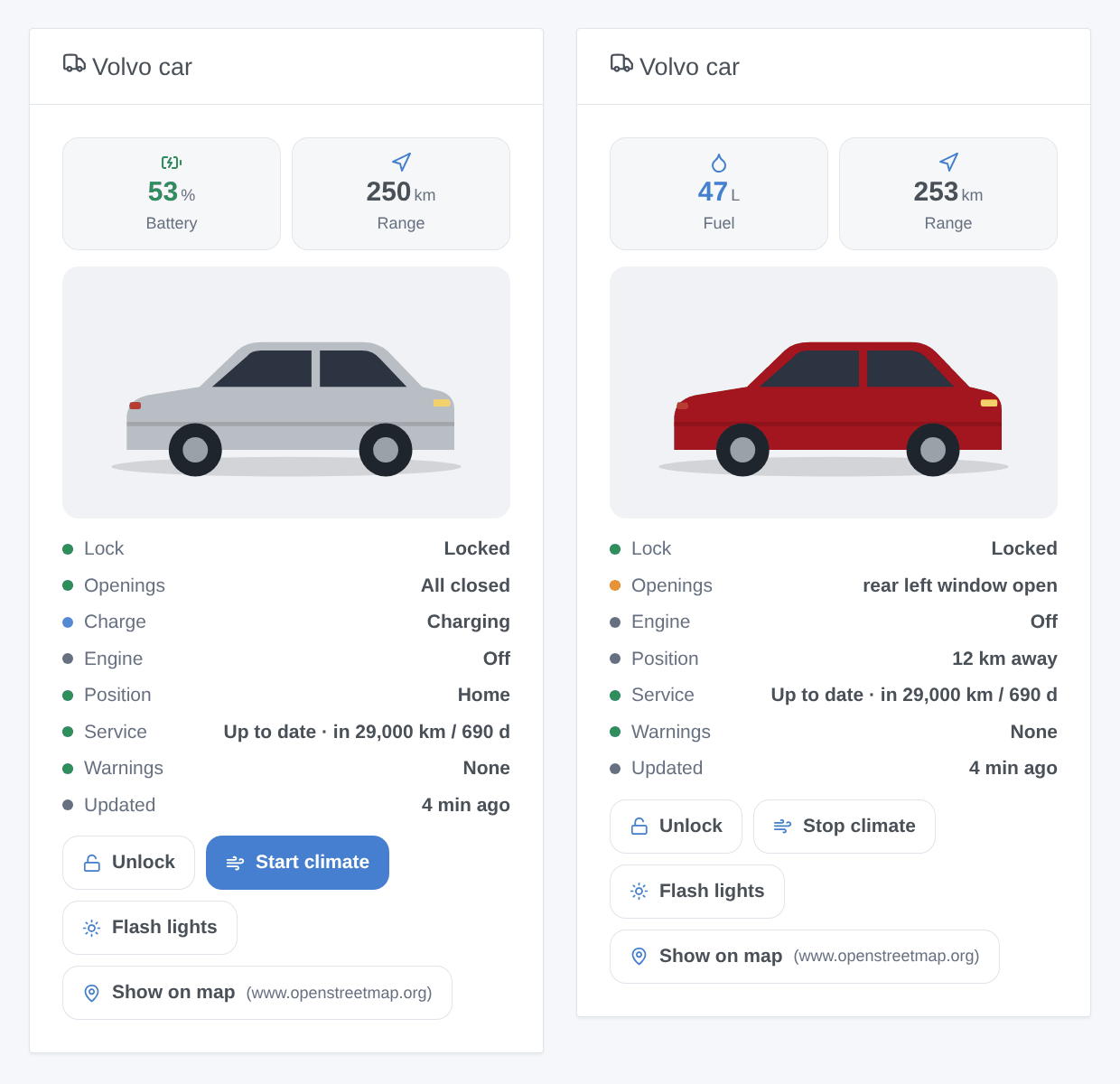
The Volvo car widget shows the picture of your car (exact model and colour), the battery or fuel and the range, then the state: lock, openings, charging, engine, position, service, warnings and the age of the data. Its buttons: Lock / Unlock (asks first), Start climate / Stop climate, Flash lights (to find the car in a car park, asks first) and Show on map. The buttons can be hidden in the widget settings.
Troubleshooting
| Symptom | Likely cause |
|---|---|
| The Volvo ID page shows a redirect URI error | the redirect URI declared when publishing does not exactly match the one Gladys shows |
| The Volvo ID page refuses the scopes | not every scope was ticked when publishing |
| "Volvo refuses the API key" | VCC API key badly copied, or application without the needed scopes |
| "Daily quota of the Volvo API reached" | too many requests for one application: raise the refresh interval or create one application per car |
| "Volvo ended the authorization" | end of the authorization period of the application: click Connect |
| No position nor distance from home | the position is not available in your country, or your house is not located in Gladys |
| A command has no effect | car deeply asleep or out of network: the command fails after a while; the logs of the integration show the status |
| Orange dot on the Cloud badge | Volvo says the car cannot run remote commands right now: the reason shows when hovering over the badge |
| Texts in the wrong language | set Language of the texts in the configuration; in Automatic, the language of the last dashboard opened wins |
Configuration settings
These are the settings Volvo asks for in its configuration screen in Gladys.
| Setting | Type | Required | Description |
|---|---|---|---|
| 1. Volvo developer application | section | No | Gladys reads your car through the official Volvo Cars APIs. On the Volvo developer portal, sign in with the Volvo ID of your car, open the API applications page and create an application (any name, e.g. Gladys). Copy its VCC API key (primary) below. One application per car is best: each one has a daily request quota. |
| VCC API key | secret | Yes | The primary key of the application (32 characters). |
| 2. Publish the application | section | No | Under the application, click Publish. Tick ALL the scopes (expand every section), and add as redirect URI the address Gladys shows next to the Connect button below. Confirm: the portal then gives a client ID and a client secret, to copy here. Volvo limits the authorization of such an application in time: when it ends, Gladys warns you and you click Connect again. |
| Client ID | string | Yes | |
| Client secret | secret | Yes | |
| 3. Sign in with your Volvo ID | section | No | Save first, then click Connect: the Volvo ID page opens (a code is sent by e-mail). Approve the access; you come back to Gladys, then add your cars from the Discovery tab. |
| Volvo ID | oauth2 | No | |
| Options | section | No | |
| Refresh interval (min) | number | No | Lock, doors, battery, charge and position, between 2 and 60 minutes. About 2,000 requests a day per car at 5 minutes; service and warnings are read every 30 minutes. |
| Home radius (m) | number | No | A car closer than this to a house of Gladys (with its position set) is home: distance feature and arrived/left scenes. |
| Language of the texts | select | No | Language of the device names, the charging status, the warnings and the scene summaries. Automatic: the language of your dashboard. |
How to install Volvo in Gladys
- In Gladys, open Integrations: Volvo appears in the catalog, next to the native integrations, with a community badge.
- Click Install. Gladys pulls the Docker image (
ghcr.io/william-de71/gladys-volvo:1.3.0), starts it in a sandbox isolated from the core, and generates the integration's interface (devices, discovery and configuration). - Open the Configuration screen of the integration, fill in the settings, and save.
- You can also install it directly from its repository URL: https://github.com/William-De71/gladys-volvo.
Volvo requires Gladys >=5.3.0. The catalog inside Gladys refreshes every hour, so a new version becomes available at most one hour after its release.
Not running Gladys yet? It is free and open source: follow the installation guide to get started.
About external integrations
Volvo is an external integration: a community integration packaged as a Docker container and published on GitHub, that Gladys installs in one click and runs in a sandbox isolated from its core. It is published and maintained by William-De71, not by the Gladys core team.
- Browse all integrations, native and community
- Build and publish your own external integration
- Source code on GitHub — source of this documentation