TP-Link / Mercusys Router smart home integration, free and open source
TP-Link and Mercusys routers: internet link, Wi-Fi and guest Wi-Fi, network presence, scenes.
Published by William-De71
- Devices
- Version 0.1.0
- Requires Gladys >=5.1.0
- ★ 0
Overview
This integration brings a TP-Link or Mercusys router into Gladys: the Archer routers with the current web page (Archer C6, AX, BE, GX…) and the Mercusys routers built on it. It reads the router through its own web page, on your local network, every minute:
- the router: CPU and memory usage, internet status, WAN address, time connected, connected clients (Wi-Fi, wired, guest), firmware;
- its Wi-Fi networks (main, guest and IoT, per band), as switches;
- the devices of your network, as presence sensors: know who is home from the phones connected to the Wi-Fi.
It also brings scene triggers (internet down or back, public IP address changed, device arrived or left, new device on the network), scene actions (read the status, turn Wi-Fi networks on or off, reboot) and four dashboard widgets.
The image above is a generated illustration, not a screenshot.
Prerequisites
- Gladys Assistant 5.1.0 or later.
- A TP-Link or Mercusys router whose web page shows
/webpages/index.htmlin the address bar. Four login variants of this page are supported (the integration finds the right one). Deco systems (app only), the 4G/5G models with another web page (Archer MR, TL-MR, EX, VR) and the older routers (TL-WR841N, Archer C50) are not supported yet. - The local password of the router, the one of its web page, not the password of a TP-Link ID.
- Gladys must reach the router: its LAN address (
192.168.0.1,192.168.1.1,tplinkwifi.net).https://only works if Local Management via HTTPS is turned on in the router. - Good to know: the web page of the router admits one administrator at a time. Each reading logs in and out, and logs you out of the web page if it is open. Use the pause (see below) before opening it.
Configuration
| Field | Description |
|---|---|
| Router address | 192.168.0.1 (http:// is added), or https://192.168.0.1 with HTTPS. |
| Local password | The password of the web page. After several wrong attempts the router locks the login for a while. |
| User name | Leave empty for admin. Some EX models expect user. |
| Verify the certificate | HTTPS only. Leave it unticked with the self-signed certificate of the router. |
| Reading interval (s) | 30 to 600 seconds, 60 by default. |
| Pause length (min) | How long the pause stops the readings. 20 by default. |
| Network devices offered | Those with a name (default), all, or none. |
| Absence delay (min) | A device is absent once it has been gone that long. 5 by default: a phone asleep leaves the Wi-Fi for a while. |
| Language of the texts | Names, states and scene summaries. Automatic: the language of your dashboard, once a widget has been displayed. |
Click Test the connection: the model and the firmware of the router appear. Pause the readings and Resume the readings free the web page of the router, then take over again. Forget known devices makes the devices present now the reference of the "new device" trigger.
Usage
Devices
Open Discover in the integration and add the devices you want:
| Device | Features |
|---|---|
| TP-Link router | CPU and memory usage (%), internet, WAN IP, internet connected for (h), clients, Wi-Fi clients, wired clients, guest clients, firmware |
| Wi-Fi network | A switch: turns one network (main, guest or IoT) on one band on or off |
| Network device | Presence: 1 while it is connected, 0 once it has been gone for the absence delay |
CPU, memory and the time connected only appear when the router reports them: not every firmware does.
Presence of the devices
A device is present as soon as the router lists it, and absent once it has been gone for the absence delay. While present, its presence is sent again every minute, like the Bluetooth presence of Gladys: the "check presence" action of a scene works with it. Give the phones a name in the router (Network Map > Clients, or in the Tether app) to find them easily: by default, only the devices with a name are offered.
Wi-Fi networks
Each Wi-Fi network the router reports becomes a switch: the main Wi-Fi, the guest Wi-Fi and the IoT Wi-Fi, one per band (2.4, 5 and 6 GHz). A network switched from the router or the Tether app shows up in Gladys at the next reading. Turning the main Wi-Fi off from Gladys cuts the devices that use it: Gladys itself is better wired.
Pausing the readings
Because the router admits one administrator at a time, the web page logs you out at each reading. Before opening it, press Pause on the TP-Link router widget (or Pause the readings in the configuration): Gladys stops reading for the pause length, then resumes by itself. Presence is frozen meanwhile: nobody is marked absent because of the pause.
Dashboard widgets
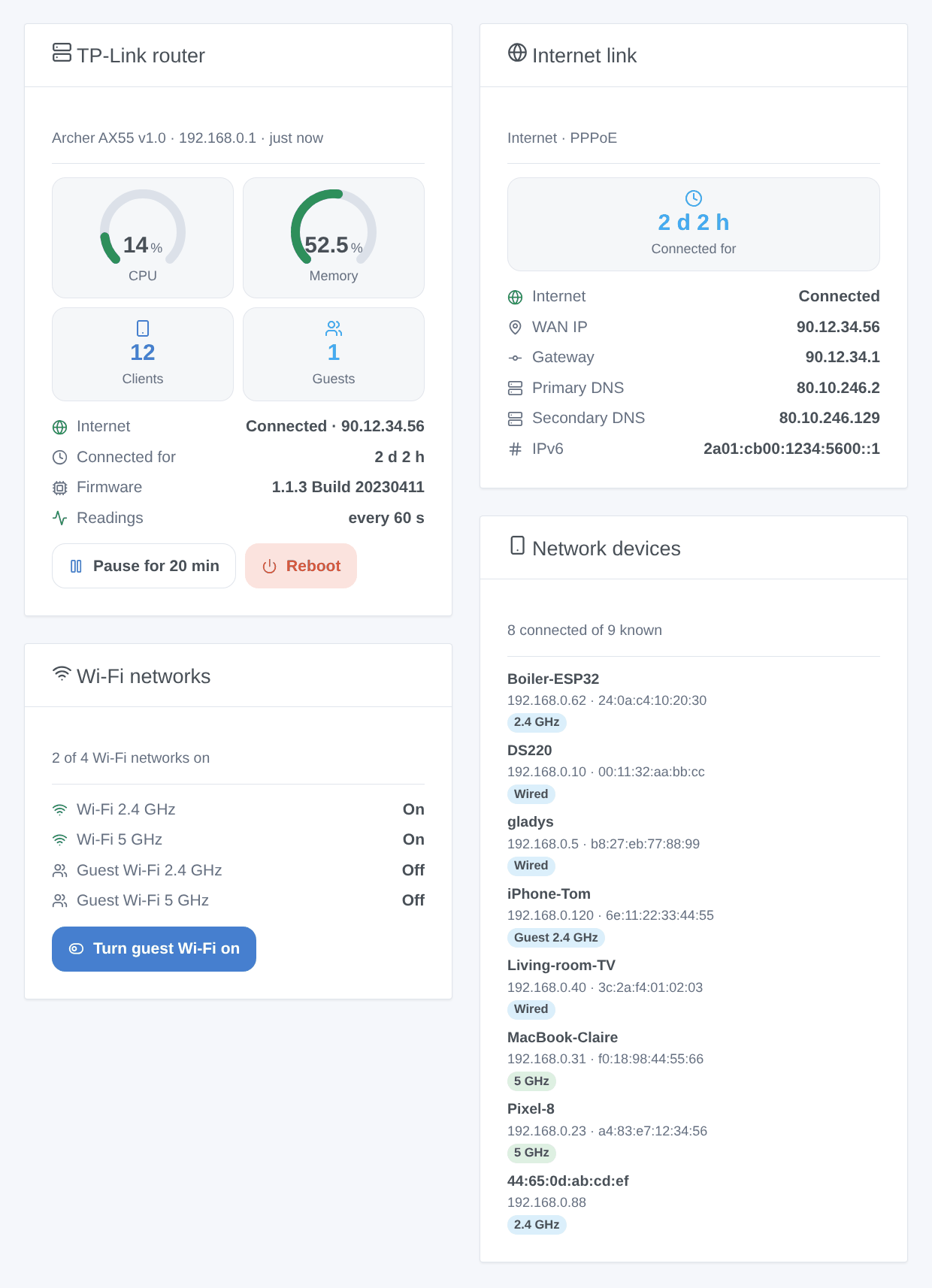
- TP-Link router: CPU and memory gauges, connected clients, guests, internet, time connected, firmware, readings, and two buttons: Pause (or Resume) and Reboot (with a confirmation).
- Internet link: time connected, status, WAN address, gateway, DNS servers, IPv6 address.
- Wi-Fi networks: each network and its state, and a button that turns the guest Wi-Fi on or off on every band (and the same for the IoT Wi-Fi).
- Network devices: the devices connected now, the ones that left, or all, with their connection (wired, Wi-Fi band, guest). Setting: what to show.
Scenes
Triggers:
- Internet down or back: filter on the status. Variables: status, WAN IP, summary.
- Public IP address changed: the provider gave the router a new address. Variables: new and previous address, summary.
- Device arrived or left: a device added in Gladys, or any. Variables: name, event, MAC, IP, connection, summary.
- New device on the network: a MAC address never seen before, once (remembered across restarts). Filters: Wi-Fi or wired, main, guest or IoT network.
Actions:
- Read the status: CPU, memory, internet, WAN IP, time connected, devices present, guests, model, firmware, and a summary for a message.
- Turn Wi-Fi on or off: the main, guest or IoT Wi-Fi, on one band or all of them.
- Reboot the router: the network and the internet are cut for a few minutes.
Examples: when a visitor arrives (a button, a calendar event), turn the guest Wi-Fi on, and off again at midnight; when the public IP address changes, send it by message; when the phone of a child arrives, turn the hall light on.
Transport
Local only: the integration talks to the web page of the router on your network, nothing goes through a cloud.
Troubleshooting
- "The router refuses the password": type the local password again (not the TP-Link ID one); the integration waits 15 minutes before trying again, so that the router does not lock the login. Saving the configuration tries at once.
- "The router locked the login": too many failed attempts (from Gladys or a browser). Wait for the delay shown.
- "does not answer like a TP-Link or Mercusys router web page": check the address; the model may use another web page (Deco, 4G/5G models).
- "uses a login the integration does not know yet": open an issue with the model, hardware version and firmware.
- Logged out of the web page of the router: that is the reading of Gladys; pause the readings first.
- A phone shows as absent while home: raise the absence delay; some phones put their Wi-Fi to sleep for a long time.
- Logs: open the logs of the integration in Gladys, then an issue on GitHub with the versions of Gladys and of the integration, the model and firmware of the router, and the logs (the password never appears in them).
Configuration settings
These are the settings TP-Link / Mercusys Router asks for in its configuration screen in Gladys.
| Setting | Type | Required | Description |
|---|---|---|---|
| TP-Link or Mercusys router | section | No | The integration logs in to the web page of the router (Archer, Mercusys…) with its local password, like your browser. Everything stays on your network. The page admits one administrator at a time: each reading logs it out (see the pause). |
| Router address | string | Yes | The address of its web page. http:// by default; https:// only with “Local Management via HTTPS” on. |
| Local password | secret | Yes | The password of the web page of the router, not the one of a TP-Link ID. After several wrong attempts the router locks the login for a while. |
| User name | string | No | Leave empty for admin. Some EX models expect user. |
| Verify the certificate | boolean | No | HTTPS only. Leave unticked with the self-signed certificate of the router. |
| Options | section | No | The router, its Wi-Fi networks and the clients of the network appear on the Discovery screen; clients become presence sensors once you add them. |
| Reading interval (s) | number | No | 30 to 600 seconds, 60 by default. |
| Pause length (min) | number | No | How long the “pause” button stops the readings, to use the web page of the router. 5 to 120, 20 by default. |
| Network devices offered | select | No | Which clients of the router appear on the Discovery screen as presence devices. |
| Absence delay (min) | number | No | A device is absent once it has been gone that long. 1 to 60, 5 by default: a phone asleep leaves the Wi-Fi for a while. |
| Language of the texts | select | No | Names, states and scene summaries. Automatic: the language of your dashboard, once a widget of the integration has been displayed. |
How to install TP-Link / Mercusys Router in Gladys
- In Gladys, open Integrations: TP-Link / Mercusys Router appears in the catalog, next to the native integrations, with a community badge.
- Click Install. Gladys pulls the Docker image (
ghcr.io/william-de71/gladys-tplink-router:0.1.0), starts it in a sandbox isolated from the core, and generates the integration's interface (devices, discovery and configuration). - Open the Configuration screen of the integration, fill in the settings, and save.
- You can also install it directly from its repository URL: https://github.com/William-De71/gladys-tplink-router.
TP-Link / Mercusys Router requires Gladys >=5.1.0. The catalog inside Gladys refreshes every hour, so a new version becomes available at most one hour after its release.
Not running Gladys yet? It is free and open source: follow the installation guide to get started.
About external integrations
TP-Link / Mercusys Router is an external integration: a community integration packaged as a Docker container and published on GitHub, that Gladys installs in one click and runs in a sandbox isolated from its core. It is published and maintained by William-De71, not by the Gladys core team.
- Browse all integrations, native and community
- Build and publish your own external integration
- Source code on GitHub — source of this documentation