StorCube smart home integration, free and open source
StorCube balcony batteries: level, solar, injection setpoint and threshold.
Published by William-De71
- Devices
- Version 0.1.0
- Requires Gladys >=5.3.0
- ★ 0
Overview
This integration brings a StorCube balcony battery (S1000 and its expansion batteries) into Gladys, through the StorCube cloud and the account of the StorCube app. You see the battery level, the solar power and the power sent to your house, and your scenes can switch the injection on or off, change the output setpoint (0 to 800 W) and the discharge threshold — for instance to give the energy back in the evening.
Good to know before installing:
- The StorCube cloud API is neither documented nor official. The integration follows the Home Assistant integration storcube_Ha, which reads real batteries; StorCube can change its API at any time.
- Everything goes through the cloud (
baterway.com), unencrypted: your e-mail and password travel in clear, as with the StorCube app itself. Use a password you use nowhere else. - The integration has not been tested with a real battery yet. Your feedback is welcome.
- Not affiliated with StorCube.
Prerequisites
- Gladys Assistant 5.3.0 or later.
- A StorCube battery set up in the StorCube app, connected to Wi-Fi.
- The e-mail and password of the StorCube app account.
- The serial number of the master battery: the one wired to the solar panels and the micro-inverter. It is on the label of the battery and in the app.
Configuration
In Gladys: Integrations → StorCube → Configuration.
| Field | What to enter |
|---|---|
| E-mail of the StorCube app | The e-mail you log in to the app with |
| Password | Its password (kept as a secret, never shown again) |
| Serial number of the master battery | The digits on the label; spaces and dashes are removed |
| App code | Leave Storcube, unless your battery uses another app of the same cloud |
| Language of the texts | Automatic follows the language of the dashboard |
Save, then press Test the connection: it logs in and shows the model, the number of batteries in the stack, the setpoint and the threshold.
If the cloud refuses the e-mail or the password, the integration stops trying until you change the configuration, so your account is never locked out.
Usage
Devices
Open Discover and add the batteries. The master battery offers:
- battery level (%), energy stored (kWh), temperature (°C);
- solar power (W, both inputs added), power sent to the house (W);
- charge power and discharge power (W): worked out as solar minus the power sent to the house, since the API gives no battery power;
- Output setpoint (W): a slider from 0 to 800 W, the power the battery sends to the house;
- Injection to the house: off sets the setpoint to 0 W, on brings back the last setpoint above 0 (800 W if none is known);
- Discharge threshold (%): the level under which the battery stops sending power.
Each expansion battery offers its level, energy stored and temperature. The values come from the real-time stream of the StorCube cloud; the settings are read again every 30 seconds.
Dashboard widgets
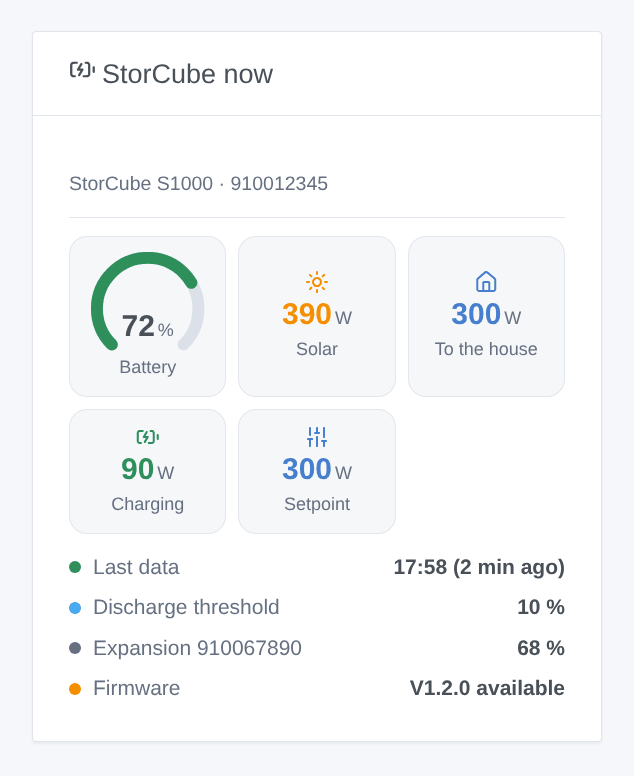
StorCube now shows the battery gauge, the solar power, the power to the house, charging or discharging, the setpoint (or "injection off"), when the last data came, the discharge threshold, each expansion battery and a waiting firmware update.
Scenes
Triggers (once per change, never at the first reading):
- StorCube: battery full — 100 %, again after going under 95 %;
- StorCube: battery at its threshold — the battery stops sending power;
- StorCube: battery silent — no data for 20 minutes while the cloud answers; battery back when data come again;
- StorCube: firmware update — a new firmware is offered (once per version);
- StorCube: login refused — the cloud refuses the e-mail or the password.
The commands are device features: use the Control a device action. Examples:
- Evening injection: every day at 19:00 → Output setpoint = 800 W; at 23:00 → Injection to the house = off.
- Sun first: when the battery is full → Output setpoint = 300 W.
- Watch the battery: when the battery is silent → send a notification.
Troubleshooting
- "The StorCube cloud refuses the login": check the e-mail and the password in the StorCube app, then save the configuration again (that allows one new try).
- "does not know the battery": the serial number is not the master battery of this account. Use the one of the battery wired to the panels.
- No data, "waiting for the data": the StorCube cloud sometimes takes several minutes to send the first frame. Check that the battery is online in the app.
- The app logs you out, or Gladys stops receiving data: the cloud tolerates several sessions of one account badly. Avoid other tools on the same account.
- A command is refused: only the master battery takes commands; the threshold field name differs between firmwares and the integration tries the known ones.
- For a bug report, press Diagnostic and copy the "StorCube diagnostic" lines from the logs of the integration (no password in them), with the versions of Gladys and of the integration, and the model and firmware of the battery.
Configuration settings
These are the settings StorCube asks for in its configuration screen in Gladys.
| Setting | Type | Required | Description |
|---|---|---|---|
| StorCube account | section | No | Use the e-mail and password of the StorCube app. The data go through the StorCube cloud (baterway.com), whose API is unofficial and unencrypted (plain HTTP): use a password you use nowhere else. Not affiliated with StorCube. |
| E-mail of the StorCube app | string | Yes | |
| Password | secret | Yes | |
| Serial number of the master battery | string | Yes | On the label of the battery or in the app: the battery wired to the panels and the micro-inverter. |
| App code | string | No | Leave “Storcube” unless your battery uses another app of the same cloud. |
| Language of the texts | select | No | Feature names, scene texts and errors. Automatic: the language of the last widget shown. |
How to install StorCube in Gladys
- In Gladys, open Integrations: StorCube appears in the catalog, next to the native integrations, with a community badge.
- Click Install. Gladys pulls the Docker image (
ghcr.io/william-de71/gladys-storcube:0.1.0), starts it in a sandbox isolated from the core, and generates the integration's interface (devices, discovery and configuration). - Open the Configuration screen of the integration, fill in the settings, and save.
- You can also install it directly from its repository URL: https://github.com/William-De71/gladys-storcube.
StorCube requires Gladys >=5.3.0. The catalog inside Gladys refreshes every hour, so a new version becomes available at most one hour after its release.
Not running Gladys yet? It is free and open source: follow the installation guide to get started.
About external integrations
StorCube is an external integration: a community integration packaged as a Docker container and published on GitHub, that Gladys installs in one click and runs in a sandbox isolated from its core. It is published and maintained by William-De71, not by the Gladys core team.
- Browse all integrations, native and community
- Build and publish your own external integration
- Source code on GitHub — source of this documentation