Sonoff / eWeLink smart home integration, free and open source
Control your Sonoff and eWeLink devices, on the local network first, the cloud as a backup.
Published by William-De71
- Devices
- Version 0.3.0
- Requires Gladys >=5.3.0
- ★ 0
Control your Sonoff and eWeLink devices from Gladys, on your local network first, with the eWeLink cloud as an optional backup. Devices keep working when the internet is down, and the cloud fills the gaps (encryption keys, Zigbee devices of a bridge, remote control).
This integration is not affiliated with ITEAD (Sonoff) nor CoolKit (eWeLink).
Overview
- Local network first: Gladys finds the devices on the network (mDNS) and the integration sends them the commands directly, encrypted like the eWeLink app does. Devices in DIY mode need nothing else.
- eWeLink cloud, optional: with your own free eWeLink developer application, the integration gets the names and encryption keys of your devices, real-time updates, a fallback when the local network fails, and the Zigbee devices of a bridge.
- Each device shows a Local / Cloud / Unreachable badge, with an orange dot when it works in a degraded mode (seen locally but controlled through the cloud).
Supported devices
Over 110 eWeLink models, ported from the SonoffLAN project: single and multi-channel switches (Basic, Mini, Micro, T1, TX Ultimate, M5), metering plugs and modules (POW, POWR2, POWR3, S40, S60, DualR3, SPM-4Relay), TH thermostats, lights (D1, B02, B05, L1, L3, Zigbee bulbs), iFan fans, curtains and garage doors, Wi-Fi and Zigbee sensors (door, motion, presence, leak, temperature, humidity, air quality), TRVZB radiator valve, NSPanel, SNZB-09P siren, water valves and the RF Bridge 433.
Prerequisites
- Gladys Assistant 5.3.0 or later.
- Devices on the original eWeLink firmware (or in DIY mode), on the same network as the Gladys server: mDNS must reach it (no VLAN isolation, no client isolation on the Wi-Fi).
- Devices that are not in DIY mode encrypt their messages with a key only the eWeLink cloud knows. To control them locally, connect the cloud once (the keys are then kept), or add each key by hand.
- For the cloud: a free account on the eWeLink developer center (dev.ewelink.cc) and one application. Its free quota is 50,000 API calls a month per region: the real-time WebSocket uses almost none.
Configuration
Local network
Local network control is on by default. The network scan interval (60 s) sets how often the network is browsed for addresses and states; the local refresh interval (30 s) how often each device is asked for its state (power, temperature...).
eWeLink cloud (optional)
- Sign in on dev.ewelink.cc, complete the developer certification, then create an application.
- In Gladys, choose the cloud connection Developer application (OAuth), enter the App ID, the App Secret and the region of your account, then save.
- Copy the Redirect URI to declare in your developer application, shown with the Connect button, into the application on the eWeLink developer center.
- Click Connect and sign in with your eWeLink account. The badge of the integration turns to "Connected".
The E-mail and password mode only works with an App ID allowed to sign in with a password, which the free developer ones are not. Signing in with the App ID of another application may disconnect that application.
Add a device by hand
The Add a device by hand action takes the device ID (10 characters, shown in the eWeLink app), and optionally its IP address and its key. Use it for a device the network scan cannot see, or to control a device locally without the cloud when you know its key.
Prefer the local connection
Gladys shows a standard Prefer the local (LAN) connection when available toggle. When it is on, commands go through the local network and fall back to the cloud; when it is off, the cloud comes first.
Usage
Discovery and creation
Open the Discover tab and run a scan: the devices found on the network and in your eWeLink account appear, with their name and features. Create the ones you want: they show up in the Devices tab and on your dashboards.
Scene triggers
- Sonoff button pressed: a wireless button, a remote or a wall switch
reported a press. Filter by device, button (1 to 4) and press (single,
double, long, triple). Variables:
button,press,device_name. - RF code received: an RF Bridge received a learned code (remote, door
or motion sensor). Variables:
channel,name,device_name. - Sonoff device online/offline: a device can no longer be reached, or is
back. Variables:
status,device_name. - eWeLink cloud status changed: connection lost, back, sign-in required or
quota exhausted. Variable:
status.
Scene actions
- Send an RF code: an RF Bridge sends a learned code (number or name).
Outputs:
sent,via. - Send an eWeLink command: raw eWeLink parameters in JSON, for what
Gladys has no control for (light effects...). Outputs:
sent,via. - Rescan the Sonoff devices: outputs
devicesandreachable.
Dashboard widgets
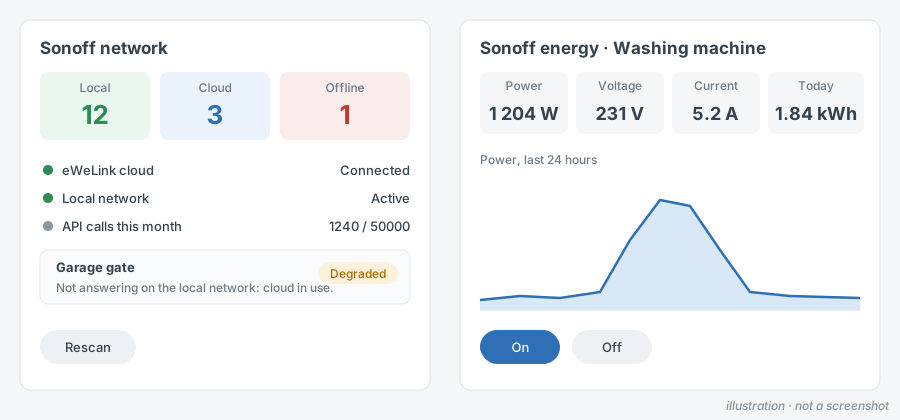
- Sonoff network: devices reached locally, through the cloud or unreachable, cloud session, API calls of the month, devices to look at, and a Rescan button.
- Sonoff energy: power, voltage, current and consumption of a metering device, its power over 24 hours and On / Off buttons.
- RF remote: up to four codes of an RF Bridge as buttons, and the last codes received.
Scene examples
- When the bedside button is double pressed, turn off every light of the house.
- When the RF Bridge receives the front door code at night, turn on the hall and send a message.
- When the freezer plug becomes unreachable, send a notification with
{{triggerEvent.data.device_name}}.
Troubleshooting
- No device found: the Gladys server and the devices must be on the same network, with mDNS allowed. Run the Test the connection action: it shows how many devices answer on the local network.
- Orange badge "seen on the network, key unknown": the device is not in DIY mode and its key is missing. Connect the cloud once, or add the key by hand.
- "Signed in elsewhere": another program uses the same App ID with your account. Use your own developer application.
- Quota exhausted: the local network keeps working; the cloud comes back on the 1st of the month.
- Power readings frozen: since 2026 eWeLink no longer relays power, current and voltage through the cloud: these devices need the local network.
- More detail: open the Logs tab of the integration; every scan, command and cloud event is written there.
Configuration settings
These are the settings Sonoff / eWeLink asks for in its configuration screen in Gladys.
| Setting | Type | Required | Description |
|---|---|---|---|
| Local network first | section | No | Devices are found and controlled on your local network, without internet. Devices in DIY mode need nothing more. The others encrypt their messages with a key only the eWeLink cloud knows: connect the cloud below once, or add their key by hand with the "Add a device by hand" action. |
| Local network control | boolean | No | Find the devices on the network (mDNS) and send them the commands directly. |
| Network scan interval (s) | number | No | How often the network is browsed for the device addresses and states. |
| Local refresh interval (s) | number | No | How often each device is asked for its state (power, temperature...). |
| eWeLink cloud (optional) | section | No | The cloud brings the encryption keys, the names of your devices, real-time updates, remote control and the Zigbee devices of a bridge. It needs your own free eWeLink developer application: create it on dev.ewelink.cc, then enter its App ID and App Secret. |
| Cloud connection | select | No | |
| App ID | string | No | Shown in your eWeLink developer application. |
| App Secret | secret | No | |
| Account region | select | No | Where your eWeLink account was created. Another region is tried when it is wrong. |
| Developer application (OAuth) | section | No | Save the form first. In your eWeLink developer application, set the redirect URL shown under the button below. Then click Connect and sign in to eWeLink. |
| eWeLink account | oauth2 | No | |
| E-mail and password | section | No | Only for App IDs allowed to sign in with a password (the free developer ones are not). Signing in with the App ID of another application may disconnect it. |
| eWeLink e-mail or phone | string | No | |
| eWeLink password | secret | No | |
| Country calling code | string | No | |
| Daily consumption of the first POW models | boolean | No | Asks the cloud once an hour for the consumption of the POW, POWR2 and S40. |
How to install Sonoff / eWeLink in Gladys
- In Gladys, open Integrations: Sonoff / eWeLink appears in the catalog, next to the native integrations, with a community badge.
- Click Install. Gladys pulls the Docker image (
ghcr.io/william-de71/gladys-sonoff-ewelink:0.3.0), starts it in a sandbox isolated from the core, and generates the integration's interface (devices, discovery and configuration). - Open the Configuration screen of the integration, fill in the settings, and save.
- You can also install it directly from its repository URL: https://github.com/William-De71/gladys-sonoff-ewelink.
Sonoff / eWeLink requires Gladys >=5.3.0. The catalog inside Gladys refreshes every hour, so a new version becomes available at most one hour after its release.
Not running Gladys yet? It is free and open source: follow the installation guide to get started.
About external integrations
Sonoff / eWeLink is an external integration: a community integration packaged as a Docker container and published on GitHub, that Gladys installs in one click and runs in a sandbox isolated from its core. It is published and maintained by William-De71, not by the Gladys core team.
- Browse all integrations, native and community
- Build and publish your own external integration
- Source code on GitHub — source of this documentation