Somfy TaHoma smart home integration, free and open source
Somfy TaHoma box: covers, lights, plugs and sensors, on the local network or via the cloud.
Published by William-De71
- Devices
- Version 0.1.0
- Requires Gladys >=5.3.0
- ★ 0
Overview
This integration brings a Somfy TaHoma box (TaHoma, TaHoma Switch, TaHoma Beecon, Connexoon) into Gladys: roller shutters, blinds, screens, awnings, curtains, roof windows, pergolas, garage doors and gates (io-homecontrol and RTS), lights, plugs and the sensors of the box.
It reaches the box two ways:
- on the local network, through the local API of the Somfy Developer Mode: commands and states no longer go through Somfy and keep working without internet;
- through the Somfy cloud, with the account of the TaHoma app.
Local first by default, the cloud as the fallback. Gladys shows which one is in use on every device.
The Gladys store already offers an Overkiz integration (by cicoub13), cloud only, which also covers Atlantic Cozytouch, Flexom, Rexel and Hitachi accounts. This one is dedicated to the Somfy boxes and adds the local mode.
Not affiliated with Somfy.
Requirements
- Gladys Assistant 5.3.0 or later.
- A TaHoma, TaHoma Switch, TaHoma Beecon or Connexoon box set up in the TaHoma app.
- For the local mode: a box compatible with the Developer Mode (not the first square TaHoma, not the Connectivity Kit), on the same network as Gladys.
- For the cloud and the TaHoma scenarios: the e-mail and password of the TaHoma app.
Configuration
TaHoma account
Choose the region of your account (Europe for most users), then type the e-mail and password of the TaHoma app and save. Gladys logs in once, then renews its access by itself: Somfy blocks an account that logs in too often.
The account is optional if you only use the local mode, but it is needed for the TaHoma scenarios and for the Enable the local mode button.
Local mode
The easiest way: save your account, then press Enable the local mode. Gladys turns the Developer Mode of the box on and creates a token named “Gladys Assistant”, then switches to the local network.
By hand: in the TaHoma app, Configure the installation › parameters of the box, tap the PIN of the box (like 1234-5678-9012) 7 times to open the Developer Mode, create a token and paste it in Local token.
Gladys finds the box on the network by itself (mDNS). Type its IP address only if it does not (another subnet, multicast filtered); a fixed address in your router is best. PIN of the box is only useful for an account with several boxes.
The Prefer the local connection switch of Gladys (on by default) chooses the channel tried first.
Language
Gladys does not tell the integration your language when it scans or runs a scene: choose the language of the feature names and of the scene errors.
Usage
Devices
Open the Discover tab: every device of the box that Gladys can show appears, with the name given in the TaHoma app. Add the ones you want.
| TaHoma device | In Gladys |
|---|---|
| Roller shutter, blind, screen, window, pergola, garage door, gate | Shutter: open / stop / close, position when the motor reports it, slats when it has some |
| Awning | Shutter, position = how far out |
| Curtain | Curtain |
| One-button opener | Shutter, open and close press the button |
| RTS motor | Shutter without feedback (RTS is one-way) |
| Light | Light: on / off, intensity when dimmable |
| Plug, relay, pool | Switch |
| Sensors | Temperature, light, humidity, opening, motion, smoke, water leak, battery, CO2, power, energy index (kWh) |
Positions count how open the cover is (100 % = open), like everywhere in Gladys. The box pushes the changes: nothing is polled.
Not handled yet: heating (thermostats, valves, heat pumps), alarms, cameras and Hue lamps behind the box.
Transport
Each device shows a local or cloud badge. An orange dot means the preferred channel does not answer and Gladys uses the other one: the tooltip says why. Gladys tries the preferred channel again every 5 minutes.
In local mode, nothing leaves your network except the hourly reading of the TaHoma scenarios when an account is set. In cloud mode, commands and states go through Somfy.
Widgets
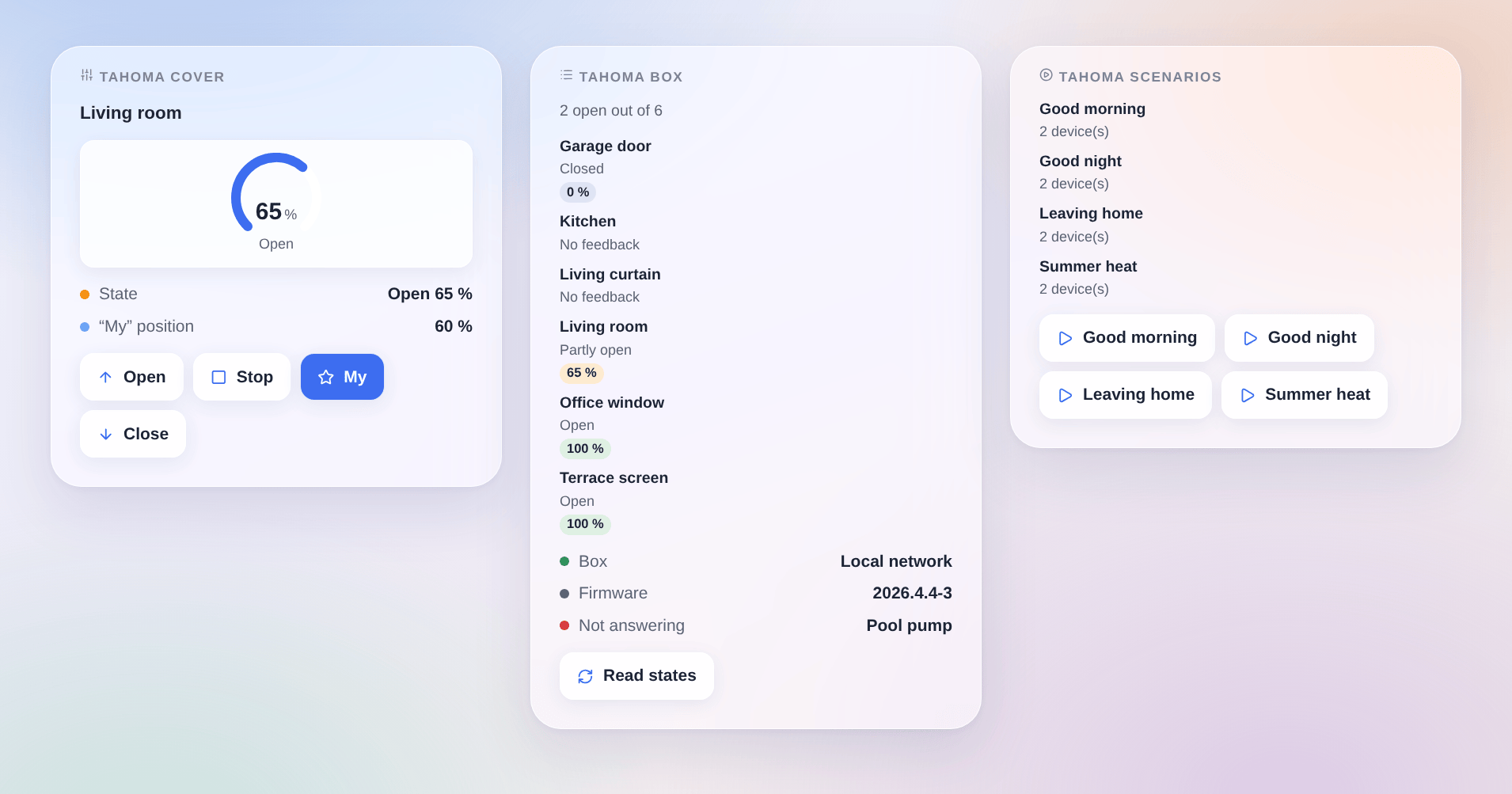
- TaHoma cover: one cover, how open it is, its state, slats and “My” position, with the open, stop, “My” and close buttons.
- TaHoma box: the covers at a glance, the channel in use, the firmware, the devices not answering, and a button to read the states again.
- TaHoma scenarios: your TaHoma scenarios and buttons to run up to four of them (setting: names separated by commas).
Scene triggers
- A TaHoma command failed: from Gladys, the TaHoma app or a scenario; variables: device name, Overkiz failure code, name of the execution.
- A TaHoma device stops or resumes answering: empty battery, power cut, out of range.
- The TaHoma box is lost or back: no channel reaches it for a minute, or Somfy says it is offline.
Scene actions
- Run a TaHoma scenario, by its name. In local mode, its commands are replayed on the local network.
- Send a TaHoma command: “My”, open, close, stop, identify.
Scene examples
- When the box is lost → send a message: “The TaHoma box no longer answers”.
- When a command of the living room shutter fails → notify with the failure code (an obstacle, a frozen shutter).
- At sunset → run the TaHoma scenario “Good night”.
Troubleshooting
- Test the connection says which channel answers and why the other one does not.
- “Somfy refused the e-mail or the password”: check them in the TaHoma app. After many failures, Somfy blocks logins for a while: wait before retrying.
- “Box not found on the local network”: type its IP address, check that the Developer Mode is still on (a factory reset or some updates turn it off).
- “The box refused the local token”: the token was revoked or belongs to another box: press Enable the local mode again or create a new one.
- “The certificate is not the one of a TaHoma box”: the address is not the one of your box.
- An RTS motor shows no position: RTS is one-way, the box does not know it.
- Logs: Logs tab of the integration; add
DEBUG=gladys-integration-sdkto the container for the SDK details. Report issues on GitHub.
Configuration settings
These are the settings Somfy TaHoma asks for in its configuration screen in Gladys.
| Setting | Type | Required | Description |
|---|---|---|---|
| Your TaHoma account | section | No | For a TaHoma, TaHoma Switch or Connexoon box. With the e-mail and password of the TaHoma app, Gladys reaches the box through the Somfy cloud, reads your TaHoma scenarios and can enable the local mode for you (button above). Every device of the box then appears in the Discover tab. The account is optional if you only use the local mode below. Not affiliated with Somfy. |
| Region of the account | select | No | |
| E-mail of the TaHoma app | string | No | |
| Password of the TaHoma app | secret | No | |
| Local mode (Developer Mode) | section | No | On the local network, commands and states no longer go through Somfy and work without internet. The easiest way: save your account, then press “Enable the local mode” above. Or by hand: in the TaHoma app, Configure the installation › parameters of the box, tap the PIN 7 times to open the Developer Mode, create a token and paste it below. Gladys finds the box by itself; type its address only if not. Not available on the first TaHoma (square box) nor on the Connectivity Kit. |
| Local token (optional) | secret | No | Created in the Developer Mode of the TaHoma app. Leave empty if you use the “Enable the local mode” button. |
| IP address of the box (optional) | string | No | Only if Gladys does not find the box by itself (another subnet, multicast filtered). A fixed address in your router is best. |
| PIN of the box (optional) | string | No | Only for an account with several boxes: the one to use, as written under the box. Otherwise the first box. |
| Language of the texts | select | No | Names of the features and error messages of the scenes: Gladys does not tell the integration your language for those. |
How to install Somfy TaHoma in Gladys
- In Gladys, open Integrations: Somfy TaHoma appears in the catalog, next to the native integrations, with a community badge.
- Click Install. Gladys pulls the Docker image (
ghcr.io/william-de71/gladys-somfy-tahoma:0.1.0), starts it in a sandbox isolated from the core, and generates the integration's interface (devices, discovery and configuration). - Open the Configuration screen of the integration, fill in the settings, and save.
- You can also install it directly from its repository URL: https://github.com/William-De71/gladys-somfy-tahoma.
Somfy TaHoma requires Gladys >=5.3.0. The catalog inside Gladys refreshes every hour, so a new version becomes available at most one hour after its release.
Not running Gladys yet? It is free and open source: follow the installation guide to get started.
About external integrations
Somfy TaHoma is an external integration: a community integration packaged as a Docker container and published on GitHub, that Gladys installs in one click and runs in a sandbox isolated from its core. It is published and maintained by William-De71, not by the Gladys core team.
- Browse all integrations, native and community
- Build and publish your own external integration
- Source code on GitHub — source of this documentation