Slack smart home integration, free and open source
Talk to Gladys on Slack: a bot in your workspace, scenes and alerts, no public URL needed.
Published by William-De71
- Messaging
- Version 0.1.0
- Requires Gladys >=5.1.0
- ★ 0
Overview
Talk to Gladys on Slack, in a direct message to a bot of your own workspace: Gladys answers there, and sends her notifications and camera images there too. Your scenes can react when a linked member writes to the bot, mentions @gladys in a channel or types /gladys, and post Slack messages themselves.
The integration uses Socket Mode: it opens the connection to Slack itself, so Gladys needs no public URL, no open port and no Gladys Plus. Messages go through the servers of Slack (cloud transport). Unofficial integration, not affiliated with Slack Technologies; not yet tested in a real workspace.
Prerequisites
- Gladys Assistant 5.1.0 or later.
- A Slack workspace where you may install an app (on some workspaces an admin must approve it).
- Internet access from Gladys (outgoing only).
Create the Slack app
- In Integrations → Slack → Configuration, open the link Create the Gladys app in Slack: Slack opens its app creation page with the manifest below already filled in. Choose your workspace, check and click Create.
- In the app, Basic Information → App-Level Tokens → Generate Token and Scopes: give it a name, add the
connections:writescope, generate, and copy the token that starts withxapp-. - Install App → Install to Workspace, allow, then copy the Bot User OAuth Token, which starts with
xoxb-.
Without the link: open api.slack.com/apps, Create New App → From a manifest, pick the workspace and paste this manifest (also in slack-app-manifest.json):
{
  "_metadata": {
    "major_version": 1
  },
  "display_information": {
    "name": "Gladys",
    "description": "Gladys Assistant, the home automation assistant of the house.",
    "background_color": "#2f6fb5"
  },
  "features": {
    "app_home": {
      "home_tab_enabled": false,
      "messages_tab_enabled": true,
      "messages_tab_read_only_enabled": false
    },
    "bot_user": {
      "display_name": "gladys",
      "always_online": true
    },
    "slash_commands": [
      {
        "command": "/gladys",
        "description": "Talk to Gladys, or send a link code",
        "usage_hint": "turn on the kitchen light",
        "should_escape": false
      }
    ]
  },
  "oauth_config": {
    "scopes": {
      "bot": [
        "app_mentions:read",
        "channels:history",
        "channels:read",
        "chat:write",
        "commands",
        "files:write",
        "groups:history",
        "groups:read",
        "im:history",
        "im:write",
        "users:read"
      ]
    }
  },
  "settings": {
    "event_subscriptions": {
      "bot_events": ["app_mention", "message.channels", "message.groups", "message.im"]
    },
    "org_deploy_enabled": false,
    "socket_mode_enabled": true,
    "token_rotation_enabled": false
  }
}
The app stays an internal app of your workspace. It asks for the smallest set of permissions the integration uses: no user token, no access to e-mail addresses, and no reading of the history (messages arrive as events).
Configuration
| Field | Meaning |
|---|---|
| Bot token | xoxb-…, OAuth & Permissions → Bot User OAuth Token. Stored encrypted. |
| App-level token | xapp-… with the connections:write scope, Basic Information → App-Level Tokens. Stored encrypted. |
| Send direct messages to Gladys | On by default. Off: the messages of linked members only reach the scenes. |
| Default channel | Optional. A channel ID (C…, at the bottom of the channel details) or a member ID (U…), for the scene action and the test button. Invite the bot to that channel first (/invite @gladys). |
| Language of the bot | The few texts the bot writes itself to members Gladys does not know yet (invitation, refused code). |
Save, then press Test the connection: it shows the workspace, the bot, the state of Socket Mode, the default channel (and whether the bot is in it) and the number of linked members.
Link your Slack account
Each user does it once: in Integrations → Slack → Configuration, block Link my account, click Generate a link code, then in Slack send the code to @gladys in a direct message (Apps → Gladys → Messages), or type /gladys followed by the code anywhere. The bot answers that the account is linked. The code is valid 15 minutes, once.
A member who is not linked only gets an invitation to link (once a day): they never reach Gladys nor the scenes. Link only people you trust: a linked member speaks with the authority of their Gladys user.
Usage
Talk with Gladys
Write to @gladys in a direct message, as to the Gladys chat: “turn on the kitchen light”, “what is the temperature in the living room?”. Gladys answers in the same conversation. /gladys <request> works from any channel; the answer comes in the direct message, and only you see the acknowledgement. Gladys also sends there the notifications of your scenes (“Send a message” to a user) and camera images (“Send a camera image”).
Messages of other bots, edits, messages delivered again by Slack and messages older than 5 minutes (after an outage) are ignored.
Dashboard widget
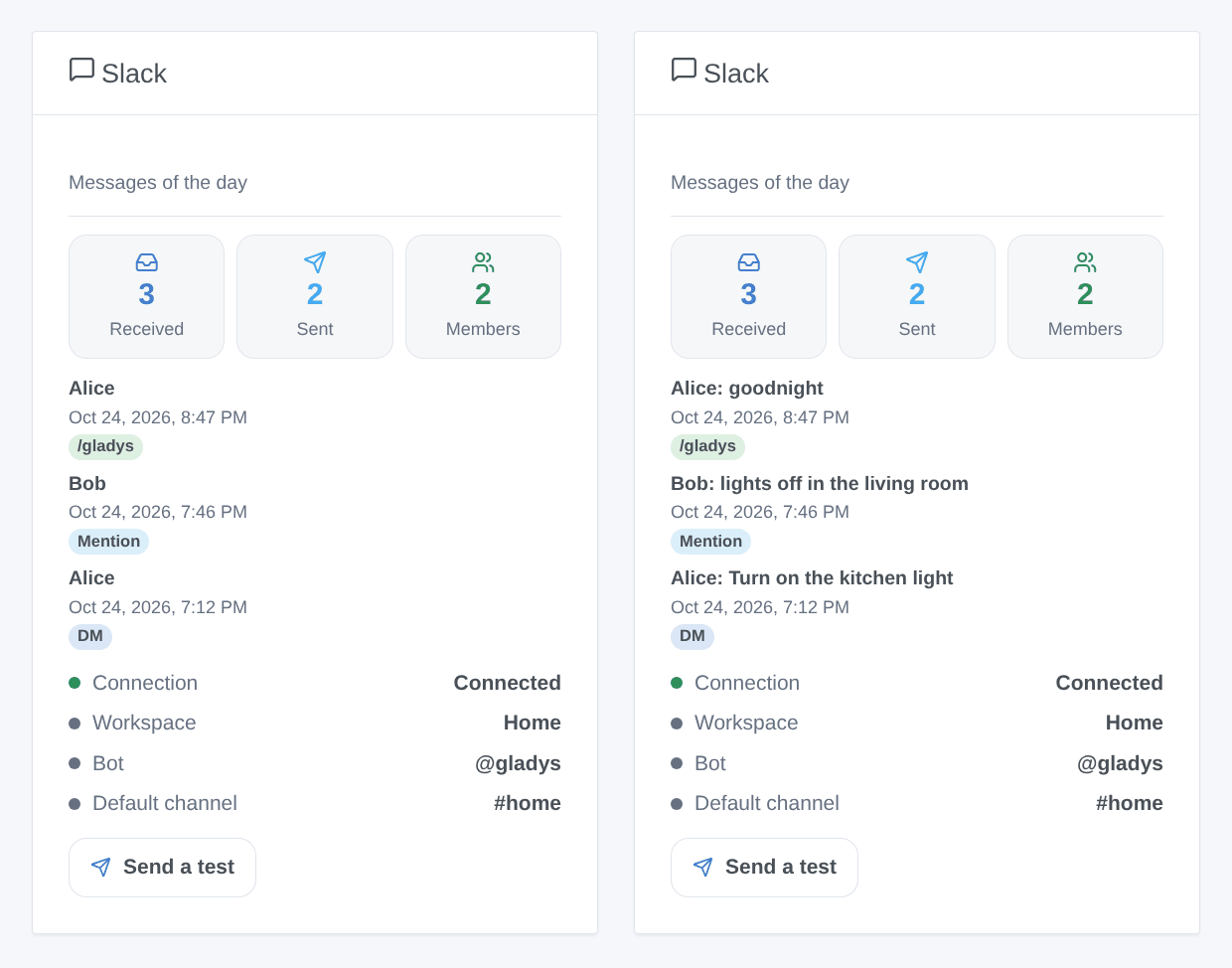
Generated illustration, not a screenshot. The Slack widget shows the messages received and sent today, the linked members, the last messages of linked members, the connection, the workspace, the bot and the default channel, with a Send a test button. The text of the messages only shows when the widget setting Show the text of the messages is on (off by default: a dashboard can be shared).
Scenes
Triggers, for linked members only:
- Slack message received: a direct message to the bot, or a message in a channel the bot was invited to. Filters: where, channel, member, Gladys user, exact text.
- Gladys mentioned on Slack:
@gladysin a channel; the text without the mention. Same filters. - /gladys command typed: filters channel, member, Gladys user, exact text.
- Slack message not sent: a message of Gladys was refused; once per member until a message goes through again.
Each trigger gives its details as variables, e.g. {{triggerEvent.data.text}}, {{triggerEvent.data.first_name}}, {{triggerEvent.data.ts}}.
Action Send a Slack message: a channel ID or a member ID (empty: the default channel), the text in Slack formatting (*bold*, <@U0123456789>, <https://example.com|a link>), and an optional thread. Outputs: ts, channel_id, link.
Examples:
@gladys lights offin#home→ turn off the lights, then send “Done ✅” in the thread{{triggerEvent.data.ts}}./gladys goodnight→ run the night scene.- The front door opens while nobody is home → send a message to
#homeand a camera image to the linked users.
Troubleshooting
- “Enter the bot token…” / “must start with xoxb-”: the bot token is the Bot User OAuth Token (
xoxb-), not a user token (xoxp-); the app-level token starts withxapp-, notxoxe.xapp-(keep token rotation off). - “Slack refuses the bot token”: copy it again from OAuth & Permissions; reinstall the app after changing its scopes.
- “Slack refuses the app-level token”: it needs the
connections:writescope. - “Socket Mode is turned off”: Settings → Socket Mode in the Slack app.
- The bot does not answer a direct message: is the account linked? Is “Send direct messages to Gladys” on? In the app, App Home → “Allow users to send Slash commands and messages from the messages tab” must be checked (it is in the manifest).
- No trigger from a channel: invite the bot with
/invite @gladys; only linked members trigger scenes. - “not_in_channel” from the scene action: invite the bot to the channel. A channel name does not work: use its ID.
- Report a problem on GitHub with the versions of Gladys and of the integration, the message of Test the connection and the logs (
DEBUG=gladys-integration-sdk). Never paste a token.
Configuration settings
These are the settings Slack asks for in its configuration screen in Gladys.
| Setting | Type | Required | Description |
|---|---|---|---|
| Create the Slack app | section | No | Unofficial integration, not affiliated with Slack Technologies. 1. Open “Create the Gladys app in Slack” below, choose your workspace and confirm: the app comes with Socket Mode, so Gladys needs no public URL. 2. Basic Information → App-Level Tokens → Generate Token and Scopes, add the connections:write scope, copy the xapp- token. 3. Install App → Install to Workspace, then copy the Bot User OAuth Token (xoxb-). 4. Paste both tokens below and save. |
| Bot token | secret | Yes | OAuth & Permissions → Bot User OAuth Token. Stored encrypted, never shown again. |
| App-level token | secret | Yes | Basic Information → App-Level Tokens, with the connections:write scope: it opens the Socket Mode connection. |
| Talk with Gladys | section | No | Each user links their Slack account once: “Link my account” below → “Generate a link code”, then send the code to @gladys in a direct message (Slack → Apps → Gladys → Messages), or type /gladys followed by the code. Then everything they write to @gladys goes to Gladys, who answers there. Members who are not linked only get an invitation to link. |
| Send direct messages to Gladys | boolean | No | Off: messages and /gladys commands of linked members only reach the scenes, Gladys does not answer them. |
| Channels and scenes | section | No | The bot only sees the channels it was invited to: type /invite @gladys in a channel. Its messages, the mentions of @gladys and /gladys then trigger scenes, for linked members only. The ID of a channel is at the bottom of its details (About tab): C… for a public channel, G… or C… for a private one. |
| Default channel | string | No | Optional. Where the “Send a Slack message” scene action and the test button post when no target is given: a channel ID (invite the bot first) or a member ID. |
| Language of the bot | select | No | Language of the few texts the bot writes itself to members Gladys does not know yet (invitation, refused code) and of the test message. |
How to install Slack in Gladys
- In Gladys, open Integrations: Slack appears in the catalog, next to the native integrations, with a community badge.
- Click Install. Gladys pulls the Docker image (
ghcr.io/william-de71/gladys-slack:0.1.0), starts it in a sandbox isolated from the core, and generates the integration's interface (devices, discovery and configuration). - Open the Configuration screen of the integration, fill in the settings, and save.
- You can also install it directly from its repository URL: https://github.com/William-De71/gladys-slack.
Slack requires Gladys >=5.1.0. The catalog inside Gladys refreshes every hour, so a new version becomes available at most one hour after its release.
Not running Gladys yet? It is free and open source: follow the installation guide to get started.
About external integrations
Slack is an external integration: a community integration packaged as a Docker container and published on GitHub, that Gladys installs in one click and runs in a sandbox isolated from its core. It is published and maintained by William-De71, not by the Gladys core team.
- Browse all integrations, native and community
- Build and publish your own external integration
- Source code on GitHub — source of this documentation