Roon zones (unofficial) smart home integration, free and open source
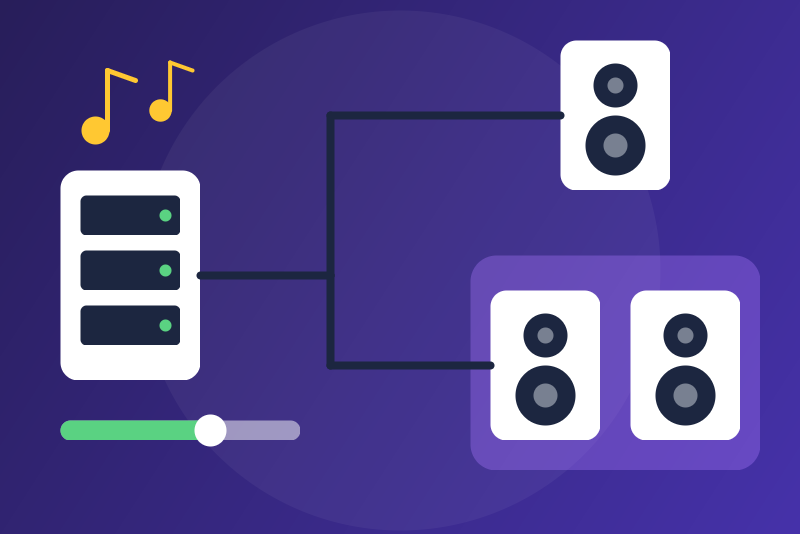
Unofficial connector: Roon outputs, play, volume, now playing, groups, on the local network.
Published by LM1LC3N7
- Devices
- Version 0.1.1
- Requires Gladys >=5.3.0
- ★ 0
Unofficial connector, not affiliated with Roon Labs. It talks to your Roon Core (Roon Server, Nucleus, ROCK, or the Roon app acting as Core) on the local network, through the official Roon extension API: no account, no cloud.
Built from the Roon API documentation: it was never tested with a real Roon Core. Reports are welcome (GitHub issues of
LM1LC3N7/gladys-roon).
Requires Gladys 5.3.0 or later (the Music widget).
What you get
One Gladys device per Roon output (a room, a speaker, a DAC), with:
- playback: play, pause, stop (the Music widget), previous, next;
- the track playing: title, artist, album, artwork, duration and position;
- shuffle and repeat (off, all, one);
- volume (0-100 % of the range of the output) and mute, when Roon can set the volume of the output (not for a fixed volume nor for +/- only controls);
- the name of the zone the output plays in (e.g. "Living room + Kitchen" when grouped).
Two scene actions: group two outputs (the zone keeps the queue of the first one) and take an output out of its group.
Setup
- Type the address of the Roon Core (give it a fixed address in your router), or click Find the Roon Core: Gladys asks the local network, and when exactly one Core answers and no address is typed, its address is saved. The port is 9330 for Roon 2 (9100 for older versions).
- In Roon, open Settings > Extensions and click Enable next to Gladys (community) (publisher LM1LC3N7, a community integration, not made by the Gladys Assistant team). Until then the status says it is waiting for the authorization.
- Open the Discovery tab and add the outputs you want.
The authorization the Core gives is kept in the /data folder of the
integration (never in the logs, never shown). Forget the Roon
authorization deletes it: the extension then has to be enabled again in
Roon.
Volume cap
Volume cap (%), 50 by default: the highest volume Gladys may set, in percent of the range of each output (100: no cap). A higher volume asked by a scene or the dashboard is set to the cap, rounded down to a step of the output, and never above the limits set in Roon. Unmuting first brings the volume back under the cap when it is above (and is refused when the volume of the output is unknown, while a cap applies). The volume changed in Roon itself is not touched.
Commands and their answers
A command is a success when the Core accepted it and the state Roon sends back shows it (play, pause, stop, volume, mute, shuffle, repeat, grouping). Seek, previous and next succeed when the Core accepts them. A command whose state is already there (play on a zone playing) succeeds at once; a volume the Core trims (a limit set in Roon) answers "not yet seen applied" although it is done. Otherwise the answer says what happened: "nothing sent", "sent, without an answer (not confirmed)", "accepted, not yet seen applied (not confirmed)" or "refused by the Roon Core".
Pause, stop, mute and a lower volume are not held by the volume cap. They are refused only when nothing can receive them:
- the Roon Core is not connected (or not yet authorized);
- the output is not in Roon right now (off, renamed or removed);
- the value is invalid;
- for mute and volume: the output has no volume Gladys can set;
- more than 256 requests are already waiting for the Core (a Core that stopped answering; other commands are held from 64 on).
When two outputs or more have the name of the device, pause, stop, mute and a lower volume go to every one of them (a volume only to those it lowers); play, unmute, a higher volume and the other commands are refused (which room would it be?). A zone that cannot pause (a live radio) is stopped instead. An unmute that waits for its volume step is not sent when another command for the same output was clicked meanwhile (a mute clicked after it is never overtaken).
Good to know
- Identity: an output is identified by its name in Roon, as Home Assistant
does (Roon may change its internal ids). Renaming an output in Roon gives a
new device in Gladys and leaves the old one "unreachable": the scenes using
it stop working, without an error. Swapped names (two outputs trading
their names in Roon) are seen from the output ids last seen for each name
(kept in
/data): the volume never goes to the other room; until you open Discovery again (which takes the new names), the device publishes nothing (its badge shows "unreachable"), pause, stop, mute and a lower volume go to the room it was made for, and the other commands are refused. Two outputs with the same name are left out of Discovery and publish nothing. - Network: the Roon extension API is plain
ws://on the local network: the authorization token and the commands travel in clear text on it, like for every Roon extension. The token is sent to whatever answers at the address typed with the id of the Core it came from. - The states come live from the Core (subscription), nothing is polled. After a loss of the Core, nothing is published until the Core is back; the badge of the devices shows "unreachable" meanwhile. The connection is tried again after 5 s, then 10 s, up to every 2 minutes.
- The artwork is fetched from the Core (400 px, at most 300 KB) when Gladys shows it.
- No playlists, library or radio browsing yet (see the TODO of the repository).
Configuration settings
These are the settings Roon zones (unofficial) asks for in its configuration screen in Gladys.
| Setting | Type | Required | Description |
|---|---|---|---|
| Roon in Gladys | section | No | Unofficial connector, not affiliated with Roon Labs. It talks to your Roon Core on the local network through the official Roon extension API (no account, no cloud): one Gladys device per Roon output, with play, pause, stop, previous, next, volume, mute, shuffle, repeat, the track playing and its artwork for the Music widget, and grouping by scene actions. Type the address of the Core (or click "Find the Roon Core"), then in Roon open Settings > Extensions and click Enable next to "Gladys (community)". Then open Discovery to add the outputs. |
| Roon Core address | string | No | IP address (or host name) of the computer or appliance running the Roon Core (Roon Server, Nucleus, ROCK…). Give it a fixed address in your router. "Find the Roon Core" fills it in when one Core answers. |
| Roon Core port | number | No | The port of the extension API: 9330 for Roon 2, 9100 for older versions. |
| Volume cap (%) | number | No | The highest volume Gladys may set, in percent of the range of each output, from 1 to 100 (100: no cap). A higher volume asked by a scene or the dashboard is set to this cap; unmuting brings the volume back under the cap first. The volume set in Roon itself is not changed, and a lower volume, pause, stop and mute are never held by the cap. |
How to install Roon zones (unofficial) in Gladys
- In Gladys, open Integrations: Roon zones (unofficial) appears in the catalog, next to the native integrations, with a community badge.
- Click Install. Gladys pulls the Docker image (
ghcr.io/lm1lc3n7/gladys-roon:0.1.1), starts it in a sandbox isolated from the core, and generates the integration's interface (devices, discovery and configuration). - Open the Configuration screen of the integration, fill in the settings, and save.
- You can also install it directly from its repository URL: https://github.com/LM1LC3N7/gladys-roon.
Roon zones (unofficial) requires Gladys >=5.3.0. The catalog inside Gladys refreshes every hour, so a new version becomes available at most one hour after its release.
Not running Gladys yet? It is free and open source: follow the installation guide to get started.
About external integrations
Roon zones (unofficial) is an external integration: a community integration packaged as a Docker container and published on GitHub, that Gladys installs in one click and runs in a sandbox isolated from its core. It is published and maintained by LM1LC3N7, not by the Gladys core team.
- Browse all integrations, native and community
- Build and publish your own external integration
- Source code on GitHub — source of this documentation