Remeha Home smart home integration, free and open source
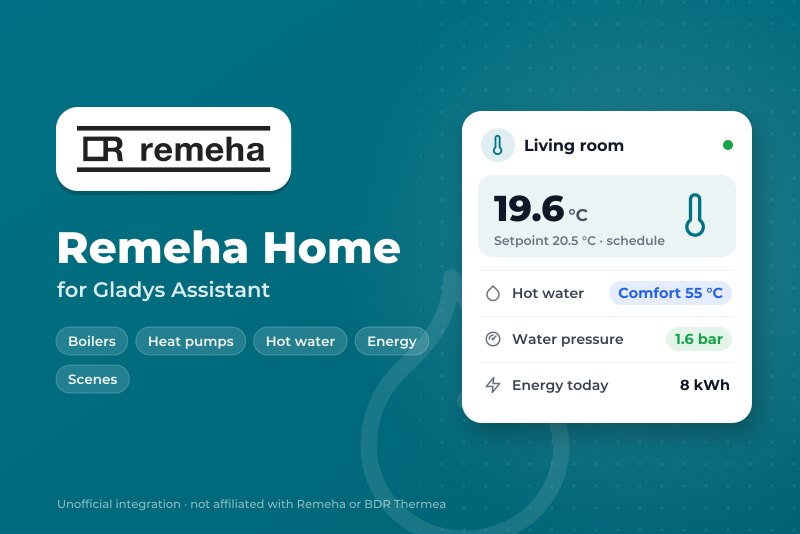
Remeha Home heating: zones, hot water, boost, holiday, water pressure, energy, scenes and widgets.
Published by William-De71
- Devices
- Version 0.1.0
- Requires Gladys >=5.3.0
- ★ 0
Overview
This integration brings into Gladys the heating linked to the Remeha Home app: Remeha boilers, heat pumps and hybrids driven by a connected thermostat (eTwist, Smart Thermostat…). It signs in with the e-mail and the password of your Remeha Home account, as the app does. Baxi, De Dietrich and Brötje accounts hosted on the same BDR Thermea cloud may work too.
- A thermostat per heating zone: mode (schedule, manual, off), setpoint, heating demand, room temperature, fireplace mode when the zone has one.
- A water heater per hot water zone: schedule, comfort, eco or boost, comfort temperature, heating or not, water temperature of a tank.
- A device for the appliance: water pressure, outdoor temperature and an energy index for the energy dashboard of Gladys.
- Scene triggers (fault, back to normal, pressure too low, offline, holiday) and scene actions (temporary temperature, clock program, holiday, hot water boost, read now).
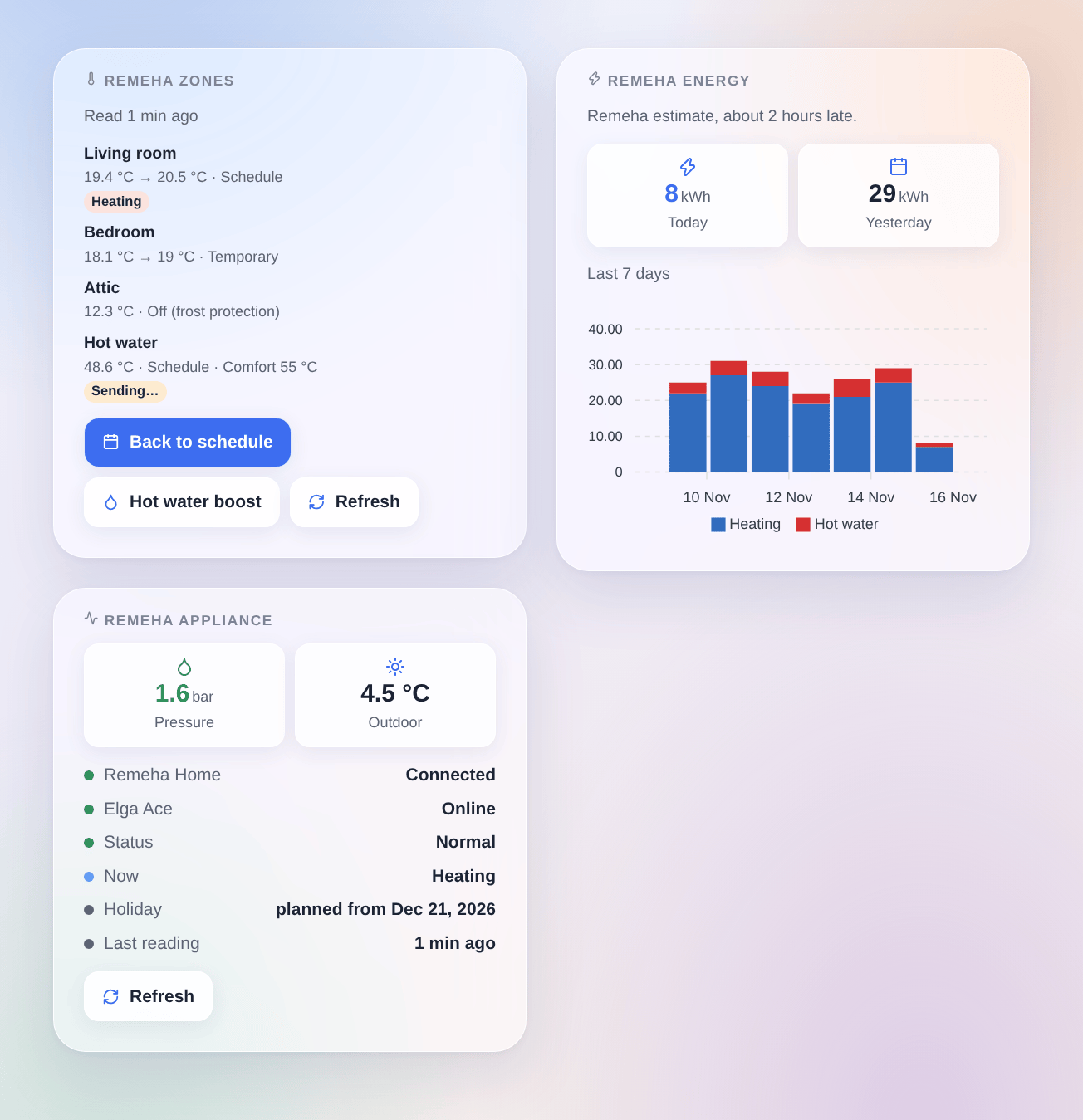
- Three dashboard widgets: the zones, the energy of the last 7 days and the appliance.
Transport: cloud. Gladys never talks to your boiler directly: it reads and writes the Remeha cloud, which passes the changes to the gateway of the thermostat. A change made in Gladys shows at once and is confirmed a few seconds later; a change made in the app or by the schedule reaches Gladys at the next reading. Your data leaves your home (it already does with the app).
Not affiliated with Remeha nor BDR Thermea. The service used is the one of the Remeha Home app; BDR Thermea does not document it and may change it without notice. The requests are the ones described by the community Remeha Home integration for Home Assistant (msvisser/remeha_home and its maintained fork). Not tried on a real account yet: tell us what works and what does not.
Requirements
- Gladys Assistant 5.3.0 or newer.
- A Remeha (or Baxi, De Dietrich, Brötje) appliance already installed and shown in the Remeha Home app, with its connected thermostat.
- The Remeha Home account: check that you can sign in to the app with your e-mail and password. BDR Thermea offers no separate access for third parties: the integration uses the password of your account.
Configuration
In Gladys, open Integrations → Remeha Home:
| Field | Description |
|---|---|
| The e-mail of your Remeha Home account. | |
| Password | Its password: sent to Remeha only, kept in memory, never shown again nor logged. |
| Reading interval | Every 1, 2, 5 or 10 minutes (2 by default). One request reads every zone. |
| Language of the device texts | Names of the features and messages of the button; automatic by default. |
Click Test the connection: the integration signs in and lists the zones, the hot water and the appliances found. Then open the Discover tab and add the devices you want: nothing is created without you.
Usage
Devices
| Device | Features | Notes |
|---|---|---|
| Zone | Mode, setpoint, heating demand, room temperature, fireplace mode | Mode: auto = schedule, heating = manual (fixed setpoint), off = frost protection. Changing the setpoint of a zone on schedule sets a temporary temperature until the next switch, as the app does; manual or off, a fixed setpoint. |
| Hot water | Water heater mode, comfort temperature, heating, water temperature | Modes: program (schedule), manual (Comfort all the time), eco, boost. A boost first goes back to the schedule when needed (Remeha requires it). Water temperature: a tank only. |
| Appliance | Water pressure (bar), outdoor temperature, energy consumed (kWh) | Outdoor temperature: the sensor of the appliance, else the weather service of Remeha. Energy: a cumulated index, from the daily estimate of Remeha. |
Remeha gives the energy day by day, about 2 hours late: the index moves in steps and catches up with the end of the day before after midnight. It starts from the energy of the day the appliance is first read: Gladys only uses its increases. On a hybrid, the index adds the gas and the electricity, as Remeha does.
Dashboard widgets
- Remeha zones: every zone and the hot water with the temperature, the setpoint, the mode and a badge (heating, cooling, command being sent). Tap a row for its details: next switch of the schedule, program number, end of a temporary temperature. Back to schedule puts the manual or temporary zones back on their schedule, Hot water boost starts a boost, both after a confirmation; Refresh reads now. Choose the zones in the widget settings (8 at most).
- Remeha energy: the energy of today and yesterday, and a bar chart of the last 7 days by use (heating, hot water, cooling when there is some).
- Remeha appliance: the water pressure (red when Remeha finds it too low), the outdoor temperature, the connection, the status of the appliance, what it does now, the holiday, a Refresh button.
Scenes
Triggers (each one can be limited to one appliance):
- The appliance reports a fault / is back to normal: the status Remeha reports leaves "Running" or comes back to it.
- The water pressure gets too low: Remeha no longer considers it correct; the pressure is a variable.
- The appliance goes offline or back online with the Remeha cloud (filter on either).
- A holiday starts or ends: the holiday mode set in the app (never by the action of the integration); the day of return is a variable.
Actions:
- Set a temporary temperature: a zone, a temperature, a duration in minutes (empty: until the next switch of the schedule). Output: the end time. Some thermostats can only hold it until the next switch.
- Choose a clock program: 1, 2 or 3, for one zone or all; a manual zone goes back to its schedule.
- Set the holiday mode: from today for a number of days, or 0 to cancel. Remeha keeps whole days.
- Start a hot water boost: about 30 minutes at the comfort temperature.
- Read Remeha Home now: returns the number of zones, the pressure, the outdoor temperature and the energy of today.
Examples:
- When someone comes home early → set the living room to 21 °C for 120 minutes.
- When the water pressure gets too low → send a notification "Pressure {{triggerEvent.data.pressure}} bar".
- When leaving on holiday → holiday mode for 7 days; the day before coming back → cancel it.
Transport
The catalog shows the cloud badge: the login goes to remehalogin.bdrthermea.net and every request to api.bdrthermea.net, with your Remeha Home account. The app offers no local access.
Troubleshooting
- "Remeha refused the e-mail or the password": check them in the Remeha Home app. The integration tries again every 30 minutes, or as soon as you change them.
- Connected, but no appliance: pair the thermostat in the Remeha Home app first.
- No water temperature: a combi boiler (no tank) does not measure it.
- The temporary temperature stops at the next switch instead of the duration asked: this thermostat has no end time.
- The energy stays empty or late: Remeha gives it about 2 hours late, and nothing in the first 45 minutes after midnight.
- A command is undone after a few minutes: Remeha did not apply it; the dashboard goes back to what the cloud says.
- Nothing works any more after an update of the app: the undocumented service may have changed; report it.
- Report a problem on GitHub with your Gladys version, the version of the integration, the model of the appliance and the result of "Test the connection".
Configuration settings
These are the settings Remeha Home asks for in its configuration screen in Gladys.
| Setting | Type | Required | Description |
|---|---|---|---|
| Remeha Home | section | No | How to connect: 1. Check that your thermostat (eTwist, Smart Thermostat…) works in the Remeha Home app. 2. Enter below the e-mail and the password of the Remeha Home app (Baxi, De Dietrich and Brötje accounts of the same cloud may work too). 3. In the Discover tab, add your zones, the hot water and the appliance. The integration uses the service behind the Remeha Home app, which BDR Thermea does not document: it may change without notice. Commands go through the Remeha cloud, and a change made in the app reaches Gladys at the next reading. |
string | Yes | The e-mail of your Remeha Home account. | |
| Password | secret | Yes | The password of your Remeha Home account. Sent to Remeha only, kept in memory, never shown again. |
| Reading interval | select | No | One request reads every zone. The energy is read every 15 minutes. |
| Language of the device texts | select | No | Names of the features and messages of the button below. Automatic: the language of the dashboard once a widget is shown. |
How to install Remeha Home in Gladys
- In Gladys, open Integrations: Remeha Home appears in the catalog, next to the native integrations, with a community badge.
- Click Install. Gladys pulls the Docker image (
ghcr.io/william-de71/gladys-remeha-home:0.1.0), starts it in a sandbox isolated from the core, and generates the integration's interface (devices, discovery and configuration). - Open the Configuration screen of the integration, fill in the settings, and save.
- You can also install it directly from its repository URL: https://github.com/William-De71/gladys-remeha-home.
Remeha Home requires Gladys >=5.3.0. The catalog inside Gladys refreshes every hour, so a new version becomes available at most one hour after its release.
Not running Gladys yet? It is free and open source: follow the installation guide to get started.
About external integrations
Remeha Home is an external integration: a community integration packaged as a Docker container and published on GitHub, that Gladys installs in one click and runs in a sandbox isolated from its core. It is published and maintained by William-De71, not by the Gladys core team.
- Browse all integrations, native and community
- Build and publish your own external integration
- Source code on GitHub — source of this documentation