Pushbullet smart home integration, free and open source
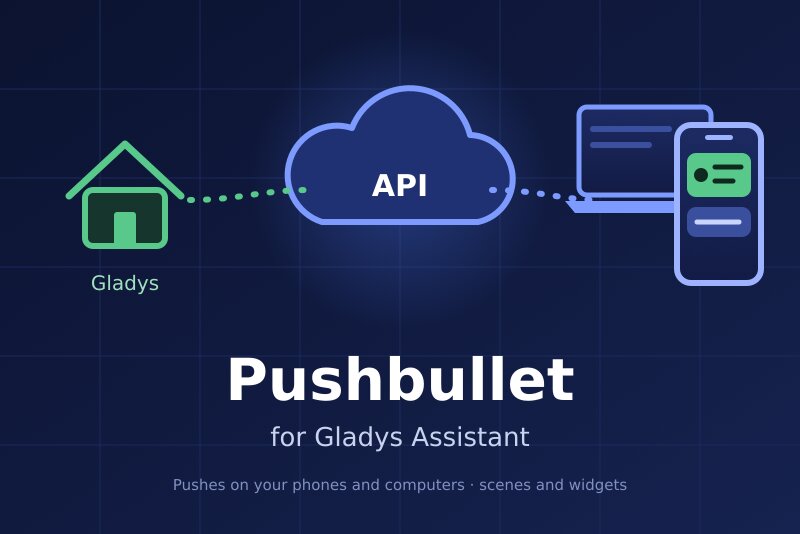
Gladys notifications on your phones and computers through Pushbullet, with scenes and widgets.
Published by William-De71
- Messaging
- Version 0.1.0
- Requires Gladys >=5.1.0
- ★ 0
Overview
This integration sends the notifications of Gladys as Pushbullet pushes, to the phones, computers and browsers where Pushbullet is installed. Each user of Gladys enters the e-mail of their Pushbullet account; the administrator enters the access token of one Pushbullet account once for the house. A camera picture attached by Gladys arrives as an image.
It also brings:
- three scene triggers: push received, phone notification (an Android notification mirrored by Pushbullet), push not sent;
- two scene actions: send a Pushbullet push (note or link, to any target), send an SMS through an Android phone;
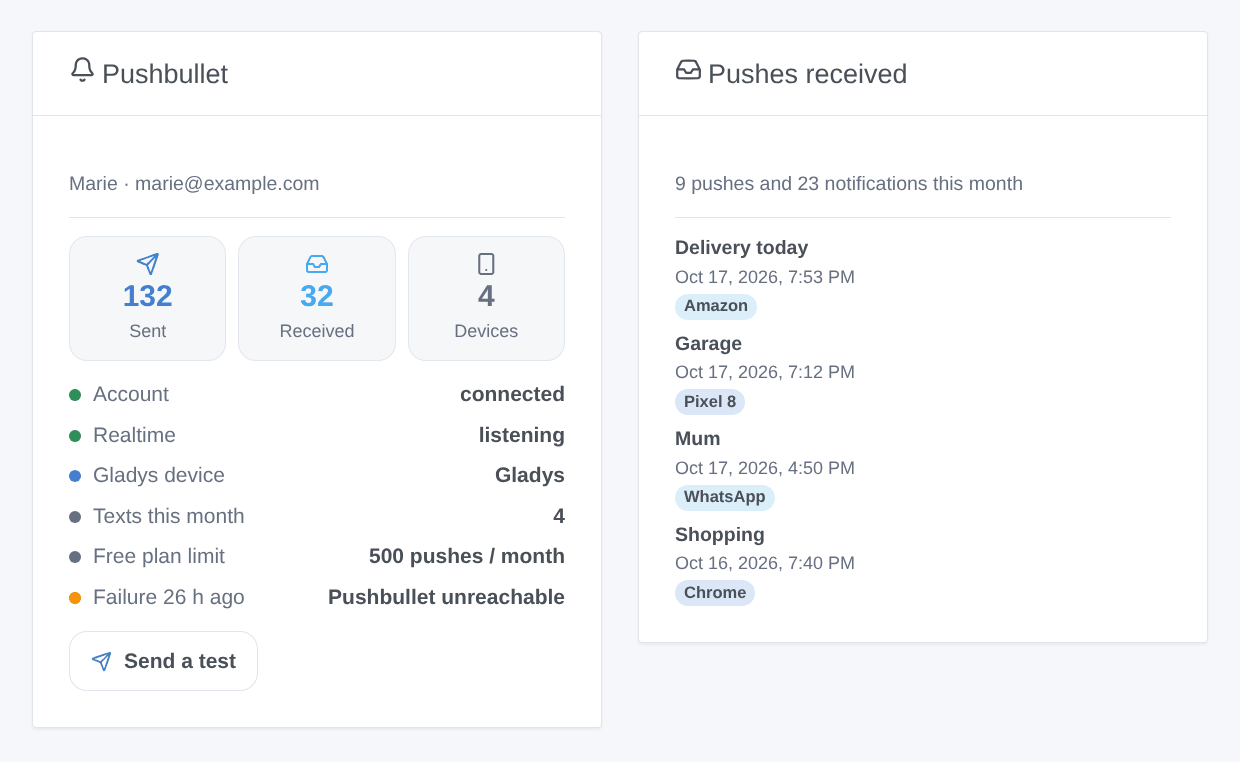
- two dashboard widgets: the account and the pushes received.
Transport: cloud. The texts of the notifications, the pushes received and,
when turned on, the mirrored notifications go through the Pushbullet servers
(api.pushbullet.com, stream.pushbullet.com).
Prerequisites
- Gladys Assistant 5.1.0 or later.
- A Pushbullet account and the Pushbullet app on the devices that should get the notifications (Android, iPhone, Windows, browser extensions).
- A free account sends 500 pushes per month, every app and service together; Pushbullet Pro removes the limit. Free accounts also have a monthly limit of SMS.
- Optional: an Android phone with the Pushbullet app, to send SMS and to mirror its notifications.
Configuration
- On pushbullet.com, open
Settings → Account and click Create Access Token. The token starts
with
o.. - In Gladys, open Integrations → Pushbullet → Configuration, paste the token, and save.
- Click Test the connection: it shows the account, its devices and the phones able to send SMS. Send a test push checks the whole chain.
- Each user opens the My account block of the same screen and enters the e-mail of their Pushbullet account (and optionally one of its devices).
| Field | Use |
|---|---|
| Access token | From Pushbullet → Settings → Account, stored encrypted |
| Title of the notifications | Shown above each message of Gladys (Gladys by default) |
| Language of the test push | The language of the test push (English by default) |
| Add a "Gladys" device | Adds a device named "Gladys" to the account (on by default) |
| Name of the device | Used when the device is created (Gladys by default) |
| Pushes received | Fires "Push received" for each new push (on by default) |
| Mirrored notifications | Fires "Phone notification" for each mirrored Android notification (off by default) |
| End-to-end encryption password | Only if encryption is on in the Pushbullet apps: the same password |
| My account → e-mail | Per user: the Pushbullet account of their notifications |
| My account → device | Per user, optional: one device, only when the e-mail is the one of the account of Gladys |
The token gives full access to the Pushbullet account. The integration only sends pushes and SMS, reads the pushes received and adds the "Gladys" device.
Usage
Notifications
Every Gladys notification addressed to a user who entered an e-mail leaves as a push: alarms, "Send a message" scene actions, the answers of Gladys.
- When the e-mail is the one of the account of the token, the push goes to all its devices, or to the device of the "My account" block.
- Another e-mail: the push goes to that Pushbullet user; if the address has no Pushbullet account, Pushbullet sends an e-mail instead.
- A picture attached to the message (the "Send a camera image" scene action) is uploaded and arrives as an image.
The "Gladys" device
The integration adds a device named Gladys to the account. Send a push to it (from the share menu of your phone, or from the Pushbullet app) to talk to your scenes without disturbing your other devices. The pushes of Gladys show it as their origin. Turning the option off does not delete it: remove it in Pushbullet. To rename it, rename it in Pushbullet.
Scene triggers
| Trigger | When it fires | Variables |
|---|---|---|
| Push received | Each new push on the account, except those of Gladys; filters: target, origin, first word, sender, kind | title, text, link, file name, first word, kind, origin, target, sender, device, date |
| Phone notification | Each notification an Android phone mirrors; filters: application, phone, first word | application, package, title, text, first word, phone, date |
| Push not sent | The first failure of a notification, then again only after a push went through (it never loops) | reason, HTTP status, error, masked e-mail |
The first word is in capitals without accents: a push titled "Garage open"
gives GARAGE. A push older than 15 minutes found after an interruption never
fires, and the pushes already on the account when the reception starts are
ignored.
Another Pushbullet user can push to your e-mail: before opening a door or disarming an alarm, filter on the origin "One of my devices" or on your own sender e-mail.
Scene actions
- Send a Pushbullet push: a title, a text and, optionally, a link; to all the devices of the account, one device (by name), another person (by e-mail) or a channel you own. Returns the push identifier and the target.
- Send an SMS through Pushbullet: one or more numbers and a text. Your Android phone sends it with its own plan as soon as it syncs; Pushbullet cancels it after one hour. Returns the SMS identifier and the phone.
Scene examples
- When a push starting with GARAGE arrives on the "Gladys" device from one of my devices → close the garage door.
- When the phone shows a notification of the delivery app → turn on the porch light.
- When the alarm goes off → send a push with a link to the camera dashboard, and an SMS to the neighbor.
Dashboard widgets
- Pushbullet: the pushes sent by Gladys this month (orange from 400, red from 500, the free limit), the pushes and notifications received, the devices, the state of the account and of the realtime link, the "Gladys" device, the SMS of the month, the last failure, and a Send a test button.
- Pushes received: the last pushes and phone notifications; tap one to read it whole.
Troubleshooting
- "Pushbullet refuses the access token": the token was mistyped or revoked (Pushbullet → Settings → Account). Create a new one and paste it.
- "Monthly push limit reached": the free account sent 500 pushes this month (all apps together). Wait for the next month or take Pushbullet Pro.
- "Unknown device, e-mail or channel": check the name of the device in Pushbullet ("Test the connection" lists them). A device can only be chosen when the e-mail is the one of the account of the token.
- Nothing received: check that "Pushes received" is on and that the "Realtime" row of the widget says "listening". Pushes sent by Gladys never fire a trigger.
- No phone notification: turn on notification mirroring in the Pushbullet app of the phone, and "Mirrored notifications" in the configuration. With end-to-end encryption, enter the same password.
- SMS not sent: the phone must be on, online, and allow Pushbullet to run in the background.
- Logs: Integrations → Pushbullet → Supervision tab. E-mail addresses are masked; the token never appears.
Configuration settings
These are the settings Pushbullet asks for in its configuration screen in Gladys.
| Setting | Type | Required | Description |
|---|---|---|---|
| Pushbullet account | section | No | Install Pushbullet on your phones and computers, then open the account settings of pushbullet.com below, click "Create Access Token" and copy the token here. This token gives full access to the account: the integration only sends pushes and texts, reads the pushes received and adds a "Gladys" device. Each user then enters the e-mail of their Pushbullet account in the "My account" block below. |
| Access token | secret | Yes | Starts with "o.". Stored encrypted and never shown again. |
| Title of the notifications | string | No | Shown above the text of every message of Gladys. |
| Language of the test push | select | No | The "Send a test push" button writes in this language (Gladys does not give the language of the user to a button). |
| "Gladys" device and reception | section | No | The integration listens to the account in real time. A push sent to the "Gladys" device (from the share menu of your phone, for example) or to all your devices fires the "Push received" scene trigger. With notification mirroring on in the Pushbullet app of an Android phone, its notifications can fire the "Phone notification" trigger. |
| Add a "Gladys" device to the account | boolean | No | Lets you send a push to Gladys only, and shows where the pushes of Gladys come from. Turning it off does not delete the device: remove it in Pushbullet. |
| Name of the device | string | No | Used when the device is created. To rename it later, rename it in Pushbullet. |
| Pushes received | boolean | No | Fires "Push received" for each new push on the account, except those of Gladys. Another Pushbullet user can push to your e-mail: filter on the sender before opening a door or disarming an alarm. |
| Mirrored notifications | boolean | No | Fires "Phone notification" for each notification an Android phone mirrors to the account ("Notification mirroring" in the Pushbullet app). The texts of your notifications then go through the integration. |
| End-to-end encryption password | secret | No | Only if you turned on end-to-end encryption in the Pushbullet apps: the same password, to read the mirrored notifications. |
How to install Pushbullet in Gladys
- In Gladys, open Integrations: Pushbullet appears in the catalog, next to the native integrations, with a community badge.
- Click Install. Gladys pulls the Docker image (
ghcr.io/william-de71/gladys-pushbullet:0.1.0), starts it in a sandbox isolated from the core, and generates the integration's interface (devices, discovery and configuration). - Open the Configuration screen of the integration, fill in the settings, and save.
- You can also install it directly from its repository URL: https://github.com/William-De71/gladys-pushbullet.
Pushbullet requires Gladys >=5.1.0. The catalog inside Gladys refreshes every hour, so a new version becomes available at most one hour after its release.
Not running Gladys yet? It is free and open source: follow the installation guide to get started.
About external integrations
Pushbullet is an external integration: a community integration packaged as a Docker container and published on GitHub, that Gladys installs in one click and runs in a sandbox isolated from its core. It is published and maintained by William-De71, not by the Gladys core team.
- Browse all integrations, native and community
- Build and publish your own external integration
- Source code on GitHub — source of this documentation