Pioneer Legacy smart home integration, free and open source
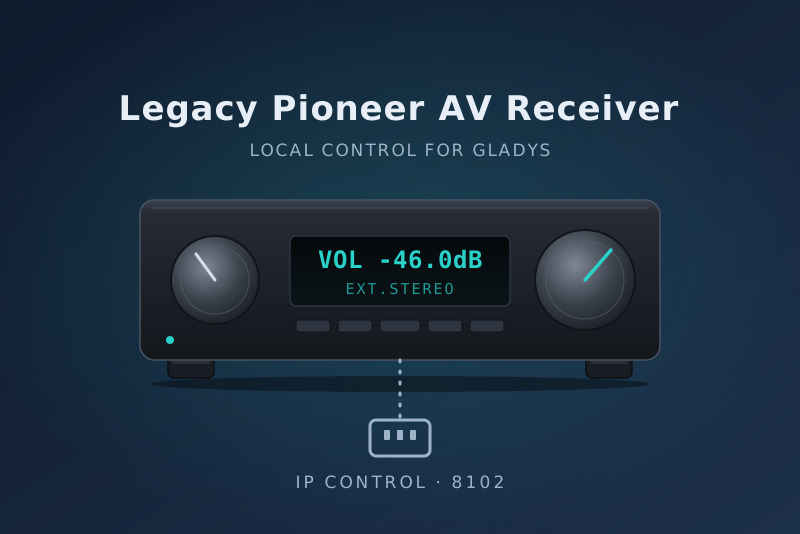
Control older Pioneer AV receivers (2009-2015, IP control on port 8102 or 23).
Published by daviddu26
- Devices
- Version 1.0.7
- Requires Gladys >=5.1.0
- ★ 0
This integration drives older Pioneer AV receivers from Gladys (about 2009 to 2015: VSX-5xx to VSX-11xx, SC, SC-LX, and the Elite models of the same years). They use the legacy Pioneer IP control protocol on port 8102 (or 23 on some models). Recent Pioneers (2016 and later) speak the Onkyo protocol: use the Onkyo integration for them.
Everything stays local: Gladys talks to the receiver directly on your network, no account, no cloud.
Before you start
- Connect the receiver to the network.
- Turn on Network Standby in the receiver's menu. Without it, the receiver drops the network in standby and Gladys cannot switch it on.
- Preferably give it a fixed IP (DHCP reservation).
Adding a receiver
- Open the Discovery tab and click Scan. Gladys looks for the Pioneer receivers on your network (UPnP), checks they answer the protocol, and detects what each one can do.
- Add the receivers found. A model with a zone 2 or a zone 3 shows up with one device per zone.
Your receiver does not show up? It may sit on another network (VLAN), or its UPnP is off. Type its IP address in Receiver addresses (several separated by commas), save, then scan again. The Check an IP address button tells at once whether an address is a supported receiver.
Even when added by its IP, a receiver keeps its identity if its address changes: it is recognized by its UPnP id when it has one.
Configuration
- Receiver addresses: only for receivers the scan does not find.
- Maximum volume (%): Gladys never raises the volume above it, whatever a slider, a button or a scene asks. 80 % by default.
- Input names: most models cannot report their input names. Rename them
as
code=namepairs, e.g.25=Apple TV, 05=TV. Models that can report their names show them on their own.
What you get
For every zone:
- Power (on / standby)
- Volume from 0 to 100 % (100 % = the receiver's maximum, 87 % = 0 dB), Volume up and Volume down, Mute
- Input: the list of inputs
For the main zone, also:
- Listening mode: the mode groups of the remote (Auto surround, Auto/Direct, Stereo, Standard, Advanced). A group recalls its last used mode; sent again less than 2 seconds later, it moves to the next mode, like the remote.
- Current listening mode (text), on the models that can report it.
Changes made with the remote or the front panel show up in Gladys at once: the receiver reports them on its own.
Dashboard
- To control the receiver, add it to Gladys' standard Devices widget: an on / standby switch, a volume slider, lists for the input and the listening mode, and the mute and volume ± buttons.
- To see its state at a glance, add the Receiver status widget (Pioneer Legacy section) and pick the receiver, or the zone: power, volume (live), sound (on or muted) and current input.
Configuration buttons
- Check an IP address: model, port and detected features.
- Test the connections: the state of every receiver added.
- Send a command: any command of the Pioneer protocol, with the receiver's
answer. Examples:
?P(power),?V(volume),25FN(input 25),0112SR(EXTENDED STEREO directly, on the models that accept it).
Scenes
The Send a Pioneer command action sends a raw command to the chosen receiver. The receiver's answer is available to the next actions.
Commands used
The codes come from Pioneer's official "AVR IP & RS-232" command sheets.
| Function | Main zone | Zone 2 | Zone 3 |
|---|---|---|---|
| Power on / off | PO / PF | APO / APF | BPO / BPF |
| Power state | ?P → PWRx | ?AP → APRx | ?BP → BPRx |
| Volume up / down | VU / VD | ZU / ZD | YU / YD |
| Volume state | ?V → VOLxxx | ?ZV → ZVxx | ?YV → YVxx |
| Mute on / off | MO / MF | Z2MO / Z2MF | Z3MO / Z3MF |
| Select an input | xxFN | xxZS | xxZT |
| Input state | ?F → FNxx | ?ZS → Z2Fxx | ?ZT → Z3Fxx |
An unknown command gets no error, just silence.
Troubleshooting
| Problem | Hint |
|---|---|
| The scan does not find the receiver | Type its IP in Receiver addresses. |
| "Recent receiver (Onkyo protocol)" | Use the Onkyo integration. |
| "Unreachable" | Network Standby on? Port 8102 reachable across your networks? |
| The volume stops going up | It reached the Maximum volume of the configuration. |
| The Advanced mode is the wrong one | It recalls the last Advanced mode: set it once. |
For more detail, set LOG_LEVEL=debug: the logs show every line exchanged
with the receiver.
Configuration settings
These are the settings Pioneer Legacy asks for in its configuration screen in Gladys.
| Setting | Type | Required | Description |
|---|---|---|---|
| Before you start | section | No | For Pioneer receivers from about 2009 to 2015 (VSX-5xx to VSX-11xx, SC, SC-LX...). Turn on Network Standby on the receiver, then click Scan in the Discovery tab: the receivers on your network are found automatically. Recent Pioneers (2016+) use the Onkyo integration instead. |
| Receiver addresses (optional) | string | No | Only for a receiver the scan does not find (other network, UPnP off): its IP address, several separated by commas. |
| Maximum volume (%) | number | No | Gladys never raises the volume above this level, on every receiver and zone. 100 % is the receiver's maximum (+12 dB); 87 % is 0 dB. |
| Input names (optional) | string | No | Rename inputs as code=name pairs separated by commas. Most models cannot report their input names. |
How to install Pioneer Legacy in Gladys
- In Gladys, open Integrations: Pioneer Legacy appears in the catalog, next to the native integrations, with a community badge.
- Click Install. Gladys pulls the Docker image (
ghcr.io/daviddu26/gladys-pioneer-legacy:1.0.7), starts it in a sandbox isolated from the core, and generates the integration's interface (devices, discovery and configuration). - Open the Configuration screen of the integration, fill in the settings, and save.
- You can also install it directly from its repository URL: https://github.com/daviddu26/gladys-pioneer-legacy.
Pioneer Legacy requires Gladys >=5.1.0. The catalog inside Gladys refreshes every hour, so a new version becomes available at most one hour after its release.
Not running Gladys yet? It is free and open source: follow the installation guide to get started.
About external integrations
Pioneer Legacy is an external integration: a community integration packaged as a Docker container and published on GitHub, that Gladys installs in one click and runs in a sandbox isolated from its core. It is published and maintained by daviddu26, not by the Gladys core team.
- Browse all integrations, native and community
- Build and publish your own external integration
- Source code on GitHub — source of this documentation