OVHcloud SMS smart home integration, free and open source
Gladys notifications by SMS through OVHcloud, to any operator, with scenes and widgets.
Published by William-De71
- Messaging
- Version 0.1.0
- Requires Gladys >=5.1.0
- ★ 0
Overview
This integration sends the notifications of Gladys by SMS through the OVHcloud SMS API, to any mobile number and any operator. Each user of Gladys enters their own mobile number; the administrator enters the OVHcloud API keys once for the house.
It also brings:
- three scene triggers: SMS not sent, SMS received, credits low;
- two scene actions: send an SMS to any number (even someone who is not a Gladys user), read the SMS account;
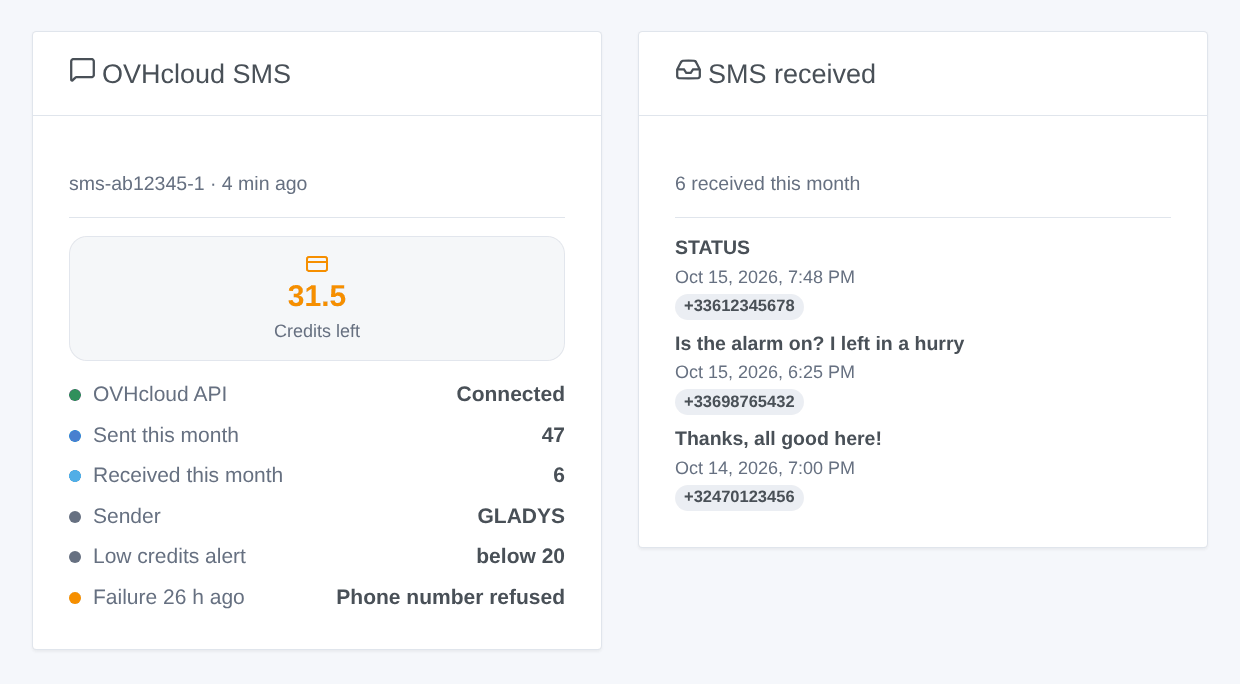
- two dashboard widgets: the SMS account and the SMS received.
Transport: cloud. The texts and the phone numbers go through the OVHcloud
API (eu.api.ovh.com or ca.api.ovh.com), then through the mobile
operators.
Prerequisites
- Gladys Assistant 5.1.0 or later.
- An OVHcloud account with an SMS account (an SMS pack, ordered in the Control Panel under Telecom → SMS) and some credits. Each SMS uses credits, more for a long text or a foreign number.
- Optional: a sender created and approved in the Control Panel (a name
such as
GLADYS, or a virtual number). Without one, SMS leave from a short number the recipients can reply to. - Optional, to receive SMS: a virtual number, or replies to the short number.
Configuration
- In Gladys, open Integrations → OVHcloud SMS → Configuration.
- Choose the API region of your OVHcloud account (Europe or Canada).
- Click Create the keys for your region. Sign in to OVHcloud: the rights
the integration needs are already filled in (
GET /sms,GET /sms/*,POST /sms/*/jobs). Give the application a name and a description, choose the Unlimited validity, and create the keys. - Copy the application key, the application secret and the consumer key into the configuration, and save.
- Click Test the connection: it shows the SMS account, its credits, its senders and the one used. Send a test SMS checks the whole chain.
- Each user opens the My account block of the same screen and enters their mobile number.
| Field | Use |
|---|---|
| API region | Europe (ovh.com, ovhcloud.com) or Canada (ovh.ca) |
| Application key | From the key creation page |
| Application secret | From the key creation page, stored encrypted |
| Consumer key | From the key creation page, stored encrypted |
| SMS account | Optional: sms-xx12345-1, only when the OVHcloud account has several |
| Sender | Optional: an enabled sender; empty = the first enabled one, or the short number |
| Default country code | Added to numbers typed without one (33 by default: 06… becomes +336…) |
| Low credits alert | Below this number of credits, "Credits low" fires once (20 by default) |
| Read the SMS received | Reads the SMS received every 30 seconds, for "SMS received" and the inbox widget |
The integration never sends the "STOP" mention OVHcloud adds to advertising SMS: the notifications of a home are not advertising.
Usage
Notifications
Every Gladys notification addressed to a user who entered a number leaves by SMS: alarms, "Send a message" scene actions, the answers of Gladys. A picture attached to a message is dropped (an SMS carries text only).
Scene triggers
| Trigger | When it fires | Variables |
|---|---|---|
| SMS not sent | The first failure of a notification, then again only after an SMS went through (it never loops) | reason, HTTP status, error, masked number |
| SMS received | Each new SMS on the account, filtered by sender and first word ("Read the SMS received" must be on) | sender, text, first word, date |
| Credits low | The credits went below the threshold; again only after a top-up above it | credits left, threshold, SMS account |
Never use "SMS received" to open a door or disarm an alarm: anyone can send an SMS with a forged number.
Scene actions
- Send an SMS to a number: one or several numbers separated by commas, and a text (scene variables allowed). Returns the SMS sent, the numbers refused, the credits used and left.
- Read the SMS account: returns the credits left, the SMS sent and received this month, the SMS account.
Scene examples
- When the alarm goes off → send an SMS to the neighbor: "Alarm at home, can you take a look?".
- When the credits are low → send a message to the administrator: "Only {{triggerEvent.data.credits_left}} SMS credits left".
- When an SMS starting with STATUS is received from my number → read the
temperatures and answer with "Send an SMS to a number" to
{{triggerEvent.data.sender}}.
Dashboard widgets
- OVHcloud SMS: credits left (orange near the threshold, red below), the state of the API, the SMS sent and received this month, the sender, the threshold and the last failure.
- SMS received: the last SMS received; tap one to read it whole.
Troubleshooting
- "OVHcloud refuses the keys": check the region, the application key and secret, and that the consumer key was validated (the creation page must end on a success) and has not expired or been revoked.
- "The consumer key lacks rights": create a new key with the link of the configuration, which fills in the three rights.
- "No usable SMS account": order an SMS pack, or enter the service name when your OVHcloud account has several SMS accounts (listed by "Test the connection").
- "Sender refused": the sender of the configuration is not enabled yet (waiting for approval): empty the field to use the automatic choice.
- No SMS received: the reception needs a virtual number, or replies to the short number; check that "Read the SMS received" is on.
- Logs: Integrations → OVHcloud SMS → Supervision tab. Phone numbers are masked; the keys never appear.
Configuration settings
These are the settings OVHcloud SMS asks for in its configuration screen in Gladys.
| Setting | Type | Required | Description |
|---|---|---|---|
| OVHcloud API keys | section | No | You need an SMS account at OVHcloud (an SMS pack, ordered in the Control Panel under Telecom → SMS). Open the key creation page of your region below and sign in: the rights the integration needs are already filled in (GET /sms, GET /sms/, POST /sms//jobs). Give the application a name and a description, choose the "Unlimited" validity, then copy the application key, the application secret and the consumer key here. |
| API region | select | Yes | Where your OVHcloud account was created: Europe (ovh.com, ovhcloud.com) or Canada (ovh.ca). |
| Application key | string | Yes | "Application key" on the key creation page. |
| Application secret | secret | Yes | "Application secret". Stored encrypted and never shown again. |
| Consumer key | secret | Yes | "Consumer key". Stored encrypted and never shown again. |
| SMS account and sender | section | No | Leave both fields empty to use the only SMS account of your OVHcloud account and its first enabled sender. Without an enabled sender, SMS leave from a short number the recipients can reply to. A name sender (for example GLADYS) must first be created and approved in the Control Panel. The "Test the connection" button below lists the accounts and senders found. |
| SMS account | string | No | Optional. Its service name, sms-xx12345-1, needed only when your OVHcloud account has several. |
| Sender | string | No | Optional. An enabled sender of the SMS account: a name (GLADYS) or a virtual number (+33…). |
| Default country code | string | No | Added to the numbers typed without one (06 12 34 56 78 becomes +33 6 12 34 56 78). Digits only: 33 France, 32 Belgium, 41 Switzerland, 352 Luxembourg, 1 Canada. |
| Credits and reception | section | No | The credits are read every 15 minutes and after each SMS. The reception reads the SMS received on the account every 30 seconds, for the "SMS received" scene trigger and the dashboard: it needs a virtual number, or SMS sent with the short number for replies. |
| Low credits alert | number | No | Below this number of credits, the "Credits low" scene trigger fires once. |
| Read the SMS received | boolean | No | Fires "SMS received" for each new SMS on the account. Anyone can send an SMS with a forged number: never use it to open a door or disarm an alarm. |
How to install OVHcloud SMS in Gladys
- In Gladys, open Integrations: OVHcloud SMS appears in the catalog, next to the native integrations, with a community badge.
- Click Install. Gladys pulls the Docker image (
ghcr.io/william-de71/gladys-ovhcloud-sms:0.1.0), starts it in a sandbox isolated from the core, and generates the integration's interface (devices, discovery and configuration). - Open the Configuration screen of the integration, fill in the settings, and save.
- You can also install it directly from its repository URL: https://github.com/William-De71/gladys-ovhcloud-sms.
OVHcloud SMS requires Gladys >=5.1.0. The catalog inside Gladys refreshes every hour, so a new version becomes available at most one hour after its release.
Not running Gladys yet? It is free and open source: follow the installation guide to get started.
About external integrations
OVHcloud SMS is an external integration: a community integration packaged as a Docker container and published on GitHub, that Gladys installs in one click and runs in a sandbox isolated from its core. It is published and maintained by William-De71, not by the Gladys core team.
- Browse all integrations, native and community
- Build and publish your own external integration
- Source code on GitHub — source of this documentation