OVHcloud DynHost smart home integration, free and open source
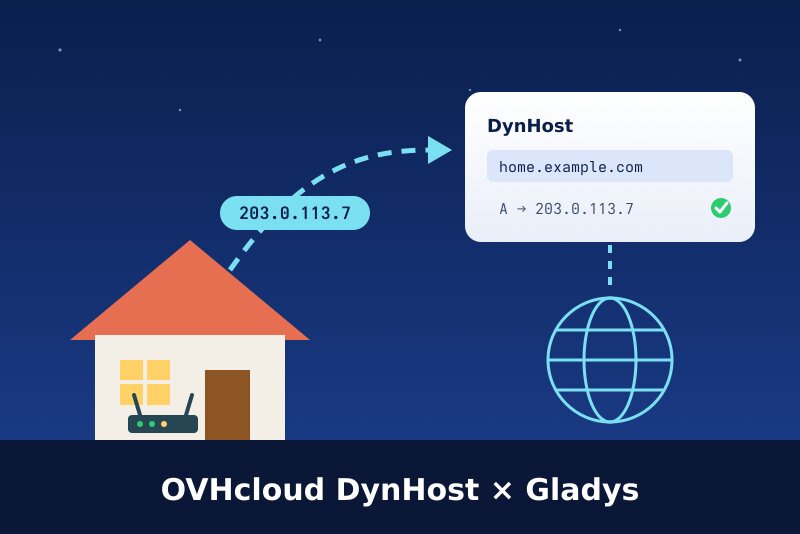
Dynamic DNS for your OVHcloud domain: DynHost names follow your home’s public IP.
Published by William-De71
- Devices
- Version 0.1.0
- Requires Gladys >=5.3.0
- ★ 0
Overview
This integration turns Gladys into the dynamic DNS client of your OVHcloud domain. Your internet provider may change the public address of your home at any time; with DynHost, a name of your domain (home.example.com) always points at it, so you can reach your home, a NAS or a VPN by name. Gladys checks the public address every 5 minutes by default and asks OVHcloud to update the name only when it changed.
Up to three names, each following the IPv4 address (A record), the IPv6 address (AAAA record) or both. Each name becomes a device with its addresses, its status and the number of changes; scenes can react when the public address changes or an update fails, and a dashboard widget shows everything at a glance.
It uses the official DynHost endpoint of OVHcloud with a DynHost identifier, the same one routers and ddclient use. It is a cloud integration: the public address is read on echo services (ipify, icanhazip, ident.me), and OVHcloud is contacted only when a record must change.
Prerequisites
- Gladys Assistant 5.3.0 or later.
- A domain at OVHcloud whose DNS zone is managed by OVHcloud.
- In the OVHcloud Control Panel, your domain → DynHost tab:
- Manage access → Create an identifier: a suffix (the identifier becomes
example.com-suffix), the sub-domain it may update (home, or*for every name of the domain) and a password. - Add a DynHost: the sub-domain (
home, empty for the domain itself) and the current address. An A or AAAA record of the same name must not exist already: delete it first. - For IPv6, add a second DynHost of type AAAA for the same name.
- Manage access → Create an identifier: a suffix (the identifier becomes
Configuration
| Field | What to enter |
|---|---|
| DynHost name | The full name: home.example.com, or example.com for the domain itself. |
| DynHost identifier | The identifier of Manage access (example.com-home). Empty for the 2nd and 3rd name: the one of the 1st. |
| Password | The password of this identifier (not the one of your OVHcloud account). |
| Records to update | IPv4 (A, default), IPv6 (AAAA), or both. |
| Check of the public address | Every minute, 5 minutes (default), 15 or 30 minutes. |
| Language of the texts | Device names, status and scene summaries. Automatic follows your dashboard. |
Press Test the connection: every record is sent to OVHcloud at once, and the answer shows, per name, "already 203.0.113.7" (the identifier works), the new address, or the error. Diagnostic writes what the integration knows to the Logs tab, passwords hidden.
Usage
Devices
In Discover, create one device per name:
| Feature | Content |
|---|---|
| IPv4 address (A record) | The address OVHcloud confirmed for the name. |
| IPv6 address (AAAA record) | The same for IPv6, when the name follows it. |
| DynHost status | "Up to date", "Waiting for the first check" or the last error, in words. |
| Address changes | The number of updates OVHcloud applied; its history shows when they were. |
Dashboard widget
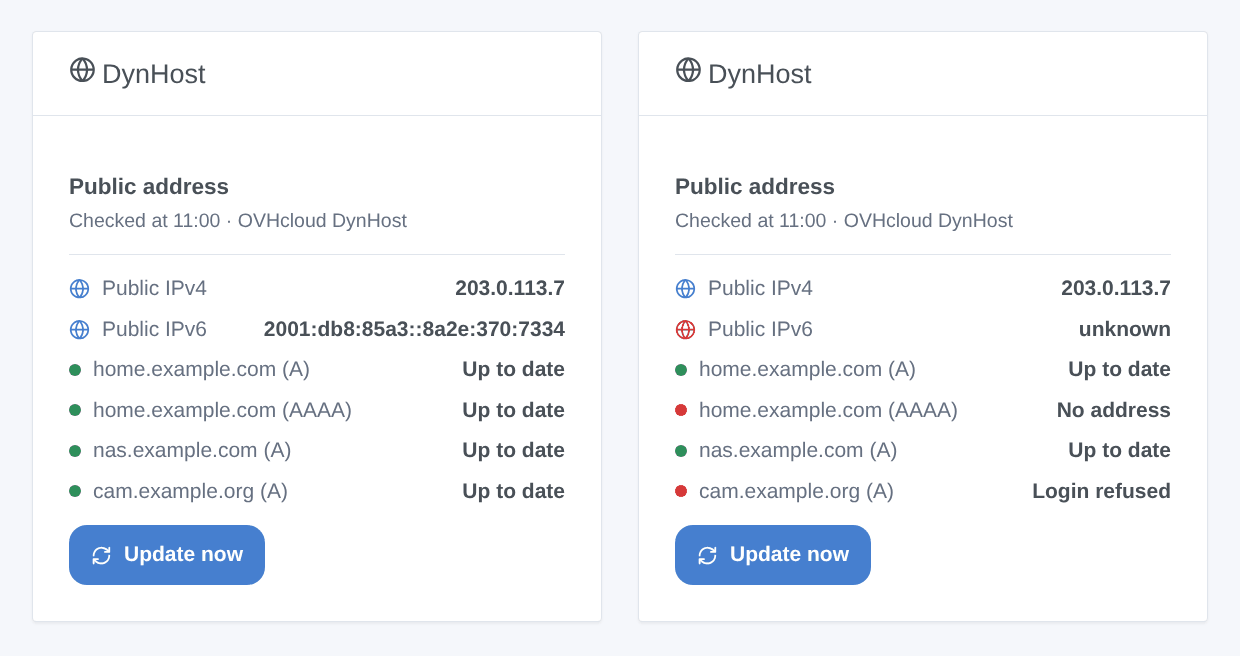
DynHost shows the public IPv4 (and IPv6), then each record with its status, the time of the last check and an Update now button.
Scenes
Triggers:
- Public address changed: with the former and the new address; filter: IPv4 or IPv6.
- Record updated: OVHcloud pointed a name at a new address; filters: name, IPv4 or IPv6.
- Update failed: once per error, not at every check; filters: name, error (identifier refused, unknown name, blocked, OVHcloud unreachable, public address unknown…).
Actions:
- Update now: one name or all, optionally even when already right (at most once a minute per record); outputs the counts and a summary. It never fires a trigger.
- Read the public address: the public IPv4 and IPv6, to put in a message.
Examples:
- "Public address changed" → send "New address: {{triggerEvent.data.ip}}" to your phone.
- "Update failed", error "identifier refused" → notify yourself to check the DynHost password.
- Every morning → "read the public address" → write it to a log or a message.
Transport
Cloud only: the public address is read on api.ipify.org, ipv4.icanhazip.com and v4.ident.me (the next one when one fails; their IPv6 twins for IPv6), and the records are sent to dns.eu.ovhapis.com over HTTPS with your DynHost identifier. Those services only see the address of your home. Nothing else leaves your network.
Troubleshooting
- Identifier or password refused: the identifier is
domain-suffix(example.com-home), and the password the one of this identifier. After a refusal, the integration does not insist (OVHcloud blocks clients that do): fix the settings, it tries again at once. - No DynHost record for this name: the DynHost record does not exist, or the identifier only covers another sub-domain. Create the DynHost in the tab, or an identifier with the sub-domain
*. - Blocked: too many updates: OVHcloud refused too frequent updates. Wait, and avoid other clients (router, ddclient) updating the same name.
- Public IPv6 unknown: the Docker of Gladys has no IPv6 access to the internet. Keep IPv4 only for this name.
- The name points at the right address but the home is unreachable: your provider may share one IPv4 between several homes (CGNAT); ask for a full IPv4, or use IPv6.
- To report a problem, give the versions of Gladys and of the integration and the lines of the Diagnostic button.
Configuration settings
These are the settings OVHcloud DynHost asks for in its configuration screen in Gladys.
| Setting | Type | Required | Description |
|---|---|---|---|
| OVHcloud DynHost | section | No | DynHost keeps a name of your OVHcloud domain (home.example.com) pointed at the public address of your home, even when your internet provider changes it. In the OVHcloud Control Panel, open your domain → DynHost: create an identifier ("Manage access"), then a DynHost record for the name. Enter the name, the identifier and its password below and press "Test the connection". The password stays in Gladys and only goes to OVHcloud. Not affiliated with OVHcloud. |
| First name | section | No | |
| DynHost name | string | Yes | The full name, as in the DynHost tab: home.example.com, or example.com for the domain itself. |
| DynHost identifier | string | Yes | The identifier of "Manage access": the domain, a hyphen and the suffix you chose (example.com-home). |
| Password | secret | Yes | The password of this DynHost identifier (not the one of your OVHcloud account). |
| Records to update | select | No | IPv6 needs a DynHost record of type AAAA for the name, and an IPv6 connection reaching the container. |
| Second name (optional) | section | No | Leave the identifier and the password empty to use those of the first name: an identifier created with the sub-domain * covers every name of the domain. |
| DynHost name | string | No | The full name, as in the DynHost tab: home.example.com, or example.com for the domain itself. |
| DynHost identifier | string | No | The identifier of "Manage access": the domain, a hyphen and the suffix you chose (example.com-home). |
| Password | secret | No | The password of this DynHost identifier (not the one of your OVHcloud account). |
| Records to update | select | No | IPv6 needs a DynHost record of type AAAA for the name, and an IPv6 connection reaching the container. |
| Third name (optional) | section | No | |
| DynHost name | string | No | The full name, as in the DynHost tab: home.example.com, or example.com for the domain itself. |
| DynHost identifier | string | No | The identifier of "Manage access": the domain, a hyphen and the suffix you chose (example.com-home). |
| Password | secret | No | The password of this DynHost identifier (not the one of your OVHcloud account). |
| Records to update | select | No | IPv6 needs a DynHost record of type AAAA for the name, and an IPv6 connection reaching the container. |
| Options | section | No | |
| Check of the public address | select | No | How often the public address is read. OVHcloud is only called when a record must change. |
| Language of the texts | select | No | Language of the device names, of the status and of the scene summaries. Automatic follows the language of your dashboard. |
How to install OVHcloud DynHost in Gladys
- In Gladys, open Integrations: OVHcloud DynHost appears in the catalog, next to the native integrations, with a community badge.
- Click Install. Gladys pulls the Docker image (
ghcr.io/william-de71/gladys-ovhcloud-dynhost:0.1.0), starts it in a sandbox isolated from the core, and generates the integration's interface (devices, discovery and configuration). - Open the Configuration screen of the integration, fill in the settings, and save.
- You can also install it directly from its repository URL: https://github.com/William-De71/gladys-ovhcloud-dynhost.
OVHcloud DynHost requires Gladys >=5.3.0. The catalog inside Gladys refreshes every hour, so a new version becomes available at most one hour after its release.
Not running Gladys yet? It is free and open source: follow the installation guide to get started.
About external integrations
OVHcloud DynHost is an external integration: a community integration packaged as a Docker container and published on GitHub, that Gladys installs in one click and runs in a sandbox isolated from its core. It is published and maintained by William-De71, not by the Gladys core team.
- Browse all integrations, native and community
- Build and publish your own external integration
- Source code on GitHub — source of this documentation