Outlook Calendar smart home integration, free and open source
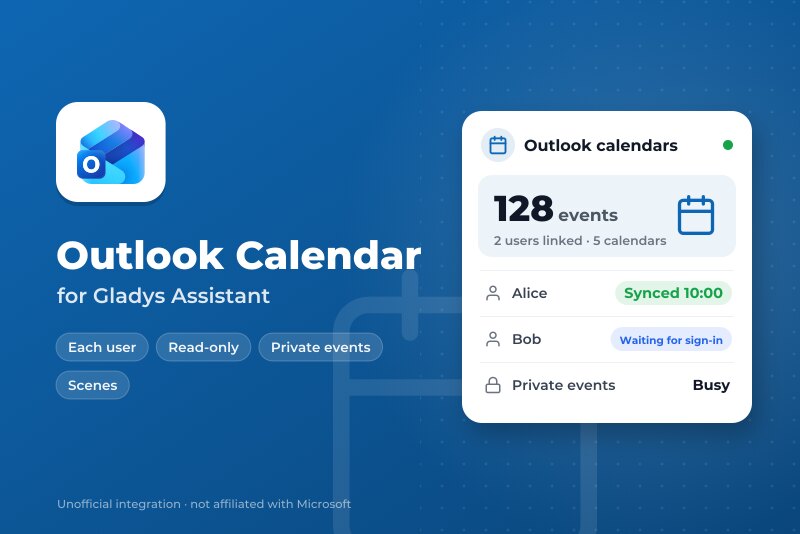
Your Outlook calendars in Gladys, each user with their own Microsoft account.
Published by William-De71
- Devices
- Version 0.1.0
- Requires Gladys >=5.3.0
- ★ 0
Overview
This integration brings your Outlook calendars into Gladys — Outlook.com, Hotmail, Live or Microsoft 365 — through the official Microsoft Graph API, read-only. Each Gladys user links their own Microsoft account: their calendars stay theirs, private until they share them with the household. Events then appear in the Gladys calendar, start scenes with the "an event is coming" trigger, and the assistant can read them.
Recurring events, all-day events, calendars shared with you and online meeting links are handled. Private events can be shown as "Busy" or left out, and declined invitations are left out by default.
Not affiliated with Microsoft. Not tested with a real Microsoft account yet: feedback welcome.
Prerequisites
- Gladys Assistant 5.3.0 or later.
- A Microsoft account with a calendar: personal (Outlook.com, Hotmail, Live) or work (Microsoft 365).
- Once, for the whole home: a free app registration in Microsoft Entra, made by the administrator of Gladys (any Microsoft account can create one).
- Your data: every user's calendar events are read by Gladys from Microsoft; nothing is ever written to Outlook.
Create the app registration
- Go to portal.azure.com → Microsoft Entra ID → App registrations → New registration (a personal Microsoft account works).
- Name:
Gladys. Supported account types: Accounts in any organizational directory and personal Microsoft accounts. Redirect URI: leave empty. Register. - Authentication → Advanced settings → Allow public client flows: Yes → Save.
- API permissions → Add a permission → Microsoft Graph → Delegated permissions:
Calendars.Read,User.Read,offline_access→ Add permissions. - Copy the Application (client) ID from the Overview page.
No client secret, no redirect address: users sign in with a code, from any device.
Configuration
| Field or button (administrator) | Default | Meaning |
|---|---|---|
| Application (client) ID | — | Required: the ID of your app registration |
| Tenant | common | common for personal and work accounts, consumers for personal only, or your company |
| Sync every | 15 minutes | 5, 15, 30 minutes or 1 hour |
| Events ahead | 12 months | 3, 6 or 12 months; the last 30 days are kept too |
| Check the app registration | — | Asks Microsoft whether the app accepts sign-ins, and says what is wrong if not |
| Sync now | — | Reads every linked user's calendars again |
| Field (each user, "My calendars") | Default | Meaning |
|---|---|---|
| Private events | Shown as "Busy" | Shown as "Busy" (no title, no place), shown with their details, or left out |
| Declined invitations | Left out | Left out or shown |
Usage
- The administrator: Integrations → Outlook Calendar → Configuration: paste the application ID, save, press Check the app registration.
- Each user: the same page, My calendars block → Enable.
- Their calendars arrive, private; each one can be turned off or shared with the household from the same block.
Linking your account
Gladys does not yet have a "Connect" button per user, so the sign-in code comes in a temporary calendar, in your "My calendars" list (and as an event in your calendar view), named for instance:
Microsoft: type ABCD-EFGH at microsoft.com/devicelogin
Open microsoft.com/devicelogin on any computer or phone, type the code, sign in with your Microsoft account and accept the permissions (read your calendars, keep access). Within a few seconds the temporary calendar disappears and your Outlook calendars appear. The code is valid about 15 minutes and is renewed on its own for an hour; after that, save "My calendars" again to get a new one.
To link another Microsoft account, disable "My calendars" and enable it again. If Microsoft stops accepting the sign-in (password changed, access removed, 90 days unused), the temporary calendar comes back with a new code.
Dashboard widget
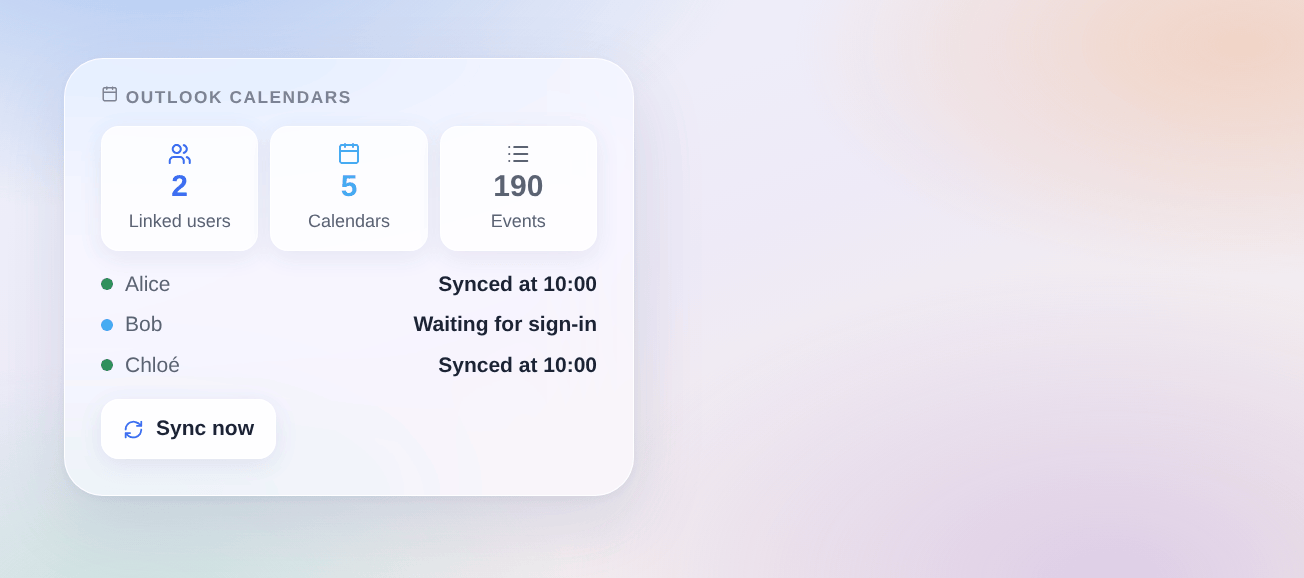
The Outlook calendars widget shows how many users are linked, the calendars and events synchronized, and one row per user who enabled "My calendars": synced at what time, waiting for sign-in, or an error. Only first names: no e-mail, no event. A button syncs now.
Scenes
The events themselves start scenes with the Gladys trigger "A calendar event is coming" (on shared calendars). The integration adds:
- Trigger "Outlook: a user must sign in": a user enabled "My calendars" (
new) or Microsoft no longer accepts their sign-in (revoked), with their first name. - Trigger "Outlook: a user signed in": with their first name and Microsoft account.
- Trigger "Outlook: sync fails": once per failure and user (access denied, no mailbox, throttled, Microsoft unreachable, Microsoft error).
- Trigger "Outlook: sync works again": with the minutes of failure.
- Action "Outlook: sync now": before a scene that looks at today's events.
Examples: when a user must sign in again (revoked), send them a Telegram message "Your Outlook link expired, look at My calendars"; every morning at 7:00, sync now, then read today's events aloud.
Troubleshooting
- "Microsoft refuses the app registration: AADSTS700016": the application ID is wrong, or the app was deleted.
- "AADSTS7000218" or a client secret asked: Allow public client flows is not set to Yes (step 3).
- "AADSTS50020" or "AADSTS9002331": the account types of the app do not match the tenant: choose "any organizational directory and personal Microsoft accounts", or set the tenant to
consumers(personal only) or your company domain (work only). - No temporary calendar after enabling: refresh the page; if the administrator has not entered the application ID yet, the temporary calendar says so.
- "Code expired, save My calendars again": nobody signed in for an hour: save "My calendars" for a new code.
- A work account is refused: your company may require an administrator to approve the app (admin consent) in Microsoft Entra.
- A shared calendar has no events: the person who shared it may only share free/busy times; a calendar Microsoft refuses to read is skipped.
- Logs: Settings → Supervision, the logs of the integration. Never share a code or a token.
Configuration settings
These are the settings Outlook Calendar asks for in its configuration screen in Gladys.
| Setting | Type | Required | Description |
|---|---|---|---|
| Your Microsoft app registration | section | No | Once, the administrator registers a free app in Microsoft Entra (portal.azure.com, App registrations, New registration): accounts in any directory and personal Microsoft accounts, no redirect URI; then Authentication → Allow public client flows: Yes; API permissions: Calendars.Read, User.Read, offline_access. Paste its Application (client) ID below. Each user then links their own account from “My calendars”. |
| Application (client) ID | string | Yes | |
| Tenant | string | No | common: personal and work accounts (the default). consumers: personal accounts only. Or the ID or domain of your organization, for work accounts of a single organization. |
| Sync every | select | No | |
| Events ahead | select | No | How far ahead events are copied into Gladys; the last 30 days are kept too. |
How to install Outlook Calendar in Gladys
- In Gladys, open Integrations: Outlook Calendar appears in the catalog, next to the native integrations, with a community badge.
- Click Install. Gladys pulls the Docker image (
ghcr.io/william-de71/gladys-outlook-calendar:0.1.0), starts it in a sandbox isolated from the core, and generates the integration's interface (devices, discovery and configuration). - Open the Configuration screen of the integration, fill in the settings, and save.
- You can also install it directly from its repository URL: https://github.com/William-De71/gladys-outlook-calendar.
Outlook Calendar requires Gladys >=5.3.0. The catalog inside Gladys refreshes every hour, so a new version becomes available at most one hour after its release.
Not running Gladys yet? It is free and open source: follow the installation guide to get started.
About external integrations
Outlook Calendar is an external integration: a community integration packaged as a Docker container and published on GitHub, that Gladys installs in one click and runs in a sandbox isolated from its core. It is published and maintained by William-De71, not by the Gladys core team.
- Browse all integrations, native and community
- Build and publish your own external integration
- Source code on GitHub — source of this documentation