OPNsense smart home integration, free and open source
OPNsense firewall: health, gateways, traffic, presence on the network, rules, WireGuard, scenes.
Published by William-De71
- Devices
- Version 0.3.1
- Requires Gladys >=5.3.0
- ★ 0
Overview
This integration brings your OPNsense firewall into Gladys, through the OPNsense API on your local network:
- a firewall device: CPU, memory and disk usage, temperature, uptime, pending updates, version and WireGuard peers online;
- a device per gateway (status, latency, packet loss) and per interface (received and sent rates, link, IPv4 address);
- the firewall rules of a category you choose, as switches: turn a rule on or off from a dashboard or a scene;
- the devices of your network (phones, computers…) as presence sensors, from the ARP table and the DHCP leases;
- scenes: gateway down, someone arrived home, new device on the network, VPN connection, service stopped, update available; and actions to wake a computer, block a device, restart a service, check for updates or reboot;
- four dashboard widgets.
Everything stays on your network: the integration only talks to OPNsense, never to a cloud.
Prerequisites
- Gladys Assistant 5.3.0 or later.
- OPNsense 25.1 or later (written against the API of OPNsense 26.7), reachable from the Gladys machine.
- An OPNsense user dedicated to Gladys, with an API key. Create it in System > Access > Users, then give it the privileges of the features you want (field Privileges):
| Feature | OPNsense privilege |
|---|---|
| Firewall (name, version, CPU, memory, disk, temperature, uptime) | Lobby: Dashboard |
| Gateways | System: Gateways |
| Interfaces | Status: Interfaces, Reporting: Traffic |
| Devices of the network | Diagnostics: ARP Table, and Services: Dnsmasq DNS/DHCP or DHCP: Kea(v4) |
| WireGuard | VPN: WireGuard: Status |
| Services (trigger, restart) | Status: Services |
| Updates (check) | System: Firmware |
| Rule switches | Firewall: Rules [new], Firewall: Categories |
| Alias action | Diagnostics: PF Table IP addresses |
| Reboot | Diagnostics: Reboot System |
| Wake-on-LAN (os-wol plugin) | Services: Wake on LAN |
A privilege you do not grant simply turns its feature off, "Lobby: Dashboard" included: the gateways, interfaces and devices of the network still work without it. "System: Firmware" also allows installing updates from the API: grant it only if you want the update check.
In the user page, under API keys, click +: a key.txt file is downloaded, with a key= line and a secret= line.
Configuration
In Gladys, open Integrations > OPNsense, install it, then fill in:
| Field | What to enter |
|---|---|
| OPNsense address | The address of the web interface, for example https://192.168.1.1 (add the port if it is not 443). |
| API key | The key= line of key.txt. |
| API secret | The secret= line of key.txt. It is never shown again nor written in the logs. |
| Verify the certificate | Leave unticked with the self-signed certificate of OPNsense; tick it with a valid certificate. |
| Reading interval | 10 to 300 seconds, 30 by default. |
| Network devices offered | The hosts offered on the Discovery screen: those with a name (default), all, or none. |
| Absence delay | Minutes without answer before a device is absent, 5 by default. |
| Category of the rules | The firewall rules of this category become switches (gladys by default; empty: none). |
| Language of the texts | Language of the names, states and scene summaries; automatic follows your dashboard. |
Click Test the connection: Gladys shows the name and the version of your OPNsense.
Usage
Devices
Open Integrations > OPNsense > Discover and add the devices you want. Nothing is created without you.
| Device | Features |
|---|---|
| OPNsense (firewall) | CPU, memory and disk usage (%), temperature, uptime (days), pending updates, version, VPN peers |
| Gateway | Status (online, offline, degraded, pending), latency (ms), packet loss (%) |
| Interface | Received and sent rates (Mbit/s, seen from the interface: on the WAN, received is the download), link, IPv4 address |
| Rule | Enabled: a switch |
| Network device | Presence |
Presence of the devices
A device of your network is present as soon as it answers in the ARP table of OPNsense, and absent once it has been gone for the absence delay. The presence sensor sends 1 every minute while the device is here, like the Bluetooth presence of Gladys: use it in the scene action Check user presence to know whether someone is home. Phones with a private (random) Wi-Fi address keep the same address on your network only if this option is set per network: check it on the phone.
Firewall rules
In OPNsense, open Firewall > Rules, edit a rule (for example "Block the kids' tablet") and give it the category gladys (create it in Firewall > Categories). After a scan, the rule appears as a switch: on enables the rule, off disables it, and OPNsense applies the change at once. Only the rules of the new rule editor can be switched, not the automatic rules.
Dashboard widgets
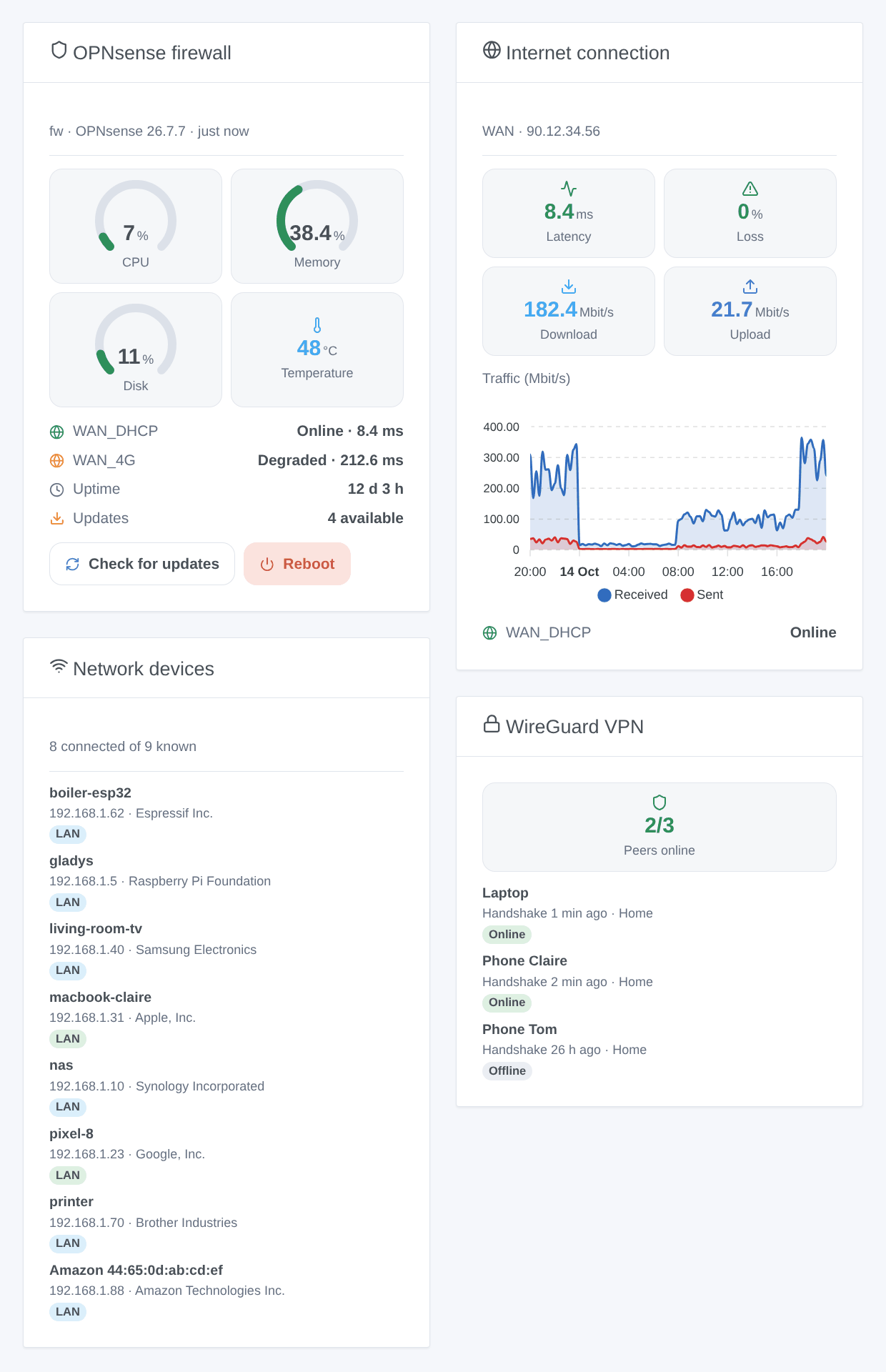
- OPNsense firewall: CPU, memory and disk gauges, temperature, gateways, uptime, updates, and two buttons: check for updates, and reboot (with a confirmation).
- Internet connection: latency, packet loss, download and upload of a gateway and an interface (the WAN by default), with the traffic chart once the interface device is added.
- Network devices: the devices connected now, those that left, all, or the new ones (first met these 7 days, newest first).
- WireGuard VPN: the peers, connected or not, and their last handshake.
Scenes
Triggers:
- Gateway status changed: online, degraded (latency, loss) or offline, filtered by gateway and status.
- Device arrived or left: for a network device added in Gladys.
- New device on the network: a MAC address never met before, once per address. The devices present at the first start are the reference and fire nothing; the configuration button Forget known devices starts a new reference.
- VPN peer connected or not: a WireGuard peer.
- Service started or stopped: Unbound, Dnsmasq, WireGuard…
- Update available: a firmware check found new updates.
Actions: read the status (CPU, gateways, devices present… for a message), wake a device (Wake-on-LAN, os-wol plugin, across VLANs), add or remove an address in an alias, restart a service, check for updates, reboot.
Examples:
- When the gateway
WAN_DHCPgoes offline → send a message "Internet is down, the 4G link takes over". - When a new device appears on the network → send its name, maker and IP address to the administrator.
- Every evening at 21:00 → add the IP of the kids' tablet to the alias
kids_block, used by a blocking rule; remove it at 7:00.
Transport
Local only: the integration talks to the OPNsense API over HTTPS on your network, with the API key. No data leaves your network (OPNsense itself contacts its update mirror during an update check).
Troubleshooting
- "OPNsense refuses the API key": copy the key and the secret again from
key.txt, without spaces. - "The HTTPS certificate is refused": untick "Verify the certificate", or install a certificate valid for the address you typed.
- "lacks a privilege": add the privileges listed above to the OPNsense user of the key.
- "without the Lobby: Dashboard privilege": the integration works, but the firewall device stays empty; grant "Lobby: Dashboard" to get its health.
- No device of the network: check the privilege "Diagnostics: ARP Table" and the option "Network devices offered".
- A rule is missing: it must carry the category, and come from the new rule editor.
- Wake-on-LAN fails: install the
os-wolplugin in System > Firmware > Plugins, and type the interface (lan,opt1…) for a device never seen. - Logs: add the environment variable
DEBUG=gladys-integration-sdk, then open an issue on GitHub with the versions of Gladys, of the integration and of OPNsense, and the logs (the API key and its secret never appear in them).
Configuration settings
These are the settings OPNsense asks for in its configuration screen in Gladys.
| Setting | Type | Required | Description |
|---|---|---|---|
| OPNsense API key | section | No | In OPNsense, create a dedicated user (System > Access > Users), give it the privileges listed in the documentation, then add an API key: a key.txt file is downloaded with the key and its secret. Everything stays on your network. |
| OPNsense address | string | Yes | The address of its web interface, with the port if it is not 443. |
| API key | string | Yes | The “key=” line of key.txt. |
| API secret | secret | Yes | The “secret=” line of key.txt. |
| Verify the certificate | boolean | No | Leave unticked with the self-signed certificate OPNsense ships with. Tick it with a valid certificate (Let’s Encrypt, internal authority). |
| Options | section | No | Firewall rules become switches when they carry the category below. Hosts of the network become presence sensors once you add them on the Discovery screen. |
| Reading interval (s) | number | No | 10 to 300 seconds, 30 by default. |
| Network devices offered | select | No | Which hosts of the ARP table and the DHCP leases appear on the Discovery screen. |
| Absence delay (min) | number | No | A device is absent once it has been gone that long. 1 to 60, 5 by default: a phone asleep leaves the network for a while. |
| Category of the rules | string | No | Firewall rules of this category (Firewall > Rules) become switches. Empty: none. |
| Language of the texts | select | No | Names, states and scene summaries. Automatic: the language of your dashboard, once an OPNsense widget has been displayed. |
How to install OPNsense in Gladys
- In Gladys, open Integrations: OPNsense appears in the catalog, next to the native integrations, with a community badge.
- Click Install. Gladys pulls the Docker image (
ghcr.io/william-de71/gladys-opnsense:0.3.1), starts it in a sandbox isolated from the core, and generates the integration's interface (devices, discovery and configuration). - Open the Configuration screen of the integration, fill in the settings, and save.
- You can also install it directly from its repository URL: https://github.com/William-De71/gladys-opnsense.
OPNsense requires Gladys >=5.3.0. The catalog inside Gladys refreshes every hour, so a new version becomes available at most one hour after its release.
Not running Gladys yet? It is free and open source: follow the installation guide to get started.
About external integrations
OPNsense is an external integration: a community integration packaged as a Docker container and published on GitHub, that Gladys installs in one click and runs in a sandbox isolated from its core. It is published and maintained by William-De71, not by the Gladys core team.
- Browse all integrations, native and community
- Build and publish your own external integration
- Source code on GitHub — source of this documentation