OpenPlantBook smart home integration, free and open source
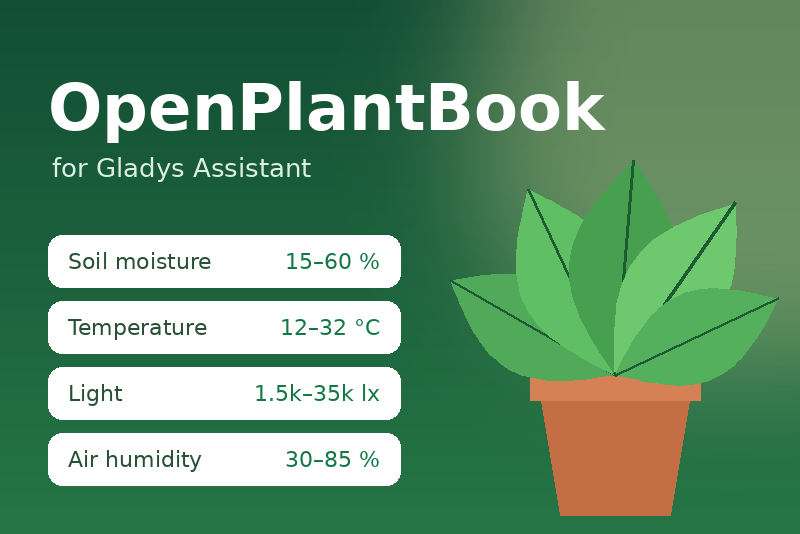
Open Plantbook plant database: ideal moisture, light and temperature thresholds per species.
Published by gboulvin
- Devices
- Version 1.0.0
- Requires Gladys >=5.1.0
- ★ 0
This integration brings the Open Plantbook plant database into Gladys: for each of your plants, the ideal ranges of soil moisture, temperature, light and air humidity for its species. Combine them with your own sensors (soil moisture probe, temperature or light sensor) to know when a plant needs water, light or a warmer spot.
It runs in the cloud: it needs an Internet connection and a free OpenPlantBook account.
What you get
- One device per plant, with eight read-only features: the minimum and the maximum of soil moisture (%), temperature (°C or °F), light (lux) and air humidity (%). You can use them on the dashboard and in scene conditions.
- Scene triggers, scene actions and dashboard widgets, described below (Gladys 5.1 or later).
Get your OpenPlantBook credentials
- Create a free account on open.plantbook.io.
- Open the API keys page and generate a key: you get a client ID and a client secret.
Configuration
- Open the Configuration tab of the integration.
- Paste the client ID and the client secret.
- Click Test the connection to check them.
- Find your plants with the Search a plant button: type a common or
scientific name (
monstera,basil,rose...). The answer lists the OpenPlantBook ids, such asmonstera deliciosa. - Copy the ids into the Plants field, separated by commas (30 plants at
most), for example
monstera deliciosa, ficus lyrata, ocimum basilicum. - Pick the language of the plant names (English, French, German or Spanish), the temperature unit and, if you wish, the refresh interval (24 hours by default, the thresholds rarely change).
- Save, then add the plants from the Discovery tab.
The thresholds are kept in a local cache: after a restart, or if OpenPlantBook is unreachable, the devices keep their last known values.
Tip: do not put a plant device in a room. The plant devices carry temperature and humidity ranges, not measurements.
Actions
- Test the connection: checks the credentials.
- Search a plant: searches the OpenPlantBook database and lists the ids to copy into the Plants field.
- Refresh all plants now: reads every plant again without waiting for the refresh interval.
Scenes
The integration adds its own cards to the scene editor, under the Integrations category.
Triggers
- Plant thresholds updated: the ideal ranges of a plant were read for the
first time or changed in OpenPlantBook. Optionally pick the plant. The
following actions can use
{{triggerEvent.data.plant_name}},{{triggerEvent.data.min_soil_moisture}},{{triggerEvent.data.max_temperature}}and the other thresholds. - OpenPlantBook sync failed: reading OpenPlantBook started failing (refused
credentials, quota reached, unknown plant id, service unreachable). One event
per failure, not one per attempt. Variables:
reasonanderror.
Actions
- Check a plant's conditions: compares measurements with the ideal ranges
of a plant. Fill only the measurements you have; each field accepts a value
or a scene variable, for example the result of a previous "Get the last
value of a device" action. The temperature is in the configured unit. It
returns:
in_range: true when every measurement is in its ideal range;status:ok,too_dry,too_wet,too_cold,too_hot,too_dark,too_bright,air_too_dry,air_too_humidorno_data;issues_count: the number of measurements out of range;message: a sentence ready to send, e.g. "Swiss cheese plant: soil too dry (8 %, min 15 %)."
- Get a plant's ideal ranges: exposes the name, scientific name, category and every threshold of a plant to the following actions.
- Refresh OpenPlantBook data: reads every plant again now.
Example: "water me" notification
- Trigger: every day at 6 pm.
- Action: get the last value of your soil moisture sensor.
- Action Check a plant's conditions: pick the plant, put the variable of the previous step in Soil moisture.
- Condition:
in_rangeis false. - Action: send a message with the
messageoutput.
Dashboard
- Plant card: the photo and the four ideal ranges of the plant chosen in the widget settings, with a Refresh button.
- My plants: every followed plant with its photo; tap a plant to see its ranges. A Refresh all button reads everything again.
Troubleshooting
- "OpenPlantBook refused the credentials": generate a new key on the API keys page and paste both values again.
- A plant stays without data: check its id with Search a plant; the id is the lowercase scientific name.
- "Too many requests": the free API is rate limited. Lower the number of plants or raise the refresh interval.
- The integration logs everything it does: check the integration logs from the
Gladys UI, with
LOG_LEVEL=debugfor the full detail. Secrets are never logged.
Plant data and photos come from Open Plantbook (https://open.plantbook.io/), a community project.
Configuration settings
These are the settings OpenPlantBook asks for in its configuration screen in Gladys.
| Setting | Type | Required | Description |
|---|---|---|---|
| Connect to OpenPlantBook | section | No | Create a free account on open.plantbook.io, then generate an API key (client ID + client secret) on the API keys page and paste both below. List the plants to follow by their OpenPlantBook id (the scientific name, e.g. monstera deliciosa): the "Search a plant" button below finds them for you. |
| Client ID | string | Yes | |
| Client secret | secret | Yes | |
| Plants | string | No | OpenPlantBook ids of your plants, separated by commas (30 at most). One Gladys device is created per plant. |
| Language of the plant names | select | No | Common names, device and feature names, and scene messages use this language. |
| Temperature unit | select | No | |
| Refresh interval (hours) | number | No | How often the thresholds of each plant are read again. They rarely change: once a day is plenty. |
How to install OpenPlantBook in Gladys
- In Gladys, open Integrations: OpenPlantBook appears in the catalog, next to the native integrations, with a community badge.
- Click Install. Gladys pulls the Docker image (
ghcr.io/gboulvin/gladys-openplantbook:1.0.0), starts it in a sandbox isolated from the core, and generates the integration's interface (devices, discovery and configuration). - Open the Configuration screen of the integration, fill in the settings, and save.
- You can also install it directly from its repository URL: https://github.com/gboulvin/Gladys-Openplantbook.
OpenPlantBook requires Gladys >=5.1.0. The catalog inside Gladys refreshes every hour, so a new version becomes available at most one hour after its release.
Not running Gladys yet? It is free and open source: follow the installation guide to get started.
About external integrations
OpenPlantBook is an external integration: a community integration packaged as a Docker container and published on GitHub, that Gladys installs in one click and runs in a sandbox isolated from its core. It is published and maintained by gboulvin, not by the Gladys core team.
- Browse all integrations, native and community
- Build and publish your own external integration
- Source code on GitHub — source of this documentation