OpenMediaVault smart home integration, free and open source
OpenMediaVault NAS: system, disks and S.M.A.R.T., file systems, services, rsync, scenes.
Published by William-De71
- Devices
- Version 0.1.0
- Requires Gladys >=5.1.0
- ★ 0
Overview
This integration brings your OpenMediaVault NAS into Gladys, through its web interface on your local network:
- a NAS device: CPU and memory usage, uptime, packages to upgrade, version;
- a device per disk: temperature, standby, S.M.A.R.T. health;
- a device per file system: space used and free space;
- a device per enabled service (SMB/CIFS, NFS, SSH…): running or not;
- scenes: NAS unreachable or back, NAS restarted, updates available, reboot required, failing disk, file system almost full or missing, service stopped; and actions to read the status, run an rsync job, check for updates, reboot or shut down the NAS;
- three dashboard widgets.
Everything stays on your network: the integration only talks to OpenMediaVault, never to a cloud.
Prerequisites
- Gladys Assistant 5.1.0 or later.
- OpenMediaVault 7 or 8 (tested on 8.5), reachable from the Gladys machine. OpenMediaVault 6 works without the standby of the disks.
- An administrator account of OpenMediaVault, without two-factor authentication: the
adminaccount, or better a user dedicated to Gladys, member of the openmediavault-admin group (Users > Users, create the user, then tick the group). OpenMediaVault has no read-only role: every reading of the NAS needs the admin role.
| What the integration reads | Where OpenMediaVault shows it |
|---|---|
| CPU, memory, updates | Dashboard, System > Update Management |
| Disks, standby | Storage > Disks |
| S.M.A.R.T. health | Storage > S.M.A.R.T. > Devices |
| File systems, threshold | Storage > File Systems (column Usage warning) |
| Services | Diagnostics > Services |
| rsync jobs | Services > Rsync > Jobs |
Configuration
In Gladys, open Integrations > OpenMediaVault, install it, then fill in:
| Field | What to enter |
|---|---|
| Address of OpenMediaVault | The address you type in your browser, for example http://192.168.1.10 (add the port if it is not 80 or 443). |
| User | The administrator account, admin by default. |
| Password | Its password. It is never shown again nor written in the logs. |
| Check the HTTPS certificate | Only for an https:// address: leave it off with a self-signed certificate. |
| Reading interval | 15 to 240 seconds, 60 by default (CPU, memory, file systems, services). The disks are read every 5 minutes. |
| S.M.A.R.T. health of the disks | When no disk is in standby (default), every hour even if it wakes a disk, or never. See below. |
| Language of the texts | Language of the names, states and scene summaries; automatic follows your dashboard. |
Click Test the connection: Gladys shows the name and the version of your NAS.
OpenMediaVault e-mails its administrator at the first login from a new browser: you get one such e-mail when the integration starts. The integration keeps the cookie that tells OpenMediaVault it already knows it, so no new e-mail comes at each restart.
Usage
Devices
Open Integrations > OpenMediaVault > Discovery: the NAS, its disks, its file systems and its enabled services are listed. Add the ones you want, in the room of your choice.
| Device | Features |
|---|---|
| NAS | CPU usage (%), memory usage (%), uptime (days), updates available, version |
| Disk | Temperature (°C), power state (active, standby), S.M.A.R.T. health |
| File system | Space used (%), free space (GB) |
| Service | Running (active or inactive) |
A disk is recognized by its serial number: it keeps its device in Gladys even when Linux renames it (/dev/sda becoming /dev/sdb). A card reader or a virtual disk without a serial number is not offered. Every feature is a state: the commands are scene actions.
Disks in standby
Reading the S.M.A.R.T. health of a disk spins it up when it sleeps. By default, the integration reads it every hour, but only when no disk is in standby: a NAS whose disks sleep at night is never woken up by Gladys. The temperature and the power state are read every 5 minutes without ever waking a disk (a sleeping disk has no temperature). With OpenMediaVault 6, which does not report the standby, choose every hour or never.
Dashboard widgets
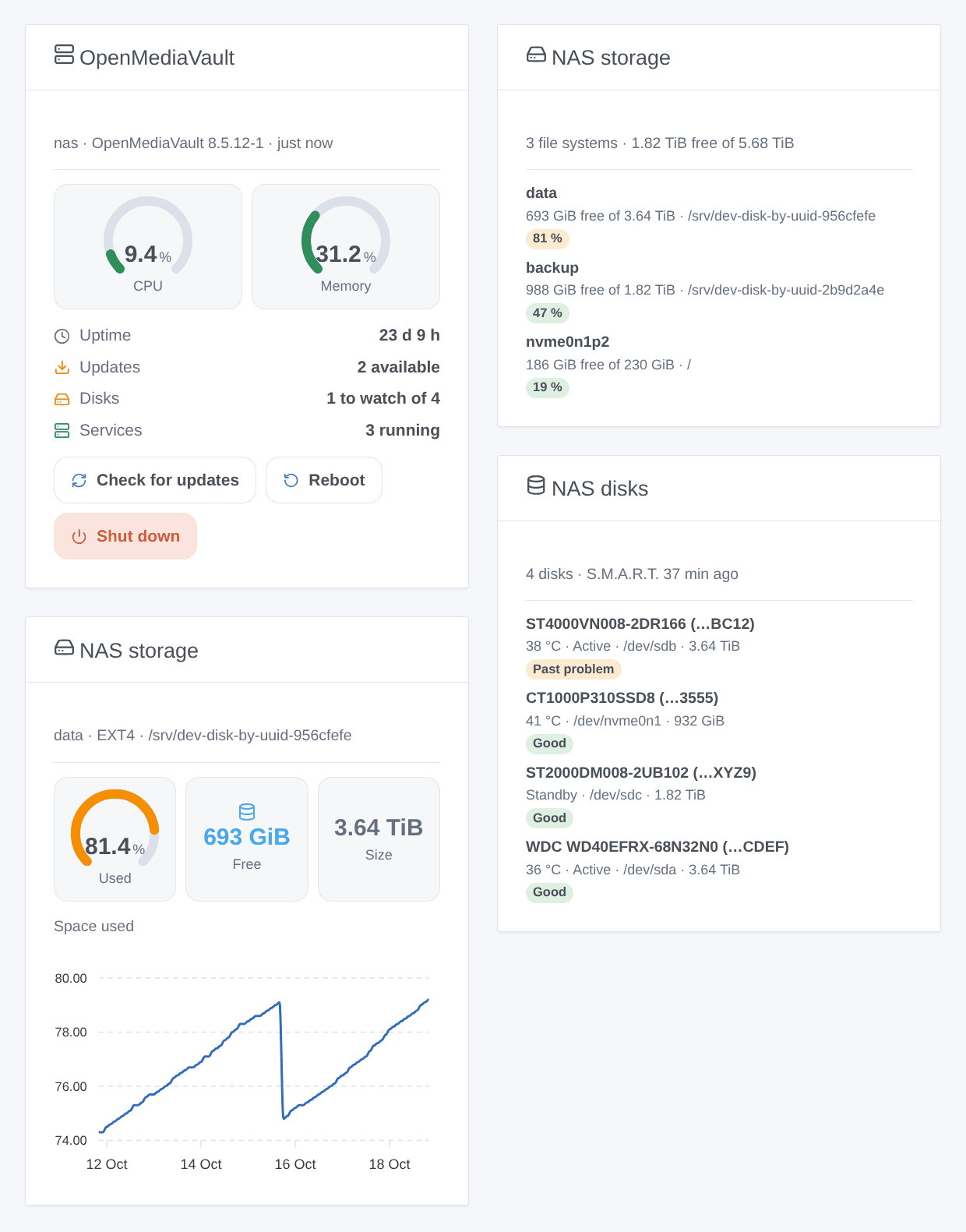
- OpenMediaVault: CPU and memory gauges, uptime, updates, disks, services, and the buttons Check for updates, Reboot and Shut down (both with a confirmation).
- NAS storage: how full each file system is, the fullest first, a missing one on top. Choose one file system in the settings to see its gauge, its free space and, once its device is added, the history of its usage.
- NAS disks: temperature, standby and S.M.A.R.T. health of each disk, failing disks first.
Scenes
Triggers, in Scenes > New scene > Trigger > OpenMediaVault:
| Trigger | When |
|---|---|
| NAS unreachable or back | The NAS stopped answering (two readings in a row), or answers again. Not after a reboot asked from Gladys. |
| NAS restarted | Its uptime went back to zero: reboot, power cut. |
| Updates available | Packages to upgrade appeared, or their number grew. |
| Reboot required | An update needs a reboot. |
| Disk health changed | The S.M.A.R.T. health of a disk became bad, reports a past problem, or is good again. |
| File system almost full | A file system goes above, or back below, its usage warning threshold set in OpenMediaVault (85 % by default). |
| File system missing or back | A file system is no longer mounted (USB disk unplugged), or is mounted again. |
| Service started or stopped | An enabled service started or stopped. |
Actions: read the status (CPU, memory, fullest file system, hottest disk, failing disks, stopped services, updates, and a summary for a message), run an rsync job (by its comment or UUID; waits up to 100 s and tells whether it completed), check for updates (installs nothing), reboot and shut down (with an optional delay).
Examples:
- When a disk becomes failing → send me
{{triggerEvent.data.summary}}on Telegram. - Every night at 2 am → run the rsync job "Photos backup", then, if
statusis notcompleted, notify me. - When the file system "data" goes above its threshold → notify me with
{{triggerEvent.data.free_gb}}GB left. - When the house is empty for a week → shut down the NAS (Gladys cannot switch it on again: plan Wake-on-LAN, a smart plug or the power settings of the NAS).
Transport
Local only: the integration talks to the web interface of OpenMediaVault on your network, like your browser does, and nothing leaves your network. The catalog shows the local badge.
Troubleshooting
- "OpenMediaVault refused the user name or the password": check them by logging in to the web interface. The integration waits 10 minutes before trying again; Test the connection tries at once.
- "This account is not an administrator": add the user to the openmediavault-admin group, or use
admin. - "This account asks for a second factor": use an account without two-factor authentication.
- "does not answer": check the address and its port, from the Gladys machine. If you open OpenMediaVault in
https://, typehttps://. - The S.M.A.R.T. health stays "Not read": a disk is often in standby; choose every hour in the configuration, or check Storage > S.M.A.R.T. in OpenMediaVault.
- A disk is missing: OpenMediaVault does not report its serial number (some USB enclosures). It cannot be told apart reliably, so it is not offered.
- The usage trigger never fires: set the Usage warning threshold of the file system in Storage > File Systems (0 turns it off).
- Logs: Settings > Supervision, or the container logs. For more details, add the environment variable
DEBUG=gladys-integration-sdkto the container.
Configuration settings
These are the settings OpenMediaVault asks for in its configuration screen in Gladys.
| Setting | Type | Required | Description |
|---|---|---|---|
| OpenMediaVault account | section | No | The integration logs in to the web interface of OpenMediaVault, like your browser, and reads it every minute. It needs an administrator: admin, or a user of the openmediavault-admin group, without two-factor authentication. Everything stays on your network. |
| Address of OpenMediaVault | string | Yes | The address you type in your browser to open OpenMediaVault, with its port if it is not 80 or 443. |
| User | string | Yes | An administrator of OpenMediaVault. |
| Password | secret | Yes | |
| Check the HTTPS certificate | boolean | No | Only for an https:// address. Leave it off with the self-signed certificate of OpenMediaVault. |
| Options | section | No | OpenMediaVault e-mails its administrator at the first login from a new browser: you will get one such e-mail when the integration starts. |
| Reading interval (seconds) | number | No | CPU, memory, file systems and services. The disks are read every 5 minutes. |
| S.M.A.R.T. health of the disks | select | No | Read every hour. Reading it spins up a disk in standby: by default it waits until no disk sleeps. |
| Language of the texts | select | No | Names of the features and summaries of the scenes. Automatic: the language of your dashboard. |
How to install OpenMediaVault in Gladys
- In Gladys, open Integrations: OpenMediaVault appears in the catalog, next to the native integrations, with a community badge.
- Click Install. Gladys pulls the Docker image (
ghcr.io/william-de71/gladys-openmediavault:0.1.0), starts it in a sandbox isolated from the core, and generates the integration's interface (devices, discovery and configuration). - Open the Configuration screen of the integration, fill in the settings, and save.
- You can also install it directly from its repository URL: https://github.com/William-De71/gladys-openmediavault.
OpenMediaVault requires Gladys >=5.1.0. The catalog inside Gladys refreshes every hour, so a new version becomes available at most one hour after its release.
Not running Gladys yet? It is free and open source: follow the installation guide to get started.
About external integrations
OpenMediaVault is an external integration: a community integration packaged as a Docker container and published on GitHub, that Gladys installs in one click and runs in a sandbox isolated from its core. It is published and maintained by William-De71, not by the Gladys core team.
- Browse all integrations, native and community
- Build and publish your own external integration
- Source code on GitHub — source of this documentation