Luxtronik smart home integration, free and open source
Luxtronik heat pumps (Alpha Innotec, Novelan…): temperatures, modes, energy, on the LAN.
Published by William-De71
- Devices
- Version 0.1.0
- Requires Gladys >=5.1.0
- ★ 0
Overview
This integration brings heat pumps with a Luxtronik 2.0 or 2.1 controller into Gladys, on your local network, without any cloud: Alpha Innotec, Novelan, Siemens, Buderus, Nibe AP, Roth, Elco, Wolf and other brands built on it.
Gladys reads the temperatures, the operating mode and status, the compressor and the backup heater, the error log, the power and energy counters when the controller has them, and can (only if you allow it) change the heating and hot water modes, the "temperature +/-", the hot water target and cooling.
Not affiliated with Alpha Innotec or the brands above.
Requirements
- Gladys Assistant 5.1.0 or later.
- The heat pump controller plugged into your network with a cable (Ethernet), on the same network as Gladys.
- A fixed IP address for the controller (a DHCP reservation in your router). It is shown on the controller, in Service > Information > IP address.
- Nothing to install on the controller: Gladys uses its built-in port 8889, the one of the Alpha Innotec tools and of the Home Assistant integrations.
Configuration
Heat pump
Type the IP address of the controller in Address of the heat pump (several heat pumps: separate the addresses with commas; add :port only if your installer changed port 8889), then press Search and test the heat pumps.
Also search the network: Gladys also sends the Alpha Innotec search message on UDP ports 4444 and 47808. Not every firmware answers it: the typed address is the reliable way.
Reading interval: how often the controller is read, from 30 seconds to 5 minutes. The controller copes badly with frequent requests: the integration opens one connection at a time and closes it after each reading.
Changing settings
Allow changes is off by default: Gladys only reads. Once you tick it, the heating and hot water modes, the temperature +/-, the hot water target and cooling can be changed from Gladys. Each change is written to the memory of the controller, which wears out, so the integration:
- never writes a value that is already set;
- changes one setting at most every 2 minutes, and 50 settings a day at most;
- only accepts values within safe bounds (hot water 30 to 65 °C, temperature +/- −5 to +5 °C, cooling 18 to 30 °C) and refuses the others;
- reads the value back after writing it;
- never writes to firmware V1.90.x and V2.90.x, which crash on any change (update the firmware first).
Language of the names and texts: the language of the feature names, of the modes and of the error messages.
Usage
Devices
Open the Discover tab of the integration and add the devices of the heat pump:
- Heat pump: outdoor (and average outdoor), flow, return, return target, hot gas, heat source in and out temperatures, room temperature with a room unit, operating mode, status, last error, compressor and backup heater (on / off), electrical power and electricity used, heat output and heat produced (when the controller reports them), compressor hours and starts, backup heater hours.
- Heat pump – heating: heating mode (automatic, second heat source, party, holidays, off) and temperature +/- (the offset of the heating curve, as on the controller).
- Heat pump – hot water (if the heat pump makes hot water): temperature, target, mode, heating now.
- Heat pump – cooling (if it can cool): cooling on / off (automatic) and its target.
Add Electricity used to the energy monitoring of Gladys to see the consumption and the cost of the heat pump. Heat produced is the heat delivered (not electricity): it is kept for the history.
Widgets
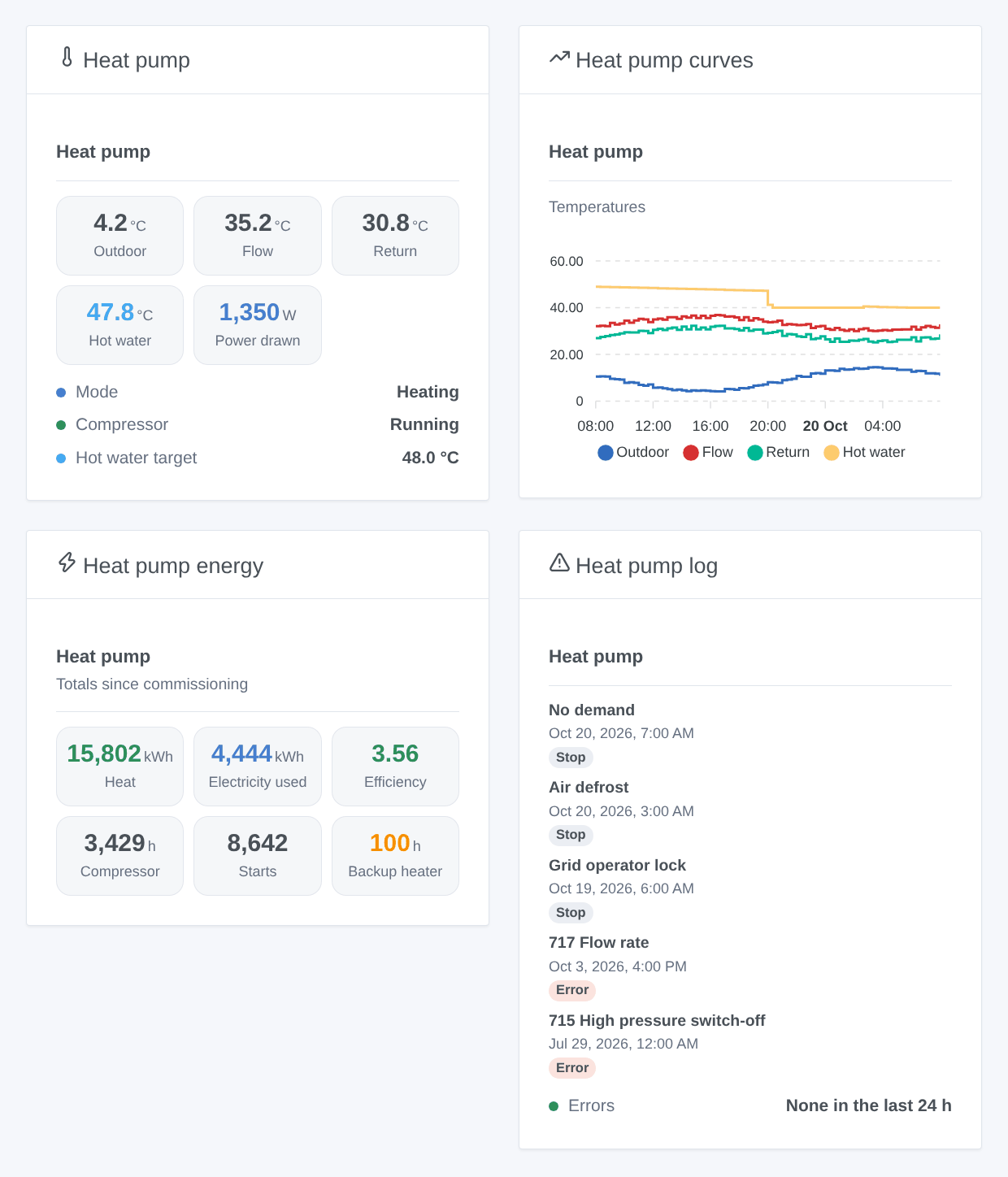
- Heat pump: what it does now: mode, status, compressor, backup heater, outdoor, flow, return and hot water temperatures, the power it draws.
- Heat pump curves: outdoor, flow, return and hot water temperatures over 24 hours, 3 or 7 days (the devices must be added).
- Heat pump energy: heat produced, electricity used, efficiency (heat ÷ electricity since commissioning), compressor hours and starts, backup heater hours.
- Heat pump log: the last errors and compressor stops of the controller, with their dates.
Scenes
Triggers: The heat pump reports an error (a new entry in its error log, with the code and its meaning), The heat pump changes operating mode (filter on the new mode or the previous one: heating, hot water, defrost, grid lock, cooling, no demand…), The backup heater switches on, The backup heater switches off (with its run time), The heat pump stops answering (3 minutes), The heat pump answers again.
Action: Read the heat pump (mode, status, temperatures, hot water target, power, last error), for a message or a condition.
Examples:
- The heat pump reports an error → send a notification with
{{triggerEvent.data.error_text}}. - The backup heater switches on → send a message: electricity is expensive, check the heat pump.
- The heat pump changes to defrost → do not start the bathroom fan now.
Troubleshooting
- "No heat pump answers on port 8889": check the IP address on the controller, the network cable, and that nothing else (an old tool, another home automation system) keeps a connection open: the controller accepts few clients.
- The network search finds nothing: normal on some firmware; type the address.
- "Changes are disabled": tick Allow changes in the settings.
- "Firmware … crashes the controller": firmware V1.90 and V2.90 accept no change over the network; reading still works.
- A value is missing (room temperature, power, energy): your controller does not report it; a firmware update sometimes adds it.
- The Search and test the heat pumps button lists what the integration sees; the Logs tab of the integration tells more.
Report a problem on GitHub with your Gladys version, the integration version, the heat pump model, the firmware of the controller and the logs.
Configuration settings
These are the settings Luxtronik asks for in its configuration screen in Gladys.
| Setting | Type | Required | Description |
|---|---|---|---|
| Your heat pump | section | No | Luxtronik 2.0 and 2.1 is the controller of many heat pumps: Alpha Innotec, Novelan, Siemens, Buderus, Nibe AP, Roth, Elco, Wolf. Gladys reads it directly on the local network (TCP port 8889), without any cloud: plug the controller into your network with a cable and give it a fixed IP address in your router. Its address is shown on the controller, in Service > Information > IP address. Nothing leaves your network. Not affiliated with Alpha Innotec or the brands above. |
| Address of the heat pump | string | No | The IP address of the controller; several heat pumps: separate them with commas. Add “:port” only if your installer changed port 8889. |
| Also search the network | boolean | No | Sends the Alpha Innotec search message (UDP 4444 and 47808) through Gladys. Not every firmware answers it: the typed address always works. |
| Reading interval | select | No | How often the controller is read. It copes badly with frequent requests: 30 seconds at least. |
| Changing settings | section | No | Off by default: Gladys only reads. Once allowed, Gladys can change the heating and hot water modes, the temperature +/-, the hot water target and cooling. Each change is written to the memory of the controller, which wears out: the same value is never written twice, one setting at most every 2 minutes, 50 changes a day at most, within safe bounds. Firmware V1.90 and V2.90 crash on any change: they stay read only. |
| Allow changes | boolean | No | Tick only if you know these settings: a wrong one can stop the heat pump. Check your manual. |
| Language of the names and texts | select | No | Gladys does not tell integrations the language of its users: choose the one of the feature names, of the modes and of the error messages. |
How to install Luxtronik in Gladys
- In Gladys, open Integrations: Luxtronik appears in the catalog, next to the native integrations, with a community badge.
- Click Install. Gladys pulls the Docker image (
ghcr.io/william-de71/gladys-luxtronik:0.1.0), starts it in a sandbox isolated from the core, and generates the integration's interface (devices, discovery and configuration). - Open the Configuration screen of the integration, fill in the settings, and save.
- You can also install it directly from its repository URL: https://github.com/William-De71/gladys-luxtronik.
Luxtronik requires Gladys >=5.1.0. The catalog inside Gladys refreshes every hour, so a new version becomes available at most one hour after its release.
Not running Gladys yet? It is free and open source: follow the installation guide to get started.
About external integrations
Luxtronik is an external integration: a community integration packaged as a Docker container and published on GitHub, that Gladys installs in one click and runs in a sandbox isolated from its core. It is published and maintained by William-De71, not by the Gladys core team.
- Browse all integrations, native and community
- Build and publish your own external integration
- Source code on GitHub — source of this documentation