Kaiterra smart home integration, free and open source
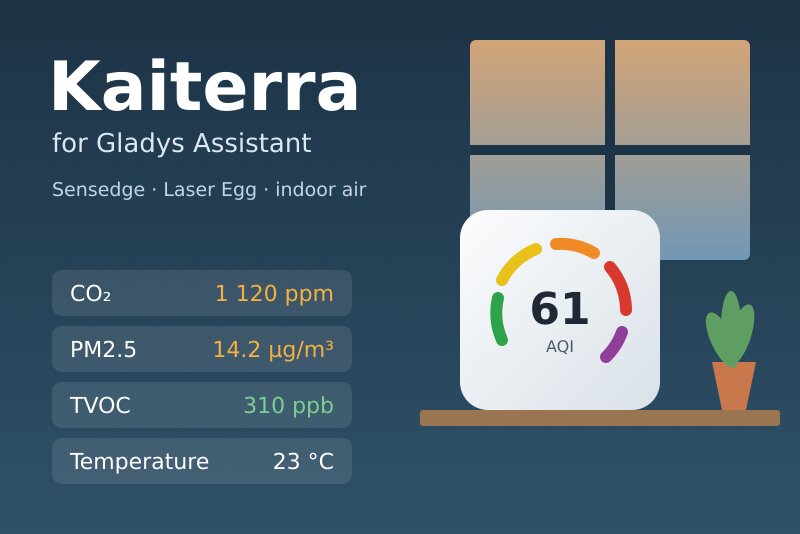
Kaiterra Sensedge and Laser Egg indoor air: AQI, PM2.5, CO₂, TVOC, temperature and humidity.
Published by William-De71
- Devices
- Version 0.1.0
- Requires Gladys >=5.3.0
- ★ 0
Overview
Kaiterra makes indoor air quality monitors: the Sensedge and Sensedge Mini for offices and homes, and the Laser Egg family. Depending on the model and its sensor modules, they measure particulate matter (PM1, PM2.5, PM10), CO₂, volatile organic compounds (TVOC), temperature, humidity, and sometimes pressure, NO₂, ozone, CO, light and motion. Each device uploads one reading a minute to the Kaiterra cloud.
This integration brings them into Gladys through the official Kaiterra API: one device per monitor, scene triggers when the air gets worse, when a value goes over its reference or when a monitor goes offline, a scene action, and two dashboard widgets. It only reads: nothing is changed on your devices.
The AQI shown is the US Air Quality Index of the particles (the index of the Kaiterra apps), computed from PM2.5 (2024 breakpoints) and PM10: good (0-50), moderate (51-100), unhealthy for sensitive groups (101-150), unhealthy (151-200), very unhealthy (201-300), hazardous (301-500). The level always comes from the value.
Prerequisites
- Gladys Assistant 5.3.0 or later (catalog keywords). Older instances cannot install the integration.
- One or more Kaiterra devices, set up in the Kaiterra app and connected to the internet.
- A Kaiterra API key and the id of each device (below).
Get an API key
- Sign in at app.kaiterra.com with the account that holds your devices.
- Open Account Settings, then API Keys, and click Generate API Key. Copy the key.
A device of an organization can only be read with a key made by a member of that organization.
Find the id of a device
The API cannot list your devices: the integration needs the Unique Device ID (UDID) of each one, 32 hexadecimal digits such as 46048117-86a7-488e-9c58-708f3470ee11. The Kaiterra mobile app shows it in the settings of the device; a Sensedge also shows it in its own settings. Treat it like a password: never publish it.
Configuration
| Field | What to enter |
|---|---|
| API key | The key of your Kaiterra account. Stored as a secret, never shown again nor logged. |
| Device ids (UDID) | The id of each device, with or without dashes, separated by commas, spaces or new lines. Up to 20. |
| CO₂ reference (ppm) | Over this value, the CO₂ fires the "reference value exceeded" trigger and turns orange. 1,000 by default. |
| TVOC reference (ppb) | The same for the volatile organic compounds. 500 by default. |
| Language of the texts | Device names and the texts given to scenes. Automatic: the language of the last widget shown. |
Two buttons complete the screen: Read now (checks the key and reads every device at once, with its name and sensor modules) and Diagnostic (the state of the integration in its logs, without the key nor the device ids).
The other references are the WHO 2021 guideline values:
| Pollutant | Reference | Basis of the WHO value |
|---|---|---|
| PM2.5 | 15 µg/m³ | 24-hour mean |
| PM10 | 45 µg/m³ | 24-hour mean |
| NO₂ | 25 µg/m³ | 24-hour mean |
| Ozone | 100 µg/m³ | 8-hour mean |
| CO | 3.5 ppm | 24-hour mean (4 mg/m³) |
The integration compares them with the last reading, like a monitor does: an indication, not a regulatory measurement.
Usage
Devices
Open the Discover tab of the integration and create one device per monitor ("Kaiterra Office"), named after the Kaiterra app. Each device offers what the monitor measures:
- Air quality index (AQI) and Air quality, its level as text;
- PM2.5 and PM10 (µg/m³), CO₂ (ppm), Volatile organic compounds (TVOC) (ppb);
- Temperature (°C, converted from °F if need be), Humidity (%);
- when the monitor has them: Atmospheric pressure (hPa), Nitrogen dioxide (NO₂) and Ozone (O₃) (converted from ppb to µg/m³), Illuminance (lx), Motion, Dew point.
A value the monitor did not upload keeps its last one: no 0 is invented. A feature, once offered, never goes away. PM1 and CO have no category in Gladys: they are in the scene action.
The integration reads every device in one request a minute. It reads the names and sensor modules every 6 hours and the hourly averages of the last 24 hours every 30 minutes.
Dashboard widgets
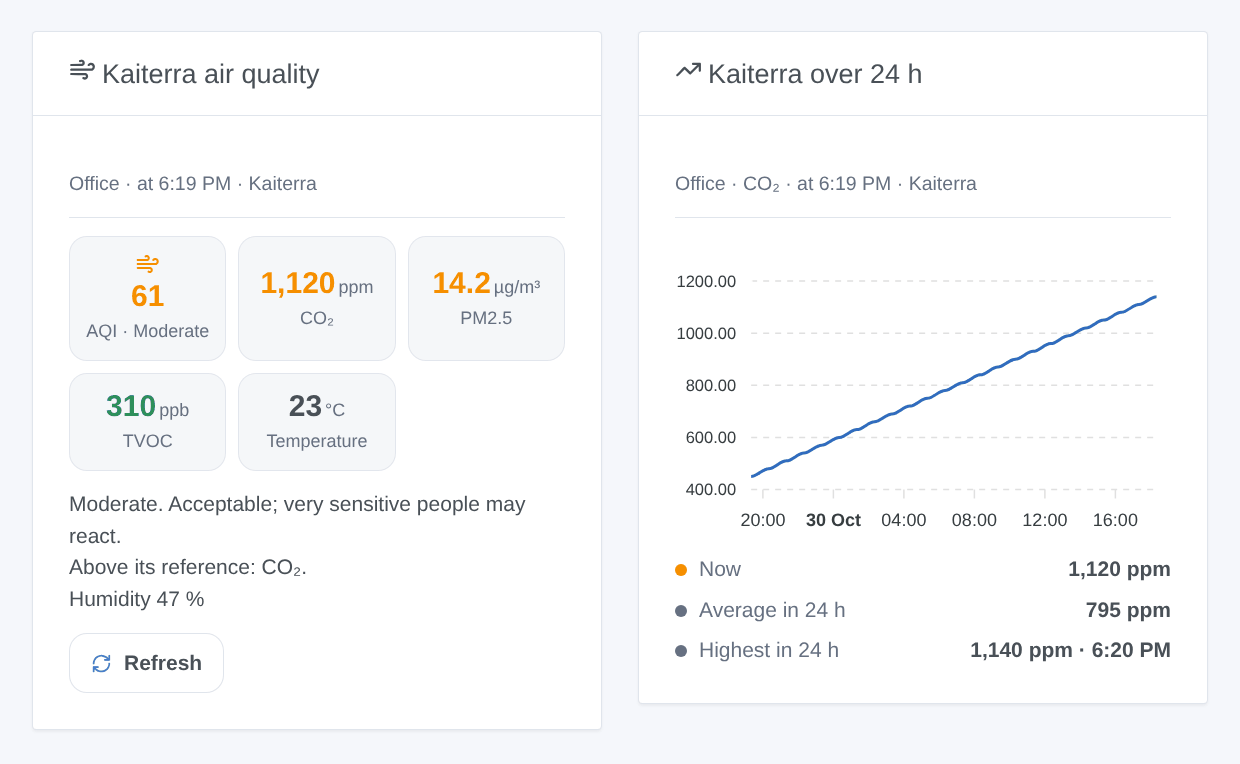
- Kaiterra air quality: the AQI in the color of its level, then CO₂, PM2.5, TVOC and the temperature (or what the monitor measures), green under 90 % of their reference, orange up to twice it, red beyond; the advice of the level, the values over their reference, the humidity, a monitor offline or a worn sensor module; and a Refresh button.
- Kaiterra over 24 h: one measure (CO₂, AQI, PM2.5, PM10, TVOC, temperature or humidity) as hourly averages over the last 24 hours, with the value now, the average and the highest hour.
Both have a setting Device (the first one by default).
Scenes
Triggers:
- Kaiterra: air quality changed: the AQI level changes and holds for 5 minutes. Filters: device, new level (one or several), direction (worse, better). Variables:
aqi,level,level_name,previous_level,direction,pm25,pm10,name. - Kaiterra: reference value exceeded: CO₂, TVOC, PM2.5, PM10, NO₂, ozone or CO stays over its reference for 5 minutes. Filters: device, pollutant. Variables:
pollutant_name,value,unit,limit,percent. - Kaiterra: back to normal: that value stays below 90 % of its reference for 5 minutes. Same filters and variables.
- Kaiterra: device offline or back: a monitor uploads no new reading for 15 minutes, or starts again. Filters: device, state. Variables:
state,last_seen,minutes. - Kaiterra: sensor module worn: a sensor module of a Sensedge has less than 10 % of its life left. Variables:
module,bay,lifetime.
Action: Kaiterra: read the air of a device: the AQI and its level, every value, the time of the reading, online or offline, and a ready-made summary sentence. It never fires a trigger.
Examples:
- When the CO₂ of the office exceeds its reference → send
Open a window: CO₂ {{triggerEvent.data.value}} ppmto your phone; when it is back to normal → a short confirmation. - When the air quality becomes unhealthy → turn the air purifier on at full speed; when it becomes good again → back to auto.
- When a device goes offline → a notification, to check its Wi-Fi.
Transport
Cloud ("transports": ["cloud"]): the integration contacts api.kaiterra.com over HTTPS with your key and the ids of your devices; Kaiterra already holds their readings. Nothing else leaves your network. The last readings, the history of the last 24 hours and what the triggers already announced are kept in the /data volume of the integration, so a restart fires nothing twice.
Troubleshooting
- Kaiterra refused the API key: copy it again from app.kaiterra.com (no space), then save the configuration.
- Device N: Kaiterra does not know this id: check the id in the Kaiterra app; the position N is the order of the ids in the configuration.
- Device N: it belongs to an organization this key is not part of: create the key with an account of that organization.
- Not a device id: an id has 32 hexadecimal digits; a name or a serial number is not one.
- A device seems offline: it uploaded nothing for 15 minutes. Check its power and Wi-Fi in the Kaiterra app.
- Still stuck: press Diagnostic, then open an issue on GitHub with the versions of Gladys and of the integration, and the "Kaiterra diagnostic" lines of the logs (add
DEBUG=gladys-integration-sdkin developer mode).
Data provided by Kaiterra. This community integration is not affiliated with Kaiterra.
Configuration settings
These are the settings Kaiterra asks for in its configuration screen in Gladys.
| Setting | Type | Required | Description |
|---|---|---|---|
| Kaiterra API key | section | No | The integration reads your Kaiterra devices through the official Kaiterra API. Sign in at app.kaiterra.com with the account of your devices, open Account Settings, then API Keys, and click Generate API Key. Copy the key here. |
| API key | secret | Yes | |
| Devices | section | No | The API cannot list your devices: give the Unique Device ID (UDID) of each one. The Kaiterra app shows it in the settings of the device, a Sensedge in its own settings. Up to 20 devices, separated by commas or new lines. |
| Device ids (UDID) | string | Yes | |
| Reference values | section | No | The scene triggers and the widget colors compare each value to a reference: the WHO guidelines for the particles, NO₂, ozone and CO, and the values below for CO₂ and TVOC, which have none. |
| CO₂ reference (ppm) | number | No | 1,000 ppm by default: past it, the room needs fresh air. |
| TVOC reference (ppb) | number | No | 500 ppb by default. |
| Language of the texts | select | No | Names of the devices and texts of the scenes. Automatic: the language of the dashboard. |
How to install Kaiterra in Gladys
- In Gladys, open Integrations: Kaiterra appears in the catalog, next to the native integrations, with a community badge.
- Click Install. Gladys pulls the Docker image (
ghcr.io/william-de71/gladys-kaiterra:0.1.0), starts it in a sandbox isolated from the core, and generates the integration's interface (devices, discovery and configuration). - Open the Configuration screen of the integration, fill in the settings, and save.
- You can also install it directly from its repository URL: https://github.com/William-De71/gladys-kaiterra.
Kaiterra requires Gladys >=5.3.0. The catalog inside Gladys refreshes every hour, so a new version becomes available at most one hour after its release.
Not running Gladys yet? It is free and open source: follow the installation guide to get started.
About external integrations
Kaiterra is an external integration: a community integration packaged as a Docker container and published on GitHub, that Gladys installs in one click and runs in a sandbox isolated from its core. It is published and maintained by William-De71, not by the Gladys core team.
- Browse all integrations, native and community
- Build and publish your own external integration
- Source code on GitHub — source of this documentation