Intex PureSpa smart home integration, free and open source
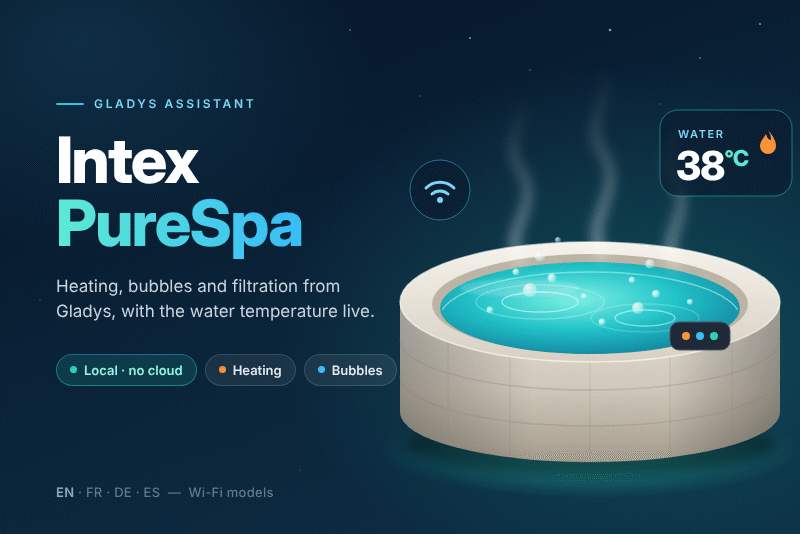
Control your Intex PureSpa over Wi-Fi: heating, bubbles, filtration and water temperature.
Published by prohand
- Devices
- Version 0.0.1
- Requires Gladys >=5.3.0
- ★ 0
Control your Intex PureSpa (Wi-Fi models) from Gladys: power, heating, filtration, bubbles, jets, salt sanitizer, target temperature, and read the water temperature and the error codes of the control panel.
The integration talks directly to the Wi-Fi module of the spa on your local network (TCP port 8990). No Intex account, no cloud: it keeps working without Internet.
Compatible spas
Intex PureSpa models with built-in Wi-Fi, controlled by the Intex app (formerly "Intex Spa"):
- PureSpa Bubble models with Wi-Fi control;
- PureSpa Jet & Bubble models with Wi-Fi control — tick My spa has hydro jets;
- models with the built-in salt water system — tick My spa has a salt sanitizer.
Spas without Wi-Fi are not supported.
Before you start
- Connect the spa to your Wi-Fi with the Intex app, as the manual explains.
- In your router, give the spa a fixed IP address (DHCP reservation). The integration finds the spa by this address.
- Gladys must be on the same network as the spa (or able to reach it on TCP port 8990). Gladys 5.3 or newer is required.
Configuration
In Gladys: Integrations → Intex PureSpa → Configuration.
| Field | What to type |
|---|---|
| Spa address | The IP address of the spa, e.g. 192.168.1.50. |
| TCP port | Leave 8990. |
| My spa has hydro jets | Ticked on Jet & Bubble models: adds a Jets switch. |
| My spa has a salt sanitizer | Ticked on models with a salt system: adds a Salt sanitizer switch. |
| Refresh interval (s) | How often the spa is read. 60 s by default, 30 s minimum. |
Save, then click Test the connection: the answer shows the water temperature, the target and the heater state read from the spa.
Then open the Discover tab and add the Intex PureSpa device.
The device
| Feature | Type | Notes |
|---|---|---|
| Power | Switch | Turns the whole spa on or off. |
| Filtration | Switch | The pump. |
| Heater | Switch | Switching it on also starts the filtration. |
| Bubbles | Switch | |
| Jets | Switch | Only with My spa has hydro jets. |
| Salt sanitizer | Switch | Only with My spa has a salt sanitizer. |
| Water temperature | Temperature sensor | Not published while the panel shows an error. |
| Target temperature | Thermostat setpoint | 10–40 °C (or 50–104 °F). |
| Error code | Text | OK, or the code of the panel (E81, E90...). |
Switching a function on while the spa is off powers the spa on first, as the control panel does.
The spa works in Celsius or Fahrenheit according to its own panel setting: the integration detects it and the temperatures follow.
Dashboard widget
Add the Intex spa widget to a dashboard. It shows:
- the water and the target temperature, live;
- the state of each function, the connection and the error code;
- buttons: heater, bubbles, filtration on/off, and Set temperature, which opens a small form.
Scenes
Triggers
- Spa error detected — the panel shows an error code. The code is
available as
{{triggerEvent.data.code}}. - Water temperature reached — the heater brought the water to the
target temperature (
temperature,target). - Spa no longer answers — the spa answered, then stopped (power cut, Wi-Fi lost...).
To act on a temperature threshold (water below 30 °C...), use the standard "device state" trigger on the Water temperature feature.
Actions
- Heat the spa to — sets the target temperature and switches the heater on (untick Switch the heater on to only change the target). Outputs: water temperature, target, heater, error code.
- Read the spa status — reads the spa now. Outputs: temperatures, power, heater, filtration, bubbles, error code.
Example: "Every Friday at 2 pm, heat the spa to 38 °C", then "When the water temperature is reached, send me a message".
Good to know
- The Wi-Fi module of the spa is slow and serves one client at a time. The integration keeps a single connection open and sends one request at a time. The Intex app can be slower to answer while Gladys is connected.
- For the meaning of an error code (E81, E90...), see the manual of your spa: the integration passes on the code shown by the panel.
- The integration stores nothing on disk.
Troubleshooting
- "The spa does not answer": check that the spa is powered, that its Wi-Fi
light is on, and that the address is right (try
pingfrom the Gladys machine). If the address changed, set a DHCP reservation. - The device badge is red ("unreachable"): same checks. The badge turns back to "local" as soon as the spa answers again.
- A switch goes back to its old state: the control panel refused the order (a heater during a fault, for example). Look at the error code.
- Detailed logs: in Gladys, open the integration logs in Settings → System.
Configuration settings
These are the settings Intex PureSpa asks for in its configuration screen in Gladys.
| Setting | Type | Required | Description |
|---|---|---|---|
| Getting started | section | No | The integration talks to the Wi-Fi module of the spa directly on your network (TCP port 8990): no Intex account, no cloud. First connect the spa to your Wi-Fi with the Intex app, then give it a fixed IP address in your router (DHCP reservation) and type that address below. |
| Spa address | string | Yes | IP address (or host name) of the spa's Wi-Fi module on your network. |
| TCP port | number | No | Leave 8990, the port of every Intex Wi-Fi module. |
| My spa has hydro jets | boolean | No | Hydrojet models only (PureSpa Jet & Bubble). Adds a Jets switch. |
| My spa has a salt sanitizer | boolean | No | Models with the built-in salt water system. Adds a Salt sanitizer switch. |
| Refresh interval (s) | number | No | How often the spa is read, in seconds (30 minimum: the Wi-Fi module is slow). |
How to install Intex PureSpa in Gladys
- In Gladys, open Integrations: Intex PureSpa appears in the catalog, next to the native integrations, with a community badge.
- Click Install. Gladys pulls the Docker image (
ghcr.io/prohand/gladys-intexpurespa:0.0.1), starts it in a sandbox isolated from the core, and generates the integration's interface (devices, discovery and configuration). - Open the Configuration screen of the integration, fill in the settings, and save.
- You can also install it directly from its repository URL: https://github.com/prohand/gladys-intexpurespa.
Intex PureSpa requires Gladys >=5.3.0. The catalog inside Gladys refreshes every hour, so a new version becomes available at most one hour after its release.
Not running Gladys yet? It is free and open source: follow the installation guide to get started.
About external integrations
Intex PureSpa is an external integration: a community integration packaged as a Docker container and published on GitHub, that Gladys installs in one click and runs in a sandbox isolated from its core. It is published and maintained by prohand, not by the Gladys core team.
- Browse all integrations, native and community
- Build and publish your own external integration
- Source code on GitHub — source of this documentation