GRDF Gazpar smart home integration, free and open source
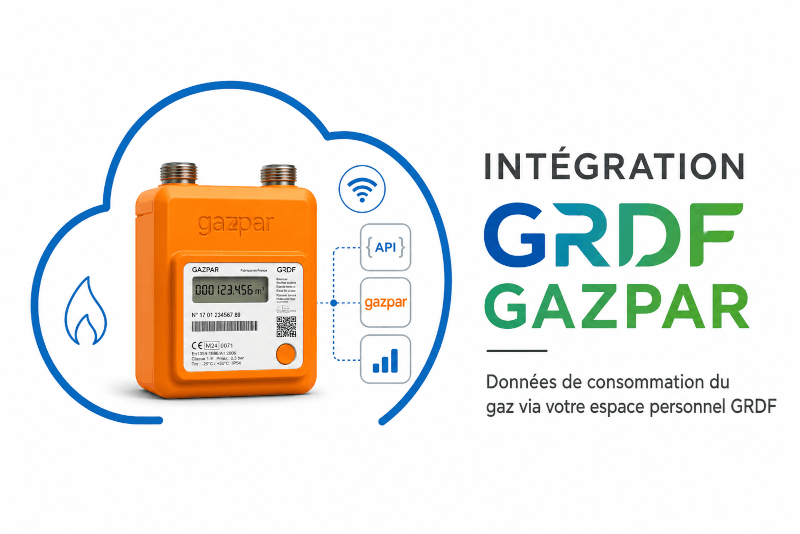
Reads the daily gas consumption of your GRDF Gazpar meter from your GRDF account.
Published by PhilippeMA
- Devices
- Version 1.2.1
- Requires Gladys >=5.2.0
- ★ 1
This integration reads the gas consumption measured by your Gazpar meter and turns it into Gladys devices, so your gas shows up next to the rest of your home data: daily charts, scenes, and the energy screen.
GRDF exposes no public API for individuals. The integration therefore signs in to your customer account exactly like a browser would, on monespace.grdf.fr, and reads the same daily readings the website shows you.
What you need
- a GRDF customer account (the one you use on monespace.grdf.fr), with your meter already attached to it;
- a Gazpar communicating meter — the daily readings only exist for those. With an older meter read twice a year by a technician, GRDF only publishes one lump reading per period, and that is all the integration can show;
- an account that does not ask for an extra verification step at login (a one-time code sent by SMS or email, a captcha). The integration can only answer the password step.
Configuration
- Open the Configuration tab of the integration.
- Enter the email and the password of your GRDF account. Once saved, the password is never sent back to your browser, and it is only ever transmitted to GRDF — see Privacy for how it is stored.
- Leave PCE to follow empty to follow every meter of the account. If your account holds several metering points and you only want some of them, list their 14-digit PCE numbers, separated by commas. You will find a PCE on your gas bill, and in Mon Espace GRDF.
- Choose the history to import: the number of past days fetched the first time the integration synchronizes. GRDF keeps about three years, so you can import several months at once if you want charts that already have a past. This only applies to the first synchronization; afterwards the integration only fetches what is new. Importing a long history takes a few minutes: Gladys accepts a limited number of measurements per minute, so the integration feeds them in gently — about one minute per two months imported.
- Click Test the GRDF connection: it signs in and lists the metering points it found. This is the quickest way to check your credentials.
- Save, then open the Discovery tab and add your meter to your home. This step is what starts the collection: until a meter is added, it is only an offer, and Gladys has nowhere to store its measurements. The history is imported the moment you add it.
The devices you get
One device per metering point, named after the alias you gave it in Mon Espace, carrying four read-only sensors:
| Sensor | Unit | What it is |
|---|---|---|
| Consommation quotidienne | kWh | Energy consumed during the gas day — the billed value |
| Volume quotidien | m³ | Raw gas volume consumed during the gas day |
| Index compteur | m³ | Meter index at the end of the gas day |
| Température extérieure moyenne | °C | Average outside temperature GRDF associates to the day |
Every value is recorded with the date of the day it belongs to, not the date it was downloaded: your charts stay correct even though the data arrives late.
Gladys adds a fifth sensor of its own, the cost, derived from the daily consumption — see below.
Cost tracking
The daily consumption is not published as a plain measurement: it goes through the Gladys dated-consumption mechanism, the one meant for suppliers whose readings arrive after the fact. Gladys derives a cost sensor from it, attaches it to the meter, and computes it from your energy contract.
To get euros, one thing is left to do, once:
- open Energy in Gladys;
- create a contract for your Gazpar meter, with your price per kWh and your standing charge.
Two things worth knowing. The gas price comes from your supplier (Engie, TotalEnergies…), not from GRDF, which only distributes it: you enter it yourself, the integration cannot know it. And until a contract is attached to this meter, Gladys files it under your main meter — usually electricity — which would price your gas at the electricity rate. A dedicated contract avoids that.
The cost of the history already imported is recomputed automatically whenever the contract or its price changes.
When the data arrives
GRDF publishes a reading one to two days late, usually during the day following the measurement. There is nothing live here: the consumption of Monday typically lands on Tuesday or Wednesday. This is a limit of the Gazpar network itself (the meter transmits once a day), not of the integration.
The integration queries GRDF on its own schedule — every six hours by default, which is far more than enough for a daily value. The Refresh the data now action forces a fetch immediately if you do not want to wait.
Troubleshooting
"Test the GRDF connection" fails. Try signing in on monespace.grdf.fr with the same credentials in a private browser window. If GRDF asks you for a code or a captcha there, the integration cannot get through either.
The sensors exist but stay empty. Check that the meter is really added to your home, and not merely listed in the Discovery tab: Gladys only stores measurements for devices you added. Once added, the history is imported within seconds, and at worst within a minute — or use Refresh the data now. A long history takes a few minutes to appear in full: it is fed in gently (see above), oldest day first.
My meter has no cost sensor. Gladys does not update the sensors of a device that is already created: a meter added before the version that introduced cost tracking keeps its old ones. Delete the device and add it back from the Discovery tab to get the new definition — its history is re-imported over the window set in History to import.
"Could not reach GRDF". The request never arrived: nothing was refused, the connection itself failed. So this is not a password problem. The usual causes, in the order worth checking: GRDF is down (try monespace.grdf.fr in a browser), your Gladys server lost its way to the Internet, or its DNS resolution is broken. From the machine hosting Gladys:
curl -sS -o /dev/null -w '%{http_code}\n' https://monespace.grdf.fr
The integration retries a few times within the same pass, then gives up and tries again at the next refresh: an outage of a few hours clears on its own, and the missing days are caught up by the first pass that gets through.
"No login token in the page GRDF served". GRDF answered with something other than its sign-in form. The message says what came back — a captcha, a "too many attempts" page, a maintenance notice, or an unexpected page. The first three clear up on their own after a few hours; the last one probably means GRDF changed its website and the integration needs updating. Either way, try signing in on monespace.grdf.fr from a browser first: you will see the same page the integration saw.
"GRDF served its HTML app shell" or "the session was not accepted". GRDF answered with a web page instead of data. Their site does that when it does not accept the session, and also when it is simply having a bad moment — it never says which. The integration signs in again and retries a few times on its own; if it still fails, wait a few minutes and use Refresh the data now. If it lasts, check that monespace.grdf.fr works in your browser: GRDF sometimes throttles an account that has signed in many times in a row.
No new data for several days. Check on the GRDF website that the readings are actually published for your meter: a Gazpar meter that lost its radio link stops feeding GRDF, and the integration can only show what GRDF has.
The values look wrong or duplicated. The integration remembers the last day it published for each meter, so it never re-imports the same day twice. If you delete a device and add it back, its history restarts from the import window you configured.
For the full detail of what happens, look at the integration logs from the
Gladys interface (or docker logs on the host); set LOG_LEVEL=debug for the
verbose version.
Privacy
Your GRDF credentials and your consumption data stay between your Gladys server and GRDF. Nothing is sent anywhere else, and no third-party service is involved.
How your password is stored. Gladys marks it as a secret, which means it is never sent back to the browser once saved: the Configuration screen only knows that a password is set, never its value. It is, however, stored as-is in your Gladys database — Gladys stores its settings in a plain SQLite file, with no encryption at rest. Anyone with access to that server, or to a backup of it, can read it, exactly as for any other credential you enter in Gladys.
GRDF offers individuals no other way in: no API key, no token, no application-specific password. Signing in with your account password is the only option, which is why it is worth knowing where it ends up.
Configuration settings
These are the settings GRDF Gazpar asks for in its configuration screen in Gladys.
| Setting | Type | Required | Description |
|---|---|---|---|
| Before you start | section | No | This integration signs in to your GRDF customer account, the same one you use on monespace.grdf.fr, and reads the daily readings of your Gazpar meter. GRDF publishes them one to two days late: nothing shows up in real time. Your account must not require an extra verification step at login. |
| GRDF account email | string | Yes | The email address you use to sign in on monespace.grdf.fr. |
| GRDF account password | secret | Yes | Never sent back to your browser once saved, and only ever transmitted to GRDF. Like every Gladys setting, it is stored as-is in your server's database. |
| PCE to follow | string | No | Optional. 14-digit metering point identifiers, separated by commas. Leave empty to follow every meter of the account. |
| History to import (days) | number | No | Days of past consumption imported on the first synchronization. GRDF keeps about three years. |
| Refresh interval (s) | number | No | How often GRDF is queried, in seconds. A new reading appears once a day, so there is no point going below a few hours. |
How to install GRDF Gazpar in Gladys
- In Gladys, open Integrations: GRDF Gazpar appears in the catalog, next to the native integrations, with a community badge.
- Click Install. Gladys pulls the Docker image (
ghcr.io/philippema/gladys-grdf:1.2.1), starts it in a sandbox isolated from the core, and generates the integration's interface (devices, discovery and configuration). - Open the Configuration screen of the integration, fill in the settings, and save.
- You can also install it directly from its repository URL: https://github.com/PhilippeMA/gladys-grdf.
GRDF Gazpar requires Gladys >=5.2.0. The catalog inside Gladys refreshes every hour, so a new version becomes available at most one hour after its release.
Not running Gladys yet? It is free and open source: follow the installation guide to get started.
About external integrations
GRDF Gazpar is an external integration: a community integration packaged as a Docker container and published on GitHub, that Gladys installs in one click and runs in a sandbox isolated from its core. It is published and maintained by PhilippeMA, not by the Gladys core team.
- Browse all integrations, native and community
- Build and publish your own external integration
- Source code on GitHub — source of this documentation