Google Tasks smart home integration, free and open source
Your Google Tasks lists in Gladys: counters, widgets to add and complete tasks, scenes.
Published by William-De71
- Devices
- Version 0.1.0
- Requires Gladys >=5.2.0
- ★ 0
Overview
This integration brings your Google Tasks lists into Gladys: one device per list with its counters, widgets to see, add and complete tasks from the dashboard, and scenes that react to your tasks or change them.
- One device per list ("My Tasks", "Shopping"…) with three counters: tasks to do, overdue and due today.
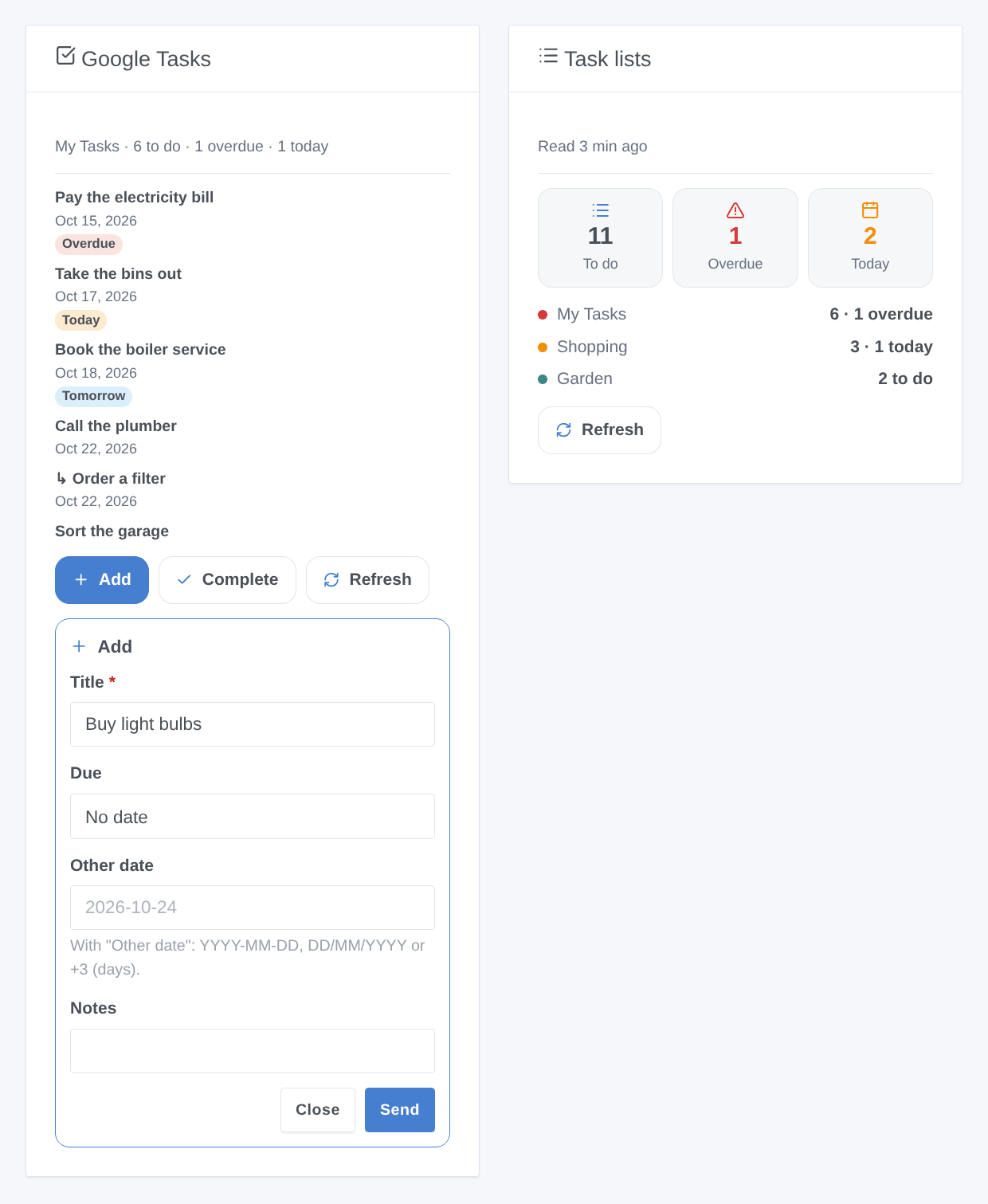
- Widgets: the tasks of a list (due date, overdue, notes, link) with the Add and Complete forms, and an overview of every list.
- Scenes: task added, completed, due or overdue; add, complete, read the tasks, clear the completed ones.
- Cloud: your tasks travel between Google's servers and your Gladys, with your own Google client; nothing goes through a third-party server. Google Tasks sends no notification: the integration reads your lists every 5 minutes (adjustable) and right after a change made from Gladys.
- Due = a date: Google Tasks only stores the day (a time picked in the app cannot be read through the API). "Today" and "overdue" follow the time zone of Gladys.
Requirements
- Gladys 5.2.0 or later (widget forms).
- A Google account (personal or Workspace) using Google Tasks.
- A free Google Cloud project in which you create your own OAuth client: Google does not allow sharing a key, and the integration ships none. Count about ten minutes, once.
Configuration
1. Google Cloud project and API
- Open the Google Cloud console and create a project (for example "Gladys").
- In APIs & Services → Library, search for Google Tasks API and click Enable (direct link).
2. Consent screen (Google Auth Platform)
- Open Google Auth Platform (link) and click Get started: app name ("Gladys"), support email, audience External, contact email, accept the policy, then Create.
- In Audience, click Publish app to switch it to In production. This matters: an app left in Testing gets authorizations that expire after 7 days (you would have to connect again every week), and only the accounts added as test users can connect.
- No need to ask Google for verification: the app stays "unverified", which is normal for personal use. Google simply shows a warning when connecting (see step 4). An unverified app is limited to 100 users, plenty for a household.
3. OAuth client
-
In Google Auth Platform → Clients, click Create client.
-
Application type: Web application, name: "Gladys".
-
In Authorized redirect URIs, add exactly:
https://my.gladysassistant.com/redirect/oauthThis is the HTTPS page of Gladys that sends your browser back to your instance, whatever its address (Google refuses
http://addresses and IP addresses such ashttp://192.168.1.50). It is the same for everyone; the configuration screen of Gladys shows it too, with a copy button. If you reach Gladys over HTTPS and enable the advanced "instance address" option of that screen, declare the address it shows instead. -
Click Create, then copy the Client ID and the Client secret (it starts with
GOCSPX-). Copy the secret right away: Google does not always show it again. -
If the console asks to add
gladysassistant.comto the Authorized domains (Google Auth Platform → Branding), accept.
4. In Gladys
- Open the Google Tasks integration, paste the Client ID and the Client secret, then save.
- Click Connect with Google and choose your account.
- Google warns that it hasn’t verified this app: it is yours. Click Advanced, then Go to Gladys (unsafe).
- Tick the Google Tasks permission ("Create, edit, organize, and delete all your tasks"), then Continue. You are back in Gladys, connected.
- Go to Discovery and add the lists you want, then add the widgets to a dashboard.
| Field | Default | Purpose |
|---|---|---|
| Client ID | — | The Client ID of your OAuth client (ends with .apps.googleusercontent.com). |
| Client secret | — | Its secret (GOCSPX-…), never shown nor written to the logs. |
| Connect with Google | — | The connection button. Only the Google Tasks permission is requested. |
| Read Google Tasks every (minutes) | 5 | From 1 to 60. Each reading costs 1 request + 1 per list; Google allows 50,000 a day per project. |
| Hour of the "task due" trigger | 8 | Google stores a date without time: a task due today starts its scenes at this hour (0 to 23), at the next reading. |
| Language of the texts | Automatic | Feature names and scene summaries. Automatic: the language of your dashboard once a widget has been displayed. |
The tokens are renewed automatically. If Google revokes the access (app left in testing, access removed from your Google account, secret regenerated, six months unused), the integration stops calling Google, says so in the connection status, and you just click Connect with Google again. Your devices and scenes are kept.
Usage
Devices
One device per list, named "Google Tasks: <list name>". Its identifier follows the one of the list at Google: renaming the list breaks nothing.
| Feature | Gladys type | Value |
|---|---|---|
| Tasks to do | Counter (integer) | Tasks of the list not completed, subtasks included. |
| Overdue tasks | Counter (integer) | Tasks to do whose due date has passed. |
| Tasks due today | Counter (integer) | Tasks to do due today. |
These counters are read-only; they feed the tiles, the history and the scene conditions ("if more than 3 tasks are overdue…").
Widgets
- Google Tasks: the tasks of a list (Task list setting; empty = the first list, "My Tasks"), sorted by due date then in the order of the list, with the Overdue, Today and Tomorrow badges; a subtask starts with "↳". Tap a task to see its notes and open it in Google Tasks. The Show setting limits the card to the tasks due today or overdue. Buttons:
- Add: title, due date (no date, today, tomorrow, in a week or another date) and notes;
- Complete: pick the task in the list;
- Refresh: reads Google Tasks right away.
- Task lists: the totals to do, overdue and due today, and one row per list.
The widget forms need Gladys 5.2.0 or later.
Scene triggers
Each trigger can be limited to one list. Available variables: list name, title, notes, due date (YYYY-MM-DD), subtask, link and ID of the task.
| Trigger | When |
|---|---|
| Google Tasks: task added | A task appears in a list (phone, Gmail, Calendar…). Not for the tasks added by Gladys. |
| Google Tasks: task completed | A task is marked completed outside Gladys. |
| Google Tasks: task due today | A task to do is due today: at the hour set in the configuration. |
| Google Tasks: task overdue | A task to do goes past its due date (just after midnight). |
Each event matches a change seen between two readings, never a repeated state. At startup, the first reading is the reference: it starts nothing.
Scene actions
| Action | Parameters | Results |
|---|---|---|
| Google Tasks: add a task | List, title (variables allowed), notes, due date | ID, title, due date, link |
| Google Tasks: complete a task | List (empty = all), title (case and accents ignored) | Task completed (yes/no), title, list |
| Google Tasks: read the tasks | List (empty = all), all / due today or overdue / today / overdue | Count, overdue, today, titles, summary, next task and its due date |
| Google Tasks: clear completed tasks | List (empty = all) | — |
The due date accepts YYYY-MM-DD, DD/MM/YYYY, +3 (in 3 days), today and tomorrow. "Complete" looks for an identical title first, then a title containing it, and does nothing (result "no") when no task matches. A scene action never starts a scene in return.
Scene examples
- Morning reminder: every day at 7:30 → "Google Tasks: read the tasks" (due today or overdue) → if the count is above 0, send
{{0.0.summary}}in a message. - Bins: on Tuesday at 7 pm → "Google Tasks: add a task" "Take the bins out" for today in the "Home" list; and when it is completed, switch off the garage light.
- Shopping: when a task is added to the "Shopping" list → notify the household with
{{triggerEvent.data.title}}. - Late tasks: when a task becomes overdue → turn the office LED red.
Troubleshooting
- "Error 400: redirect_uri_mismatch": the redirect URI declared in the OAuth client is not identical to the one of Gladys. Check
https://my.gladysassistant.com/redirect/oauth, without a trailing slash, in the Authorized redirect URIs of the Web application client (not in "Authorized JavaScript origins"), save and wait a few minutes. - "Error 403: access_denied" / the app has not completed the verification process: the app is still in Testing and your account is not a test user. Publish it (Audience → Publish app) or add your account as a test user.
- "Google hasn’t verified this app": normal, it is your own app; Advanced → Go to Gladys (unsafe).
- "The Google Tasks permission was not granted": the Google Tasks checkbox was not ticked on the consent screen. Connect again and tick it.
- "Google revoked the access" every week: the app stayed in Testing (7-day authorizations). Publish it, then connect again.
- "The Google Tasks API is not enabled": enable Google Tasks API in the project of the OAuth client, wait a few minutes, then Test the connection.
- "invalid_client": wrong Client ID or Client secret, or secret regenerated in the console. Fix them, save and connect again.
- The return from Google shows an error instead of Gladys: click "Connect" only once, keep a single authorization tab open, and start over.
- "Today" or "overdue" one day off: check the time zone of Gladys (Settings → System); the Diagnostic action writes it to the logs.
- A change made on the phone takes a few minutes to show: that is the reading interval (5 minutes by default). The Refresh button of the widgets reads right away.
- For a bug report: click Diagnostic (anonymized summary in the logs, no token nor task title), then attach the logs of the integration, the Gladys version and the integration version.
Limitations
- No notification from Google: a change shows up at the latest after the reading interval, and a "due" trigger fires at the first reading after the configured hour.
- The time of a task cannot be read: only the due date is known.
- If the integration is stopped when something changes (restart, update), the matching event is not caught up: the first reading after the start is the reference.
- A deleted task starts nothing; nor does a task gone during a full reading (every 6 hours), since the API then cannot tell whether it was completed or deleted.
- No subtask creation, no move, edit or deletion of a task, no management of the lists themselves.
- The tasks assigned from Docs or Chat are counted and shown, but Google does not allow creating them through the API.
- One Google account per integration.
Configuration settings
These are the settings Google Tasks asks for in its configuration screen in Gladys.
| Setting | Type | Required | Description |
|---|---|---|---|
| 1. Your Google Cloud OAuth client | section | No | Google gives no shared key: create a free project in the Google Cloud console, enable the Google Tasks API, configure the consent screen (External) and publish it "In production", then create an OAuth client of type "Web application" whose authorized redirect URI is exactly https://my.gladysassistant.com/redirect/oauth. The documentation details every step. |
| Client ID | string | Yes | Ends with .apps.googleusercontent.com. |
| Client secret | secret | Yes | Shown by Google when the client is created (it starts with GOCSPX-). |
| 2. Connect your Google account | section | No | Save first, then click the button. Google warns that it "hasn’t verified this app": it is your own app, click Advanced, then Go to (unsafe), and tick the Google Tasks permission. Connect again whenever Gladys reports a revoked access. |
| Connect with Google | oauth2 | No | Gladys only asks for the Google Tasks permission (read and change your tasks). |
| 3. Options | section | No | Google Tasks sends no notification: the integration reads your lists on a timer, and right after a change made from Gladys. |
| Read Google Tasks every (minutes) | number | No | Each reading costs 1 request + 1 per list (Google allows 50,000 a day by default). |
| Hour of the "task due" trigger | number | No | Google stores a date without time: a task due today starts its scenes at this hour (0-23). |
| Language of the texts | select | No | Feature names and scene summaries. Automatic: the language of your dashboard, once a widget has been displayed. |
How to install Google Tasks in Gladys
- In Gladys, open Integrations: Google Tasks appears in the catalog, next to the native integrations, with a community badge.
- Click Install. Gladys pulls the Docker image (
ghcr.io/william-de71/gladys-google-tasks:0.1.0), starts it in a sandbox isolated from the core, and generates the integration's interface (devices, discovery and configuration). - Open the Configuration screen of the integration, fill in the settings, and save.
- You can also install it directly from its repository URL: https://github.com/William-De71/gladys-google-tasks.
Google Tasks requires Gladys >=5.2.0. The catalog inside Gladys refreshes every hour, so a new version becomes available at most one hour after its release.
Not running Gladys yet? It is free and open source: follow the installation guide to get started.
About external integrations
Google Tasks is an external integration: a community integration packaged as a Docker container and published on GitHub, that Gladys installs in one click and runs in a sandbox isolated from its core. It is published and maintained by William-De71, not by the Gladys core team.
- Browse all integrations, native and community
- Build and publish your own external integration
- Source code on GitHub — source of this documentation