Google Sheets smart home integration, free and open source
Google Sheets in Gladys: log rows from scenes, watch cells and new rows, widget.
Published by William-De71
- Devices
- Version 0.1.0
- Requires Gladys >=5.2.0
- ★ 0
Overview
This integration connects Gladys to your Google Sheets spreadsheets, both ways: your scenes write to them (a temperature log, meter readings, arrivals and departures) and read from them, and Gladys reacts to what changes in them (a Google Forms answer, a status typed on the phone).
- Scene actions: add a row (with the date and time if you want), write cells, read cells (to reuse a value of the sheet in a message or a condition) and clear cells, on any spreadsheet your Google account can edit.
- Watches: you declare, from the configuration screen, a cell or the new rows of a tab. Each watch is a device: the value of the cell (number, text, temperature, amount, energy index) or the number of rows, for the dashboard tiles, the history and the scene conditions.
- Scene triggers: cell changed (filter by the new value, for example "Done") and row added (each Google Forms answer, each line typed by hand).
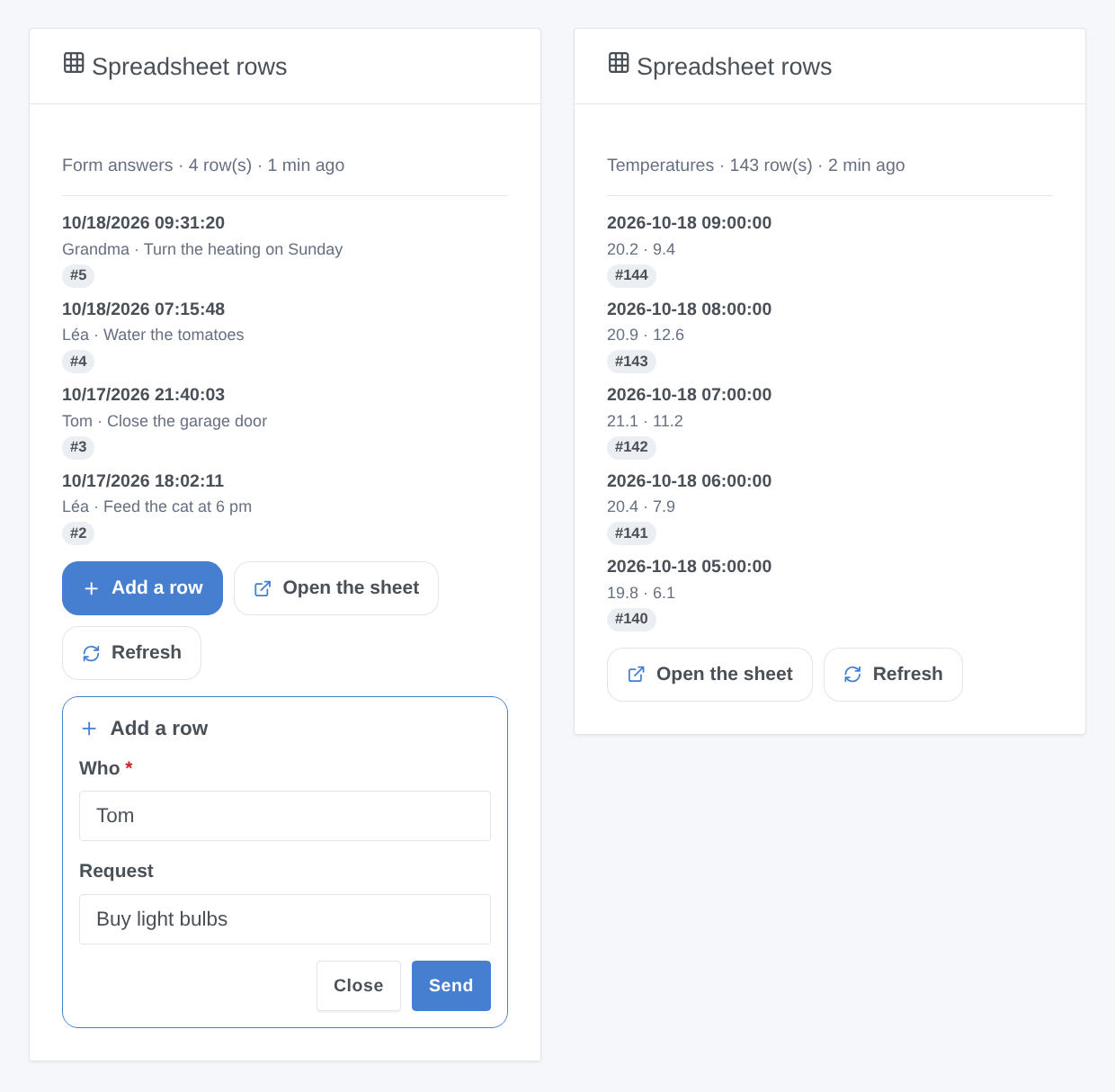
- Widget: the last rows of a watched tab, with an Add a row form whose fields are named after the header of the sheet.
- Cloud: your data travels between Google's servers and your Gladys, with your own Google client and the "spreadsheets" permission only (no access to the rest of your Drive). Google Sheets sends no notification: the watches are read every 2 minutes (adjustable).
Requirements
- Gladys 5.2.0 or later (widget forms).
- A Google account (personal or Workspace) and the spreadsheets you want to use: your own, or shared with you with the right to edit (read-only is enough for watches and "read cells").
- A free Google Cloud project in which you create your own OAuth client: Google does not allow sharing a key, and the integration ships none. Count about ten minutes, once.
Configuration
1. Google Cloud project and API
- Open the Google Cloud console and create a project (for example "Gladys").
- In APIs & Services → Library, search for Google Sheets API and click Enable (direct link). The Drive API is not needed.
2. Consent screen (Google Auth Platform)
- Open Google Auth Platform (link) and click Get started: app name ("Gladys"), support email, audience External, contact email, accept the policy, then Create.
- In Audience, click Publish app to switch it to In production. This matters: an app left in Testing gets authorizations that expire after 7 days (you would have to connect again every week), and only the accounts added as test users can connect.
- No need to ask Google for verification: the app stays "unverified", which is normal for personal use. The "spreadsheets" permission is a sensitive one: Google simply shows a warning when connecting (see step 4). An unverified app is limited to 100 users, plenty for a household.
3. OAuth client
-
In Google Auth Platform → Clients, click Create client.
-
Application type: Web application, name: "Gladys".
-
In Authorized redirect URIs, add exactly:
https://my.gladysassistant.com/redirect/oauthThis is the HTTPS page of Gladys that sends your browser back to your instance, whatever its address (Google refuses
http://addresses and IP addresses such ashttp://192.168.1.50). It is the same for everyone; the configuration screen of Gladys shows it too, with a copy button. If you reach Gladys over HTTPS and enable the advanced "instance address" option of that screen, declare the address it shows instead. -
Click Create, then copy the Client ID and the Client secret (it starts with
GOCSPX-). Copy the secret right away: Google does not always show it again. -
If the console asks to add
gladysassistant.comto the Authorized domains (Google Auth Platform → Branding), accept.
4. In Gladys
- Open the Google Sheets integration, paste the Client ID and the Client secret, and the URL of your main spreadsheet in Default spreadsheet (optional), then save.
- Click Connect with Google and choose your account.
- Google warns that it hasn’t verified this app: it is yours. Click Advanced, then Go to Gladys (unsafe).
- Tick the Google Sheets permission ("See, edit, create, and delete all your Google Sheets spreadsheets"), then Continue. You are back in Gladys, connected.
- To watch a cell or a tab, use the Watch a cell and Watch new rows buttons (below), then add the devices in Discovery and the widget to a dashboard.
| Field | Default | Purpose |
|---|---|---|
| Client ID | — | The Client ID of your OAuth client (ends with .apps.googleusercontent.com). |
| Client secret | — | Its secret (GOCSPX-…), never shown nor written to the logs. |
| Connect with Google | — | The connection button. Only the Google Sheets permission is requested. |
| Default spreadsheet | — | The URL of a spreadsheet (as shown in your browser) or its ID: used by the actions, watches and widget that name no other. |
| Read the watches every (minutes) | 2 | From 1 to 60. Each reading costs 2 or 3 requests per watched spreadsheet; Google allows 60 a minute per account, no daily cap. |
| Language of the texts | Automatic | Feature names and messages of the buttons. Automatic: the language of your dashboard once a widget has been displayed. |
Configuration buttons (no JSON to type):
- Watch a cell: spreadsheet (empty = the default one; a pasted URL also gives the tab through its
gid), tab (its name; empty = the tab of the URL or the first one), cell (B2, orSheet1!B2), how Gladys shows it (number, text, temperature in °C, amount in euros or dollars, energy meter index in kWh: this choice cannot be changed later) and a name. - Watch new rows: spreadsheet, tab, columns (
A:Zby default), whether the first row is a header, and a name. - Remove a watch (by its number
#2, its name or its identifier), List the watches (with their last value or the reason they cannot be read), Test the connection, Diagnostic, Disconnect from Google.
A watch follows its tab when it is renamed (Gladys keeps its identifier, the gid, not its name). The tokens are renewed automatically. If Google revokes the access (app left in testing, access removed from your Google account, secret regenerated, six months unused), the integration stops calling Google, says so in the connection status, and you just click Connect with Google again. Your watches, devices and scenes are kept.
Usage
Devices
One device per watch, named as you chose, with a single read-only feature:
| Watch | Feature | Shown as |
|---|---|---|
| A cell | Value | A number (generic sensor), a text, a temperature (°C), an amount (€ or $) or an energy index (kWh, counts in the consumption). |
| New rows | Rows | The number of data rows of the tab (header excluded): a counter. |
A numeric watch takes the real value of the cell: 0.5 for a cell displayed "50 %", 1234.5 for "1 234,50 €". A cell that holds no number publishes nothing. Use these devices in scene conditions ("when the stock typed in the sheet goes below 5"), in dashboard tiles and charts. The sheet stays the place to edit them: the devices are read-only.
Widgets
Spreadsheet rows: the last rows (1 to 8) of a "new rows" watch, newest first. The first column is the title, the others the subtitle; a tap shows every column with the name of its header. Settings: the watch, the number of rows, and the Add a row button: on the first 4 columns, or with the date and time in the first column and the 4 next ones (like a Google Form). Plus Open the sheet and Refresh. The widget costs no request: it shows the last reading.
Scene triggers
- Google Sheets: cell changed: a watched cell changed value. Filters: the watch, and Only when it becomes (the new value exactly as shown, for example
Done). Variables:value,previous_value,number,previous_number,is_number,cell,watch_name,sheet_name,spreadsheet_name. - Google Sheets: row added: a new row appeared under a watched tab. Filter: the watch. Variables:
row(its number),values(every value separated by|),column_1tocolumn_10(from the first watched column),first_column,watch_name,sheet_name,spreadsheet_name.
The first reading after a start is a reference (no event), and the changes made by Gladys itself (scene actions, widget form) never start a scene, even through a formula. If rows are deleted or sorted above the last known row, the tab is read again in full as a new reference, without events.
Scene actions
- Google Sheets: add a row: values separated by
|(scene variables allowed:{{...}}), optional date and time in the first column (time zone of Gladys). The row goes under the table of the tab. Outputs:row,updated_range. - Google Sheets: write cells: from a cell (
B2) to the right, or in a row of cells (B2:D2). Outputs:updated_range,updated_cells. - Google Sheets: read cells: a cell or a range. Outputs:
value(the first cell as shown),numberandis_number(its real value),values(every row on its own line, cells separated by|),cell_count,row_count. - Google Sheets: clear cells: empties a range (
A2:D), the formatting is kept. Output:cleared_range.
Every action takes a spreadsheet (empty = the default one) and a tab (empty = the first one; Sheet1!B2 in the range works too). Values: "As if typed" (default) lets Google read numbers, dates and formulas as if you typed them in the sheet; "Raw text" stores the text as is, never as a formula (use it for text coming from outside, a message for example).
Scene examples
- Temperature log: every hour → add a row to the "Temperatures" tab with the date and time and the two temperatures read earlier in the scene, as scene variables separated by
|; build your charts in Google Sheets. - Family requests through Google Forms: a form linked to a sheet, a new rows watch on its answers tab → when a row is added → send
{{triggerEvent.data.column_2}} asks: {{triggerEvent.data.column_3}}to the household. - Settings in a sheet: a "Settings" tab whose cell B2 holds the holiday set-point → before heating, read cells
Settings!B2and usenumber; or watch B2 so that a change typed on the phone starts the scene right away. - To-do written by Gladys, ticked by people: when the washing machine ends → write cells
Chores!B5=To do; a watch on B5 with Only when it becomesDoneturns the reminder light off.
Troubleshooting
- "Error 400: redirect_uri_mismatch": the redirect URI declared in the OAuth client is not identical to the one of Gladys. Check
https://my.gladysassistant.com/redirect/oauth, without a trailing slash, in the Authorized redirect URIs of the Web application client (not in "Authorized JavaScript origins"), save and wait a few minutes. - "Error 403: access_denied" / the app has not completed the verification process: the app is still in Testing and your account is not a test user. Publish it (Audience → Publish app) or add your account as a test user.
- "Google hasn’t verified this app": normal, it is your own app; Advanced → Go to Gladys (unsafe).
- "The Google Sheets permission was not granted": the checkbox was not ticked on the consent screen. Connect again and tick it.
- "Google revoked the access" every week: the app stayed in Testing (7-day authorizations). Publish it, then connect again.
- "The Google Sheets API is not enabled": enable Google Sheets API in the project of the OAuth client, wait a few minutes, then Test the connection.
- "Google refuses this spreadsheet": wrong URL, spreadsheet deleted, or not shared with the connected Google account. Open it in a browser with that account. A "Publish to the web" link (
/d/e/2PACX-…) cannot be used: copy the URL of the address bar while editing. - "No tab …": check the spelling of the tab name (case is ignored when unique) or leave it empty.
- "Google Sheets quota reached": more than 60 requests in a minute (frequent scene actions, many watched spreadsheets, other tools on the same OAuth client). The integration waits and retries on its own; space your scenes or read less often.
- A number watch shows nothing: the cell holds a text or a date (Google gives dates as text). Choose "Text", or put the number in its own cell.
- A change typed on the phone takes a few minutes to show: that is the reading interval (2 minutes by default). The Refresh button of the widget reads right away.
- For a bug report: click Diagnostic (anonymized summary in the logs, no token, no cell value, no sheet name), then attach the logs of the integration, the Gladys version and the integration version.
Limitations
- No notification from Google: a change shows up at the latest after the reading interval; a cell that changes twice between two readings starts a single event.
- New rows are rows added under the last one: a row inserted in the middle, or rows deleted at the same time as new ones are added, are not reported (the tab becomes a new reference).
- A change typed by someone within a few seconds after a write of Gladys to the same spreadsheet can be taken for a consequence of Gladys and start nothing.
- If the integration is stopped when something changes (restart, update), the matching event is not caught up.
- "Write cells" writes a single row; no formatting, no creation of spreadsheets or tabs, no access to other Drive files.
- 50 watches at most, 52 columns per "new rows" watch, 10 columns as individual scene variables (the others are in
values). - One Google account per integration. Never tested with a real Google account at release time: feedback welcome.
Configuration settings
These are the settings Google Sheets asks for in its configuration screen in Gladys.
| Setting | Type | Required | Description |
|---|---|---|---|
| 1. Your Google Cloud OAuth client | section | No | Google gives no shared key: create a free project in the Google Cloud console, enable the Google Sheets API, configure the consent screen (External) and publish it "In production", then create an OAuth client of type "Web application" whose authorized redirect URI is exactly https://my.gladysassistant.com/redirect/oauth. The documentation details every step. |
| Client ID | string | Yes | Ends with .apps.googleusercontent.com. |
| Client secret | secret | Yes | Shown by Google when the client is created (it starts with GOCSPX-). |
| 2. Connect your Google account | section | No | Save first, then click the button. Google warns that it "hasn’t verified this app": it is your own app, click Advanced, then Go to (unsafe), and tick the Google Sheets permission. Connect again whenever Gladys reports a revoked access. |
| Connect with Google | oauth2 | No | Gladys only asks for the Google Sheets permission (read and edit your spreadsheets), never Drive. |
| 3. Options | section | No | Google Sheets sends no notification: the watched cells and rows are read on a timer. Declare them with the buttons below ("Watch a cell", "Watch new rows"), then create their devices in Discovery. |
| Default spreadsheet | string | No | The URL of the spreadsheet as shown in your browser (or its ID): used by the scene actions, the watches and the widget that name no other. |
| Read the watches every (minutes) | number | No | Each reading costs 2 or 3 requests per watched spreadsheet; Google allows 60 a minute per account, without a daily limit. |
| Language of the texts | select | No | Feature names and messages of the configuration buttons. Automatic: the language of your dashboard, once a widget has been displayed. |
How to install Google Sheets in Gladys
- In Gladys, open Integrations: Google Sheets appears in the catalog, next to the native integrations, with a community badge.
- Click Install. Gladys pulls the Docker image (
ghcr.io/william-de71/gladys-google-sheets:0.1.0), starts it in a sandbox isolated from the core, and generates the integration's interface (devices, discovery and configuration). - Open the Configuration screen of the integration, fill in the settings, and save.
- You can also install it directly from its repository URL: https://github.com/William-De71/gladys-google-sheets.
Google Sheets requires Gladys >=5.2.0. The catalog inside Gladys refreshes every hour, so a new version becomes available at most one hour after its release.
Not running Gladys yet? It is free and open source: follow the installation guide to get started.
About external integrations
Google Sheets is an external integration: a community integration packaged as a Docker container and published on GitHub, that Gladys installs in one click and runs in a sandbox isolated from its core. It is published and maintained by William-De71, not by the Gladys core team.
- Browse all integrations, native and community
- Build and publish your own external integration
- Source code on GitHub — source of this documentation