Ginko smart home integration, free and open source
Besançon buses and trams: real-time passages at your stops and line traffic.
Published by William-De71
- Devices
- Version 0.2.0
- Requires Gladys >=5.1.1
- ★ 0
Overview
This integration brings Ginko, the bus and tram network of Grand Besançon, into Gladys: the next passages in real time at the stops of your choice (three in the form, up to 20 more with a button), filtered by line and direction, and the traffic of up to six lines (normal, disrupted, interrupted, with the messages of Ginko). Each stop and each line becomes a device you can show on a dashboard and use in scenes.
The data come from the open data API of Ginko (Keolis Besançon Mobilités, for Grand Besançon Métropole), under the ODbL licence. The stops are read every minute by default (every 10 minutes while a stop announces nothing, at night), the traffic every 5 minutes. The lines and stops of the network are kept in the integration and read again once a day and once a week.
It is a cloud integration: it contacts api.ginko.voyage with your key. Nothing else leaves your network.
Prerequisites
- Gladys Assistant 5.1.1 or later.
- A Ginko API key, free: ask for it by e-mail at [email protected]. To try first, the website api.ginko.voyage gives a temporary key valid for 24 hours (section "Clé temporaire").
Configuration
| Field | What to enter |
|---|---|
| API key | The key sent by Ginko, or the temporary key of the day. |
| Stop 1, 2, 3 | The name of the stop ("Chamars", "Gare Viotte") for both sides of the street, or an id ("t_cham1") for one side. |
| Line | Only this line: "T1", "L3", "3", "Plan B", "51". Empty: every line of the stop. |
| Direction | Only the destinations holding these words: "Chalezeule", "Temis | Gare Viotte". Empty: both directions. |
| Followed lines | The lines whose traffic you follow, up to six: "T1, L3, 7". |
| Reading of the stops | Every 30 seconds, minute, 2 minutes or 5 minutes. |
| Language of the texts | Device names, scene summaries and outputs. The names of stops and the messages of Ginko stay in French. |
The Find a stop button gives the exact names of the stops holding a few words, with the id of each side of the street and the directions served there ("BQTSO01 → Prés de Vaux (12), Trey (D4)"): copy the id of the side you board. A name Ginko spells differently is found anyway ("Pôle Temis" gives "Temis"). Test the connection checks the key and reads every stop and line at once.
More stops than the three of the form (home, work…): Add a stop takes the same three fields — stop, line, direction — and follows up to 20 more stops. List the stops shows every followed stop, numbered; Remove a stop takes that number (or the name). The added stops are kept in the Gladys configuration, so they follow its backups.
Usage
Devices
In the Discover tab, create the devices you want:
- Ginko <stop>: the next passage as text ("T2 → Hauts du Chazal · 3 min"), the wait of the next passage and of the following one (minutes), and the number of announced passages that do not serve the stop ("Non desservi", "Déviation");
- Ginko line <line>: the traffic as text ("Disruption under way: Manifestation") and the number of disruptions under way.
When the vehicle is not located, Ginko gives the timetable: the integration says so ("timetable"). At night, without any passage, the waits keep their last value.
Dashboard widgets
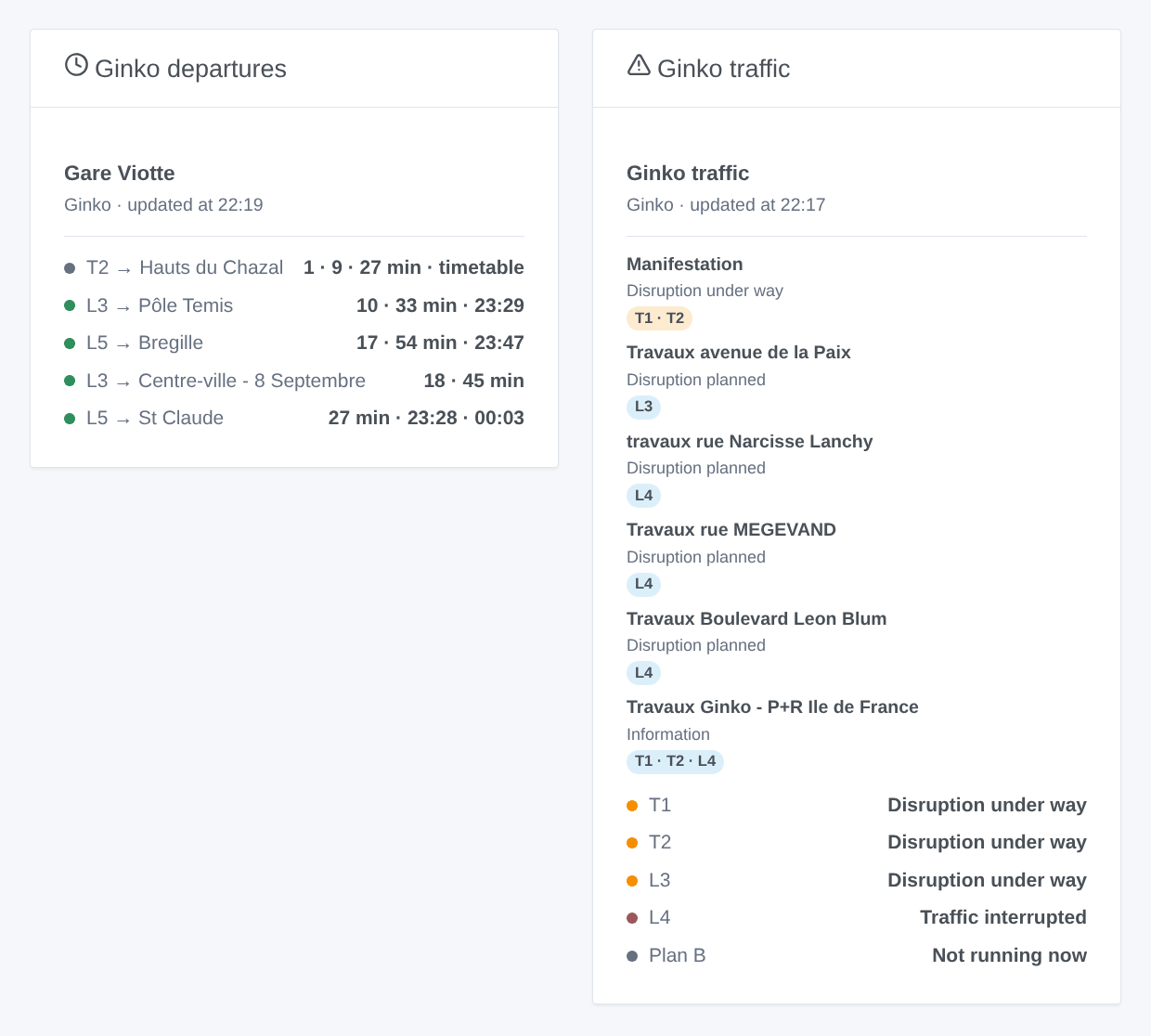
- Ginko departures: the next passages of a stop, compact: one row per line and destination with its next passages on one line ("1 · 9 · 27 min", "23:32", "Non desservi"), the timetable times in grey. The setting Routes shown sets the number of rows. Choose a followed stop, or type any stop (and a line) in the settings of the widget.
- Ginko traffic: the state of each line, then the messages of Ginko; tap a card for the full text and the link to ginko.voyage. The followed lines, or the ones typed in the settings.
Scenes
Triggers, fired once per change (the first reading of a stop or a line is only a reference):
- Ginko: bus or tram soon: a passage serving a followed stop arrives in 2, 3, 5, 10, 15 or 20 minutes.
- Ginko: stop not served: the next passage of a line no longer serves a followed stop (diversion, works).
- Ginko: line disrupted: a followed line becomes disrupted or interrupted.
- Ginko: line back to normal: it runs again.
- Ginko: new traffic message: Ginko publishes a message about a followed line (news, planned or current disruption).
Each one gives a ready-made sentence, {{triggerEvent.data.summary}}, and its values (line, destination, time, title, message…). The actions Ginko: next passages and Ginko: traffic of a line return the same kind of values, to put in a message or test in a condition.
Examples:
- When the T2 towards Hauts du Chazal arrives at Gare Viotte in 5 minutes → light the hall lamp in green.
- When line L4 is interrupted → send the summary and the link to your phone.
- Every weekday at 7:30 → read the next passages of your stop and have them spoken by the speaker of the kitchen.
Transport
Cloud only: the data come from the internet. Only your key and the names of the stops and lines you follow are sent to Ginko.
Troubleshooting
- "Ginko refuses the API key": a temporary key only lasts 24 hours; ask Ginko for a permanent one.
- "Unknown to Ginko": use Find a stop, then copy the exact name or an id; for a line, its number as on the vehicles ("L3", "Plan B").
- No passage at night: the network sleeps; the stop is read every 10 minutes until the first passage is announced.
- "Non desservi" everywhere: a demonstration or works: the vehicles do not stop there, see the traffic messages.
- "The Ginko API does not answer": the integration tries again at each reading; the last passages stay on the widgets.
- To report a problem: press Diagnostic, then copy the lines starting with "Ginko diagnostic" from the Logs tab (the key is never in them) into an issue on GitHub or a reply on the forum, with the versions of Gladys and of the integration.
Configuration settings
These are the settings Ginko asks for in its configuration screen in Gladys.
| Setting | Type | Required | Description |
|---|---|---|---|
| Ginko API key | section | No | The passages and the traffic come from the open data API of Ginko, the bus and tram network of Grand Besançon (Keolis Besançon Mobilités). The key is free: ask for it by e-mail at [email protected]. To try the integration first, the API website gives a temporary key, valid for 24 hours. |
| API key | secret | Yes | The key sent by Ginko, or the temporary key of the day. |
| Stop 1 | section | No | The stop where you take the bus or the tram: its passages are read in real time. Type its name ("Chamars") for both sides of the street, or an id ("t_cham1") for one side only: the "Find a stop" button gives them. The line keeps only its passages ("T1", "L3", "Plan B", "51"). The direction keeps only the destinations holding these words ("Chalezeule", "Gare Viotte | Temis"). |
| Stop | string | No | |
| Line | string | No | Empty for every line. |
| Direction | string | No | Words of the destination. Empty for both directions. |
| Stop 2 | section | No | |
| Stop | string | No | |
| Line | string | No | Empty for every line. |
| Direction | string | No | Words of the destination. Empty for both directions. |
| Stop 3 | section | No | More stops (a home, a workplace…): the "Add a stop" button, under the form, follows up to 20 more, "List the stops" shows them all, numbered, and "Remove a stop" stops following one. |
| Stop | string | No | |
| Line | string | No | Empty for every line. |
| Direction | string | No | Words of the destination. Empty for both directions. |
| Traffic of the lines | section | No | The lines whose traffic you follow: a device per line, with its state (normal, disrupted, interrupted) and the messages of Ginko, read every 5 minutes. |
| Followed lines | string | No | Up to 6, separated by commas. |
| Options | section | No | |
| Reading of the stops | select | No | How often the passages of the stops are read. A stop announcing nothing (at night) is read every 10 minutes. |
| Language of the texts | select | No | Device names, scene summaries and outputs. Automatic: the language of your dashboard, once a Ginko widget has been displayed. Names of stops and traffic messages stay in French. |
How to install Ginko in Gladys
- In Gladys, open Integrations: Ginko appears in the catalog, next to the native integrations, with a community badge.
- Click Install. Gladys pulls the Docker image (
ghcr.io/william-de71/gladys-ginko:0.2.0), starts it in a sandbox isolated from the core, and generates the integration's interface (devices, discovery and configuration). - Open the Configuration screen of the integration, fill in the settings, and save.
- You can also install it directly from its repository URL: https://github.com/William-De71/gladys-ginko.
Ginko requires Gladys >=5.1.1. The catalog inside Gladys refreshes every hour, so a new version becomes available at most one hour after its release.
Not running Gladys yet? It is free and open source: follow the installation guide to get started.
About external integrations
Ginko is an external integration: a community integration packaged as a Docker container and published on GitHub, that Gladys installs in one click and runs in a sandbox isolated from its core. It is published and maintained by William-De71, not by the Gladys core team.
- Browse all integrations, native and community
- Build and publish your own external integration
- Source code on GitHub — source of this documentation