Freebox smart home integration, free and open source

Control your Freebox home automation devices, players and cameras from Gladys.
Published by William-De71
- Devices
- Version 1.4.0
- Requires Gladys >=5.1.0
- ★ 0
This integration lets you control your Freebox from Gladys Assistant, directly over your local network, with no cloud involved.
Features
-
Freebox home automation: opening sensors, motion sensors, battery level, tamper contacts, roller shutters (state and position), alarm control panel (arm, disarm, state) and alarm keyfob.
-
Freebox Players (compatible models, see below): power, volume, mute, tuning a channel by its number, media control (play/pause, stop, previous, next, rewind and fast forward) and remote control keys (channel up/down, TV, home, guide, info, record, arrow keys, OK and back).
ℹ️ "Next" / "Previous" do not change channel: they are media commands (track or chapter of what is playing). To zap, use "Channel" (direct number), or "Channel up" / "Channel down".
ℹ️ "Play" and "Pause" act as a toggle: the Freebox API exposes a single
play_pausecommand for both, so the two buttons do the same thing.ℹ️ "Mute" is a toggle too: each press mutes or restores the sound based on the player's real state, read right before the command is sent.
⚠️ Some keys are not guaranteed. Only volume, mute, tuning by channel number and the main media commands rely on the API documented by Free. Power and the navigation keys (arrows, OK, back, home, guide, info, channel up/down) press a key of the virtual remote, an undocumented endpoint that may stop working after a Freebox update.
ℹ️ Media commands depend on what the player is currently playing: on the home screen, with no active media, they may have no effect. Use the navigation keys to start a channel or a piece of content first.
-
Freebox cameras: image shown on the dashboard (refreshed every minute) and on demand, captured from the video stream with ffmpeg.
-
Internet connection: a Freebox Server device with the state of the connection and the download and upload rates, to watch your line and trigger a scene when it drops.
-
Actions: pair, test the connection, reboot the Freebox and unpair, right from the configuration screen.
-
Wi-Fi and temperatures: the Freebox Server device also carries a Wi-Fi switch (every access point of the box) and the temperature sensors of the box.
-
Dashboard widgets: the box at a glance (rates, traffic history, temperature, Wi-Fi and reboot buttons), the call log and the devices connected to your network.
-
Scenes: a trigger on each phone call and on each device that connects to or leaves your network, and an action to wake a computer (Wake-on-LAN).
Requirements
- A Freebox (Delta, Ultra, Pop, Revolution...) with the home automation server enabled.
- Gladys Assistant and this integration must run on the same local network as the Freebox (access to
mafreebox.freebox.fr). - Gladys Assistant 5.1.0 or later (dashboard widgets and scene triggers).
Pairing
- Open the Freebox integration configuration screen in Gladys.
- Click the "Pair with the Freebox" button.
- Walk to your Freebox Server: its LCD screen shows an authorization request. Press the right arrow to confirm.
- The pairing is remembered: you only need to do it once.
⏱️ You have about 55 seconds to press the right arrow on the LCD screen. After that delay, pairing fails with the message "authorization was not confirmed on the LCD screen": just run the "Pair with the Freebox" action again. Make sure you are standing next to your Freebox before clicking the button.
Permissions to enable (important)
After pairing, open your Freebox settings:
Freebox OS > Settings > Access management > Applications > Gladys Assistant
and enable the following permissions:
- Home automation and alarm management (sensors, shutters, alarm)
- Camera access
- Freebox Player control
- Freebox settings modification: needed to reboot the Freebox and to switch the Wi-Fi.
- Call log access: needed by the Phone calls widget and the phone call scene trigger.
⚠️ Without these boxes ticked, the matching devices will not appear during discovery. This is the most common cause of a missing device.
Once the permissions are granted, run a device scan: Gladys will list every device detected on your Freebox. Pick the ones you want to create.
Internet connection
The Freebox Server device shows the state of your internet connection and what it carries right now:
| Feature | Value |
|---|---|
| Internet connection | up (active), down (inactive), going_up or going_down (in progress) |
| Download rate | current download rate, in Mbit/s |
| Upload rate | current upload rate, in Mbit/s |
| Wi-Fi | the Wi-Fi of the box, on (1) or off (0): a switch |
| Temperature sensors | one per sensor of the box (CPU, disk...), in °C |
It is read every 30 seconds and needs no permission in Freebox OS. To be warned when the line drops, create a scene triggered by Freebox Server → Internet connection with the text down; a second scene on up tells you when it is back.
ℹ️ Already using the integration? The Wi-Fi switch and the temperatures are new features of Freebox Server: open the Discover tab, click Scan, then Update on Freebox Server (or add it if you have not yet). Your existing devices and scenes are not affected. Switching the Wi-Fi needs the Freebox settings modification permission.
ℹ️ Values are now sent to Gladys when they change: a sensor that stays closed no longer adds a point every 30 seconds to its history, and a device you add gets its current values right away.
Dashboard widgets
Add them from the dashboard editor (Freebox in the list of integration widgets). Each one has its own settings.
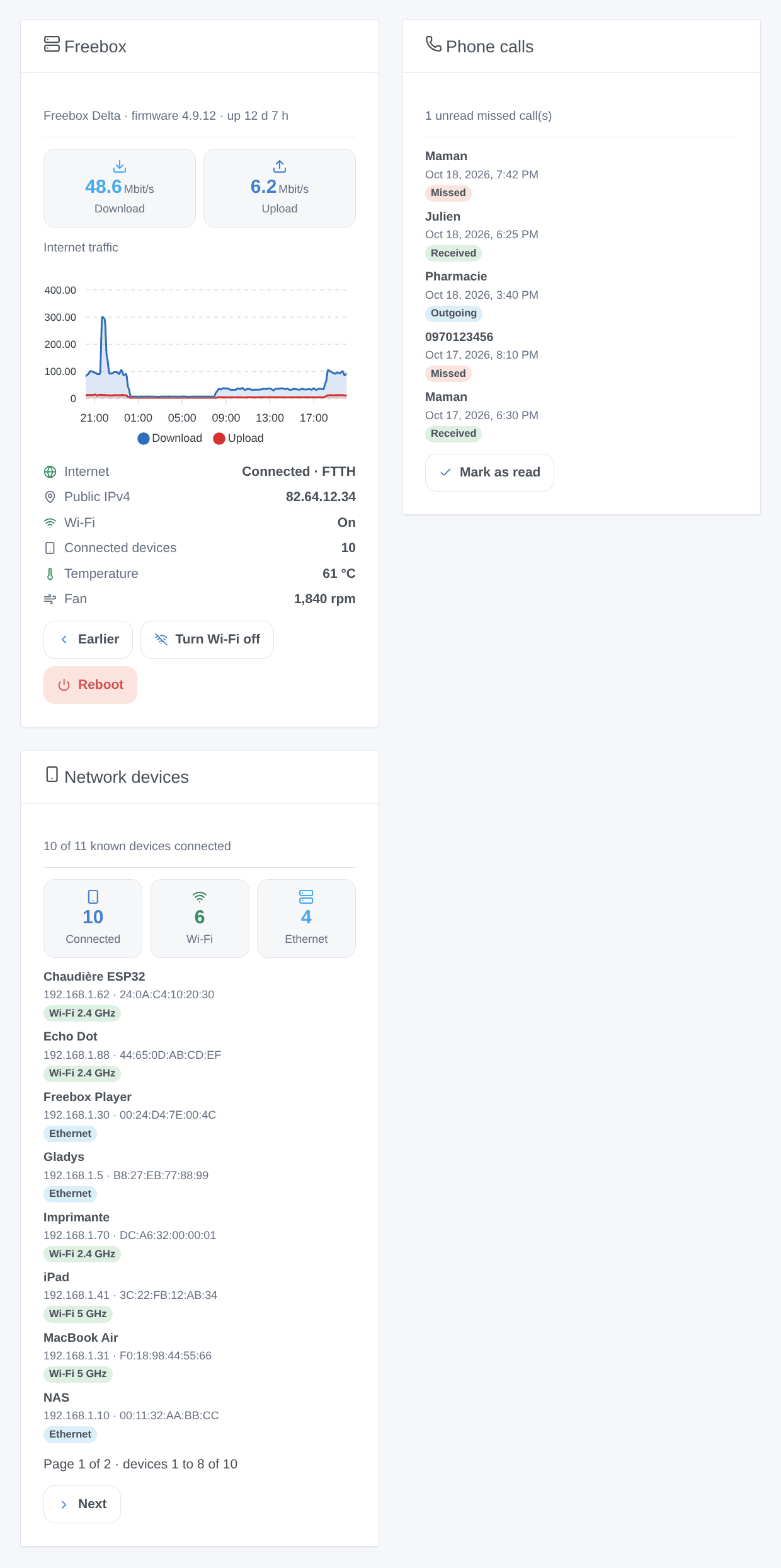
| Widget | What it shows | Setting |
|---|---|---|
| Freebox | download and upload rates, hottest temperature, traffic history kept by the box, internet link, public IPv4, Wi-Fi, connected devices, fan; buttons Turn Wi-Fi off/on and Reboot (both ask for confirmation) | traffic history: last hour, 24 hours or 7 days |
| Phone calls | the last calls of the log with their type (missed, received, outgoing) and date; a tap shows the number and the duration; Mark as read button | all calls or missed calls only |
| Network devices | how many devices are connected (Wi-Fi, Ethernet) and the list, with IP address, MAC address and band; a tap shows the manufacturer | connected, disconnected or all devices |
ℹ️ The network devices and the call log are read every 30 seconds. The Freebox itself takes a few minutes to consider a device gone.
⚠️ Turning the Wi-Fi off from a tablet or phone connected to that Wi-Fi cuts its own access to Gladys: switch it back on from a wired device, or from Freebox OS.
Scenes
The integration adds two triggers and one action to the scene editor, in the Integrations category:
| Element | Filters | Variables |
|---|---|---|
| Trigger Freebox: phone call | call type, phone number | call_type (missed, accepted, outgoing), number, name, duration (seconds) |
| Trigger Freebox: device connected or gone | event (connected, disconnected), MAC address, device name | event, mac, name, ip, connection (wifi, ethernet), vendor |
| Action Freebox: wake a computer (Wake-on-LAN) | MAC address | none |
- A call reaches the log once it has ended: the trigger fires then, not while the phone rings. Example: a missed call → send
Missed call from {{triggerEvent.data.name}} ({{triggerEvent.data.number}}). - Type the MAC address in upper case with colons (
AA:BB:CC:DD:EE:FF), as the Network devices widget shows it. - After a restart of the integration, nothing is replayed: only the calls and the movements that happen afterwards fire a trigger.
- Wake-on-LAN only wakes a computer whose network card is set up for it (BIOS and system).
Freebox Player POP / Android TV limitation
Freebox Player POP units (and other Android TV-based players) are not controllable through this integration: Free does not expose the local control API on those models (the player is reported with api_available: false and is therefore skipped). To control a Player POP, use an Android TV integration (ADB protocol), which is out of scope here.
The Players of the Delta and Revolution Freebox (which expose the local player API) remain fully controllable.
Rebooting the Freebox
The "Reboot the Freebox" action on the configuration screen restarts your Freebox Server. There is no shutdown action: the Freebox API only exposes a reboot (a powered-off box could not be turned back on remotely).
Troubleshooting
- "Freebox not found on the local network" (or
ENOTFOUND mafreebox.freebox.fr): Gladys cannot reachmafreebox.freebox.fr. Check that Gladys runs behind the Freebox (not behind another router) and that this address resolves on your network. - A device is missing from the scan: the matching permission is not ticked in Freebox OS (see above). Tick it, then scan again.
- "Freebox session could not be opened": the authorization was revoked in Freebox OS. Click "Unpair", then "Pair with the Freebox" again.
- Reboot refused: the "Freebox settings modification" permission is not ticked.
- No camera image: check that the camera shows its stream in Freebox OS. The image is refreshed every minute; the live view captures a new one on demand.
- No "Freebox Server" device: it appeared with this version. Run a scan from the Discover tab, then add it.
- The Phone calls widget asks for a permission: tick Call log access for Gladys Assistant in Freebox OS; the widget fills within 30 seconds.
- Wi-Fi switch refused: the "Freebox settings modification" permission is not ticked.
- A device stays "connected" after leaving: the Freebox keeps it active for a few minutes after its last traffic; the trigger fires once the box marks it gone.
Configuration settings
These are the settings Freebox asks for in its configuration screen in Gladys.
| Setting | Type | Required | Description |
|---|---|---|---|
| Connect your Freebox | section | No | This integration talks to your Freebox Server over your local network. To pair it, click "Pair with the Freebox" below, then physically confirm the authorization on your Freebox Server LCD screen (press the right arrow on the box). You have about 55 seconds to confirm, so stand next to your Freebox before clicking; if the delay expires, just run the action again. The pairing is done only once. |
| Grant the permissions | section | No | After pairing, open your Freebox settings (Freebox OS > Settings > Access management > Applications > Gladys Assistant) and enable the Home automation, Camera and Player permissions. Without them, the matching devices will not appear during discovery. The "Reboot the Freebox" action also needs the Freebox settings modification permission. |
How to install Freebox in Gladys
- In Gladys, open Integrations: Freebox appears in the catalog, next to the native integrations, with a community badge.
- Click Install. Gladys pulls the Docker image (
ghcr.io/william-de71/gladys-freebox:1.4.0), starts it in a sandbox isolated from the core, and generates the integration's interface (devices, discovery and configuration). - Open the Configuration screen of the integration, fill in the settings, and save.
- You can also install it directly from its repository URL: https://github.com/William-De71/gladys-freebox.
Freebox requires Gladys >=5.1.0. The catalog inside Gladys refreshes every hour, so a new version becomes available at most one hour after its release.
Not running Gladys yet? It is free and open source: follow the installation guide to get started.
About external integrations
Freebox is an external integration: a community integration packaged as a Docker container and published on GitHub, that Gladys installs in one click and runs in a sandbox isolated from its core. It is published and maintained by William-De71, not by the Gladys core team.
- Browse all integrations, native and community
- Build and publish your own external integration
- Source code on GitHub — source of this documentation