Fail2Ban smart home integration, free and open source
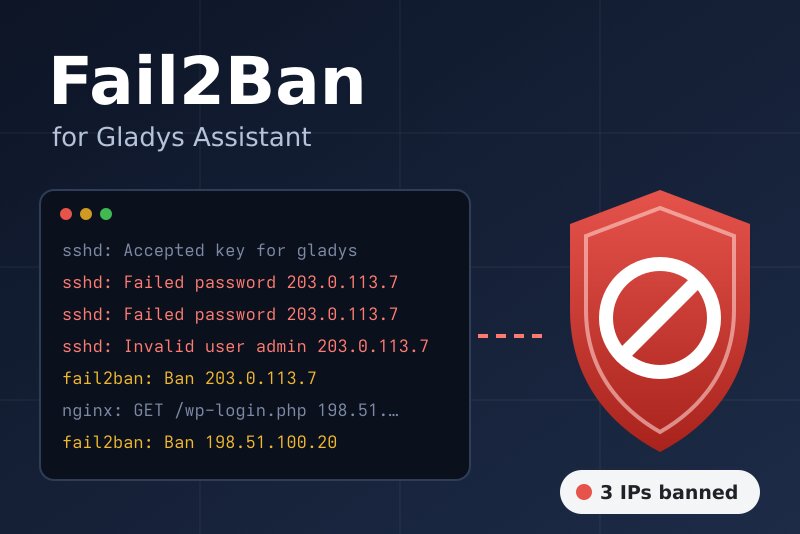
Fail2Ban over SSH: jails, banned IPs, ban and unban from scenes and widgets.
Published by William-De71
- Devices
- Version 0.1.0
- Requires Gladys >=5.2.0
- ★ 0
Overview
Fail2Ban watches the logs of a server and bans the addresses that try too many passwords. This integration brings it into Gladys: the banned IPs and the failures of each jail as devices, a scene trigger when an IP is banned or unbanned or when Fail2Ban stops answering, scene actions to ban, unban or check an address, and two dashboard widgets with Ban and Unban buttons.
Fail2Ban only answers on the machine it protects (a Unix socket). The integration therefore connects to that machine over SSH and runs fail2ban-client there, like you would in a terminal. It works with Fail2Ban 0.10 to 1.1, installed as a package or in Docker, on the Gladys host or on any other machine you can reach over SSH.
Prerequisites
- Gladys Assistant 5.2.0 or later (the widget buttons with a form). Older instances cannot install the integration.
- A machine running Fail2Ban with an SSH server, and its address on your network.
- An SSH user allowed to run
fail2ban-clientwithout a password (see below).
Prepare the server
Run these commands on the Fail2Ban server, as root (Debian, Ubuntu, Raspberry Pi OS; adapt the path of fail2ban-client with command -v fail2ban-client):
## 1. A dedicated user, without a password of its own
adduser --disabled-password --gecos "" gladys

## 2. Allow it to run fail2ban-client, and nothing else, as root
echo 'gladys ALL=(root) NOPASSWD: /usr/bin/fail2ban-client' > /etc/sudoers.d/gladys-fail2ban
chmod 440 /etc/sudoers.d/gladys-fail2ban

## 3. Prepare its authorized_keys
install -d -m 700 -o gladys -g gladys /home/gladys/.ssh
Then, in Gladys, fill in the configuration (below), save, and press Show the public key. Add the line it gives to /home/gladys/.ssh/authorized_keys (owner gladys, mode 600). It starts with restrict, which forbids port forwarding and terminals to that key. Finally press Test the connection.
- Fail2Ban in Docker (for instance
crazymax/fail2ban): set the command todocker exec fail2ban fail2ban-client. The SSH user must then be allowed to run that command (sudoers, or thedockergroup, which amounts to root). - Logged in as root: set the command to
fail2ban-client. - Password instead of a key: choose the Password authentication. A key is safer.
Configuration
| Field | What to enter |
|---|---|
| Address of the server | Its IP address or host name on your network: 192.168.1.10. Not localhost, which is the container of the integration. |
| SSH port | 22, unless your SSH server listens elsewhere. |
| SSH user | The user prepared above: gladys. |
| Authentication | Key of the integration (recommended) or Password. |
| SSH password | Only with the Password authentication. Stored as a secret, never shown again nor logged. |
| fail2ban-client command | sudo -n fail2ban-client by default. The integration adds the arguments itself, quoted. |
| Host key | Optional: the SHA256 fingerprint of the server (ssh-keygen -lf /etc/ssh/ssh_host_ed25519_key.pub). Empty: the first is kept. |
| Jails to follow | sshd, recidive to offer only these jails as devices. Empty: every jail. |
| Reading interval | Every 30 seconds, minute, 2 minutes or 5 minutes. |
| Language of the texts | Device names and the texts given to scenes. Automatic: the language of the last widget shown. |
The configuration screen also has four buttons: Test the connection, Show the public key, Forget the host key (after reinstalling the server: the next connection trusts the new key) and Diagnostic (the state of the integration in its logs, without any secret).
Usage
Devices
Open the Discover tab of the integration and create the devices you want:
- Fail2Ban <server>: IPs banned now (all jails), failures now, bans since Fail2Ban started, jails running.
- Fail2Ban jail <name>, one per jail: IPs banned now, failures now, bans and failures since Fail2Ban started, last banned IP.
The counters keep their history: a chart of the banned IPs of sshd over a week shows the waves of attacks. The counters "since start" restart at zero when Fail2Ban restarts.
Dashboard widgets
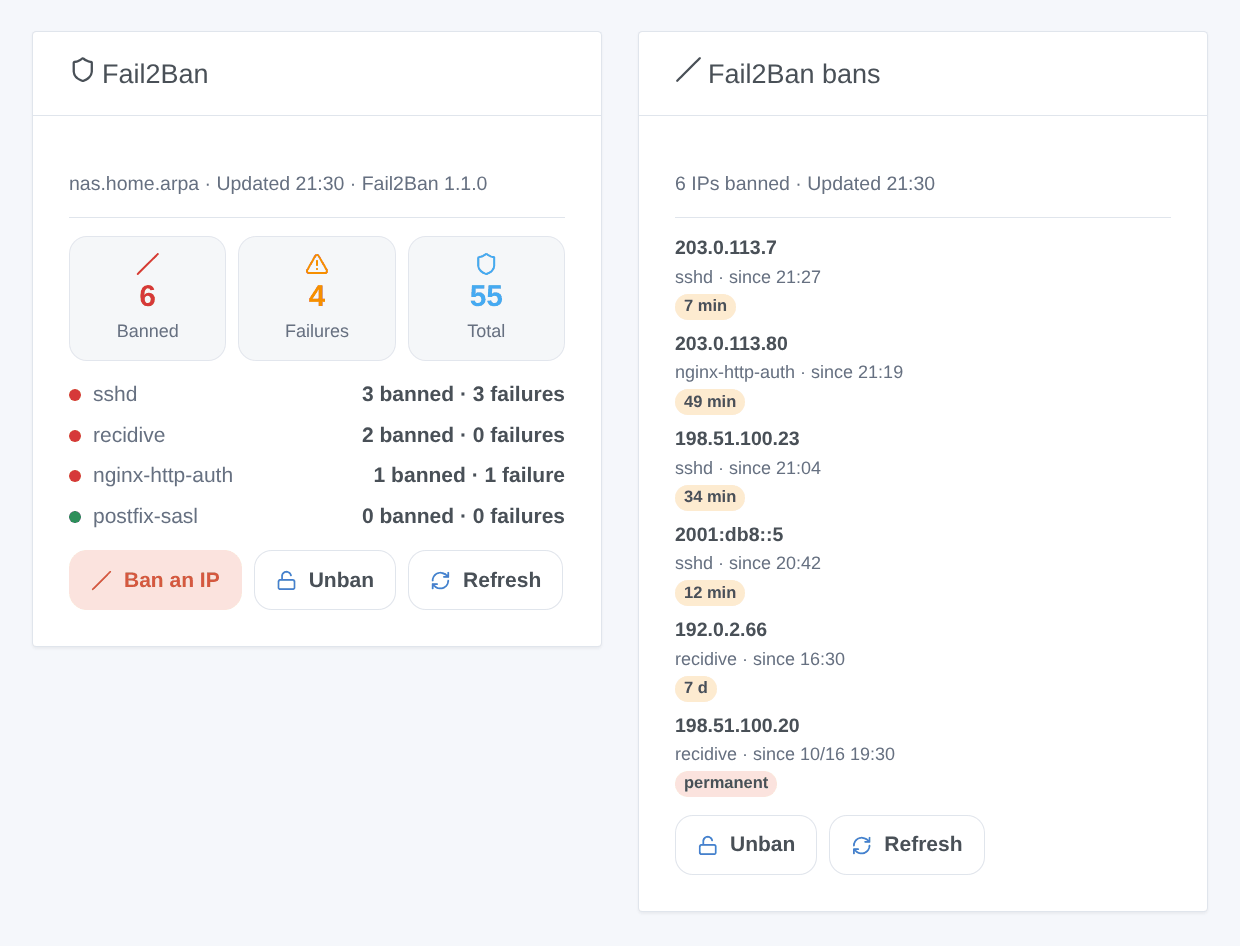
- Fail2Ban: the IPs banned now, the failures, the total of bans, one row per jail (red with bans, orange with failures), and the buttons Ban an IP (address and jail), Unban (address, one jail or all) and Refresh.
- Fail2Ban bans: the latest bans, newest first, with their jail, since when, and what is left of the ban (or "permanent"). A tap shows the details. Unban offers the listed addresses. Settings: one jail only, number of bans shown (1 to 8).
Scenes
Triggers:
- Fail2Ban: IP banned: an IP enters the banned list of a jail. Filters: jail, address (yours, to be warned at once). Variables:
ip,jail,banned_count,total_banned,ban_seconds,permanent,until,server. - Fail2Ban: IP unbanned: its ban expired or someone lifted it. Filters: jail, address.
- Fail2Ban: server unreachable: Fail2Ban stops answering. Filter: reason (server unreachable, Fail2Ban stopped, SSH login refused, host key changed, permission refused, other). A server that does not answer is declared down at the second failed reading in a row, so a reboot does not alert.
- Fail2Ban: server back: it answers again.
Actions: ban an IP (an address or a network such as 192.0.2.0/24, in a jail), unban an IP (from one jail or all), check an IP (banned or not, and in which jails), read a summary (counters and a ready-made sentence).
Examples:
- When an IP is banned in
recidive→ send{{triggerEvent.data.ip}} banned until {{triggerEvent.data.until}}to your phone. - When the IP banned is your own public address → unban it at once and send yourself a message.
- Every Monday at 8:00 → read a summary and send the
summaryoutput by message.
Bans and unbans made by Gladys (scene actions and widget buttons) fire no trigger, so a scene cannot loop on its own action. A ban shorter than the reading interval may come and go between two readings: no trigger then.
Transport
Local ("transports": ["local"]): the integration connects directly to the server you name, nothing goes through a cloud. If that server is outside your home (a VPS), the SSH connection crosses the internet, encrypted. Only the commands of fail2ban-client run on the server; the private key of the integration stays in its /data volume.
Troubleshooting
- No SSH connection: check the address (the LAN address of the machine, not
localhostnor127.0.0.1) and the port, and that the server accepts SSH from the Gladys machine. - SSH refused the user: the public key is missing from
authorized_keys, or the file has wrong permissions (chmod 600, owner of the user). Check/var/log/auth.logon the server. - sudo asks for a password: the sudoers rule is missing, or names another path (
command -v fail2ban-client). Test it on the server:sudo -u gladys sudo -n fail2ban-client ping. - Permission denied to socket:
fail2ban-clientruns without root: keepsudo -nin the command. - The host key changed: expected after a reinstall: press Forget the host key. Otherwise, find out why before going on.
- Times one or two hours off: the integration reads the times of Fail2Ban in the timezone of Gladys, and corrects itself on the first ban it sees happen.
- Still stuck: press Diagnostic, then open an issue on GitHub with the versions of Gladys, of the integration and of Fail2Ban, and the "Fail2Ban diagnostic" lines of the logs (add
DEBUG=gladys-integration-sdkin developer mode).
Configuration settings
These are the settings Fail2Ban asks for in its configuration screen in Gladys.
| Setting | Type | Required | Description |
|---|---|---|---|
| Fail2Ban server | section | No | Fail2Ban only answers on the machine it protects. The integration connects to it over SSH and runs fail2ban-client there. Enter the LAN address of that machine (not localhost: that is the container of the integration, even when Fail2Ban runs on the Gladys host), and a user allowed to run fail2ban-client. |
| Address of the server | string | Yes | IP address or host name of the machine running Fail2Ban. |
| SSH port | number | No | |
| SSH user | string | Yes | A dedicated user is best, allowed to run fail2ban-client only (see the documentation). |
| Authentication | select | No | |
| SSH password | secret | No | Only with the “Password” authentication. |
| Key and permissions | section | No | With the key of the integration, save this form, click “Show the public key” below and add the line it gives to ~/.ssh/authorized_keys of the SSH user. fail2ban-client needs root: allow it without a password with a sudoers rule such as “gladys ALL=(root) NOPASSWD: /usr/bin/fail2ban-client”. For Fail2Ban in Docker, use the command “docker exec fail2ban fail2ban-client”. |
| fail2ban-client command | string | No | How to call fail2ban-client on the server. Its arguments are added and quoted by the integration. |
| Host key | string | No | SHA256 fingerprint of the SSH key of the server (ssh-keygen -lf /etc/ssh/ssh_host_ed25519_key.pub). Empty: the key seen at the first connection is trusted and kept. |
| Options | section | No | Which jails become devices, and how often Fail2Ban is read. A ban shorter than the interval may be missed by the scenes. |
| Jails to follow | string | No | Jail names separated by commas. Empty: every jail of the server. |
| Reading interval | select | No | |
| Language of the texts | select | No | Device names and the texts given to scenes. Automatic: the language of the last widget shown. |
How to install Fail2Ban in Gladys
- In Gladys, open Integrations: Fail2Ban appears in the catalog, next to the native integrations, with a community badge.
- Click Install. Gladys pulls the Docker image (
ghcr.io/william-de71/gladys-fail2ban:0.1.0), starts it in a sandbox isolated from the core, and generates the integration's interface (devices, discovery and configuration). - Open the Configuration screen of the integration, fill in the settings, and save.
- You can also install it directly from its repository URL: https://github.com/William-De71/gladys-fail2ban.
Fail2Ban requires Gladys >=5.2.0. The catalog inside Gladys refreshes every hour, so a new version becomes available at most one hour after its release.
Not running Gladys yet? It is free and open source: follow the installation guide to get started.
About external integrations
Fail2Ban is an external integration: a community integration packaged as a Docker container and published on GitHub, that Gladys installs in one click and runs in a sandbox isolated from its core. It is published and maintained by William-De71, not by the Gladys core team.
- Browse all integrations, native and community
- Build and publish your own external integration
- Source code on GitHub — source of this documentation