ESC/POS ticket printers smart home integration, free and open source
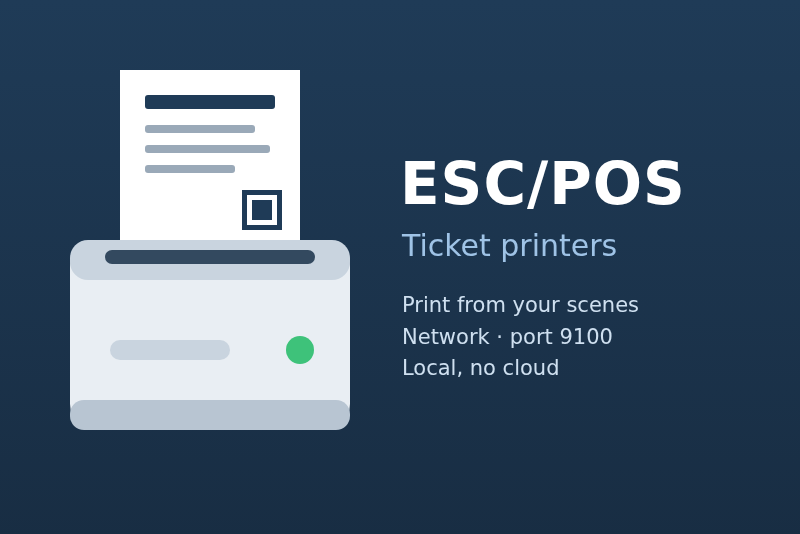
Print notes, lists and daily summaries from your scenes on a network ESC/POS ticket printer.
Published by guim31
- Devices
- Version 1.0.0
- Requires Gladys >=5.2.0
- ★ 0
Print from your scenes on a thermal ticket printer of the network: the summary of the day, a shopping list, a note for the family. Everything stays on your local network.
Developed without the hardware: feedback welcome. The integration was tested against a simulated printer, not a real one.
What you get
- A Print a ticket scene action: a text with scene variables, with an optional title (large, double height or bold), the date and time, a QR code, then the paper cut.
- One device per printer: Reachable, Paper running low, Out of paper, a Status text (ready, paper, cover open, error, unreachable) and the number of Tickets printed by Gladys. The printer is checked once a minute.
- A Ticket not printed scene trigger, to be warned when a scene could not print.
- A Ticket printer dashboard widget, with a button to print a note typed on the dashboard.
Before you start
- A thermal ticket printer that speaks ESC/POS on the network (raw TCP port 9100): Epson TM-T20/T88, Xprinter, Munbyn, Rongta, HOIN… Star printers work in their ESC/POS emulation mode. USB or Bluetooth-only printers are not supported.
- A fixed IP address for the printer (a DHCP reservation in your router). Most printers print their address when you hold the feed button while switching them on.
- Gladys 5.2 or later.
Configuration
- In Integrations → ESC/POS ticket printers → Configuration, enter the
printer addresses, separated by commas:
192.168.1.50, or192.168.1.51:9101for another port. - Choose the paper width: 58 mm prints 32 characters per line, 80 mm prints 48 (or 42 on some models: choose it if the lines of the test ticket are cut).
- Keep Cut the paper after each ticket on if the printer has a cutter.
- Save, open the Discover tab and add the printers.
- Click Print a test ticket: every configured printer prints a title, the date, the accents of the four languages and a QR code.
Ask the printer for its paper status uses the real-time status commands (DLE EOT). Most printers answer; when one does not, the status says "paper not reported" and the paper features stay empty. Turn it off only if a printer prints stray characters.
The Language of the integration texts sets the device names, the date and test ticket, and the error messages.
Scenes
Print a ticket (action): choose the printer and write the text. The
field has a single line: write \n where a new line should start, for
instance Milk\nBread\n{{triggerEvent.data.name}}. Optional: a title and its
style, the date and time, a QR code (a link or a text, 500 bytes at most).
The action returns the number of tickets printed on this printer.
If the printer is unreachable, out of paper or its cover is open, nothing is printed, the action fails (in red in the scene log) and the Ticket not printed trigger fires, at most once per printer every 15 minutes. Its variables give the printer name, the reason and the error message: a scene can then warn you by another channel.
The printer features also work as usual scene triggers and conditions: for instance, "Out of paper becomes 1" → send a message.
Dashboard
The Ticket printer widget shows the tickets printed today and in total, and the status of the printers. With one printer chosen in its settings, it also offers two buttons, each one can be hidden:
- Print a note: a form opens on the dashboard, type a title and a text, the ticket is printed with the date.
- Test ticket.
Accents and code pages
A ticket printer has no fonts of its own for every language: it prints with a character table (code page). The integration converts the text to the chosen table:
- PC858 (default) suits Epson and most clones: French, German, Spanish accents and the euro sign.
- If the test ticket shows wrong letters, try PC850, then WPC1252.
- No accents prints plain letters (é → e): it works on every printer.
Characters a table lacks are written as close as possible (’ → ', œ → oe,
€ → EUR); emojis and other alphabets print as ?.
Limits
- Text only: no images or logos.
- One configuration for every printer (width, code page, cut).
- When the printer reports its paper status, nothing is sent while the paper is out or the cover open. A printer that does not report it (or with the status option off) keeps the ticket and prints it once reloaded.
- The printers are not discovered automatically: ESC/POS printers do not announce themselves on the network.
Troubleshooting
- The printer stays "Unreachable": check its address (test page of the
printer), that it is on the same network, and that port 9100 is open
(
nc -vz 192.168.1.50 9100from another computer). - Nothing prints, but no error: some printers accept only one connection at a time: close the other applications that use it.
- Wrong accents: change the code page, then print a test ticket.
- Lines cut or too short: change the paper width.
- The QR code prints as text, or the paper is not cut: some very cheap clones lack these commands; turn the cut off, leave the QR code empty.
- Logs: in the integration page; set
LOG_LEVEL=debugfor every check.
Configuration settings
These are the settings ESC/POS ticket printers asks for in its configuration screen in Gladys.
| Setting | Type | Required | Description |
|---|---|---|---|
| Your ticket printers | section | No | Thermal receipt printers on the network that speak ESC/POS on the raw TCP port 9100: Epson TM, Xprinter, Munbyn, Rongta, HOIN, and Star printers in ESC/POS mode. Give each printer a fixed IP address in your router, enter it below, then add the printers in the Discover tab and print a test ticket. |
| Printer addresses | string | Yes | One or more addresses separated by commas, port 9100 unless stated (host:port). |
| Paper width | select | No | Sets the characters per line. Most 80 mm printers print 48; some print 42. |
| Code page (accents) | select | No | The character table of the printer. PC858 suits most printers; if the test ticket shows wrong accents, try PC850, then WPC1252. |
| Cut the paper after each ticket | boolean | No | Turn off for a printer without a cutter: the paper is then fed out to be torn off. |
| Ask the printer for its paper status | boolean | No | Real-time status (DLE EOT): paper, cover. Turn off if a printer prints stray characters. |
| Language of the integration texts | select | No | For the device names, the date and test ticket, and the error messages. |
How to install ESC/POS ticket printers in Gladys
- In Gladys, open Integrations: ESC/POS ticket printers appears in the catalog, next to the native integrations, with a community badge.
- Click Install. Gladys pulls the Docker image (
ghcr.io/guim31/gladys-escpos:1.0.0), starts it in a sandbox isolated from the core, and generates the integration's interface (devices, discovery and configuration). - Open the Configuration screen of the integration, fill in the settings, and save.
- You can also install it directly from its repository URL: https://github.com/guim31/gladys-escpos.
ESC/POS ticket printers requires Gladys >=5.2.0. The catalog inside Gladys refreshes every hour, so a new version becomes available at most one hour after its release.
Not running Gladys yet? It is free and open source: follow the installation guide to get started.
About external integrations
ESC/POS ticket printers is an external integration: a community integration packaged as a Docker container and published on GitHub, that Gladys installs in one click and runs in a sandbox isolated from its core. It is published and maintained by guim31, not by the Gladys core team.
- Browse all integrations, native and community
- Build and publish your own external integration
- Source code on GitHub — source of this documentation