Divoom Pixoo smart home integration, free and open source
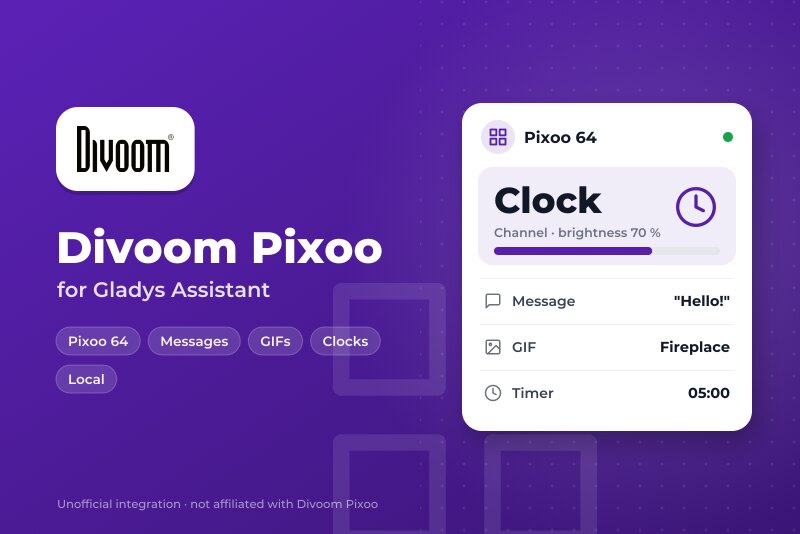
Divoom Pixoo 64 pixel display on the local network: screen, messages, GIFs, clocks and tools.
Published by William-De71
- Devices
- Version 0.1.0
- Requires Gladys >=5.3.0
- ★ 0
Overview
This integration drives the Divoom Pixoo 64 pixel display from Gladys, through its official local API (HTTP on the local network, no account, no pairing). Each Pixoo becomes a Gladys device: screen on/off, brightness, channel and a text shown on the screen. Scene actions show messages, GIFs, clock faces and the tools of the Pixoo (countdown, stopwatch, scoreboard, noise meter, buzzer); a dashboard widget gathers the essentials.
Commands and states stay on the local network. Only the search can ask the official Divoom service which displays connect from your Internet address, as the Divoom app does (it can be turned off). Not affiliated with Divoom. Not tested on a real Pixoo yet: the requests follow the official Divoom documentation; feedback is welcome.
Prerequisites
- Gladys Assistant 5.3.0 or later.
- A Divoom Pixoo 64 set up with the Divoom app, on the same network as Gladys (not a guest network), with an up-to-date firmware. Other Divoom Wi-Fi displays may work partly.
- Ideally, a fixed IP address for the Pixoo in your router.
Configuration
- Install the integration from the store, then open its configuration.
- Leave Find the displays with the Divoom service on, or turn it off and type the IP addresses of your displays (comma-separated).
- Choose the state refresh (30 seconds by default) and the language of the device texts.
- Click Search and test the displays: the message lists every Pixoo found, with its address and brightness.
- Open the Discover tab and add your displays.
Usage
Every Pixoo has four features:
| Feature | Type | What it does |
|---|---|---|
| Screen | light, on/off | Switches the screen on or off (a "turn off the lights" scene does too) |
| Brightness | light, 0 to 100 | Brightness of the screen |
| Channel | list | Clock faces, Cloud gallery, Visualizer or Custom |
| Message | text | Type a text on the dashboard: it shows on the screen, white on black |
Changes made on the device or in the Divoom app are read at the next refresh.
Dashboard widget
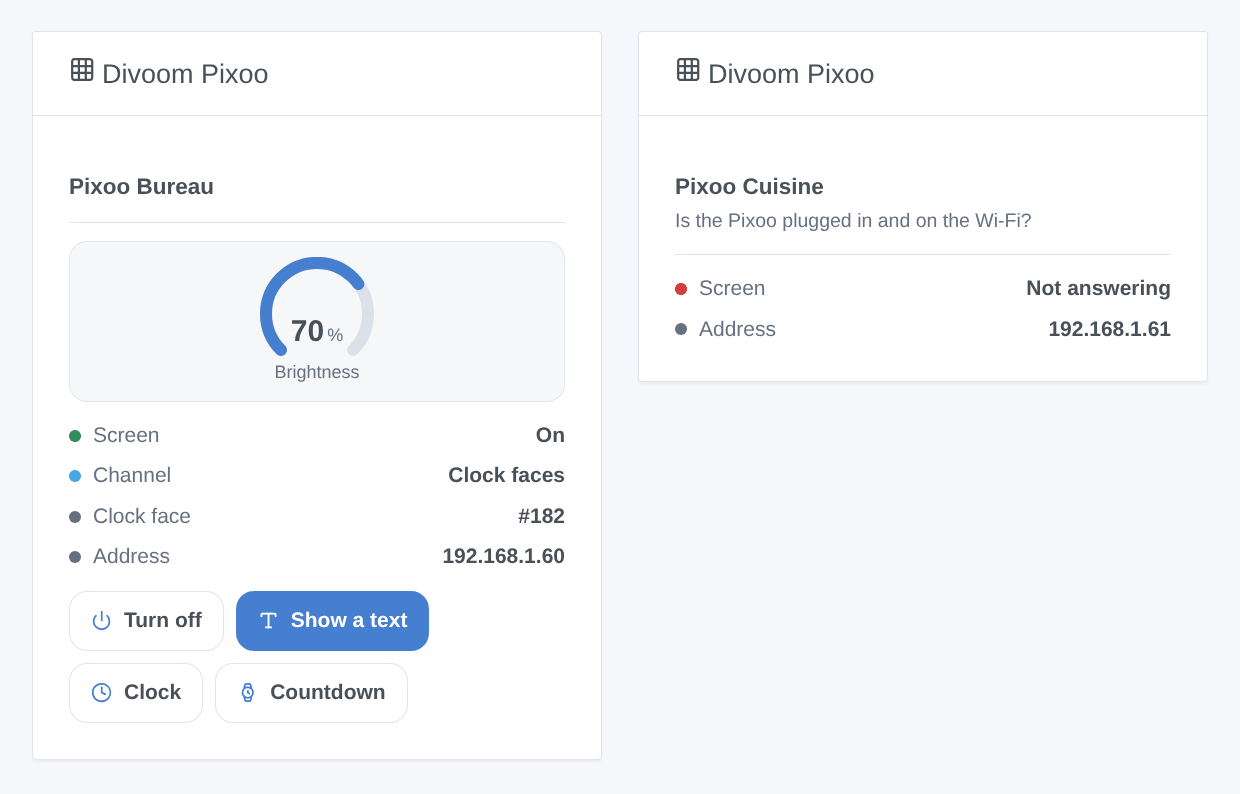
The Divoom Pixoo widget shows one display: screen, channel, current clock face number, address and brightness, with four buttons: turn the screen on or off, Show a text (text, color, duration), Clock and Countdown (minutes).
Scenes
Actions: Show a message (one or two lines, text color, background, scrolling, duration: 0 keeps it, otherwise the Pixoo goes back to what it showed), Play a GIF (address of a GIF 16, 32 or 64 pixels wide, downloaded by the Pixoo itself), Show a clock face (its number is shown by the widget once you chose it in the Divoom app), Countdown, Stopwatch, Scoreboard, Noise meter and Buzz (10 seconds at most).
Triggers: Pixoo: not answering (twice in a row) and Pixoo: answering again, with the device name and address as variables.
Examples:
- When the mailbox sensor opens → show "Mail is here" in yellow for 60 seconds.
- Every evening at 11 pm → turn off the screen; at 7 am → turn it on and show the clock face.
- When the washing machine finishes → show "Washing done" on a dark blue background and buzz for 1 second.
Troubleshooting
- No Pixoo found: check that it is plugged in and on the same network as Gladys, then type its address (Divoom app → device settings) in the configuration and use Search and test the displays. The Divoom search does not work behind a VPN or with several Internet connections.
- "refused the command": the firmware is probably too old for this command; update it in the Divoom app.
- A GIF does not play: the Pixoo downloads it itself and only takes GIFs 16, 32 or 64 pixels wide; plain http works best.
- For a bug report, give the versions of Gladys and of the integration, the message of the test button and the logs (add
DEBUG=gladys-integration-sdkin developer mode): open an issue.
Configuration settings
These are the settings Divoom Pixoo asks for in its configuration screen in Gladys.
| Setting | Type | Required | Description |
|---|---|---|---|
| Before you start | section | No | For the Divoom Pixoo 64, through its official local API (HTTP, no account, no pairing). Set it up in the Divoom app first, on the same network as Gladys, and update its firmware. Then open the Discover tab. Commands and states stay on the local network. |
| Find the displays with the Divoom service | boolean | No | The Pixoo announces nothing on the network: like the Divoom app, the search asks the official Divoom service which displays connect from your Internet address (their local address and MAC). Nothing is sent but the request itself. Turn it off to use typed addresses only. |
| IP addresses (optional) | string | No | For a Pixoo the Divoom search does not find (search off, VPN, several Internet connections). Separate them with commas. Give the Pixoo a fixed address in your router. |
| State refresh | select | No | How often each Pixoo is asked for its screen, brightness and channel (changes made in the Divoom app or on the device). |
| Language of the device texts | select | No | Feature and channel names in the Discover tab and error messages of the scenes. Gladys does not send your language with them. |
| A Pixoo is not found? | section | No | Check that the Pixoo is plugged in and on the same network as Gladys (not a guest network), then type its address (shown in the Divoom app, device settings) in the field above and use “Search and test the displays”. |
How to install Divoom Pixoo in Gladys
- In Gladys, open Integrations: Divoom Pixoo appears in the catalog, next to the native integrations, with a community badge.
- Click Install. Gladys pulls the Docker image (
ghcr.io/william-de71/gladys-divoom-pixoo:0.1.0), starts it in a sandbox isolated from the core, and generates the integration's interface (devices, discovery and configuration). - Open the Configuration screen of the integration, fill in the settings, and save.
- You can also install it directly from its repository URL: https://github.com/William-De71/gladys-divoom-pixoo.
Divoom Pixoo requires Gladys >=5.3.0. The catalog inside Gladys refreshes every hour, so a new version becomes available at most one hour after its release.
Not running Gladys yet? It is free and open source: follow the installation guide to get started.
About external integrations
Divoom Pixoo is an external integration: a community integration packaged as a Docker container and published on GitHub, that Gladys installs in one click and runs in a sandbox isolated from its core. It is published and maintained by William-De71, not by the Gladys core team.
- Browse all integrations, native and community
- Build and publish your own external integration
- Source code on GitHub — source of this documentation