Brevo smart home integration, free and open source
Gladys notifications by email and SMS through Brevo, with delivery tracking, scenes and widgets.
Published by William-De71
- Messaging
- Version 0.1.0
- Requires Gladys >=5.1.0
- ★ 0
Overview
This integration sends the notifications of Gladys by email, by SMS or both through the transactional APIs of Brevo (formerly Sendinblue). Each user of Gladys picks their channel and enters their own address and/or mobile number; the administrator enters the Brevo API key once for the house. Camera snapshots sent by a scene travel as email attachments.
It also brings:
- three scene triggers: message not sent, delivery failed, SMS credits low;
- three scene actions: send an email, send an SMS (to anyone, even someone who is not a Gladys user), read the Brevo account;
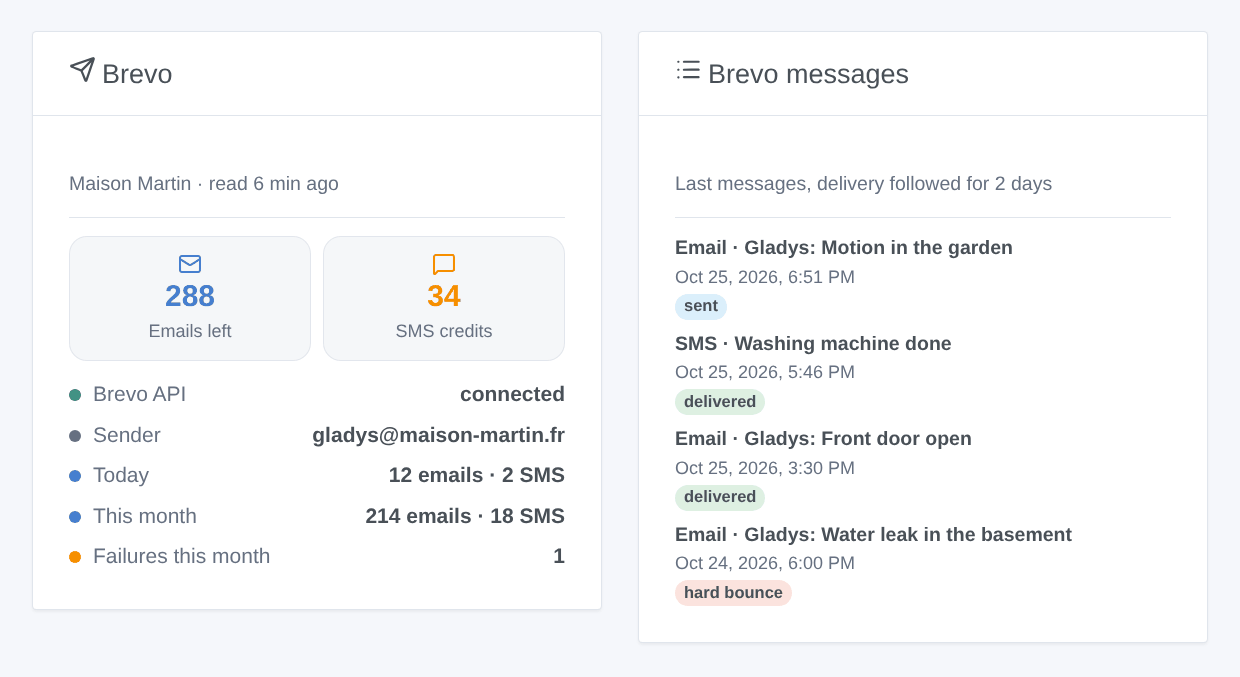
- two dashboard widgets: the Brevo account and the last messages with their delivery status.
Transport: cloud. The texts, the images, the addresses and the numbers go
through the Brevo API (api.brevo.com), then the mail servers and the mobile
operators.
Prerequisites
- Gladys Assistant 5.1.0 or later.
- A Brevo account. The free plan sends 300 emails a day; SMS are bought as credits (a new account has none).
- An email sender: an address verified in Brevo, or an address of a domain authenticated in Brevo (Senders, domains, IPs).
- The public IP address of your house authorized in Brevo, when the account blocks unknown IP addresses (on by default on accounts created since 2024): Security → Authorized IPs.
Configuration
- In Brevo, open SMTP & API → API keys and click Generate a new API
key. Copy it: it starts with
xkeysib-and is shown only once. - In Gladys, open Integrations → Brevo → Configuration, paste the key and save.
- Click Test the connection: it shows the account, the email and SMS credits, the senders and the one used.
- If the test answers that Brevo blocks the IP address, open Security → Authorized IPs in Brevo (link in the configuration) and authorize the address Brevo shows, or the one written in the email Brevo sent you.
- Click Send a test with your address and/or number to check the whole chain.
- Each user opens the My account block of the same screen, chooses Email, SMS or Email and SMS, and enters their address and/or mobile number.
| Field | Use |
|---|---|
| API key | From SMTP & API → API keys, stored encrypted |
| Sender address | Optional: a verified sender; empty = the first active sender of the account |
| Sender name | The name recipients see (Gladys by default) |
| Subject prefix | Before the first line of the notification: Gladys: Front door open |
| SMS sender | Up to 11 letters and digits, no spaces (Gladys by default) |
| Default country code | Added to numbers typed without one (33 by default: 06… becomes +336…) |
| Low SMS credits alert | Below this number of SMS credits, "SMS credits low" fires once; 0 = off |
| Follow the delivery | Reads the delivery events of Brevo, for the widget and "Delivery failed" |
Usage
Notifications
Every Gladys notification addressed to a user who filled in "My account" leaves through their channel: alarms, "Send a message" scene actions, the answers of Gladys. The email subject is the prefix and the first line of the text; a camera image goes as an attachment. An SMS carries the text only, cut at 1,000 characters: past 160 characters (70 with characters such as ê, ç or emojis) it is sent in several parts, each one using credits. With Email and SMS, the notification fails only when neither channel went out.
Scene triggers
| Trigger | When it fires | Variables |
|---|---|---|
| Message not sent | Brevo refused a notification: once per channel, then again only after a message of that channel | channel, reason, HTTP status, error, masked recipient |
| Delivery failed | Brevo accepted a message, then reported a bounce, a block, a spam report…; once per message | channel, event, masked recipient, subject, reason, id, date |
| SMS credits low | The SMS credits went below the threshold; again only after a top-up above it | credits left, threshold |
"Message not sent" and "Delivery failed" can be filtered by channel, reason or event.
Scene actions
- Send an email: one or several addresses separated by commas (20 at most, each recipient gets their own email), a subject (empty = prefix and first line) and a text. Returns the emails sent, the addresses refused and the message id.
- Send an SMS: one or several numbers separated by commas (20 at most) and a text. Returns the SMS sent and the numbers refused.
- Read the Brevo account: returns the email and SMS credits, the plan, and the emails and SMS sent today and this month.
Scene variables are allowed in every field.
Scene examples
- When the alarm goes off → Send an SMS to the neighbor: "Alarm at home, can you take a look?".
- When an SMS is not sent (channel SMS, reason "Not enough credits") → send a message by email to the administrator: "Brevo has no SMS credits left".
- When a delivery fails (event "Hard bounce") → notify the administrator: "{{triggerEvent.data.recipient}} did not receive {{triggerEvent.data.subject}}".
Dashboard widgets
- Brevo: email credits, SMS credits (orange near the threshold, red below), the state of the API, the sender, the emails and SMS sent today and this month, the failures of the month and the last one.
- Brevo messages: the last emails and SMS Gladys sent, with their status (sent, delivered, hard bounce, blocked…); tap one for the details.
The widgets never call Brevo: they show what the integration already knows. The account is read every 15 minutes; the delivery events every 5 minutes, only while a message of the last two days waits for its final status.
Troubleshooting
- "Brevo refuses the API key": check the key (it starts with
xkeysib-), or generate a new one. An SMTP key (xsmtpsib-) does not work with the API. - "Brevo blocks the IP address of your house": authorize it in Security → Authorized IPs, or turn off the blocking of unknown IP addresses. With a dynamic IP address, the problem comes back after each change: authorize the range, or choose the automatic authorization.
- "No active email sender": add a sender in Brevo and confirm it from the email Brevo sends, or authenticate your domain.
- "Sender refused": the address of the configuration is not a verified sender, or the SMS sender has more than 11 characters.
- "Account not allowed to send": a new Brevo account can stay under validation for a while, and the SMS need credits and sometimes an activation: see the Brevo app.
- SMS not received: some countries replace the name sender by a number; the "Brevo messages" widget shows whether Brevo delivered it.
- Logs: Integrations → Brevo → Supervision tab. Addresses and numbers are masked; the key never appears.
Configuration settings
These are the settings Brevo asks for in its configuration screen in Gladys.
| Setting | Type | Required | Description |
|---|---|---|---|
| Brevo API key | section | No | You need a Brevo account (the free plan sends 300 emails a day; SMS are bought as credits). In Brevo, open SMTP & API, API keys tab, and generate a key: it starts with xkeysib- and is shown only once. Brevo blocks API calls from unknown IP addresses (on by default on recent accounts): authorize the public IP address of your house in Security, Authorized IPs, or the calls are refused. |
| API key | secret | Yes | Starts with xkeysib-. Stored encrypted and never shown again. |
| Emails | section | No | Emails leave from a sender of your Brevo account: an address you verified, or any address of a domain you authenticated (Senders, domains, IPs). Leave the address empty to use the first active sender. The subject is the prefix followed by the first line of the notification. |
| Sender address | string | No | Optional. A verified sender, e.g. [email protected]. |
| Sender name | string | No | The name the recipients see. |
| Subject prefix | string | No | Placed before the first line of the notification: "Gladys: Front door open". |
| SMS | section | No | SMS use the credits bought in Brevo (none on a new account). The sender is a name of up to 11 letters and digits, without spaces; some countries replace it with a number. A text of more than 160 characters (70 with accents such as ê or emojis) is sent in several parts, each one using credits. |
| SMS sender | string | No | Up to 11 letters and digits, e.g. Gladys or MyHome. |
| Default country code | string | No | Added to the numbers typed without one (06 12 34 56 78 becomes +33 6 12 34 56 78). Digits only: 33 France, 32 Belgium, 41 Switzerland, 49 Germany, 34 Spain. |
| Credits and delivery | section | No | The account is read every 15 minutes. The delivery follow-up reads the events of Brevo every 5 minutes, only while a message of the last two days waits for its final status, and fires "Delivery failed" when one did not arrive. |
| Low SMS credits alert | number | No | Below this number of SMS credits, the "SMS credits low" scene trigger fires once. 0 turns it off. |
| Follow the delivery | boolean | No | Shows delivered or bounced in the widget, and fires "Delivery failed". |
How to install Brevo in Gladys
- In Gladys, open Integrations: Brevo appears in the catalog, next to the native integrations, with a community badge.
- Click Install. Gladys pulls the Docker image (
ghcr.io/william-de71/gladys-brevo:0.1.0), starts it in a sandbox isolated from the core, and generates the integration's interface (devices, discovery and configuration). - Open the Configuration screen of the integration, fill in the settings, and save.
- You can also install it directly from its repository URL: https://github.com/William-De71/gladys-brevo.
Brevo requires Gladys >=5.1.0. The catalog inside Gladys refreshes every hour, so a new version becomes available at most one hour after its release.
Not running Gladys yet? It is free and open source: follow the installation guide to get started.
About external integrations
Brevo is an external integration: a community integration packaged as a Docker container and published on GitHub, that Gladys installs in one click and runs in a sandbox isolated from its core. It is published and maintained by William-De71, not by the Gladys core team.
- Browse all integrations, native and community
- Build and publish your own external integration
- Source code on GitHub — source of this documentation