Bose smart home integration, free and open source
Bose smart speakers and soundbars (Bose app): playback, volume, sources, presets, sound.
Published by William-De71
- Devices
- Version 0.1.0
- Requires Gladys >=5.1.0
- ★ 0
Overview
This integration brings your recent Bose smart speakers and soundbars into Gladys: power and standby, volume and mute, play, pause, previous and next, what is playing, the source (TV, optical input, your presets), the sound settings (bass, treble, centre, surround, height…), the dialogue mode and the battery of the portable speakers. Multi-room groups and presets are available in scenes.
It is meant for the speakers set up with the Bose app (formerly Bose Music): Smart Soundbar, Smart Ultra Soundbar, Soundbar 550/700/900, Smart Speaker, Home Speaker 300/500, Portable Smart Speaker, Music Amplifier. The older SoundTouch range (SoundTouch 10/20/30, Wave SoundTouch…, set up with the SoundTouch app) uses another protocol: use the Bose SoundTouch integration of the store for those.
How it works: the speakers are controlled on your local network (a WebSocket on port 8082), and they push every change, so nothing is polled. But Bose made them accept only a token of the Bose account they belong to: the integration signs in with your e-mail and password to get it, then refreshes it. That sign-in is the only thing that goes to the Bose servers. This integration is unofficial and not affiliated with Bose; the protocol was documented by the community (pybose project) and may change with a Bose update.
Requirements
- Gladys Assistant 5.1.0 or later.
- Speakers set up in the Bose app and connected to the same network as Gladys.
- The e-mail and password of the Bose account the speakers belong to. An account opened with Google or Apple has no password: set one first on the Bose account page.
- Gladys needs Internet access to sign in to the Bose account (then once an hour at most, to refresh the token).
- On the install screen, accept the network discovery (mDNS
_bose-passport._tcp), which lets Gladys find the speakers.
Configuration
Bose account
Fill in E-mail of the Bose account and Password of the Bose account, save, then press Test the account and search the speakers: the message lists every speaker found with its model, its address and whether it answers. The password is stored by Gladys as a secret, never shown again and never written to the logs; the token is kept in the /data folder of the integration.
If Bose refuses the e-mail or the password, the integration says so and does not try again until you change them (repeated attempts could lock the account).
Speakers and language
- Speaker IP addresses: only for a speaker the automatic search does not find (another subnet, a network that filters multicast), separated by commas. Give your speakers a fixed address in your router: a speaker whose address changed is found again by its GUID, but sooner with a fixed one.
- Search the network again: every hour (default), every 15 minutes, or never. A speaker that stops answering triggers a search anyway.
- Language of the texts: names of the features, of the sources and of the presets, and the error messages of the scenes, because Gladys does not send your language with them.
Usage
Devices
Open the Discover tab of the integration and add your speakers. A speaker has these features, depending on the model:
- Power (on / standby), Volume (0 to 100), Mute.
- Play, Pause, Previous, Next and Playback (playing or not): the Music box of the dashboard uses them.
- Source: TV, optical, analogue input or AUX when the soundbar has them, and your presets (“Preset 2 · FIP”). Other means a source Gladys cannot select itself (Spotify, AirPlay, Bluetooth…).
- Now playing and Artist.
- Bass, Treble, and on the soundbars Centre, Surround, Height, Subwoofer: the raw values of the speaker, usually −100 to +100 by steps of 10.
- Dialogue mode on the soundbars that have it.
- Battery and Charging on the portable speakers.
Every change made in the Bose app, with the remote or on the speaker shows up in Gladys within a second.
Transport
The catalogue shows the local badge: commands and states never leave your network. The Bose servers are only contacted to sign in and refresh the token. Each speaker shows local when connected, unreachable when it does not answer.
Widgets
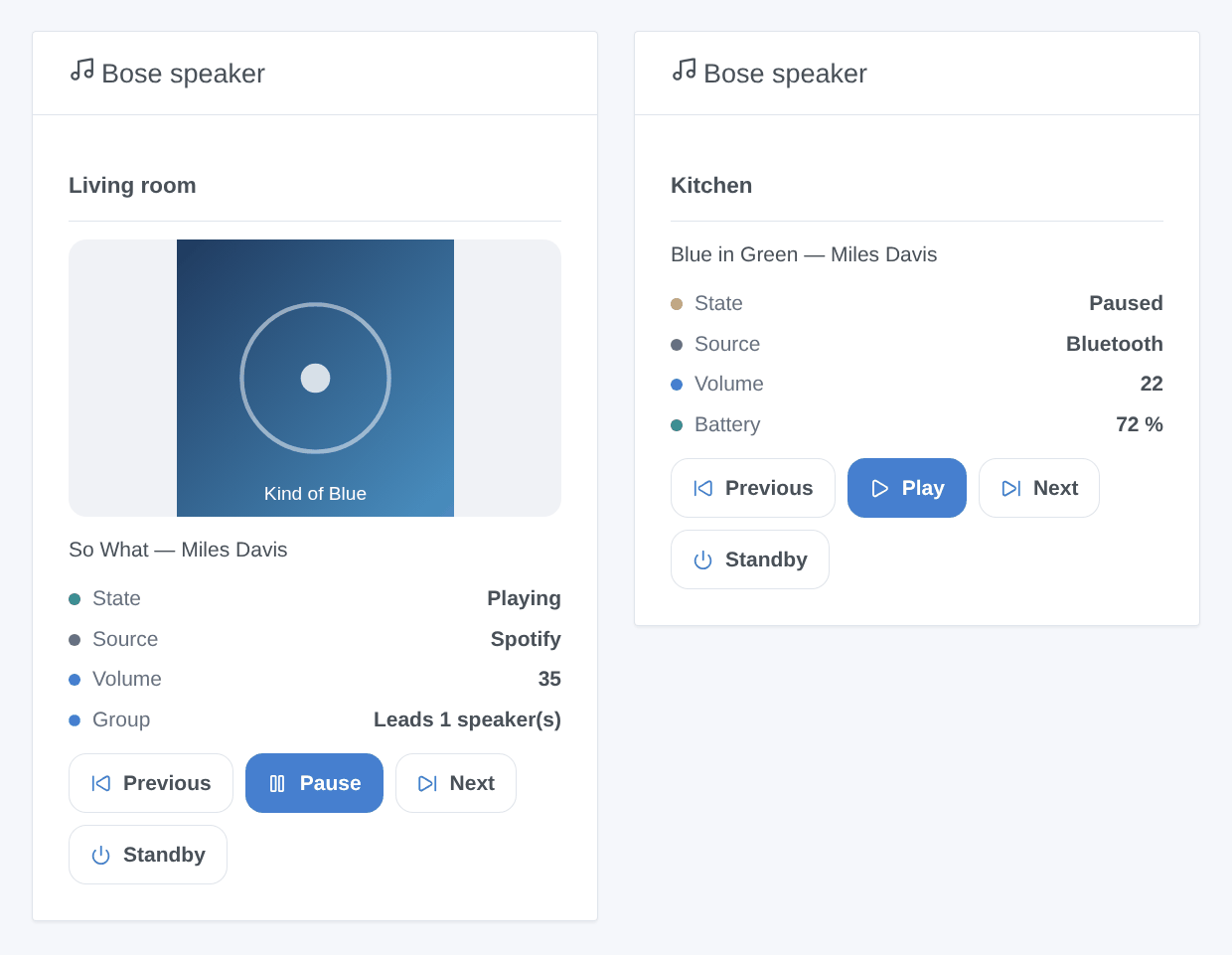
Bose speaker: one speaker chosen in the settings, with what is playing and its cover when the music service gives one, its state, source, volume, battery and group, and the buttons Previous, Play / Pause, Next and Standby (Turn on in standby). A cover over 300 KB is not shown.
Scene triggers
- A Bose speaker starts playing and A Bose speaker stops playing (pause, stop, standby): variables
device_name,title,artist,source. - A Bose speaker changes source, filtered by the new source if you like (TV, optical, a preset…): variables
source,source_name(Spotify, TV…),previous_source. - A Bose speaker stops answering for more than a minute: variables
device_name,address.
No event is sent in the five seconds after a scene action acted on the speaker, so a scene never starts itself.
Scene actions
- Play a preset on a Bose speaker: preset 1 to 6 saved in the Bose app; switches the speaker on. Gives
preset_name. - Group Bose speakers: the other speakers play what the leading speaker plays, in sync; they are added if it already leads a group. Gives
group_size. - Take a Bose speaker out of its group: a speaker that follows plays alone again; the leading speaker ends the whole group.
Scene examples
- Every weekday at 7 am → Play a preset on a Bose speaker (kitchen, preset 1: the morning radio), then set its volume to 25.
- A Bose speaker changes source to
tv(living room) → dim the living room lights and close the shutters. - When the last person leaves home → Take a Bose speaker out of its group, then turn the speakers to standby; A Bose speaker stops answering → send a notification.
Troubleshooting
- “Bose refused the e-mail or the password”: check them by signing in to the Bose app or the Bose account page. An account opened with Google or Apple needs a password first.
- “The Bose sign-in service does not answer as expected”: Bose may have changed its sign-in pages; the integration tries again a few minutes later. If it lasts, open an issue: this part is reverse-engineered.
- No speaker found: check that the speaker is set up in the Bose app (not the SoundTouch app), on the same network as Gladys (not a guest network), or type its address. SoundTouch speakers need the Bose SoundTouch integration.
- A speaker is found but refuses the token: it must belong to the same Bose account as the e-mail entered.
- “Gladys refused the network search”: reinstall the integration and accept its network discovery, or type the address of the speaker.
- No cover in the widget: the music service gives none, or it is larger than the 300 KB Gladys accepts.
- Logs: the Logs tab of the integration; add
DEBUG=gladys-integration-sdkto the container for the details. Report a problem on GitHub with your Gladys version, the integration version, the model of the speaker and the logs (they never contain your password or token).
Configuration settings
These are the settings Bose asks for in its configuration screen in Gladys.
| Setting | Type | Required | Description |
|---|---|---|---|
| Your Bose account | section | No | For the recent Bose speakers and soundbars set up with the Bose app (Smart Soundbar, Smart Ultra Soundbar, Soundbar 700/900, Home Speaker 500, Smart Speaker, Portable Smart Speaker, Music Amplifier). They are controlled on the local network, but only accept a token of the Bose account they belong to: Gladys gets it with your e-mail and password, then refreshes it. Only this sign-in goes to the Bose servers. SoundTouch speakers are not supported here: use the Bose SoundTouch integration. Not affiliated with Bose. |
| E-mail of the Bose account | string | Yes | The account the speakers belong to in the Bose app. |
| Password of the Bose account | secret | Yes | Used only to get the token from Bose; never shown again nor written to the logs. Accounts signed in with Google or Apple have no password: set one on the Bose account page first. |
| Finding your speakers | section | No | Speakers on the same network as Gladys are found automatically (mDNS): open the Discover tab, or use the button below. If one is missing (another subnet, multicast filtered), type its IP address, shown in the Bose app under the speaker settings, Wi-Fi. |
| Speaker IP addresses | string | No | Optional, separated by commas. Only for the speakers the automatic search does not find. |
| Search the network again | select | No | To find new speakers and addresses changed by the router. A lost speaker is searched for anyway. |
| Language of the texts | select | No | Names of the features, of the sources and of the presets, and the error messages of the scenes: Gladys does not tell the integration your language for those. |
How to install Bose in Gladys
- In Gladys, open Integrations: Bose appears in the catalog, next to the native integrations, with a community badge.
- Click Install. Gladys pulls the Docker image (
ghcr.io/william-de71/gladys-bose:0.1.0), starts it in a sandbox isolated from the core, and generates the integration's interface (devices, discovery and configuration). - Open the Configuration screen of the integration, fill in the settings, and save.
- You can also install it directly from its repository URL: https://github.com/William-De71/gladys-bose.
Bose requires Gladys >=5.1.0. The catalog inside Gladys refreshes every hour, so a new version becomes available at most one hour after its release.
Not running Gladys yet? It is free and open source: follow the installation guide to get started.
About external integrations
Bose is an external integration: a community integration packaged as a Docker container and published on GitHub, that Gladys installs in one click and runs in a sandbox isolated from its core. It is published and maintained by William-De71, not by the Gladys core team.
- Browse all integrations, native and community
- Build and publish your own external integration
- Source code on GitHub — source of this documentation