ASUSWRT smart home integration, free and open source
ASUS routers: health, internet link, Wi-Fi radios, network presence, scenes.
Published by William-De71
- Devices
- Version 0.2.0
- Requires Gladys >=5.3.0
- ★ 0
Overview
This integration brings an ASUS router into Gladys: stock ASUSWRT firmware or Asuswrt-Merlin, from the RT-AC models to the latest Wi-Fi 7 routers. It reads the router through its own web interface, on your local network, every 30 seconds:
- the router: CPU and memory usage, temperatures, uptime, internet rates, internet status, WAN address, connected clients, firmware;
- its Wi-Fi radios, as switches;
- the devices of your network, as presence sensors: know who is home from the phones connected to the Wi-Fi.
It also brings scene triggers (internet down or back, device arrived or left, new device on the network, router rebooted, firmware update available), scene actions (read the status, restart a service, check for a firmware update, reboot) and three dashboard widgets.
The image above is a generated illustration, not a screenshot.
Prerequisites
- Gladys Assistant 5.3.0 or later.
- An ASUS router in router mode, with the ASUSWRT web interface (stock firmware 3.0.0.4.386 or later, 3.0.0.6, or Asuswrt-Merlin). The integration talks to the main router: AiMesh nodes are left out of the client list, the main router knows every client.
- The administrator account of the router (the one of its web interface). The integration logs in like the ASUS Router app: it does not log you out of the web interface.
- Gladys must reach the router: its LAN address (
192.168.50.1,192.168.1.1,router.asus.com). If you turned on HTTPS for the local access (Administration > System > Local Access Config), typehttps://and its port (8443 by default).
Configuration
| Field | Description |
|---|---|
| Router address | 192.168.50.1 (http:// is added), or https://192.168.50.1:8443 with HTTPS. |
| User name | The administrator account of the router. |
| Password | Its password. After a few wrong attempts the router locks the login for a few minutes. |
| Verify the certificate | HTTPS only. Leave it unticked with the self-signed certificate of the router. |
| Reading interval (s) | 10 to 300 seconds, 30 by default. |
| Network devices offered | Those with a name (default), all, or none. |
| Absence delay (min) | A device is absent once it has been gone that long. 5 by default: a phone asleep leaves the Wi-Fi for a while. |
| Language of the texts | Names, states and scene summaries. Automatic: the language of your dashboard, once a widget has been displayed. |
Click Test the connection: the model and the firmware of the router appear. Forget known devices makes the devices present now the reference of the "new device" trigger.
Usage
Devices
Open Discover in the integration and add the devices you want:
| Device | Features |
|---|---|
| ASUS router | CPU and memory usage (%), temperatures (CPU and each radio the router reports), uptime, download and upload (Mbit/s), internet, WAN IP, clients, firmware |
| Wi-Fi radio | A switch: turns the radio of one band on or off |
| Network device | Presence: 1 while it is connected, 0 once it has been gone for the absence delay |
The rates are those of the internet link, measured between two readings: they appear from the second reading on.
Presence of the devices
A device is present as soon as the router lists it online, and absent once it has been gone for the absence delay. While present, its presence is sent again every minute, like the Bluetooth presence of Gladys: the "check presence" action of a scene works with it. Give the phones a name in the router (Network Map > Clients) to find them easily: by default, only the devices with a name are offered.
Wi-Fi radios
Turning a radio off or on makes the router restart its Wi-Fi: every band drops for a few seconds, the devices then reconnect. A radio turned off from the router interface shows up in Gladys at the next reading.
Dashboard widgets
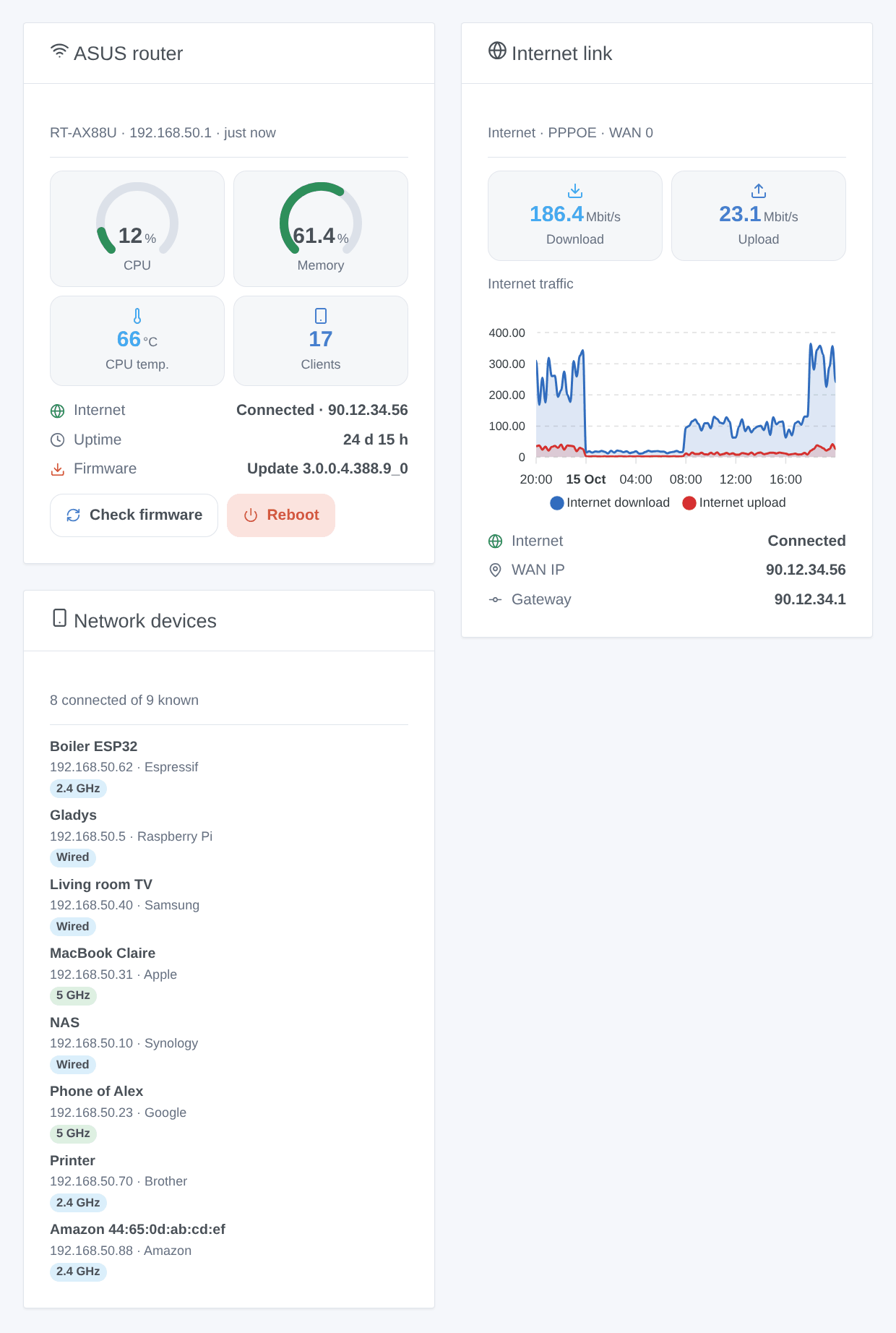
- ASUS router: CPU and memory gauges, temperature, connected clients, internet, uptime, firmware, and two buttons: Check firmware and Reboot (with a confirmation).
- Internet link: download and upload rates, their history (once the router device is added), status, WAN address and gateway. Setting: chart period.
- Network devices: the devices connected now, the ones that left, or all, with their connection (wired, Wi-Fi band). Setting: what to show.
Scenes
Triggers:
- Internet down or back: filter on the status. Variables: status, WAN IP, summary.
- Device arrived or left: a device added in Gladys, or any. Variables: name, event, MAC, IP, connection, summary.
- New device on the network: a MAC address never seen before, once (remembered across restarts). Filter: Wi-Fi or wired.
- Router rebooted: power cut, crash, firmware update. A reboot asked from Gladys does not fire it.
- Firmware update available: the router checks once a day by itself.
Actions:
- Read the status: CPU, memory, temperature, uptime, rates, internet, WAN IP, devices present, firmware, update available, and a summary for a message.
- Restart a service: Wi-Fi (every band), internet connection (a new address with most providers), DNS and DHCP server.
- Check for a firmware update: asks the router to check the ASUS server now (up to a minute).
- Reboot the router: the network and the internet are cut for a few minutes.
Examples: when the internet goes down, turn the smart plug of the box off and on again; when the phone of a child arrives, turn the hall light on; every night at 1:00, turn the 5 GHz radio off, and on again at 7:00.
Transport
Local only: the integration talks to the web interface of the router on your network, nothing goes through a cloud. The router itself contacts the ASUS update server during a firmware check.
Troubleshooting
- "The router refuses the user name or the password": type them again; the integration waits 15 minutes before trying again, so that the router does not lock the account. Saving the configuration tries at once.
- "The router locked the login": too many failed attempts (from Gladys or a browser). Wait for the delay shown.
- "does not answer like an ASUS router": check the address and the port; with HTTPS on, type
https://and the port of Local Access Config. - "The HTTPS certificate is refused": untick "Verify the certificate", or install a certificate valid for the address you typed.
- No temperature: some models do not report any; a radio turned off has no temperature.
- A phone shows as absent while home: raise the absence delay; some phones put their Wi-Fi to sleep for a long time.
- Logs: open the logs of the integration in Gladys, then an issue on GitHub with the versions of Gladys and of the integration, the model and firmware of the router, and the logs (the password never appears in them).
Configuration settings
These are the settings ASUSWRT asks for in its configuration screen in Gladys.
| Setting | Type | Required | Description |
|---|---|---|---|
| ASUS router account | section | No | The integration logs in to the web interface of the router (stock ASUSWRT or Asuswrt-Merlin) with its administrator account, like the ASUS Router app. Everything stays on your network. |
| Router address | string | Yes | The address of its web interface. http:// by default; with HTTPS on, type https:// and its port (8443 by default). |
| User name | string | Yes | The administrator account of the router. |
| Password | secret | Yes | Its password. After a few wrong attempts the router locks the login for a while. |
| Verify the certificate | boolean | No | HTTPS only. Leave unticked with the self-signed certificate of the router; tick it with a valid one. |
| Options | section | No | The router, its Wi-Fi radios and the clients of the network appear on the Discovery screen; clients become presence sensors once you add them. |
| Reading interval (s) | number | No | 10 to 300 seconds, 30 by default. |
| Network devices offered | select | No | Which clients of the router appear on the Discovery screen as presence devices. |
| Absence delay (min) | number | No | A device is absent once it has been gone that long. 1 to 60, 5 by default: a phone asleep leaves the network for a while. |
| Language of the texts | select | No | Names, states and scene summaries. Automatic: the language of your dashboard, once an ASUSWRT widget has been displayed. |
How to install ASUSWRT in Gladys
- In Gladys, open Integrations: ASUSWRT appears in the catalog, next to the native integrations, with a community badge.
- Click Install. Gladys pulls the Docker image (
ghcr.io/william-de71/gladys-asuswrt:0.2.0), starts it in a sandbox isolated from the core, and generates the integration's interface (devices, discovery and configuration). - Open the Configuration screen of the integration, fill in the settings, and save.
- You can also install it directly from its repository URL: https://github.com/William-De71/gladys-asuswrt.
ASUSWRT requires Gladys >=5.3.0. The catalog inside Gladys refreshes every hour, so a new version becomes available at most one hour after its release.
Not running Gladys yet? It is free and open source: follow the installation guide to get started.
About external integrations
ASUSWRT is an external integration: a community integration packaged as a Docker container and published on GitHub, that Gladys installs in one click and runs in a sandbox isolated from its core. It is published and maintained by William-De71, not by the Gladys core team.
- Browse all integrations, native and community
- Build and publish your own external integration
- Source code on GitHub — source of this documentation