Amcrest / Dahua smart home integration, free and open source
Amcrest and Dahua cameras, doorbells and NVRs: images, instant detections, PTZ.
Published by William-De71
- Devices
- Version 0.1.0
- Requires Gladys >=5.1.0
- ★ 0
Overview
This integration brings the cameras, doorbells and recorders built on Dahua firmware into Gladys: Dahua, Amcrest, Lorex, Imou, EmpireTech and the many rebranded models that share the same web interface. Everything happens on your local network: no cloud account, no data leaving your home.
Each camera becomes a Gladys device (a recorder gives one device per camera it records):
| Feature | When | Gladys type |
|---|---|---|
| Image | always | camera / image |
| Live view | always (RTSP, main or sub stream) | camera widget |
| Motion | always | motion-sensor / binary |
| Person, Vehicle | smart motion detection (SMD) | motion-sensor / binary |
| Tripwire | an IVS "tripwire" rule exists | motion-sensor / binary |
| Intrusion | an IVS "intrusion" rule exists | motion-sensor / binary |
| Doorbell | VTO, Amcrest AD110 / AD410, Imou DB61i… | doorbell / ring |
| Motion detection | the camera can switch it | switch / binary |
| Camera enabled | privacy mode (Amcrest, Imou) | camera / enabled |
| Move, Preset | PTZ cameras | camera / move, preset |
Detections are instant: the integration keeps the event stream of each device open, the way the official apps do.
Transport: local only. The cameras are reached over their HTTP API (/cgi-bin) and RTSP; nothing goes through the cloud of the brand, and the catalog shows the "local" badge.
Requirements
- Gladys 5.1.0 or later (dashboard widgets and scene triggers and actions).
- A camera, a doorbell or a recorder on Dahua firmware, reachable from Gladys, with HTTP enabled (it is by default) and RTSP enabled for the live view.
- The account you use in its web interface (
adminon most installations). - For person and vehicle detection: a camera with smart motion detection (SMD) or IVS rules, switched on in its web interface (Event → Smart Motion Detection, or Event → IVS).
Configuration
- Install the integration from the store.
- Fill in the username and password of your cameras, then save.
- Open the Discover tab and run a scan: the devices of your network answer by themselves (DHIP discovery, the protocol of Dahua's ConfigTool). Add the cameras you want.
- Click Test the connection to see, for each device, its model, its cameras and what they can do.
| Field | Default | Purpose |
|---|---|---|
| Username | admin | The account of the web interface |
| Password | — | Its password. Five wrong passwords lock the account for 30 minutes on the camera |
| Image refresh (seconds) | 60 | A new dashboard image every N seconds (10 to 3600, 0 = only on request and on detections) |
| Image on each detection | yes | An image when a motion, a person, a vehicle or a ring starts |
| Live view stream | main | Main stream (full resolution) or sub stream (lighter) |
| Device addresses | — | For a device the scan does not find: 192.168.1.108, 192.168.1.20:8080, https://192.168.1.30 |
| Accounts per device | — | For a device with another account: address|username|password, comma separated |
A recorder (NVR, DVR, XVR) gives one device per camera enabled on it; the doorbells and the cameras one device each.
Usage
Dashboard
Add a Camera box for the image and the live view, and the integration widgets:
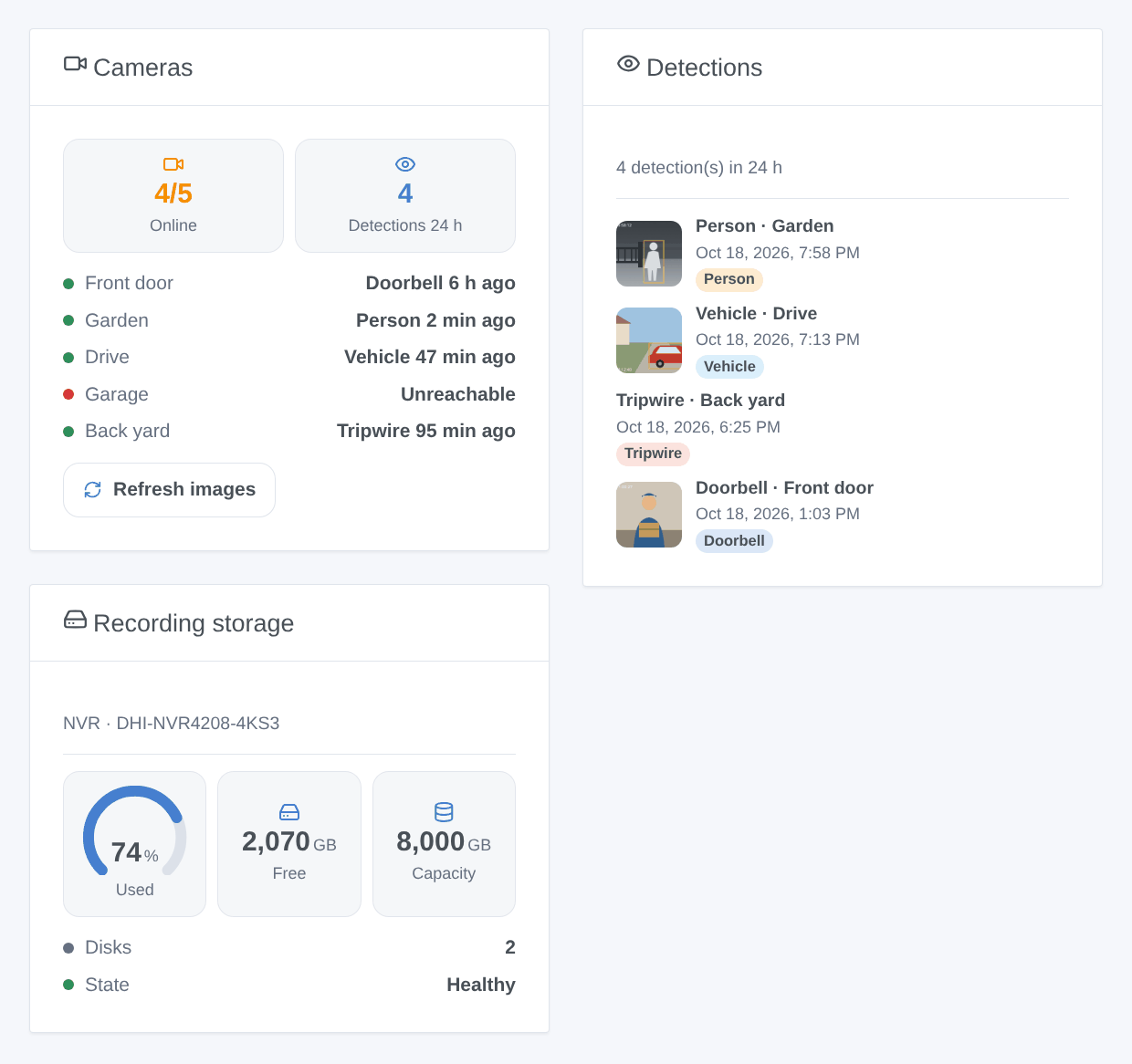
- Cameras: how many cameras send their events, the detections of the last 24 hours, the state and last detection of each camera, and a button to refresh every image.
- Detections: the last detections, newest first, with the image taken at that moment (all cameras, or one).
- Recording storage: the SD card or the disks of a camera or a recorder: used, free, capacity, health.
Scenes
Triggers:
- Detection: motion, person, vehicle, line crossed, intrusion, sound, tampering or doorbell pressed, filtered by camera and kind. Variables: camera name, kind, IVS rule name, object type.
- Alarm: video lost, alarm input, storage failure, storage almost full, no storage.
- Camera unreachable and Camera back.
Actions:
- Take an image: a fresh image, ready for the "send camera image" action that follows.
- Recording mode: always record, follow the camera schedule, or do not record.
- Open the door: the lock wired to a Dahua door station (VTO).
- Reboot.
Examples:
- When the doorbell is pressed → take an image of the front door → send it to the family and turn the hall light on.
- When a person is detected in the garden at night and nobody is home → turn the garden lights on and send the image.
- When the last person leaves home → recording mode "always record"; when someone arrives → "camera schedule".
Troubleshooting
- "Password refused": check the account in the web interface of the camera. After a refusal the integration waits ten minutes before asking again (the camera locks the account for 30 minutes after five failures); fix the password, then click Test the connection.
- A device is not found by the scan: the discovery uses UDP broadcast on port 37810, which does not cross VLANs or some Wi-Fi isolations. Enter its address in Device addresses.
- No answer from an address: HTTP may be disabled or on another port (Network → Port in the web interface); add
:port, orhttps://if only HTTPS is enabled. - No live view: RTSP must be enabled (Network → Port → RTSP, port 554 by default); after changing the stream or the password, run a scan again so the address of the live view is updated.
- No person or vehicle sensor: switch smart motion detection or an IVS rule on in the camera, then run a scan again (a feature is only added by a scan).
- Doorbell rings not seen: some VTO firmwares send the ring only over their own DHIP protocol, not over HTTP; please open an issue with the model and firmware.
- Logs: the Supervision tab of the integration. Report issues on GitHub with the versions of Gladys and of the integration, the model and firmware of the device, and the result of Test the connection.
Configuration settings
These are the settings Amcrest / Dahua asks for in its configuration screen in Gladys.
| Setting | Type | Required | Description |
|---|---|---|---|
| Getting started | section | No | For the cameras, doorbells and recorders (NVR, DVR) built on Dahua firmware: Dahua, Amcrest, Lorex, Imou, EmpireTech and many rebranded models. Everything stays on your network, no cloud account. Enter the account you use in the web interface of your cameras, save, then open the Discover tab and run a scan: the devices of your network answer by themselves. Each camera (each channel of a recorder) becomes one device. |
| Username | string | Yes | admin on most installations. A user with fewer rights works if it may read the settings; the switches and the PTZ need control rights. |
| Password | secret | Yes | Careful: a camera locks the account for 30 minutes after five wrong passwords. After a refusal, the integration waits ten minutes before trying again (except with "Test the connection"). |
| Images and detections | section | No | Detections arrive instantly through the event stream of each camera. Person and vehicle detection need a camera with smart motion detection (SMD) or IVS rules, switched on in its web interface. |
| Image refresh (seconds) | number | No | How often a new image is published for the dashboard, 10 to 3600. 0 turns it off: images are then taken only on request and on detections. |
| Image on each detection | boolean | No | Takes an image when a motion, a person, a vehicle or a doorbell press starts: the dashboard, the "send camera image" scene action and the Detections widget then show that moment. |
| Live view stream | select | No | The main stream is the full resolution; the sub stream is lighter, better on a slow network or a Raspberry Pi. Run a scan again after a change. |
| Advanced | section | No | Fill these fields only for a device the scan does not find (another VLAN, discovery blocked) or one with another account. |
| Device addresses | string | No | Separated by commas. Add :port for another HTTP port, https:\/\/ for HTTPS, e.g. 192.168.1.108, 192.168.1.20:8080, https:\/\/192.168.1.30. |
| Accounts per device | secret | No | Only for a device with another account than the one above. Separated by commas, each as address|username|password, e.g. 192.168.1.42|gladys|MyPassword. |
How to install Amcrest / Dahua in Gladys
- In Gladys, open Integrations: Amcrest / Dahua appears in the catalog, next to the native integrations, with a community badge.
- Click Install. Gladys pulls the Docker image (
ghcr.io/william-de71/gladys-amcrest-dahua:0.1.0), starts it in a sandbox isolated from the core, and generates the integration's interface (devices, discovery and configuration). - Open the Configuration screen of the integration, fill in the settings, and save.
- You can also install it directly from its repository URL: https://github.com/William-De71/gladys-amcrest-dahua.
Amcrest / Dahua requires Gladys >=5.1.0. The catalog inside Gladys refreshes every hour, so a new version becomes available at most one hour after its release.
Not running Gladys yet? It is free and open source: follow the installation guide to get started.
About external integrations
Amcrest / Dahua is an external integration: a community integration packaged as a Docker container and published on GitHub, that Gladys installs in one click and runs in a sandbox isolated from its core. It is published and maintained by William-De71, not by the Gladys core team.
- Browse all integrations, native and community
- Build and publish your own external integration
- Source code on GitHub — source of this documentation