Monitor your energy consumption in Gladys Assistant
The "Energy Monitoring" integration allows you to track your energy consumption with Gladys Assistant.
How to turn the data into savings: Reduce your electricity bill. On a time-based rate? See the live EDF Tempo colour, Hydro-Québec peak events and Ontario electricity rates.
It is available since Gladys Assistant 4.66. Since Gladys Assistant 5.2, the cost of your consumption is computed from energy contracts, able to describe the electricity contracts of almost any country: time slots, seasons, day colours, consumption tiers, spot prices...
Compatible Hardware
To use this integration, you need devices that report energy consumption data in kWh.
There are several ways to achieve this:
1. With a Lixee ZLinky TIC via Zigbee (France only)
This option is specific to France and the Linky smart meter.
This is the best solution for accurately tracking your consumption in France: readings every minute in kWh, perfect for monitoring your entire home.
Zigbee compatible, available for €49:
At my place, this gives me a chart like this:
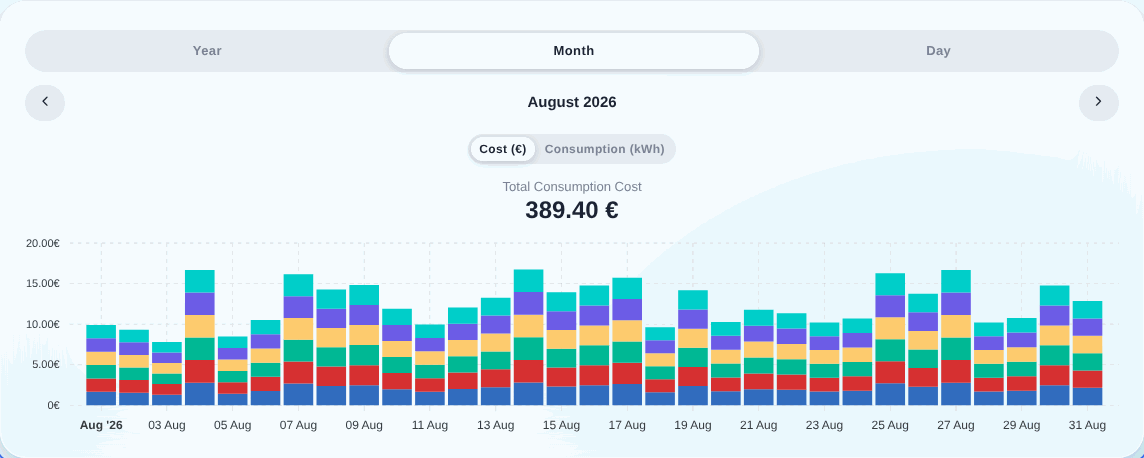
Each color represents an energy price (I'm on Tempo pricing), you can clearly see the white days that appeared in late November with the return of cold weather 🥶
2. Through the Enedis integration on Gladys Plus (France only)
This option is specific to France and requires a Linky meter with an Enedis account.
The Enedis integration allows you to retrieve the recorded values from your Linky meter, automatically sent to Enedis once a day.
This integration works without hardware, but it has the drawback of only returning consumption once a day, unlike the ZLinky which sends data live every 60 seconds.
To configure Enedis, go to this tutorial.
3. With a Zigbee plug that measures consumption (international)
This is the recommended option for international users. Ideal for tracking a specific appliance. At my place, I use this NOUS plug to track my washing machine's consumption for example:
NOUS A1Z plug with consumption measurement on Domadoo
4. With a custom MQTT device (international)
This option works worldwide. If you have a smart meter or devices that return consumption values in kWh, you can integrate them with Gladys Assistant using the MQTT integration.
Configuration
You must be on Gladys Assistant 4.66 or higher to use this integration. You can update with one click in Gladys system settings.
The order of steps in this tutorial is important!
Step 1: Configure the Enedis integration (optional, France only)
Skip this step if you're not in France.
If you plan to use the Enedis integration, go to this tutorial and follow the instructions.
If you're already using the Enedis integration, you need to go to the integration, "My meters" tab, and check if the device needs a feature update.
If an "Update" button is displayed, click on it, then click "Sync with Gladys Plus".
At the end of synchronization, you can verify that your Enedis device has properly uploaded data to Gladys by creating a chart on the "Enedis (30-minute consumption)" feature.
If you see all your consumption in kWh, great, you can move on to the next step!
Step 2: Create your energy contract
You now need to tell Gladys how your supplier bills you. Since Gladys Assistant 5.2, this is an energy contract: a validity period, a currency, a timezone and a tariff definition, attached to your electricity meter.
Go to the "Energy Monitoring" integration, "Contracts" tab, then click "Create". A wizard guides you in 4 steps.
1. Meter
Select your electricity meter. If you're using the Enedis integration, you should see your meter here, you can select it.
Otherwise, choose "Create an electricity meter" so that Gladys automatically creates a device that will be the "parent" of all your energy sensors in your home.
2. Template
Pick your contract in the list. You can filter by country and search by supplier or contract name. Each template shows where it comes from: the community catalogue, a Gladys service (EDF Tempo, fed with the day colours by Gladys Plus) or an installed integration.
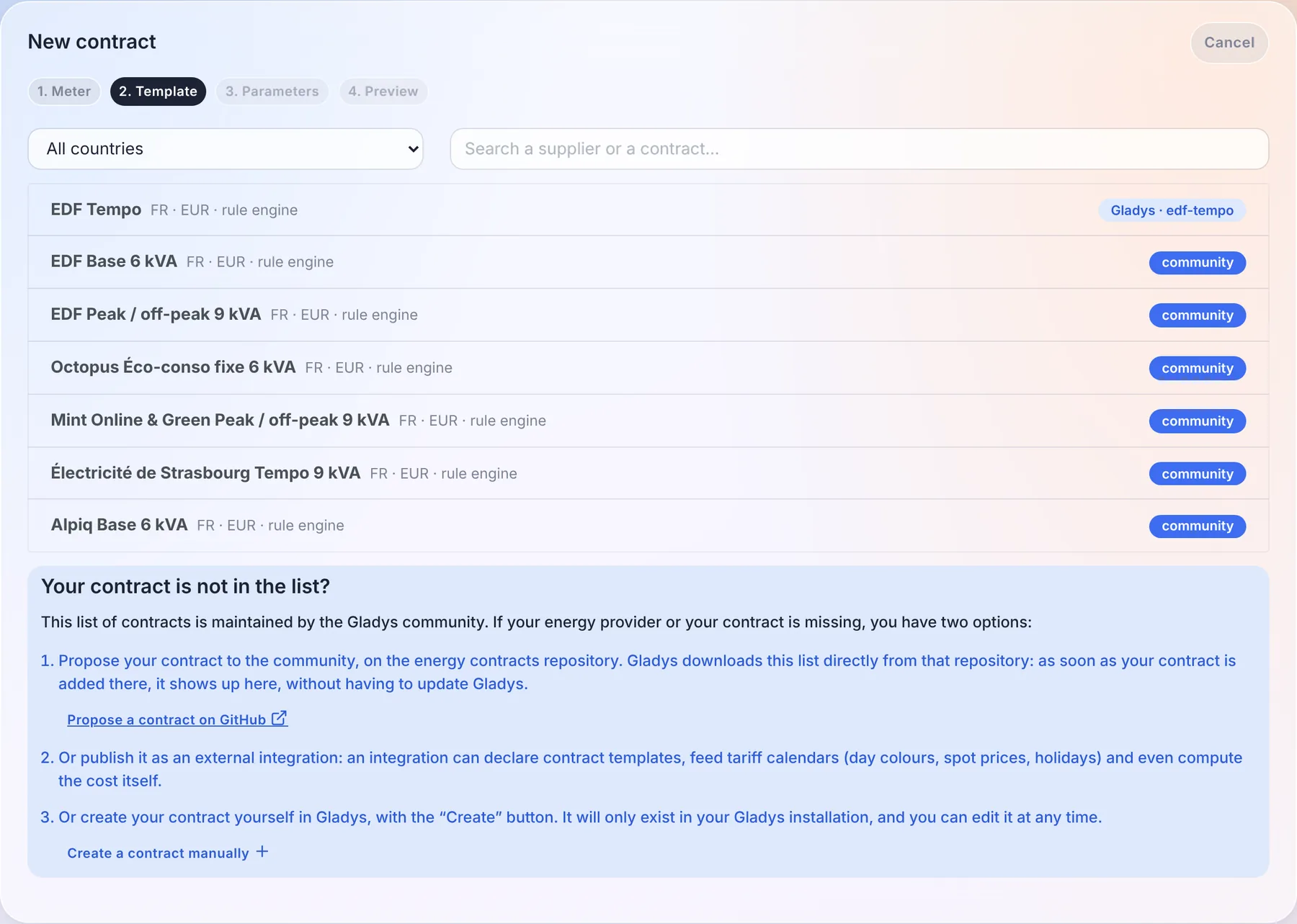
The list of community contracts is open source and can be modified by anyone on this GitHub repository.
3. Parameters
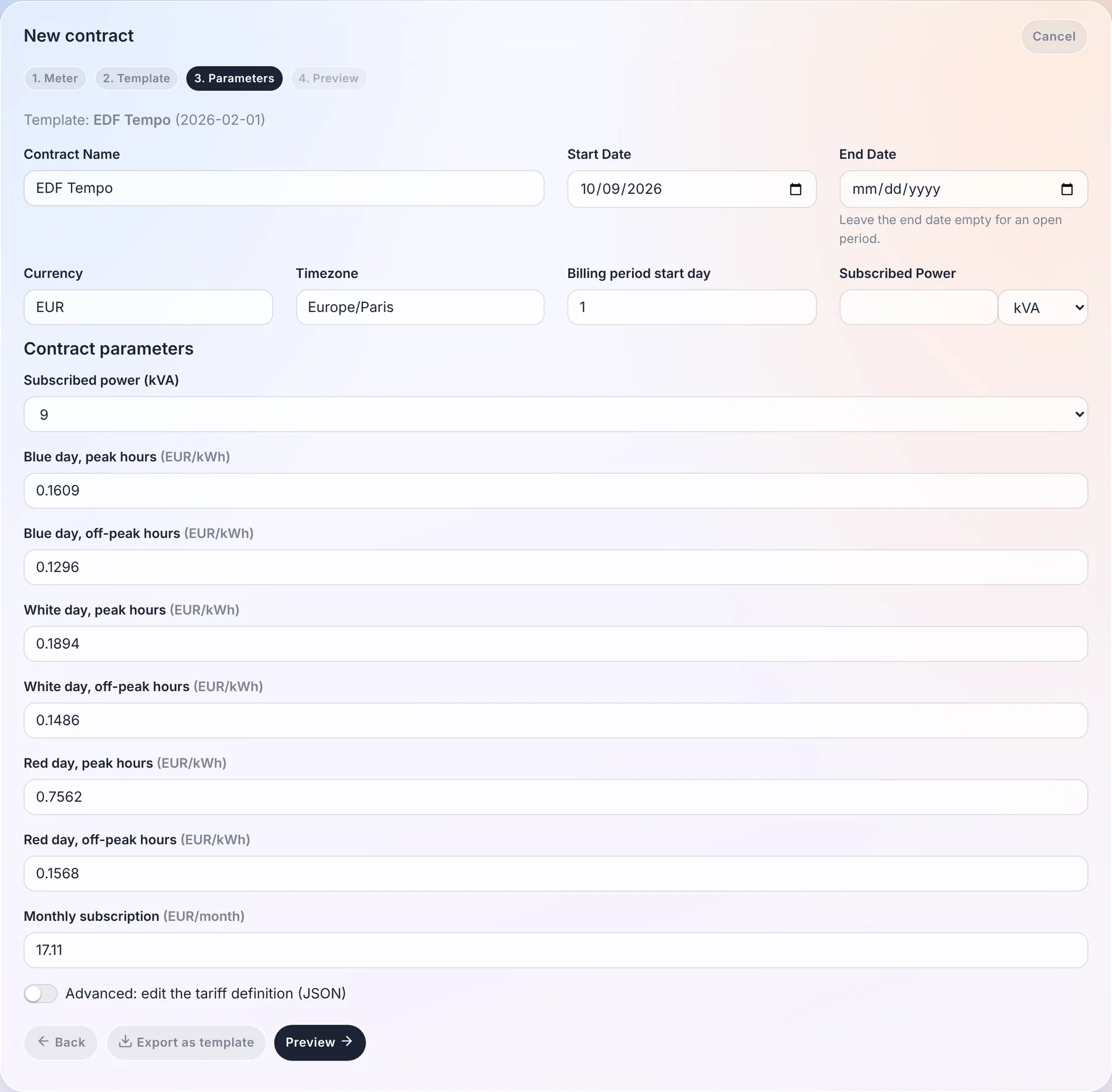
Check the name of the contract, its start date (and its end date if it has one), the currency, the timezone and the day your billing period starts. Then fill in the parameters of the template: the subscribed power, the prices, your off-peak hours on a grid of 30-minute slots for a peak / off-peak contract...
4. Preview
Before saving anything, Gladys prices your real consumption of the last 7 days with this contract: the total, the detail per component (energy, subscription...) and a sample of 30-minute intervals with the price applied to each of them. It's the best way to check that the contract matches your bill.
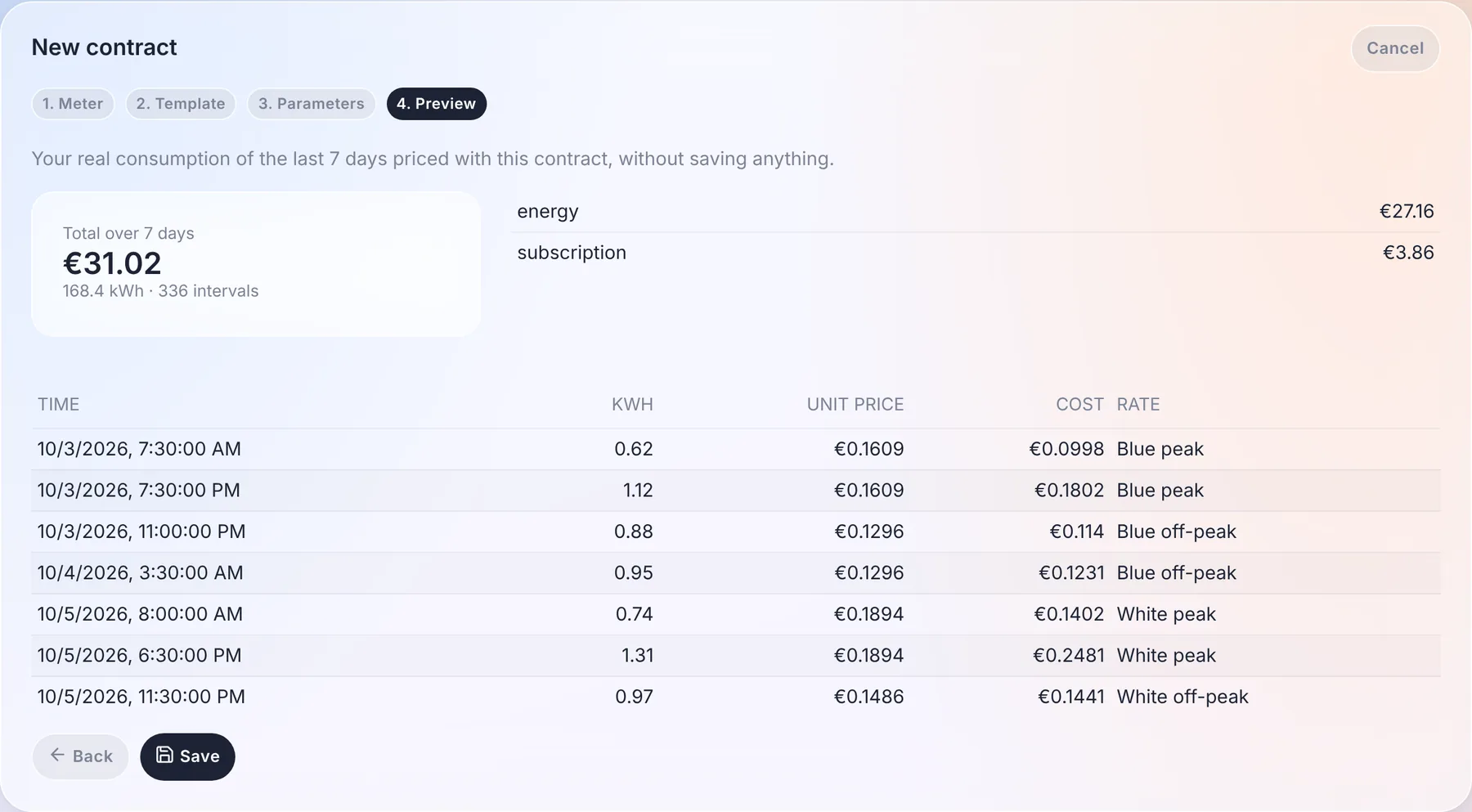
Click "Save": the contract appears in the list, with its status (active, scheduled, expired).
When your prices change, you don't touch the past: end the current contract at the date of the change, and create a new one starting the day after. A meter has at most one active contract on a given date.
Your energy prices created before Gladys 5.2 are converted automatically into contracts on the first start, without touching the cost history already computed. Check them in the "Contracts" tab: a converted contract whose calculation differs from the old one is flagged.
My contract is not in the list
You have three options:
- Propose it to the community, on the energy contracts repository. Gladys downloads this list directly: as soon as your contract is added, it shows up in every Gladys, without an update.
- Publish it as an external integration: an integration can declare contract templates, feed tariff calendars (day colours, spot prices, public holidays) and even compute the cost itself. See the developer documentation.
- Create it yourself: on the "Parameters" step, turn on "Advanced: edit the tariff definition (JSON)" and describe your contract. The "Export as template" button then produces a template ready to be shared.
What a contract can express
The pricing engine of Gladys knows no supplier by name: a contract is a list of rules, evaluated for each 30-minute interval. A rule can depend on:
- the time of day (peak / off-peak hours, time-of-use slots);
- the day of the week (cheaper weekends);
- the month or the season (summer / winter rates);
- a date range (promotion, transition period);
- a tariff calendar: day colour (Tempo), public holidays, critical peak days;
- consumption tiers, per day, per month or per billing period (progressive rates);
- the peak power of the interval.
And a contract can add fixed fees (per day or per month), taxes as a percentage, demand charges per kW of peak power, and hourly or quarter-hourly market prices (spot) with a multiplier and a margin.
The engine is tested against real contracts from France, Belgium, the United Kingdom, Germany, Finland, Norway, the United States, Canada, Australia, Japan, South Korea and India.
Tariff calendars
Some contracts depend on values that change every day: the Tempo colour, spot prices, critical peak days. These values are stored in tariff calendars, visible in the "Settings" tab of the integration, with their provider, their granularity (day, 30 minutes, 15 minutes), their coverage and their last values.
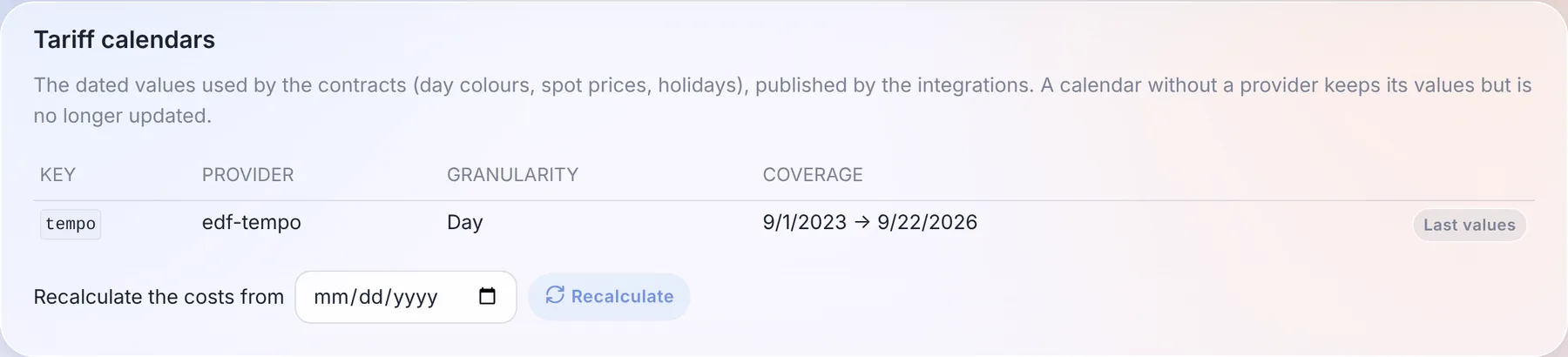
From the same card, "Recalculate the costs from" recomputes the costs of every meter from the date you choose, for example after fixing a price.
Step 3: Update your Zigbee devices
In the Zigbee integration, if you had added Zigbee devices measuring consumption before this update, you need to update them.
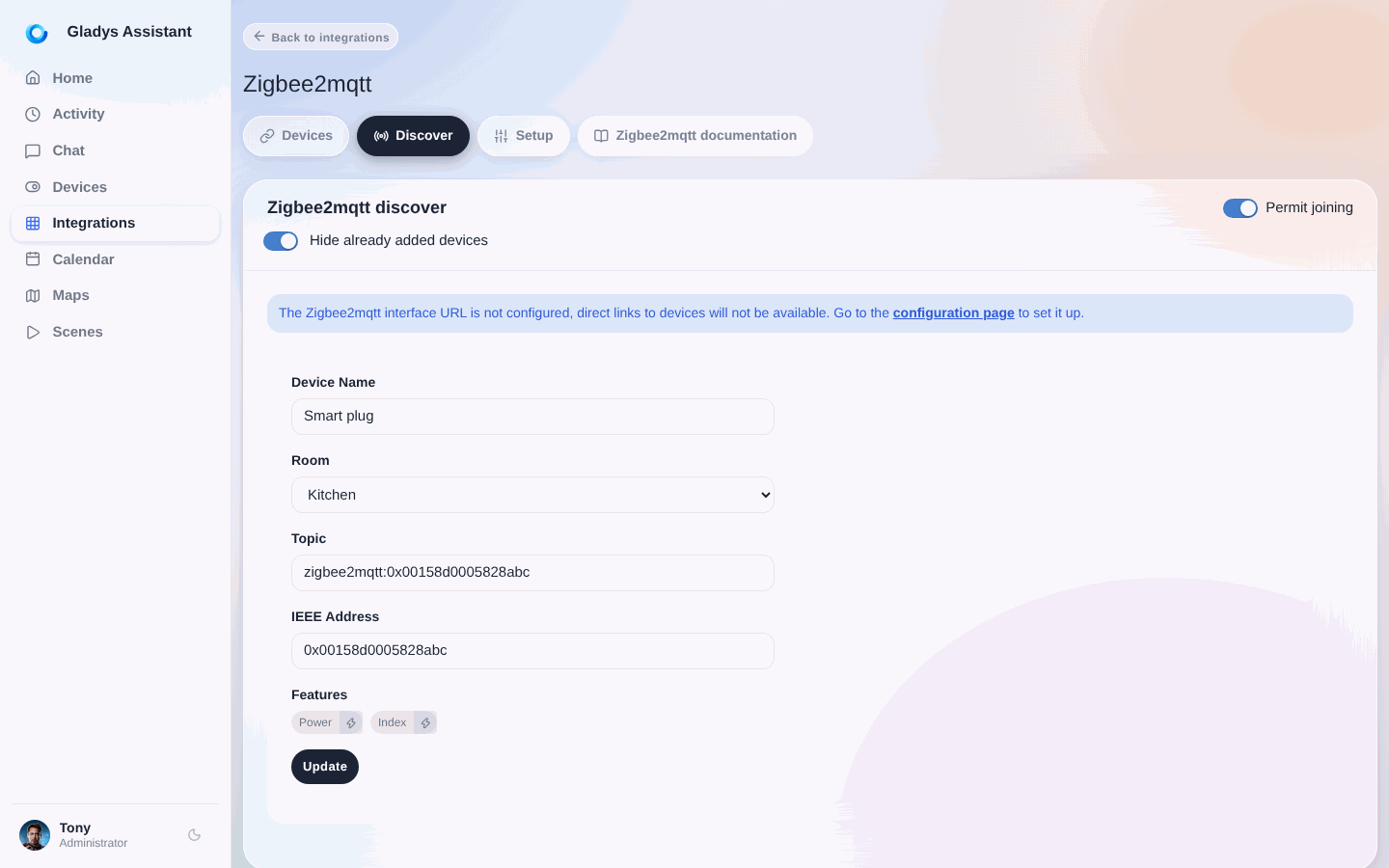
This will add the features necessary for energy monitoring.
Step 4: Update your MQTT devices
In the MQTT integration, if you have devices with "Index" features, you will see a new button on "Index" features to enable the energy monitoring feature:
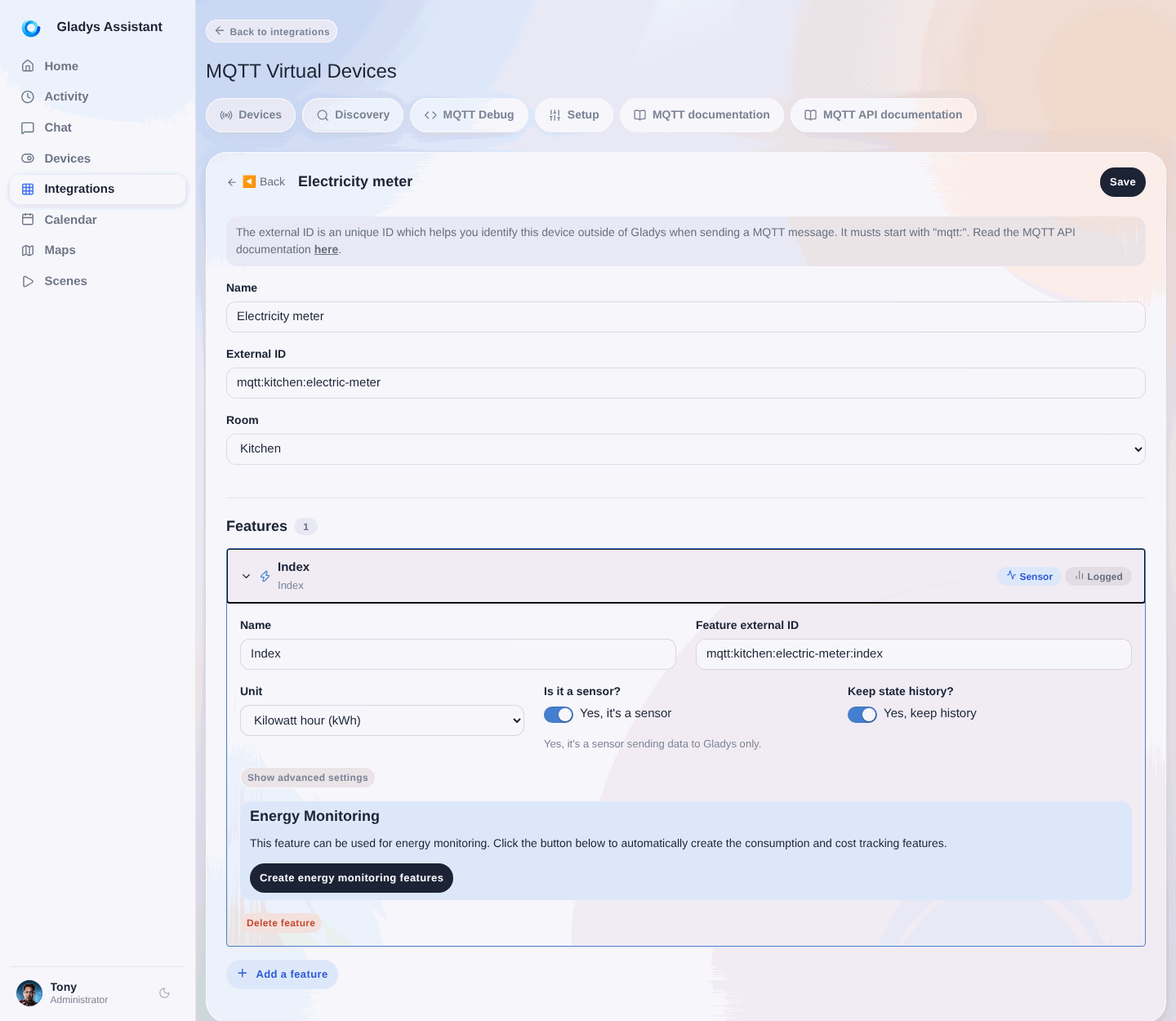
This will add the features necessary for energy monitoring.
Step 5: Check which meter each device is on
Go to the "Energy Monitoring" integration, "My Devices" tab. You see each electric meter (a device with an energy contract) and the devices it prices.
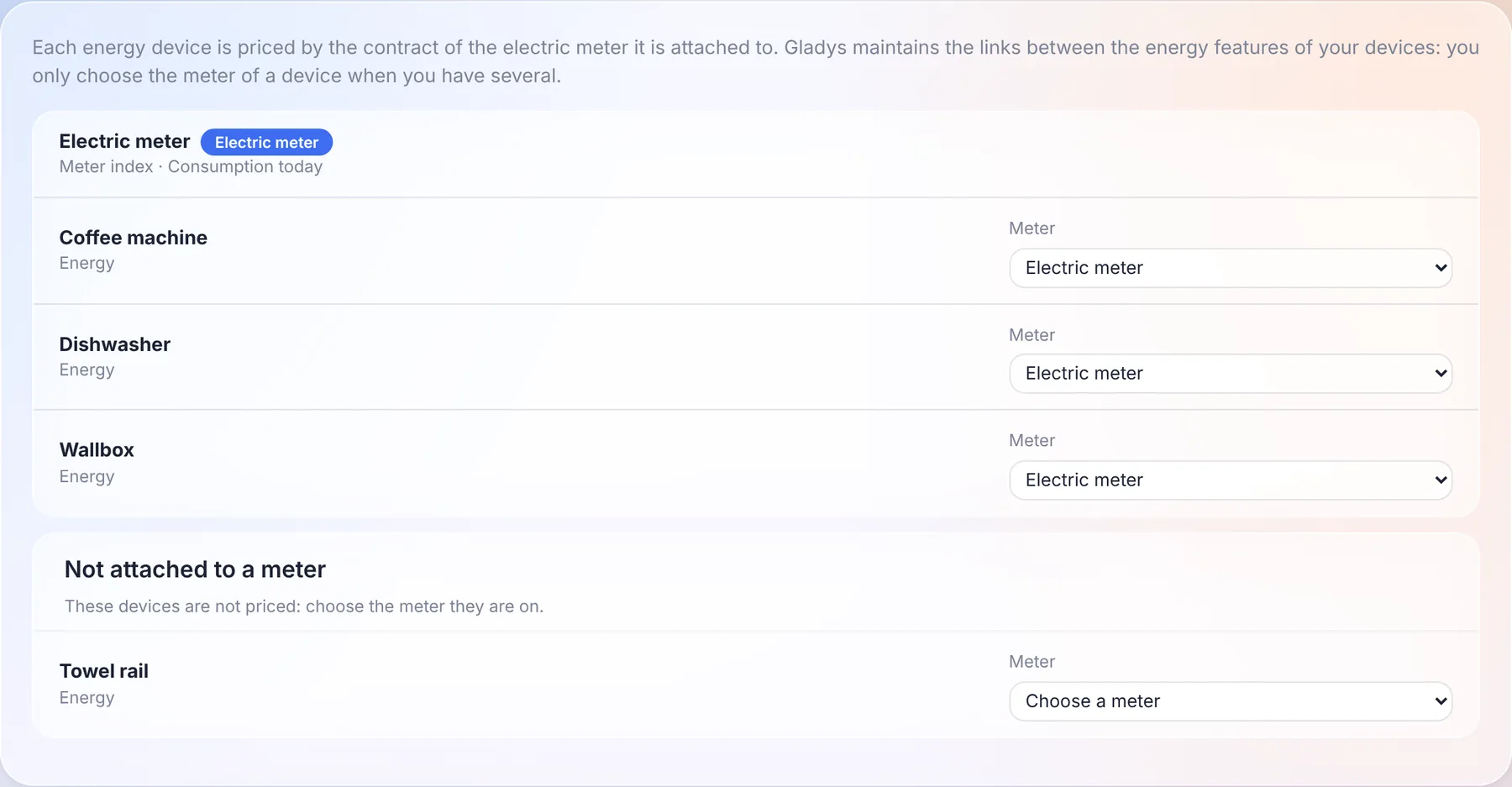
Since Gladys Assistant 5.2, Gladys maintains the links between the energy features of your devices for you: a plug's energy index, its 30-minute consumption and its cost are linked automatically, and every new energy device is attached to your main meter. Each device is priced by the contract of the meter it is attached to.
The only choice left to you is which meter a device is on, and only when you have several (a second home, an outbuilding with its own meter...). Use the "Meter" list in front of the device: its costs are recalculated with the contract of that meter.
A device listed under "Not attached to a meter" is not priced: choose the meter it is plugged into.
The former page let you edit every link by hand, and its "Fix" button could flatten the whole hierarchy and stop the cost calculation. On the first start of Gladys 5.2, the hierarchy is repaired automatically: loops are cut, every meter with a contract becomes a root, and the lost links are restored. To recompute the costs of the repaired period, use "Calculate cost from the beginning" in the "Settings" tab (step 6).
Step 6: Recalculate all historical consumption
If your devices have consumption history, you can launch a recalculation of historical 30-minute consumption and 30-minute costs from the "Settings" tab:
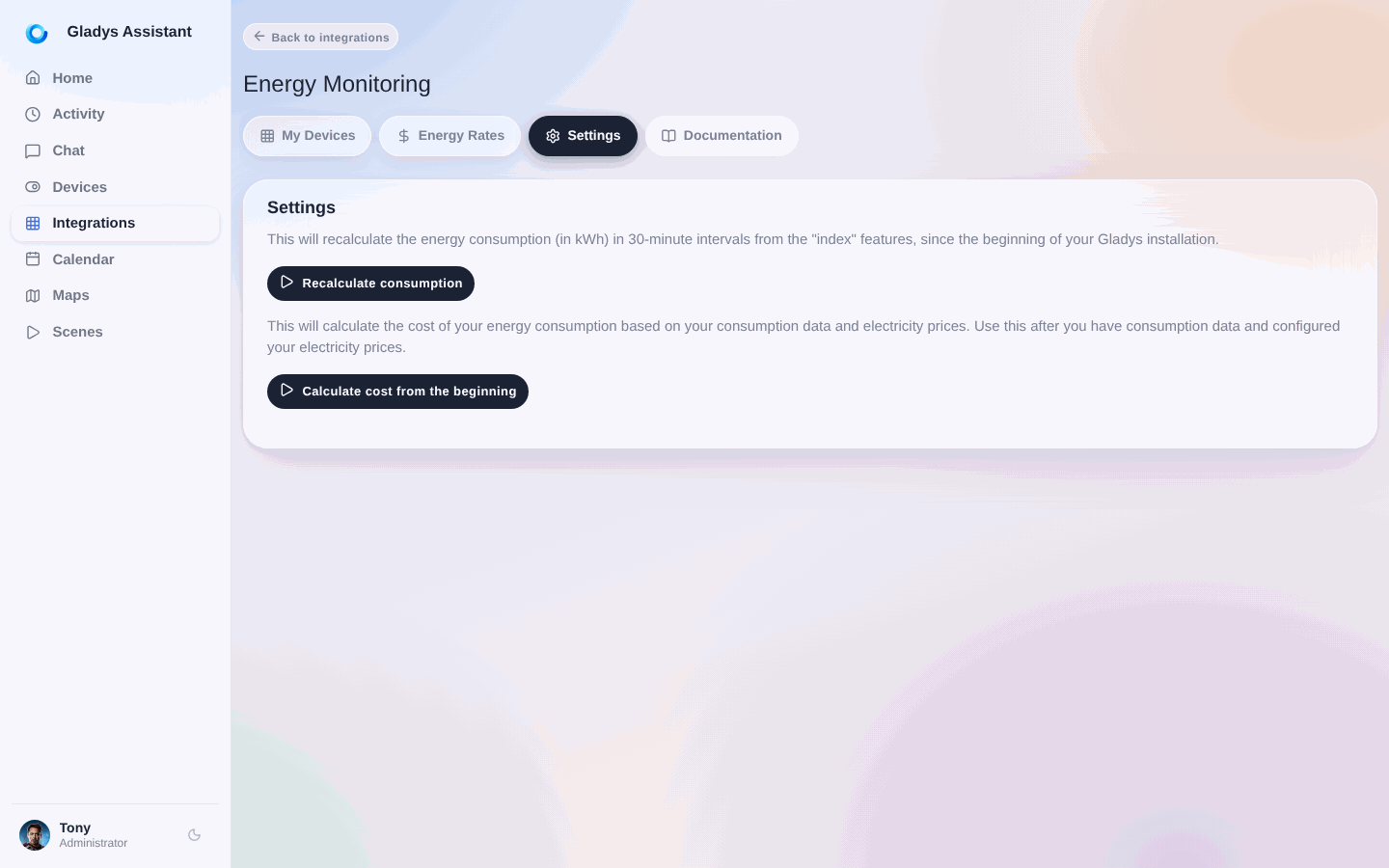
First click on the first button to calculate consumption from indexes, then click on the second button to calculate 30-minute costs with your contracts.
Step 7: Display your consumption on the dashboard
On your dashboard, you can now add a new "Energy Consumption" widget:
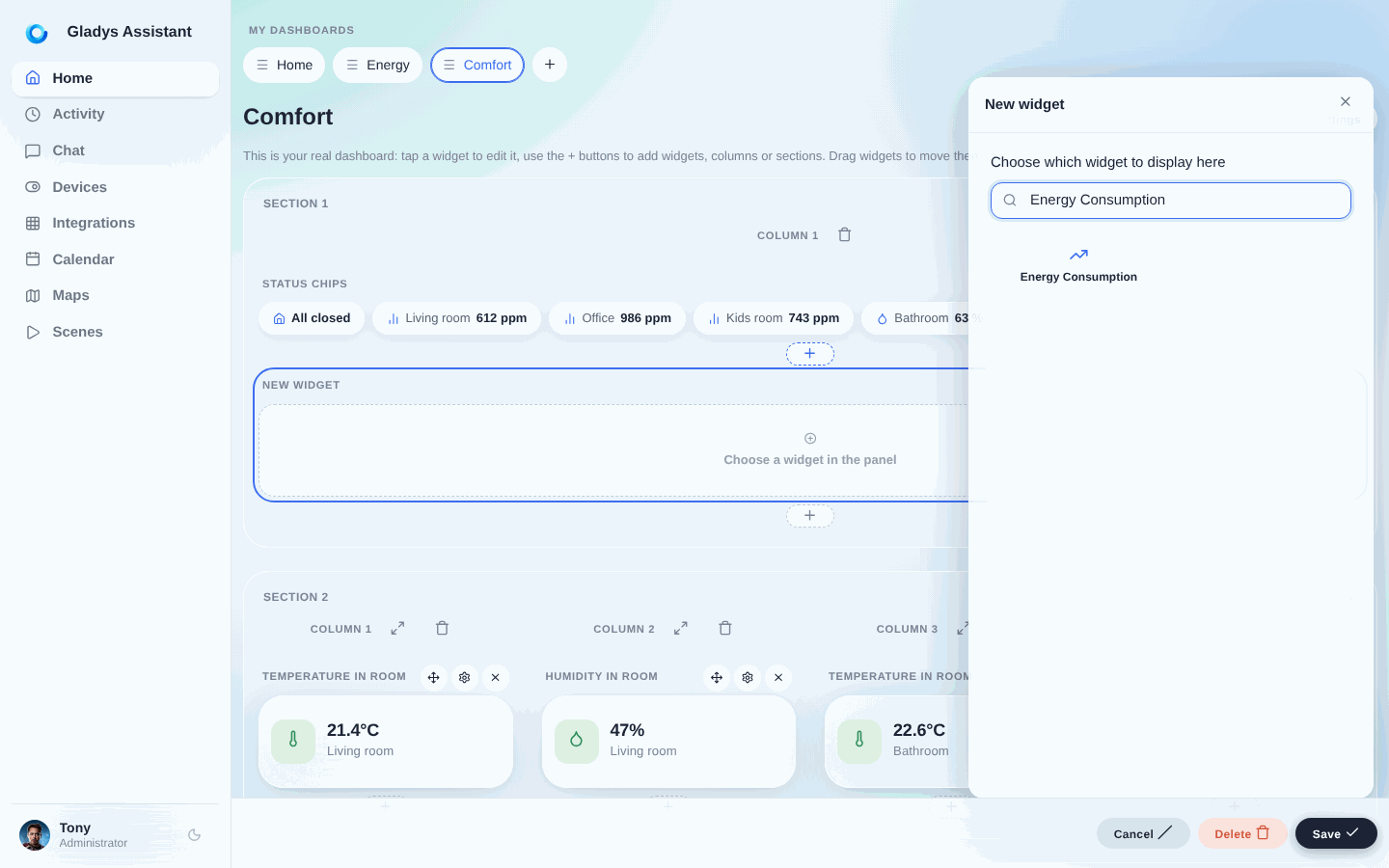
You can display your consumption:
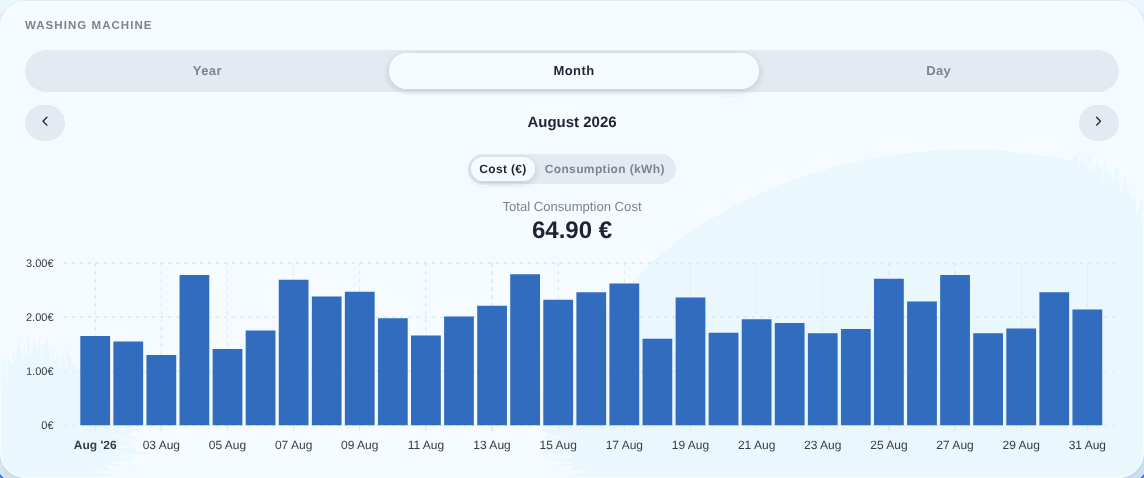
You can also display each device individually, for example my washing machine:
Step 8: Display the current electricity price
The "Electricity price" widget shows, for the contract you choose, the current price per kWh, the current tier (for example "Blue peak"), until when it applies and what the next price will be, as well as today's consumption.
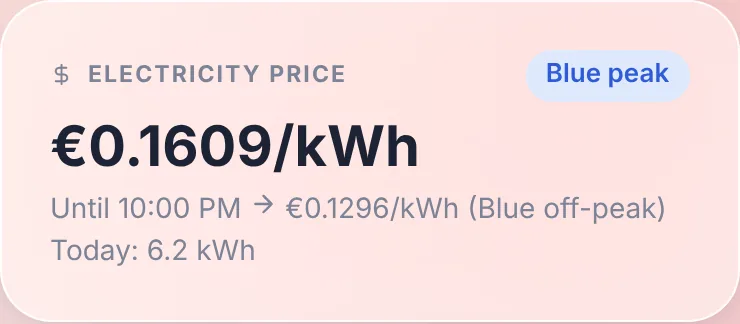
It works with every contract, whatever its supplier or its country, and refreshes every 5 minutes.
Step 9: Use the price in your scenes
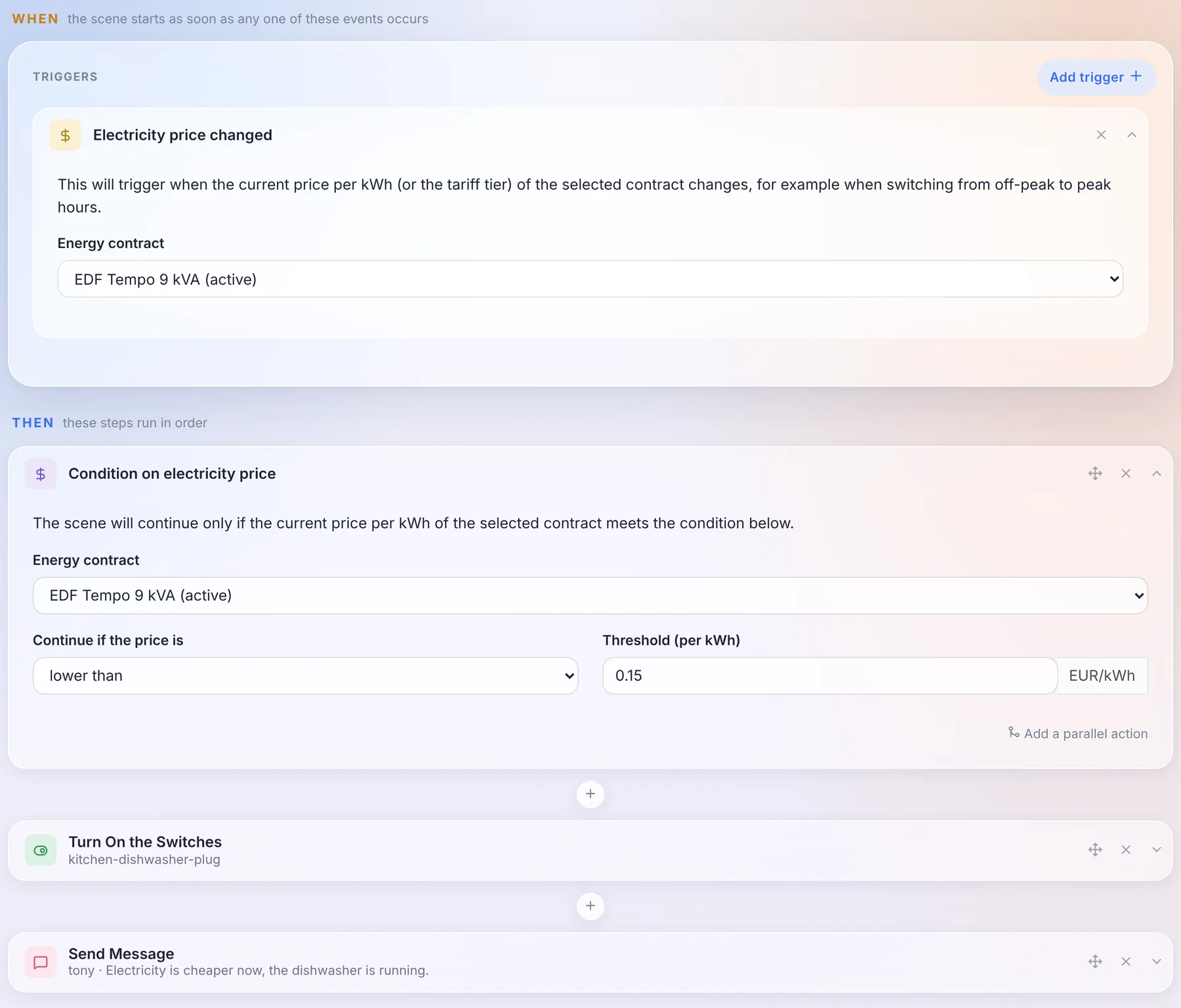
Two scene blocks use your contract:
- the "Electricity price changed" trigger starts a scene as soon as the price per kWh (or the tier) of the contract changes, for example when switching from peak to off-peak hours;
- the "Condition on electricity price" action only lets the scene continue if the current price is lower than, higher than or equal to the threshold you choose.
For example, to start the dishwasher as soon as electricity gets cheaper:
Feedback?
This feature is brand new. If you have questions or feedback, feel free to post a message on the forum.
I'd like to thank Thomas Lemaistre, who funded this development and allowed me to bring it to life!
If in the future you'd like to see major developments like this one in Gladys, know that I'm available for feature sponsoring.