Volvo Smart-Home-Integration, kostenlos und Open Source

Ihr Volvo in Gladys: Batterie, Kraftstoff, Laden, Türen, Verriegelung, Klima und Szenen.
Veröffentlicht von William-De71
- Geräte
- Version 1.3.0
- Erfordert Gladys >=5.3.0
- ★ 0
Diese Integration bringt Ihren Volvo über die offiziellen APIs von Volvo Cars in Gladys: Batterie oder Kraftstoff, Reichweite, Laden, Verriegelung, Türen und Fenster, Klimatisierung, Position, Wartung und Warnungen. Sie bietet außerdem Szenen (Fahrzeug entriegelt, offen gelassen, Laden abgeschlossen, zu Hause angekommen…) und ein Dashboard-Widget mit dem Bild Ihres Fahrzeugs.
Kompatible Fahrzeuge: Modelle ab 2010, bei denen die Volvo Cars App funktioniert, in Europa, im Nahen Osten, in Afrika, den USA, Kanada und Lateinamerika (Liste der Länder). Welche Daten verfügbar sind, hängt von Modell, Baujahr und Land ab.
Community-Integration, nicht mit Volvo Cars verbunden und nicht von Volvo Cars unterstützt.
Einrichtung
Die Einrichtung dauert etwa zehn Minuten und ist nur einmal nötig. Sie erfolgt im Volvo-Entwicklerportal mit der Volvo ID Ihres Fahrzeugs (derjenigen der Volvo Cars App).
1. API-Anwendung erstellen
- Öffnen Sie das Volvo-Entwicklerportal, erstellen Sie ein Konto oder melden Sie sich mit Ihrer Volvo ID an.
- Gehen Sie zu My API applications und erstellen Sie eine API application (beliebiger Name, z. B. „Gladys“).
- Kopieren Sie ihren VCC API key (den primären Schlüssel) in das gleichnamige Feld der Integration.
Jede Anwendung hat ein tägliches Anfragekontingent: Bei mehreren Fahrzeugen ist eine Anwendung pro Fahrzeug am bequemsten (also eine Installation pro Konto), alternativ ein längeres Abfrageintervall.
2. Anwendung veröffentlichen
Damit kann sich Gladys mit Ihrer Volvo ID anmelden.
- Klicken Sie unter Ihrer Anwendung auf Publish.
- Füllen Sie das Formular aus. Zwei wichtige Punkte:
- Scopes: Markieren Sie alle (jeden Abschnitt aufklappen). Fehlt ein Scope, schlägt die Anmeldung fehl.
- Redirect URI: Fügen Sie die Adresse hinzu, die Gladys neben der Schaltfläche Verbinden der Integration anzeigt (standardmäßig
https://my.gladysassistant.com/redirect/oauth). Volvo akzeptiert nur HTTPS-Adressen: Diese Gladys-Seite leitet Ihren Browser zu Ihrer Instanz zurück, auch wenn Sie diese im lokalen Netzwerk überhttp://erreichen.
- Klicken Sie auf View summary und bestätigen Sie.
- Kopieren Sie die angezeigte client ID und das client secret in die gleichnamigen Felder der Integration und speichern Sie.
3. Anmelden
- Klicken Sie auf Verbinden: Die Volvo-ID-Seite öffnet sich.
- Melden Sie sich an (Volvo sendet Ihnen einen Code per E-Mail) und erlauben Sie den Zugriff.
- Sie kehren zu Gladys zurück: Der Konfigurationsbildschirm zeigt „Mit Volvo verbunden: 1 Auto(s).“
Die Schaltfläche Verbindung testen prüft den Schlüssel und die Anmeldung und listet die Fahrzeuge des Kontos auf.
Optionen
| Feld | Funktion |
|---|---|
| Abfrageintervall | Standardmäßig 5 Minuten (2 bis 60): Verriegelung, Türen, Batterie, Laden, Position. Es bestimmt auch, wie schnell die Szenen reagieren |
| Radius um das Zuhause | Standardmäßig 200 m: Ist das Fahrzeug näher, gilt es als „zu Hause“ (Entfernung von zu Hause, Szenen für Ankunft und Abfahrt) |
| Sprache der Texte | Standardmäßig Automatisch (die Sprache Ihres Dashboards): Gerätenamen, Ladestatus, Warnungen, Szenen-Zusammenfassungen. Englisch, Französisch, Deutsch oder Spanisch |
Wartung, Warnungen, Kilometerstand und Reifen werden alle 30 Minuten gelesen. Bei 5 Minuten rechnen Sie mit etwa 2.000 Anfragen pro Tag und Fahrzeug.
Anmeldung erneuern
Volvo begrenzt die Autorisierung einer für den persönlichen Gebrauch veröffentlichten Anwendung zeitlich. Endet sie, hört Gladys auf zu lesen, der Konfigurationsbildschirm meldet „Volvo hat die Autorisierung beendet“, und der Auslöser Volvo: erneute Anmeldung nötig wird ausgelöst (praktisch, um eine Benachrichtigung zu erhalten). Klicken Sie einfach erneut auf Verbinden.
Fahrzeug hinzufügen
Im Tab Entdecken erscheint jedes Fahrzeug des Kontos als Gerät „Volvo Modell (Baujahr)“. Fügen Sie es hinzu und weisen Sie ihm einen Raum zu. Das Widget und die Szenen funktionieren auch ohne das Gerät, die Auswahl des Fahrzeugs in ihren Einstellungen erfolgt jedoch über die Geräteliste.
Die Funktionen hängen davon ab, was das Fahrzeug meldet: Ein Benziner hat weder Batterie noch Laden, ein Fahrzeug ohne Schiebedach kein Schiebedach. Fehlt ein Wert direkt nach der Installation (Fahrzeug seitdem nicht gefahren), suchen Sie später erneut.
Die Funktionen des Fahrzeugs
| Funktion | Wert |
|---|---|
| Batterie, Elektrische Reichweite | Elektro- und Plug-in-Hybridfahrzeuge |
| Energie in der Batterie | aus der Batteriekapazität berechnet |
| Ladekabel angeschlossen, Ladestatus | angeschlossen oder nicht; lädt, abgeschlossen, geplant… |
| Ladeleistung, Verbleibende Ladezeit | je nach Modell |
| Ladeziel, Ladestrombegrenzung | nur lesbar: Volvo erlaubt keine Änderung |
| Kraftstoff, Kraftstoffreichweite | Benzin-, Diesel- und Hybridfahrzeuge |
| Durchschnittsverbrauch | kWh/100 km, seit dem Zurücksetzen des Tageszählers |
| Kilometerstand | Gesamtstrecke |
| Verriegelung | 1 = verriegelt; aus Gladys steuerbar, wenn das Fahrzeug es erlaubt |
| Türen, Heckklappe, Motorhaube, Tankklappe | 1 = offen; „Türen“ fasst die vier Türen zusammen |
| Fenster, Schiebedach | 1 = offen; „Fenster“ fasst die vier Fenster zusammen |
| Klimatisierung | startet oder stoppt die Klimatisierung aus der Ferne (siehe unten) |
| Entfernung bis zur Wartung, Zeit bis zur Wartung | in km und in Tagen |
| Warnungen | Text: „Keine“ oder die Liste (Reifen, Ölstand, Waschwasser, Lampe, Wartung…) |
| Entfernung von zu Hause | in km, wenn das Fahrzeug seine Position meldet und Ihr Haus in Gladys verortet ist |
Der Verlauf wird gespeichert: Diagramm des Batteriestands, des Kilometerstands… Die üblichen Szenen auf einen Gerätewert funktionieren („Batterie unter 20 %“, „Fenster offen“…).
Klimatisierung: Volvo teilt nicht mit, ob die Klimatisierung läuft. Gladys zeigt den letzten Befehl an und schaltet nach 30 Minuten wieder auf aus.
Befehle: Volvo antwortet erst, wenn das Fahrzeug den Befehl ausgeführt hat, was bis zu einer Minute dauern kann (Fahrzeug im Ruhezustand). Gladys sendet den Befehl im Hintergrund und liest das Fahrzeug etwa zwanzig Sekunden später erneut aus.
Cloud-Badge: Auf dem Bildschirm Geräte trägt jedes Fahrzeug ein Badge Cloud, solange Volvo dafür antwortet, und Nicht erreichbar, wenn kein Lesevorgang gelingt. Ein orangefarbener Punkt bedeutet, dass das Fahrzeug laut Volvo gerade keine Fernbefehle ausführen kann (keine Verbindung, Fahrzeug in Benutzung, Energiesparmodus, Software-Update): Fahren Sie mit der Maus über das Badge, um den Grund zu lesen.
Update von 1.0.x: Die Funktionen Kraftstoffreichweite und Entfernung bis zur Wartung hatten in Gladys kein Symbol. Um es zu erhalten, öffnen Sie den Tab Entdecken und klicken Sie bei Ihrem Fahrzeug auf Aktualisieren. Verlauf, Raum und Szenen bleiben erhalten; ein nicht aktualisiertes Fahrzeug funktioniert weiter wie bisher.
Szenen: Auslöser
Im Szenen-Editor, Bereich Volvo (jeder Auslöser lässt sich auf ein Fahrzeug beschränken):
| Auslöser | Wird ausgelöst, wenn… | Filter |
|---|---|---|
| Volvo: ver- oder entriegelt | das Fahrzeug ver- oder entriegelt wird | neuer Zustand |
| Volvo: verriegelt, aber offen | das Fahrzeug verriegelt wird, während eine Tür, ein Fenster, das Schiebedach, die Heckklappe oder die Motorhaube offen ist | — |
| Volvo: Motor gestartet oder gestoppt | der Motor startet oder stoppt | gestartet / gestoppt |
| Volvo: Ladestatus geändert | das Laden beginnt, endet, stoppt, geplant wird oder fehlschlägt | neuer Status |
| Volvo: Ladekabel ein- oder ausgesteckt | das Kabel eingesteckt oder ausgesteckt wird | eingesteckt / ausgesteckt |
| Volvo: zu Hause angekommen oder losgefahren | das Fahrzeug in den Radius um das Zuhause hineinfährt oder ihn verlässt | angekommen / losgefahren |
| Volvo: neue Warnung | eine neue Warnung erscheint (Reifen, Flüssigkeit, Lampe, Wartung) | — |
| Volvo: erneute Anmeldung nötig | Volvo die Autorisierung von Gladys beendet hat | — |
Jeder Auslöser liefert eine Zusammenfassung, die direkt versendet werden kann („Volvo XC40 (2024) ist verriegelt, aber offen: Fenster vorne links.“), sowie eigene Daten: was offen ist, Batteriestand, Entfernung von zu Hause, Name der Warnung…
Beispiele:
- Verriegelt, aber offen → mir eine Benachrichtigung mit der Zusammenfassung senden;
- Zu Hause angekommen → das Tor öffnen und die Außenbeleuchtung einschalten;
- Laden abgeschlossen → mir Bescheid geben;
- Erneute Anmeldung nötig → mir eine Nachricht als Erinnerung senden, auf Verbinden zu klicken.
Gut zu wissen: Volvo sendet nichts von sich aus, die Integration liest das Fahrzeug im gewählten Intervall aus. Eine Szene reagiert daher einige Minuten verzögert. Beim Start der Integration dient der erste Lesevorgang als Ausgangswert: Ein bereits entriegeltes Fahrzeug löst nichts aus.
Szenen: Aktionen
| Aktion | Ergebnis |
|---|---|
| Volvo: Befehl senden | verriegeln, entriegeln (reduzierte Überwachung möglich), klimatisieren, Lichter blinken lassen, hupen, Motor starten oder stoppen; wartet auf das Fahrzeug und meldet, ob der Befehl ausgeführt wurde |
| Volvo: Fahrzeugstatus | verriegelt, alles geschlossen, was offen ist, Batterie, Kraftstoff, Reichweiten, Ladestatus, Motor, Kilometerstand, zu Hause, Entfernung, Breitengrad, Längengrad, Link zur Karte, Warnungen, Zusammenfassung |
Ein Befehl, den das Fahrzeug nicht anbietet (z. B. Motorfernstart bei einem Elektroauto), wird abgelehnt. Der Status verwendet den letzten Lesevorgang; markieren Sie Fahrzeug jetzt lesen für einen aktuellen Wert (das verbraucht Kontingent).
Vorsicht mit Hupen und Lichter blinken lassen: Diese Befehle haben bei manchen Fahrzeugen die 12-V-Batterie entladen. Die Integration sendet sie nie von sich aus.
Dashboard-Widget
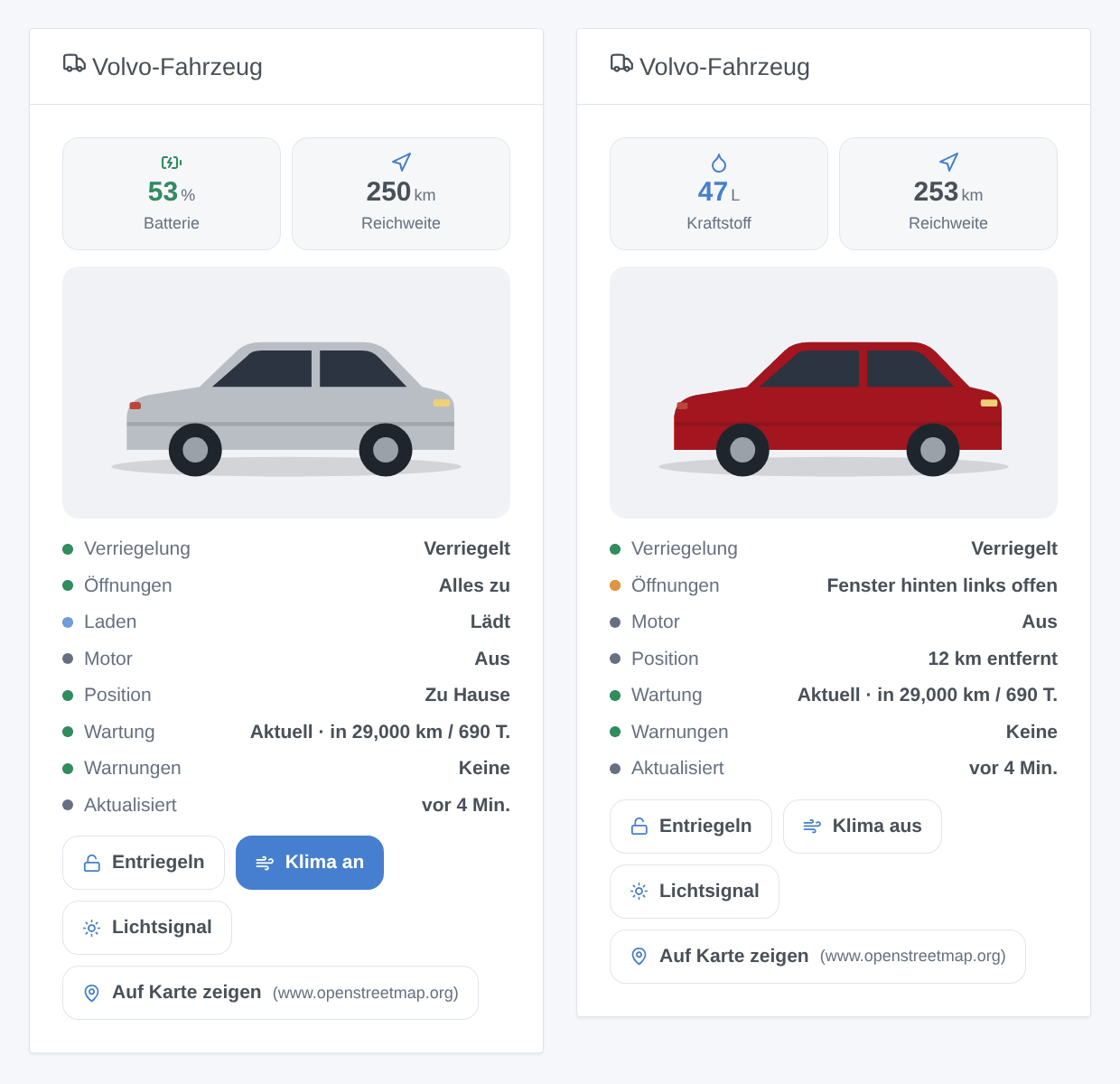
Das Widget Volvo-Fahrzeug zeigt das Bild Ihres Fahrzeugs (genaues Modell und Farbe), Batterie oder Kraftstoff und die Reichweite, dann den Zustand: Verriegelung, Öffnungen, Laden, Motor, Position, Wartung, Warnungen und das Alter der Daten. Seine Tasten: Verriegeln / Entriegeln (mit Rückfrage), Klima an / Klima aus, Lichtsignal (um das Fahrzeug auf einem Parkplatz zu finden, mit Rückfrage) und Auf Karte zeigen. Die Tasten lassen sich in den Widget-Einstellungen ausblenden.
Fehlerbehebung
| Symptom | Wahrscheinliche Ursache |
|---|---|
| Die Volvo-ID-Seite zeigt einen Fehler zur Redirect URI | die bei der Veröffentlichung angegebene Redirect URI stimmt nicht genau mit der von Gladys angezeigten überein |
| Die Volvo-ID-Seite lehnt die Scopes ab | bei der Veröffentlichung wurden nicht alle Scopes markiert |
| „Volvo lehnt den API-Schlüssel oder einen Scope ab“ | VCC API key falsch kopiert oder Anwendung ohne die nötigen Scopes |
| „Tageskontingent der Volvo-API erreicht“ | zu viele Anfragen für eine Anwendung: Abfrageintervall erhöhen oder eine Anwendung pro Fahrzeug erstellen |
| „Volvo hat die Autorisierung beendet“ | Ende des Autorisierungszeitraums der Anwendung: auf Verbinden klicken |
| Keine Position und keine Entfernung von zu Hause | die Position ist in Ihrem Land nicht verfügbar, oder Ihr Haus ist in Gladys nicht verortet |
| Ein Befehl bleibt ohne Wirkung | Fahrzeug im Tiefschlaf oder ohne Netz: Der Befehl schlägt nach einer Weile fehl; die Logs der Integration zeigen den Status |
| Orangefarbener Punkt am Cloud-Badge | laut Volvo kann das Fahrzeug gerade keine Fernbefehle ausführen: Der Grund erscheint, wenn Sie mit der Maus über das Badge fahren |
| Texte in der falschen Sprache | Sprache der Texte in der Konfiguration einstellen; bei Automatisch gilt die Sprache des zuletzt geöffneten Dashboards |
Konfigurationseinstellungen
Diese Einstellungen fragt Volvo in seinem Konfigurationsbildschirm in Gladys ab.
| Einstellung | Typ | Pflichtfeld | Beschreibung |
|---|---|---|---|
| 1. Volvo-Entwickleranwendung | section | Nein | Gladys liest Ihr Fahrzeug über die offiziellen APIs von Volvo Cars aus. Melden Sie sich im Volvo-Entwicklerportal mit der Volvo ID Ihres Fahrzeugs an, öffnen Sie die Seite der API-Anwendungen und erstellen Sie eine Anwendung (beliebiger Name, z. B. Gladys). Kopieren Sie unten ihren VCC API key (primär). Am besten eine Anwendung pro Fahrzeug: Jede hat ein tägliches Anfragekontingent. |
| VCC API key | secret | Ja | Der primäre Schlüssel der Anwendung (32 Zeichen). |
| 2. Anwendung veröffentlichen | section | Nein | Klicken Sie unter der Anwendung auf Publish. Markieren Sie ALLE Scopes (jeden Abschnitt aufklappen) und fügen Sie als Redirect URI die Adresse hinzu, die Gladys weiter unten neben der Schaltfläche „Verbinden“ anzeigt. Bestätigen Sie: Das Portal liefert dann eine Client ID und ein Client secret, die Sie hier eintragen. Volvo begrenzt die Autorisierung einer solchen Anwendung zeitlich: Wenn sie endet, benachrichtigt Gladys Sie und Sie klicken erneut auf „Verbinden“. |
| Client ID | string | Ja | |
| Client secret | secret | Ja | |
| 3. Anmeldung mit Ihrer Volvo ID | section | Nein | Speichern Sie zuerst und klicken Sie dann auf „Verbinden“: Die Volvo-ID-Seite öffnet sich (ein Code wird per E-Mail gesendet). Erlauben Sie den Zugriff; Sie kehren zu Gladys zurück und fügen Ihre Fahrzeuge dann über den Tab „Entdecken“ hinzu. |
| Volvo ID | oauth2 | Nein | |
| Optionen | section | Nein | |
| Abfrageintervall (min) | number | Nein | Verriegelung, Türen, Batterie, Laden und Position, zwischen 2 und 60 Minuten. Bei 5 Minuten etwa 2.000 Anfragen pro Tag und Fahrzeug; Wartung und Warnungen werden alle 30 Minuten gelesen. |
| Radius um das Zuhause (m) | number | Nein | Ein Fahrzeug, das näher als dieser Wert an einem Haus in Gladys (mit hinterlegter Position) ist, gilt als zu Hause: Entfernung und Szenen für Ankunft/Abfahrt. |
| Sprache der Texte | select | Nein | Sprache der Gerätenamen, des Ladestatus, der Warnungen und der Szenen-Zusammenfassungen. Automatisch: die Sprache Ihres Dashboards. |
So installierst du Volvo in Gladys
- Öffne in Gladys Integrationen: Volvo erscheint im Katalog neben den nativen Integrationen, mit einem Community-Badge.
- Klicke auf Installieren. Gladys lädt das Docker-Image (
ghcr.io/william-de71/gladys-volvo:1.3.0) herunter, startet es in einer vom Kern isolierten Sandbox und erzeugt die Oberfläche der Integration (Geräte, Erkennung und Konfiguration). - Öffne den Bildschirm Konfiguration der Integration, fülle die Einstellungen aus und speichere.
- Du kannst sie auch direkt über die URL ihres Repositorys installieren: https://github.com/William-De71/gladys-volvo.
Volvo benötigt Gladys >=5.3.0. Der Katalog in Gladys wird stündlich aktualisiert, eine neue Version ist also spätestens eine Stunde nach ihrer Veröffentlichung verfügbar.
Du nutzt Gladys noch nicht? Es ist kostenlos und Open Source: folge der Installationsanleitung, um loszulegen.
Über externe Integrationen
Volvo ist eine externe Integration: eine Community-Integration, die als Docker-Container verpackt und auf GitHub veröffentlicht wird. Gladys installiert sie mit einem Klick und führt sie in einer vom Kern isolierten Sandbox aus. Sie wird von William-De71 veröffentlicht und gepflegt, nicht vom Gladys-Kernteam.
- Alle Integrationen durchsuchen, native und aus der Community
- Deine eigene externe Integration bauen und veröffentlichen
- Quellcode auf GitHub — Quelle dieser Dokumentation