Leviton Decora Smart Wi-Fi Smart-Home-Integration, kostenlos und Open Source
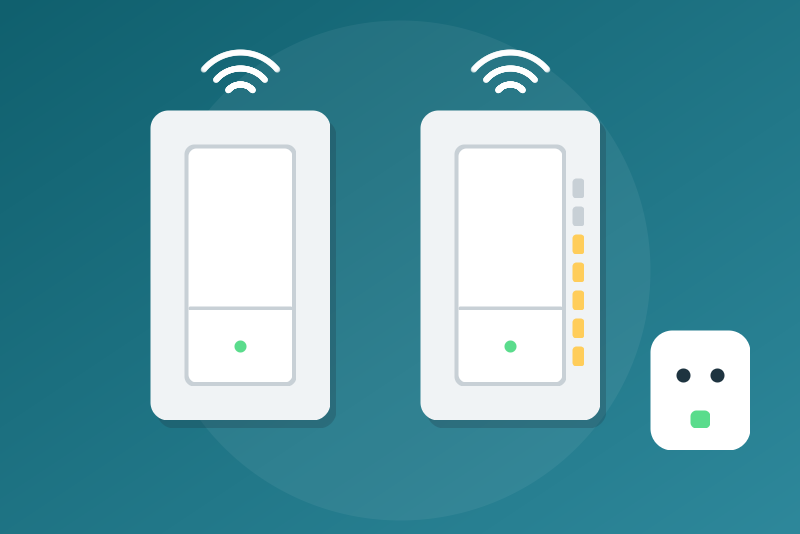
Leviton Decora Smart Wi-Fi switches, dimmers and plugs (US, CA) via the My Leviton cloud.
Veröffentlicht von LM1LC3N7
- Geräte
- Version 0.1.1
- Erfordert Gladys >=5.1.0
- ★ 0
Die Dokumentation dieser Integration wird von ihrem Autor geschrieben und ist bisher nur auf Englisch verfügbar.
Shows and commands in Gladys the Leviton Decora Smart Wi-Fi switches, dimmers and plugs (United States, Canada) of your My Leviton account, through the Leviton cloud.
Unofficial API, never tested with a real account. The integration talks to the API of the My Leviton app, which Leviton does not document and may change at any time. It was written from the decora-wifi library (the one of the Home Assistant integration) and schmittx's Home Assistant integration, and tested with made-up answers only. Not affiliated with Leviton.
What you get
One Gladys device per supported Leviton device:
| Leviton device | Gladys features |
|---|---|
| Dimmer (DW6HD, D26HD, DW1KD, D2ELV…) | On/Off (light, light/binary), Brightness (0 to 100), Online |
| Switch (DW15S, D215S…) | On/Off (switch, switch/binary), Online |
| Plug (DW15P, DW15A, D215P, D215O…) | On/Off (switch, switch/binary), Online |
- Brightness: 0 turns the light off; any other value turns it on, within the minimum and maximum levels set in the app.
- Online (1 = yes, read only): what Leviton says of the device. An offline device is also marked "unreachable" on its card; its last known state stays shown, not updated while it is offline, and its commands are refused.
- Unknown model: a device whose model is not in the lists of the integration is shown read only (no command) until the integration knows it.
- Consumption: Leviton gives none for these devices in the known libraries: there is none here.
- Fans (DW4SF, D24SF), button controllers (DW4BC), the bridge (MLWSB) and the GFCI outlets (D2GF1, D2GF2: a ground-fault protection is not a plug to cut from Gladys) are not shown in this version.
Lights (light/binary), switches and plugs (switch/binary) are ordinary
Gladys commands: an "everything off" of Gladys, of a voice assistant or of a
scene turns them off too. Do not plug in a device that must never be cut.
Setup
- In Gladys, install the Leviton Decora Smart Wi-Fi integration from the store.
- Enter the e-mail and password of your My Leviton account (the ones of the app), then save: saving starts the sign-in.
- If the status says "Sign-in required", click Test the connection; if it says a verification code is asked, see below.
- Open the Discovery tab and add the devices.
The password field is a secret field: Gladys keeps it in its database (in
clear, as any configuration value, and in its backups), never shows it again,
and the integration sends it only to My Leviton (my.leviton.com). It is used
for the sign-ins only: the session obtained is kept and reused at every read
and after a restart, until it ends.
When does the integration sign in?
A sign-in without code makes Leviton e-mail a code to an account that uses
two-factor authentication. So the integration signs in by itself (start,
reconnection to Gladys, session renewal, spaced new try) only for an
account whose sign-in without code was accepted before (it notes it in its
/data). For any other account, or when its /data is lost, it waits for a
click: the status says "Sign-in required: click Test the connection", with
no automatic new try. A click is: saving the configuration, and the buttons
of the configuration screen.
An account known "without code" that turns two-factor authentication on later may get at most one e-mail, at the next automatic sign-in; it is then noted as a code account and never signed in again without a click.
Verification code (two-factor authentication)
If your My Leviton account uses two-factor authentication, Leviton e-mails a code at each sign-in without code. The integration then stops and the status says so:
- Under Verify the code, type the code of the last Leviton e-mail and click the button. "Code accepted" means connected.
- No e-mail, or the code is too old? Click Send the verification code: the integration signs in without code and Leviton e-mails a new one (at most once a minute).
The integration never sends a code without your click, never keeps it, and never signs in again by itself for an account that asks for a code: the session is kept as long as Leviton accepts it; when it refuses it, the integration stops and asks you for a code again.
Refresh
The devices are read every 60 seconds by default (30 to 60, Refresh interval), one request per residence; the list of residences is read again every hour. A residence in error keeps its last devices (marked "unreachable") without stopping the reads of the others.
A command leaves at once; the value Leviton confirms is shown at once, the device is read again 2 seconds later, and a slightly late read does not undo the commanded value (15 seconds). The commands of one device go one after the other. Gladys waits 5 seconds for the answer: a command that has not left 3 seconds after the click (queue, sign-in in progress, slow network) is refused without having been sent; a command sent but slow is answered at 4.3 seconds and its effect shows afterwards.
Troubleshooting
- E-mail or password refused: the integration stops, even after a restart, and tries again once after 6 hours then every 24 hours (only for an account known "without code"; otherwise it waits for a click). Fix them and save, or click Test the connection.
- Too many failed sign-ins (refused by Leviton): a one-hour pause, commands and buttons included, kept after a restart.
- Session refused: one single new sign-in; refused again, the integration pauses and tries again after 1 hour, 6 hours, then every 24 hours. Test the connection tries again at once.
- Too many requests (429): a pause of 1 minute to 6 hours (Leviton's
Retry-After, 15 minutes without it), for the reads, the commands and the buttons, kept after a restart or a reconnection to Gladys. - HTTP 403 of the reads: a 403 of one residence pauses nothing (it keeps its last devices). When every residence answers 403, the integration first signs in again once (as for a refused token), only for an account known "without code"; if the 403 stays, or for any other account, a one-hour pause.
- Leviton unavailable (5xx, network): new tries after 1, 2, 5, 10, then every 15 minutes, never sooner than the interval.
Limits
- Unofficial API: Leviton may change it, block it or ask for more checks.
- No live updates (the websocket of the app): one read every 30 to 60 seconds.
- One My Leviton account per Gladys, ten residences at most.
- No fans, GFCI outlets, motion sensor (D2MSD: the light only), scenes, schedules nor settings (LEDs, fade…) in this version.
- Never tested with a real account: please report what you see on the GitHub repository (without your e-mail, password or codes).
Privacy
The integration keeps in /data/leviton-state.json (readable by its own
container only): the session token, the Leviton user id and the end of the
token, the account they belong to as a hash of the e-mail, the accounts
(hashes) known "without code" and those that ask for a code, the time of the
last code request, the end of a pause, and a stop on refused credentials tied
to a salted fingerprint of the e-mail and password. Neither the e-mail, the
password nor the codes. The MAC address, serial number and local IP address
of the devices are not sent to Gladys. Nothing is sent anywhere but to My
Leviton.
Konfigurationseinstellungen
Diese Einstellungen fragt Leviton Decora Smart Wi-Fi in seinem Konfigurationsbildschirm in Gladys ab.
| Einstellung | Typ | Pflichtfeld | Beschreibung |
|---|---|---|---|
| Your My Leviton account | section | Nein | Shows the Leviton Decora Smart Wi-Fi devices of your My Leviton account in Gladys: switches and plugs (on/off), dimmers (on/off, brightness), and whether each device is online. Enter the e-mail and password of the My Leviton app, save, then add the devices from the Discovery tab. If your account asks for a verification code, use the two buttons below. Read every 60 seconds. Fans and button controllers are not shown in this version. Unofficial API, never tested with a real account. Not affiliated with Leviton. |
| My Leviton e-mail | string | Ja | |
| My Leviton password | secret | Ja | Kept by Gladys in its database, never shown again, sent only to My Leviton (my.leviton.com). |
| Refresh interval (s) | number | Nein | Seconds between two reads of the devices (30 to 60): one request per residence each time. |
| Language of the feature names | select | Nein | Used for the feature names of the devices added from now on, and for the command errors. |
So installierst du Leviton Decora Smart Wi-Fi in Gladys
- Öffne in Gladys Integrationen: Leviton Decora Smart Wi-Fi erscheint im Katalog neben den nativen Integrationen, mit einem Community-Badge.
- Klicke auf Installieren. Gladys lädt das Docker-Image (
ghcr.io/lm1lc3n7/gladys-leviton:0.1.1) herunter, startet es in einer vom Kern isolierten Sandbox und erzeugt die Oberfläche der Integration (Geräte, Erkennung und Konfiguration). - Öffne den Bildschirm Konfiguration der Integration, fülle die Einstellungen aus und speichere.
- Du kannst sie auch direkt über die URL ihres Repositorys installieren: https://github.com/LM1LC3N7/gladys-leviton.
Leviton Decora Smart Wi-Fi benötigt Gladys >=5.1.0. Der Katalog in Gladys wird stündlich aktualisiert, eine neue Version ist also spätestens eine Stunde nach ihrer Veröffentlichung verfügbar.
Du nutzt Gladys noch nicht? Es ist kostenlos und Open Source: folge der Installationsanleitung, um loszulegen.
Über externe Integrationen
Leviton Decora Smart Wi-Fi ist eine externe Integration: eine Community-Integration, die als Docker-Container verpackt und auf GitHub veröffentlicht wird. Gladys installiert sie mit einem Klick und führt sie in einer vom Kern isolierten Sandbox aus. Sie wird von LM1LC3N7 veröffentlicht und gepflegt, nicht vom Gladys-Kernteam.
- Alle Integrationen durchsuchen, native und aus der Community
- Deine eigene externe Integration bauen und veröffentlichen
- Quellcode auf GitHub — Quelle dieser Dokumentation