ELK M1 Smart-Home-Integration, kostenlos und Open Source
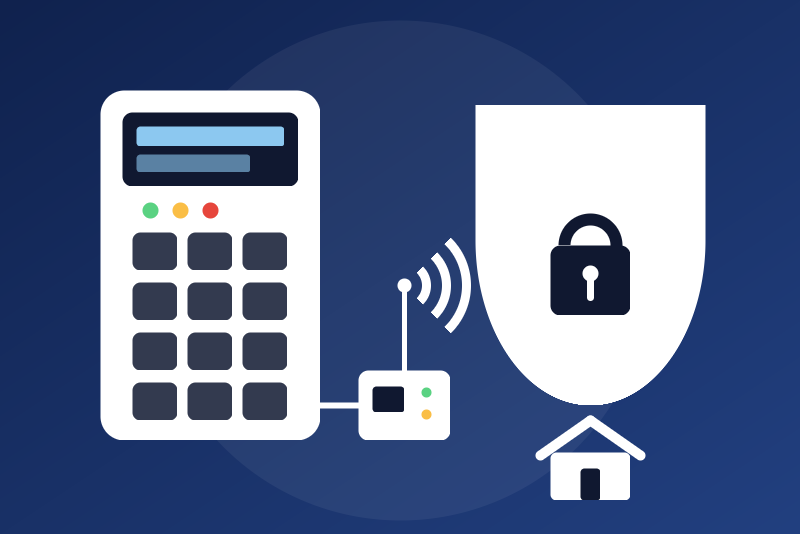
ELK M1 Gold and EZ8 alarm panels, locally through the M1XEP module.
Veröffentlicht von LM1LC3N7
- Geräte
- Version 0.1.2
- Erfordert Gladys >=5.1.0
- ★ 0
Die Dokumentation dieser Integration wird von ihrem Autor geschrieben und ist bisher nur auf Englisch verfügbar.
Integration of ELK M1 Gold and M1 EZ8 alarm panels in Gladys, locally, through the M1XEP Ethernet module of the panel: no cloud, no account.
Never tested with a real panel. This integration follows the ASCII protocol published by ELK, as implemented by the open-source library elkm1-lib of the Home Assistant integration. Unofficial, not affiliated with ELK Products. Your feedback on a real installation is welcome.
What you get
- The panel: link, trouble, AC power failure, panel battery low, the list of the troubles.
- Each area you list (1 to 8): its state (disarmed, arming, entry delay, armed away, stay, night or vacation), armed, ready to arm, alarm in progress, fire alarm; Arm away, Arm stay, Arm night and Disarm buttons.
- Each zone you list (1 to 208): open (opening, smoke, leak) or motion, trouble, bypassed, alarm; or the temperature (zones 1 to 16 of the temperature kind).
- Each output you list (1 to 208): its state, Turn on and Turn off buttons.
- Each thermostat you list (1 to 16), read only: temperature, humidity, heating and cooling setpoints, mode, hold.
- Scene triggers: alarm triggered (area, zone, kind: burglar, fire, medical, police, aux, carbon_monoxide, emergency, freeze, gas, heat, water, fire_supervisory), area armed (with its mode), area disarmed; each says whether Gladys asked for it.
- Scene actions: arm an area (away, stay or night), disarm an area.
The names of the areas, zones, outputs and thermostats come from the panel (the descriptions set in ElkRP), read once per address.
Before you start
- The M1XEP must have a fixed address on your network (a reservation in your router).
- Choose the connection:
- Secure, TLS 1.2 (port 2601): M1XEP firmware 2.0.46 and later;
- Secure, TLS 1.0 (port 2601): older M1XEP firmwares only. TLS 1.0 with old ciphers is weaker: choose it only if TLS 1.2 fails;
- Non-secure (port 2101): only if it is enabled on your M1XEP. Everything, the user code included, then travels in clear text on your network.
- On the secure port, the M1XEP asks for a user name and a password: the ones set for the M1XEP in ElkRP.
- For the arming and disarming commands, a user code of the panel (4 to 6 digits). Create a dedicated user in ElkRP, limited to the areas Gladys may arm.
- For live changes, the panel must report them on its Ethernet port (the "transmit" options of the serial port 0 / M1XEP in ElkRP, as for Home Assistant). Everything is also read again every 5 minutes.
Configuration
| Field | What to enter |
|---|---|
| Address of the M1XEP | Its IP address, e.g. 192.168.1.80 |
| Connection | Secure TLS 1.2 (default), secure TLS 1.0, or non-secure |
| Port | Empty for the default one (2601 secure, 2101 non-secure) |
| User name / Password | Secure port only: those of the M1XEP |
| Certificate fingerprint | Optional: the SHA-256 fingerprint of the M1XEP certificate |
| User code | Optional: needed only for arming and disarming |
| Areas | e.g. 1 or 1-2 (default 1) |
| Zones | e.g. 1-6, 7:motion, 9:smoke, 10:leak, 12:temperature |
| Outputs | e.g. 3, 5-6 |
| Thermostats | e.g. 1 |
| Temperature unit | The one of the panel: Fahrenheit (default) or Celsius |
| Allow disarming from Gladys | Off by default |
| Allow the output buttons | Off by default |
The password and the user code are secret fields: kept by Gladys in its database, never shown again, sent only to the M1XEP, never written in the logs.
The certificate of the M1XEP
The M1XEP has a self-signed certificate: no authority vouches for it. The integration pins it: at the first connection, the certificate met is kept (unless you typed its fingerprint in the configuration). Afterwards, another certificate (a new module, a reset, or another machine at this address) stops everything before the password is sent: the status shows its SHA-256 fingerprint. Compare it with the one of your M1XEP; if it is the same, press Trust the new certificate twice (the second press within 60 s pins exactly the one shown), or type it in the fingerprint field. Saving the configuration alone never trusts a new certificate.
A refused login
If the M1XEP refuses the user name or the password, the integration stops and never tries again by itself. Change them in the configuration, or press Test the connection for one new try (the stop is lifted only when it works).
Safety
- Anyone who can control the devices in Gladys (dashboard, scenes, the Gladys app) can use the alarm through this integration, with the user code of the configuration.
- Arming is always allowed (it protects). Arming while someone is inside (a scene, a mistake) may raise a false alarm, the sirens and a call of your alarm monitoring company. An arming never lowers the protection (arm stay on an area armed away sends nothing); an area armed in another mode must be disarmed first (the panel arms a disarmed area only). Arming is still refused, nothing sent, in these cases: no user code, or a code the panel refused before; an area not ready to arm (a zone open); ElkRP connected to the panel; the integration stopped on another certificate or a refused login; the panel unreachable even after one immediate connection attempt; an arm stay or night whose state cannot be read when the last state known is already as strong (an arm away is then sent anyway); a disarm sent just before that has still not applied by the arm's deadline (the area stays armed, stronger). Several arms (a scene arming every area, a double press) are written one after the other, without waiting for each other's confirmation; an arm asked just after a disarm of its area waits for that disarm to apply, then goes; that wait never delays the arms of the other areas.
- Disarming and the outputs are off by default, each behind its own option, read again right before the command is written. An output may drive a siren, a door strike or a gate: check what each one does first.
- A disarm or an output command reads the state from the panel right before it, and nothing is sent if it cannot be read in time. A command is done only when the panel reports it; otherwise Gladys says "sent, without confirmation" and the state is read again.
- An arming asked while a disarm of the same area waits its turn withdraws that disarm.
- If the panel reports the user code as invalid right after a command, the commands stop, even after a restart, until you change the code or press Allow a new try of the code (repeated wrong codes may lock the keypads or be reported to your monitoring company). The code itself is never written anywhere by the integration.
- While ElkRP is connected to the panel, no command is sent.
- Every command, sent or refused, is written in the integration logs; the code and the password never are.
Limits
- Never tested with a real panel or M1XEP (only against a simulated one).
- The serial port of the panel is not supported (the container has none).
- Thermostats are read only in this version; no lights (X10, Insteon), no tasks, counters, settings, zone bypass, keypads.
- "Test the connection" tells what the integration knows; it never reads the panel faster than the normal waits.
- Connection attempts are spaced (10 s to 5 min), also across restarts.
Troubleshooting
- "accepts the connection but the panel does not answer": check the connection kind (TLS 1.2 or 1.0) and the port.
- "not the one Gladys knows": see "The certificate of the M1XEP".
- "refused the user code": the code is wrong or not allowed for this area; change it, or press "Allow a new try of the code".
- "sent, without confirmation": a zone was open, the code has no right on this area, or the panel did not report the change; the state is read again 2 s later.
Konfigurationseinstellungen
Diese Einstellungen fragt ELK M1 in seinem Konfigurationsbildschirm in Gladys ab.
| Einstellung | Typ | Pflichtfeld | Beschreibung |
|---|---|---|---|
| Your ELK M1 panel | section | Nein | For ELK M1 Gold and M1 EZ8 alarm panels with their M1XEP Ethernet module, on your network, without any cloud: the state of each area (disarmed, arming, armed away, stay, night or vacation, entry delay, alarm, fire alarm, ready), the zones, outputs and thermostats you list, the troubles of the panel, arm and disarm buttons, output buttons, scene triggers. The serial port is not supported. The protocol is the ASCII protocol published by ELK, through the open-source elkm1-lib library. Never tested with a real panel. Unofficial, not affiliated with ELK Products. |
| Address of the M1XEP | string | Ja | The IP address of the M1XEP Ethernet module of the panel (give it a fixed address in your router). |
| Connection | select | Nein | The secure port of the M1XEP (2601) with TLS 1.2 (firmware 2.0.46 and later) or TLS 1.0 with old ciphers (older firmwares only: weaker, choose it only if TLS 1.2 fails), with a user name and a password; or the non-secure port (2101), where everything, the user code included, travels in clear text on your network. |
| Port | number | Nein | Leave empty for the default port of the connection (2601 secure, 2101 non-secure). |
| User name of the M1XEP | string | Nein | Secure port only: the user name set for the M1XEP in ElkRP. |
| Password of the M1XEP | secret | Nein | Secure port only. Sent only to the M1XEP, after its certificate was checked. Kept by Gladys in its database, never shown again, never in the logs. A refused password stops the integration until it is changed or "Test the connection" is pressed. |
| Certificate fingerprint (optional) | string | Nein | Secure port only: the SHA-256 fingerprint of the M1XEP certificate. Empty: the certificate met at the first connection is kept, and another one later stops everything until you vouch for it. |
| User code | secret | Nein | Optional: the code (4 to 6 digits) of a panel user, needed only for arming and disarming; the states need none. It is sent to the panel at each of these commands: protected by TLS on the secure port, in clear text on the non-secure one. A code refused by the panel is never sent again by itself ("Allow a new try of the code" button). Kept by Gladys in its database, never shown again, sent only to the panel, never in the logs. |
| Areas | string | Nein | The areas to show (1 to 8), e.g. "1" or "1-2". |
| Zones | string | Nein | The zones to show (1 to 208), with their kind if not an opening, e.g. "1-6, 7:motion, 9:smoke, 10:leak, 12:temperature" (opening, motion, smoke, leak; temperature for zones 1 to 16). |
| Outputs | string | Nein | The outputs to show (1 to 208), e.g. "3, 5-6". Their state is shown; the on and off buttons act only if allowed below. |
| Thermostats | string | Nein | The thermostats to show (1 to 16), read only: temperature, humidity, setpoints, mode. |
| Temperature unit of the panel | select | Nein | The unit the panel uses (set in ElkRP, Fahrenheit by default). Fixed for the devices once created. |
| Safety | section | Nein | Anyone who can control the devices in Gladys (dashboard, scenes, the Gladys app) can use the alarm through this integration, with the user code above. Arming is always allowed: arming while someone is inside (a scene, a mistake) may raise a false alarm, the sirens and a call of your alarm monitoring company. Disarming and the outputs are off by default, behind the options below: allow them only if your Gladys is well protected. Every command is written in the integration logs; the code never is. |
| Allow disarming from Gladys | boolean | Nein | Once checked, every Gladys user, every scene and the Gladys mobile app can disarm with the user code of the configuration, without typing any code. |
| Allow the output buttons | boolean | Nein | Once checked, the outputs listed above can be turned on and off from Gladys. An output may drive a siren, a door strike or a gate: check what each one does first. |
| Language of the names | select | Nein | Used for the names of the devices and features added from now on (unless the panel has its own), and for the states in text. |
So installierst du ELK M1 in Gladys
- Öffne in Gladys Integrationen: ELK M1 erscheint im Katalog neben den nativen Integrationen, mit einem Community-Badge.
- Klicke auf Installieren. Gladys lädt das Docker-Image (
ghcr.io/lm1lc3n7/gladys-elk-m1:0.1.2) herunter, startet es in einer vom Kern isolierten Sandbox und erzeugt die Oberfläche der Integration (Geräte, Erkennung und Konfiguration). - Öffne den Bildschirm Konfiguration der Integration, fülle die Einstellungen aus und speichere.
- Du kannst sie auch direkt über die URL ihres Repositorys installieren: https://github.com/LM1LC3N7/gladys-elk-m1.
ELK M1 benötigt Gladys >=5.1.0. Der Katalog in Gladys wird stündlich aktualisiert, eine neue Version ist also spätestens eine Stunde nach ihrer Veröffentlichung verfügbar.
Du nutzt Gladys noch nicht? Es ist kostenlos und Open Source: folge der Installationsanleitung, um loszulegen.
Über externe Integrationen
ELK M1 ist eine externe Integration: eine Community-Integration, die als Docker-Container verpackt und auf GitHub veröffentlicht wird. Gladys installiert sie mit einem Klick und führt sie in einer vom Kern isolierten Sandbox aus. Sie wird von LM1LC3N7 veröffentlicht und gepflegt, nicht vom Gladys-Kernteam.
- Alle Integrationen durchsuchen, native und aus der Community
- Deine eigene externe Integration bauen und veröffentlichen
- Quellcode auf GitHub — Quelle dieser Dokumentation