ElevenLabs Smart-Home-Integration, kostenlos und Open Source
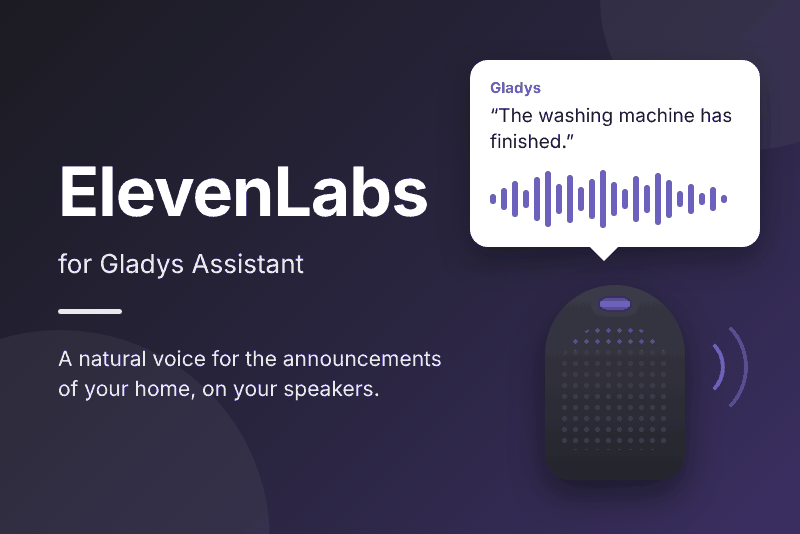
Give Gladys a natural voice: scene announcements spoken by ElevenLabs on your speakers.
Veröffentlicht von cicoub13
- Geräte
- Version 1.1.0
- Erfordert Gladys >=5.3.0
- ★ 0
Die Dokumentation dieser Integration wird von ihrem Autor geschrieben und ist bisher nur auf Englisch verfügbar.
Requires Gladys 5.3 or later.
Give Gladys a natural voice with ElevenLabs: the announcements of your scenes ("The washing machine has finished", "Someone is at the door"…) are spoken on your Sonos, Google Cast or AirPlay speakers with the ElevenLabs voice of your choice.
The integration is a text-to-speech provider: once selected as the voice of Gladys, it replaces Gladys Plus to speak, without a Gladys Plus subscription.
Prerequisites
- An ElevenLabs account. The free plan is enough to try it; every announcement uses ElevenLabs credits, about one credit per character (half with the Flash and v4 Turbo models). See the plans.
- A speaker connected to Gladys: Sonos, Google Cast or AirPlay.
- Gladys installed in host network mode (the standard install): the speakers download the announcement straight from Gladys, on your local network.
Configuration
- In ElevenLabs, open API keys and create a key. A restricted key needs at least the Text to Speech permission, and Voices: read to find a voice by its name. The User: read permission also shows the credits left.
- In Gladys, open the configuration screen of the ElevenLabs integration and fill in:
| Field | Description |
|---|---|
| API key | The key created above (sk_…). |
| Voice (name or id) | A voice of your account: its name (George by default) or its 20-character id. The voices of the library added to your account count. |
| Model | Flash v2.5 (default): fast, half the credits. Multilingual v2: most natural. v3: most expressive. v4: highest quality. v4 Turbo: fast, half the credits. |
| Speed | From 0.7 (slower) to 1.2 (faster). 1 by default. |
| Stability | From 0 (more expressive and varied) to 1 (steadier). 0.5 by default. |
- Save. The connection status then shows for instance
Connected to ElevenLabs, voice "George". 8,500 of 10,000 credits left, renewed on 12 November. - Open the Artificial Intelligence page of Gladys and, in the Voice (text-to-speech provider) card, select ElevenLabs.
Choosing a voice
The List my voices button, below the form, shows the name and the id of every voice of your account; the voice in use is marked with ✓. Copy a name or an id into the Voice field, then save. Save the API key before using the button.
For a new voice, browse the Voice Library, add it to your account, then use its name or its id.
Usage
In a scene, use the Talk on a speaker action: pick the speaker and the text to say. The text can hold scene variables.
- The voice speaks the language of the text. With every model but Multilingual v2, the language of the Gladys administrator is also sent, for a better pronunciation.
- A sentence already spoken with the same voice and settings is reused without using credits, until the integration restarts. One announcement on several speakers is synthesized once.
- Gladys says at most 2,000 characters per announcement.
Voice assistant limit: with ElevenLabs, the replies of the voice assistant
in the browser or the app stay written. The audio is served by Gladys on your
local network, over http://, and the browser refuses to play it in a secure
(https://) page. The announcements on the speakers are not affected.
Troubleshooting
The connection status of the configuration screen shows the problem. An
announcement that could not be spoken is written to the integration logs
(Speech not synthesized: …), with the reason.
"Enter your ElevenLabs API key in the integration settings." Fill in API key (see "Configuration").
"ElevenLabs refused the API key: check it in your ElevenLabs settings, then save it again here." The key is wrong or was deleted. Nothing is asked to ElevenLabs until you save a valid key.
"This voice is not in your ElevenLabs account: use the "List my voices" button…" The name or id of the Voice field matches no voice of your account, or the voice was removed from it. Add the voice to your account from the library, or pick another one, then save.
"The API key cannot read your voices…" The restricted key lacks the Voices: read permission: grant it, or enter the voice id instead of its name.
"The API key is not allowed to do this (…)" The key lacks the Text to
Speech permission, or your plan does not include the chosen model (the code
in parentheses says which, for instance model_access_denied). Change the
permissions of the key or the model.
"Your ElevenLabs credits are used up…" Wait for the monthly renewal or upgrade your plan. The status goes back to "connected" with the first announcement that works.
"ElevenLabs cannot be reached: check the Internet connection of Gladys.", "ElevenLabs is not working right now…" Internet outage or ElevenLabs incident (see its status).
The status is "connected" but the speaker says nothing. Check that ElevenLabs is selected in the Voice card of the Artificial Intelligence page, that the integration is running, and that Gladys runs in host network mode: the speaker must reach Gladys on your local network. The Gladys server logs warn about a Docker bridge network.
Privacy
- The API key is stored by Gladys as a secret: it is never shown again in the interface.
- The text of the announcements is sent to ElevenLabs to be spoken. See the ElevenLabs privacy policy. The announcements already spoken are kept in memory by the integration, never on disk.
- The integration only talks to Gladys and the ElevenLabs API
(
api.elevenlabs.io).
Konfigurationseinstellungen
Diese Einstellungen fragt ElevenLabs in seinem Konfigurationsbildschirm in Gladys ab.
| Einstellung | Typ | Pflichtfeld | Beschreibung |
|---|---|---|---|
| Your ElevenLabs account | section | Nein | Create an API key in your ElevenLabs settings and paste it below. A restricted key needs the "Text to Speech" permission, and "Voices: read" to find a voice by its name. Every announcement uses ElevenLabs credits; a sentence already spoken with the same voice is reused for free. Then select ElevenLabs as the voice of Gladys on the Artificial Intelligence page. |
| API key | secret | Ja | |
| Voice (name or id) | string | Ja | A voice of your account: its name (George, Sarah…) or its id. The "List my voices" button below shows them all. |
| Model | select | Nein | |
| Speed (0.7 to 1.2) | number | Nein | |
| Stability (0 to 1) | number | Nein | Lower: more expressive and varied. Higher: steadier, more monotonous. |
So installierst du ElevenLabs in Gladys
- Öffne in Gladys Integrationen: ElevenLabs erscheint im Katalog neben den nativen Integrationen, mit einem Community-Badge.
- Klicke auf Installieren. Gladys lädt das Docker-Image (
ghcr.io/cicoub13/gladys-elevenlabs:1.1.0) herunter, startet es in einer vom Kern isolierten Sandbox und erzeugt die Oberfläche der Integration (Geräte, Erkennung und Konfiguration). - Öffne den Bildschirm Konfiguration der Integration, fülle die Einstellungen aus und speichere.
- Du kannst sie auch direkt über die URL ihres Repositorys installieren: https://github.com/cicoub13/gladys-elevenlabs.
ElevenLabs benötigt Gladys >=5.3.0. Der Katalog in Gladys wird stündlich aktualisiert, eine neue Version ist also spätestens eine Stunde nach ihrer Veröffentlichung verfügbar.
Du nutzt Gladys noch nicht? Es ist kostenlos und Open Source: folge der Installationsanleitung, um loszulegen.
Über externe Integrationen
ElevenLabs ist eine externe Integration: eine Community-Integration, die als Docker-Container verpackt und auf GitHub veröffentlicht wird. Gladys installiert sie mit einem Klick und führt sie in einer vom Kern isolierten Sandbox aus. Sie wird von cicoub13 veröffentlicht und gepflegt, nicht vom Gladys-Kernteam.
- Alle Integrationen durchsuchen, native und aus der Community
- Deine eigene externe Integration bauen und veröffentlichen
- Quellcode auf GitHub — Quelle dieser Dokumentation