Docker Smart-Home-Integration, kostenlos und Open Source
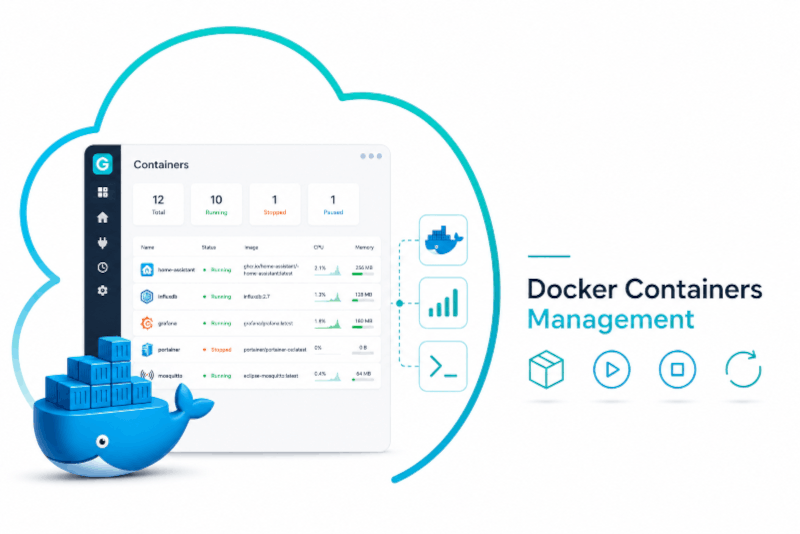
Start, stop, restart and monitor the Docker containers of your server.
Veröffentlicht von PhilippeMA
- Geräte
- Version 2.0.0
- Erfordert Gladys >=5.1.0
- ★ 0
Die Dokumentation dieser Integration wird von ihrem Autor geschrieben und ist bisher nur auf Englisch verfügbar.
Manage the Docker containers of your server from Gladys: see whether they run, start and stop them from a dashboard or a scene, restart them from the Configuration screen, and follow their CPU and memory usage. Two dashboard widgets give you the whole fleet at a glance and a control card per container.
How it connects to Docker
Gladys runs every external integration in a sandboxed container that cannot
mount a path of your host, and /var/run/docker.sock is a host path. So this
integration does not use the Docker socket: it talks to the Docker Engine
API over your network, at an address you provide.
You have two ways to expose that API. The first one is strongly recommended.
Option A — a socket proxy (recommended)
A socket proxy sits in front of the Docker socket and only forwards the calls you allow. Even if something else on your network reached it, it could not create a privileged container on your host.
Add this to a docker-compose.yml on the machine that runs your containers:
services:
  docker-proxy:
    image: ghcr.io/tecnativa/docker-socket-proxy:0.3.0
    restart: unless-stopped
    ports:
      - '2375:2375'
    volumes:
      - /var/run/docker.sock:/var/run/docker.sock:ro
    environment:
      CONTAINERS: 1 # list the containers (required)
      POST: 1 # allow start / stop / restart
Then docker compose up -d, and use http://<ip-of-that-machine>:2375 as the
address below.
Two notes on those permissions:
CONTAINERS: 1alone gives a read-only integration: states, CPU and memory work, the On/Off switch and the restart button do not.POST: 1is what allows starting, stopping and restarting. It is scoped to the endpoints the proxy exposes, so it does not grant container creation.
The proxy has no authentication of its own: publish its port on a network you trust, and never on the public internet.
Option B — the Docker daemon itself
If your daemon already listens on TCP (-H tcp://0.0.0.0:2375, or a
hosts entry in /etc/docker/daemon.json), point the integration straight at
it. Be aware that an unprotected Docker API grants full root-equivalent
access to that machine: only do this on a trusted network, and prefer
option A.
https:// addresses are supported. Client certificates (--tlsverify with a
client key pair) are not: if your daemon requires them, put a socket proxy in
front of it instead.
Configuration
- Open the Configuration tab of the integration.
- Docker API address — for example
http://192.168.1.10:2375. Thetcp://host:portform the Docker CLI uses and a barehost:portare accepted too. - Click Test the Docker connection. It answers with the Docker version and how many containers match your filters. Fix this before going further: nothing else works until it succeeds.
- Containers to include / to exclude — comma-separated names where
*matches anything, for examplemedia-*, nginx. Leaving the inclusion list empty exposes every container. The exclusion list is applied last and defaults togladys*, so the containers running Gladys itself are kept out of reach — controlling them from Gladys would let you stop the very thing holding the switch. - Click List the matching containers to check your filters before saving.
- Save: the containers appear in the Discovery tab, ready to be added.
The other settings:
| Setting | What it changes |
|---|---|
| Offer stopped containers | Whether containers that are currently stopped are listed in Discovery. |
| Collect CPU and memory | Adds a CPU and a memory sensor to each container. Costs about a second of daemon time per refresh. |
| Refresh interval | How often the state and the sensors of a container are refreshed. Gladys polls a device once a minute at the slowest, so the choices run from 10 seconds to 1 minute. |
| Discovery interval | How often the container list is re-read, so containers created later appear on their own. This is the integration's own timer, unrelated to the refresh interval. |
| Stop timeout | The grace period Docker gives a container to exit before killing it. |
What each container looks like in Gladys
| Feature | What it does |
|---|---|
| Running | Read-only badge: on or off. Keeps its history, and works as a scene condition ("if the container is running"). |
| State | running, exited, restarting, paused… |
| Start / Stop / Restart | One push button each. Always all three: Gladys cannot hide a feature depending on a state, but pressing Start on a running container does nothing (Docker answers "already started"). |
| Action | A single control offering only what makes sense right now — Start when the container is stopped, Stop and Restart when it runs. |
| CPU | Percentage, same scale as docker stats: 200% means two full cores. |
| Memory | Megabytes, page cache excluded. |
Containers created by Docker Compose are named project · service; the others
keep their container name. The device page also shows the image the container
runs and, for a Compose container, its project and service.
One label comes from Gladys rather than from this integration: the Running row reads "Switch". Gladys names a row after the feature's category unless another feature of the device shares its type, and Running is the only binary one. It can be renamed for good in a dashboard, from the pencil icon of the "Devices in room" box.
A device carries a local badge, which turns orange when the container needs attention — restarting in a loop, paused, dead, or failing its own health check — and grey when the daemon can no longer be reached.
Dashboard widgets
Two cards are available from the dashboard's widget picker (Gladys 5.1 or later).
Docker containers — the overview. Five tiles count what you run and add up its CPU and memory, then one row per container with its state, CPU and memory. Containers that deserve a look come first by default: a restart loop never sits below ten healthy ones. Two settings: which containers to list (empty = all) and the order. The list shows ten rows at most; past that, the last row says how many are hidden. When exactly one container is misbehaving, the card offers a button to restart that one — with a confirmation.
Docker container — one container, with its controls. Pick it in the widget settings, and the card shows live CPU and memory tiles, its state, image and Compose origin, plus Start, Stop and Restart buttons. The tiles and the buttons are wired to the device itself, so they update on their own and a tap behaves exactly like one on the device page.
Add several instances of the second widget to control several containers: a dashboard card cannot carry a button per row, which is why the two widgets are split this way.
Actions
- Test the Docker connection — contacts the daemon and reports its version, its platform and how many containers your filters select.
- List the matching containers — shows exactly what your inclusion and exclusion filters select right now. The fastest way to understand why a container does or does not show up.
- Restart a container — pick one of your containers and restart it, without having to build a stop-then-start scene.
Good to know
- Containers are tracked by name, not by id.
docker compose upafter an image update recreates a container with a brand new id but the same name, so your devices, their history and the scenes using them survive the update. - A container renamed is a new device. Rename a container and Gladys sees the old device disappear and a new one show up in Discovery.
- Stopped containers stay controllable. Hiding stopped containers only changes what Discovery offers; a device you already added keeps its switch and can be started again.
- The state published is the daemon's, not the request's. Start a container that crashes on boot and the switch goes back to off, because that is what Docker reports.
- Collecting CPU and memory is not free. Docker needs about a second to answer a stats request, per container. With twenty containers refreshed every 10 seconds, the daemon spends more time answering than idling: leave the refresh interval at one minute unless you have few containers, or turn the stats off.
Troubleshooting
"Cannot reach the Docker API" — the address is wrong, the port is not
published, or a firewall drops the connection. From another machine on the same
network, curl http://<address>/version should answer some JSON.
"Docker API returned a non-JSON body" — something answered, but it was not a Docker API: usually a web server or a router page on that port.
"Docker API 403" — a socket proxy is refusing the call. Add the permission
it needs: CONTAINERS: 1 to list, POST: 1 to start, stop and restart.
No container in Discovery — click List the matching containers. An
empty answer means your filters exclude everything; remember the exclusion
list defaults to gladys*.
The CPU is missing but the memory is there — a container needs two consecutive readings before a CPU percentage can be computed. One is missing just after a start; the next refresh has it.
The integration logs everything it does. Set LOG_LEVEL=debug to see every
call it makes to the Docker API, then read the integration logs from the Gladys
UI (or docker logs on the host).
Konfigurationseinstellungen
Diese Einstellungen fragt Docker in seinem Konfigurationsbildschirm in Gladys ab.
| Einstellung | Typ | Pflichtfeld | Beschreibung |
|---|---|---|---|
| Before you start | section | Nein | This integration runs in a sandboxed container that cannot mount the Docker socket of your host. It talks to the Docker Engine API over the network instead: expose it with a read-limited socket proxy (recommended) and paste its address below. The full step-by-step is in the documentation. |
| Docker API address | string | Ja | Address of the Docker Engine API, for example http://192.168.1.10:2375. https:// is supported. |
| Accept a self-signed certificate | boolean | Nein | https addresses only: skip the verification of the server certificate. Leave off unless your proxy uses a self-signed certificate. |
| Containers to include | string | Nein | Comma-separated container names, * allowed (e.g. media-*, nginx). Leave empty to expose every container. |
| Containers to exclude | string | Nein | Comma-separated container names, * allowed. Applied after the inclusion list — keep your Gladys containers here. |
| Offer stopped containers | boolean | Nein | Also list the containers that are currently stopped in the Discovery tab. |
| Collect CPU and memory | boolean | Nein | Add a CPU and a memory sensor to each container. Costs about one second of daemon time per container and per refresh. |
| Refresh interval | select | Nein | How often the state and the sensors of each container are refreshed. Gladys polls no slower than once a minute. With CPU and memory collection on, each refresh costs about a second of daemon time per container: keep it slow if you manage many. |
| Discovery interval (s) | number | Nein | How often the container list is re-read, so new containers show up on their own. Unrelated to the refresh interval above: this one is the integration’s own timer. |
| Stop timeout (s) | number | Nein | Grace period Docker gives a container to exit before killing it. |
So installierst du Docker in Gladys
- Öffne in Gladys Integrationen: Docker erscheint im Katalog neben den nativen Integrationen, mit einem Community-Badge.
- Klicke auf Installieren. Gladys lädt das Docker-Image (
ghcr.io/philippema/gladys-docker:2.0.0) herunter, startet es in einer vom Kern isolierten Sandbox und erzeugt die Oberfläche der Integration (Geräte, Erkennung und Konfiguration). - Öffne den Bildschirm Konfiguration der Integration, fülle die Einstellungen aus und speichere.
- Du kannst sie auch direkt über die URL ihres Repositorys installieren: https://github.com/PhilippeMA/gladys-docker.
Docker benötigt Gladys >=5.1.0. Der Katalog in Gladys wird stündlich aktualisiert, eine neue Version ist also spätestens eine Stunde nach ihrer Veröffentlichung verfügbar.
Du nutzt Gladys noch nicht? Es ist kostenlos und Open Source: folge der Installationsanleitung, um loszulegen.
Über externe Integrationen
Docker ist eine externe Integration: eine Community-Integration, die als Docker-Container verpackt und auf GitHub veröffentlicht wird. Gladys installiert sie mit einem Klick und führt sie in einer vom Kern isolierten Sandbox aus. Sie wird von PhilippeMA veröffentlicht und gepflegt, nicht vom Gladys-Kernteam.
- Alle Integrationen durchsuchen, native und aus der Community
- Deine eigene externe Integration bauen und veröffentlichen
- Quellcode auf GitHub — Quelle dieser Dokumentation